Who can use this feature?
- Helpdesk is in early access. Request early access (opens in a new tab) and we turn it on for your store.
- Once Helpdesk is on for your store, it works on every plan
- You see Helpdesk when your role can view tickets
Shortcuts
Keyboard shortcuts are saved in this browser.
What this is for
Shortcuts move you around Helpdesk from the keyboard.
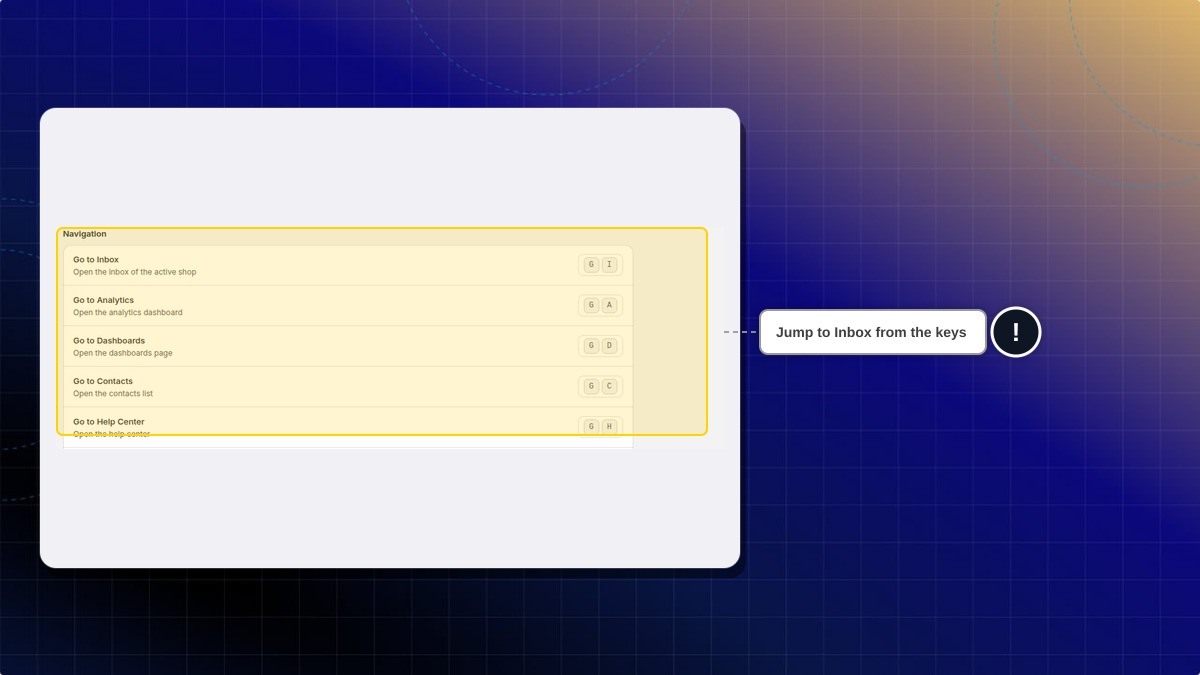
This helps you open the next ticket, resolve it, or jump to Inbox without taking your hands off the keys.
The list is saved in this browser. Disable single-key shortcuts turns off keys such as E for resolve, and leaves chord shortcuts on.
The send shortcut chooses whether Enter sends the reply or starts a new line. That choice stays in this browser only.
How to turn single-key shortcuts off
- In Helpdesk, open settings, then open Hotkeys.
- Open Keyboard shortcuts.
- Turn on Disable single-key shortcuts.
Expected result: Single-key shortcuts turn off, except the question mark key. Chord shortcuts still work.
How to send with Enter
On the same page, pick the send shortcut. One option sends with Enter, and Shift+Enter starts a new line. The other option keeps Enter as a new line, and sends with Ctrl+Enter. The choice stays in this browser only.
| Shortcut | What it does |
|---|---|
| G then I | Open Inbox |
| G then A | Open Analytics |
| G then D | Open Dashboards |
| G then C | Open Contacts |
| G then H | Open Help Center |
| G then comma | Open settings |
| G then S | Open the shop switcher |
| J / K | Next or previous ticket |
| E | Resolve the open ticket |
| A | Open the assignee list |
| R | Focus the reply box |
| N | Focus the internal note |
Do shortcuts follow me to another browser?
The send shortcut is saved for you on this browser only. Set it again on another browser.
 Chatty Help Center