Scenarios
Who can use this feature?
- This feature is available for all users.
What is a scenario
A scenario tells your AI agent how to handle one specific customer situation. For example, "a return request after delivery" or "a customer asking to change the address on an order."
Each scenario has three parts:
- When this scenario applies: the situation, a few sample customer messages, and the question types it covers.
- What the agent does: your instructions for that situation.
- Data it uses: training data you link to the scenario.
This helps you control what the AI says in the moments that matter most to your store.
How to add a scenario
Open Scenarios
Go to AI agent → Scenarios and click Add scenario.
Describe the situation
In Situation, describe one specific situation. You can use up to 100 characters. For example, "Help with a return after an order arrives".
Be specific. "A return request after delivery" works well. "Help customers" is too vague for the AI to know when to use it.
Add example customer messages
Under Example customer messages (optional), click Add example message. Type a message the way your customers would write it, in their own language. For example, "My order came yesterday, can I send it back?"
Repeat to add up to five messages. Click Remove to delete one.
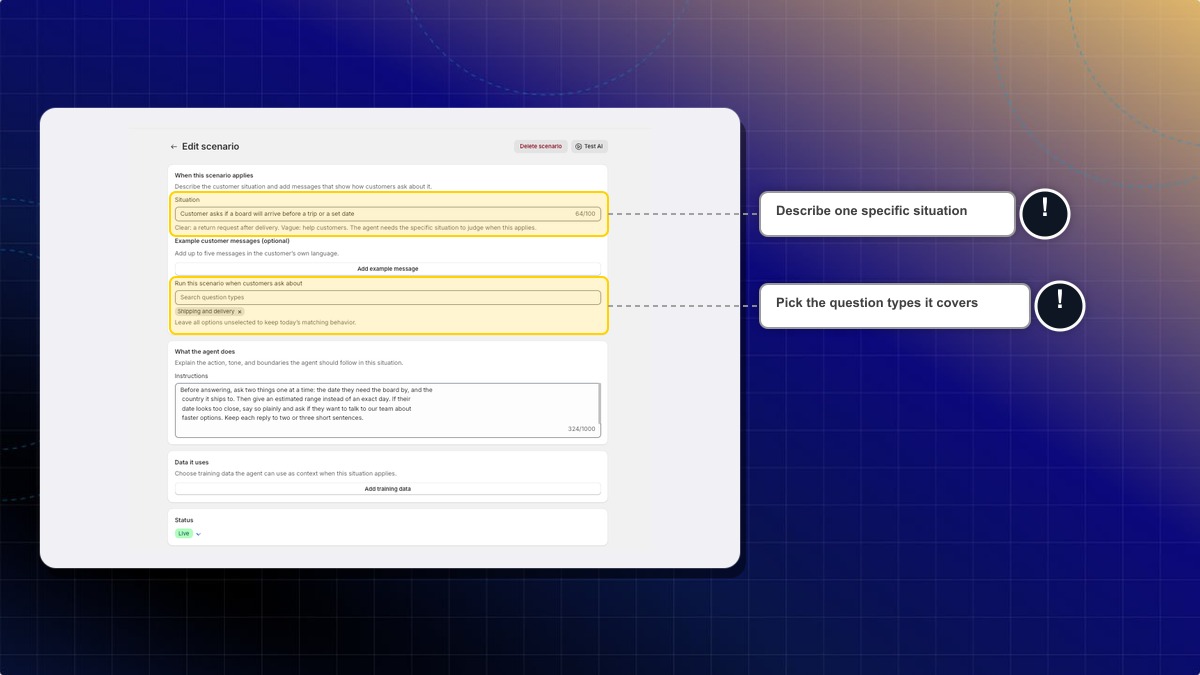
Pick the question types
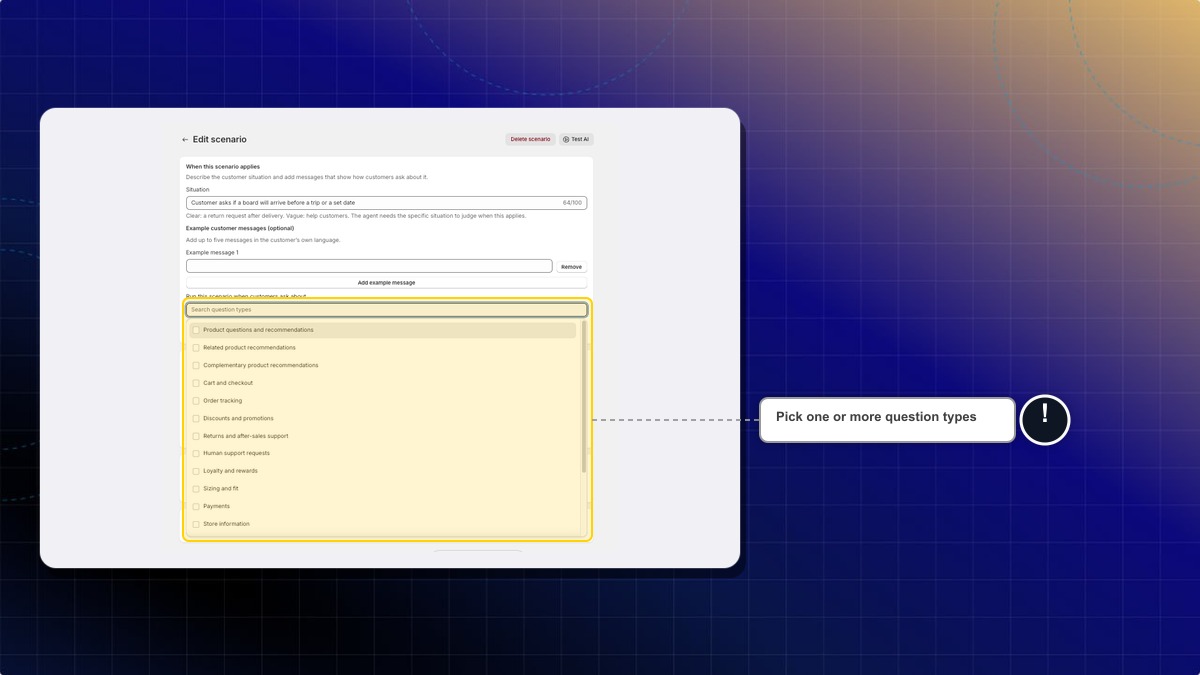
Click Run this scenario when customers ask about. Type to search or scroll the list, then select a type. For a return scenario, pick Returns and after-sales support.
Select more types if the scenario covers them. Each one shows as a tag. Click the x on a tag to remove it.
Write the instructions
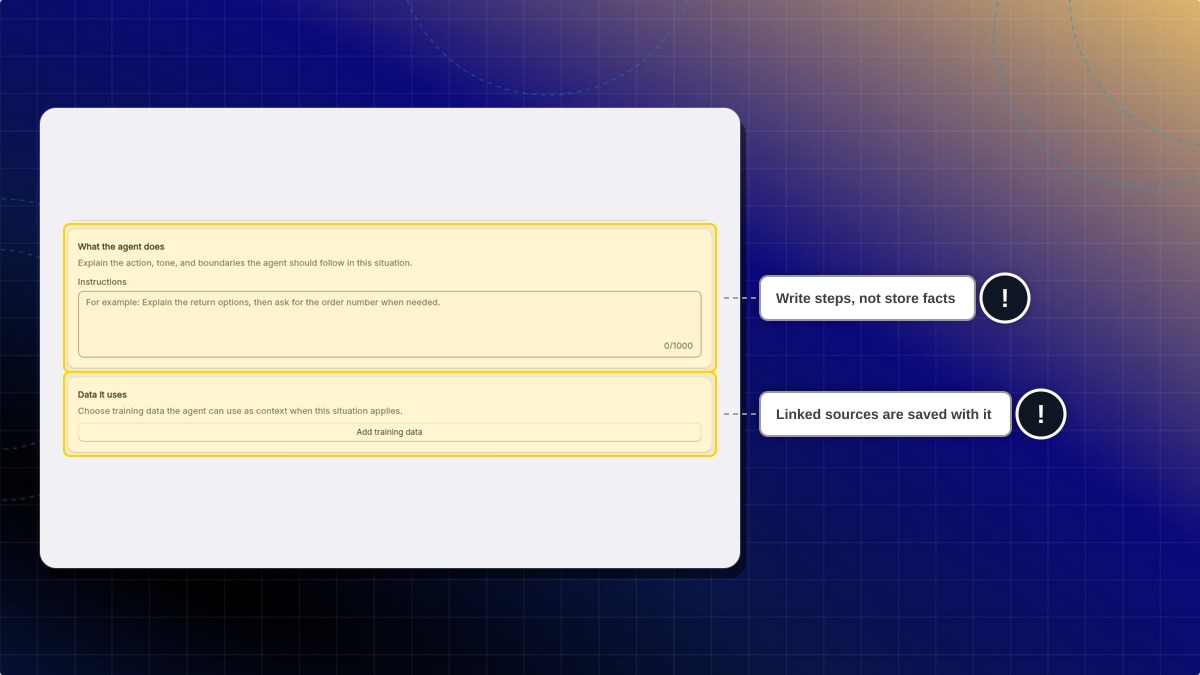
In Instructions, explain the action, tone, and limits for this situation. You can use up to 1,000 characters. For example, "Ask for the order number first. Then ask what they want to return, and why. Repeat the request back and offer to connect them with our team."
Write the steps the AI should follow, not facts about your store. Keep facts like your return window or delivery times in training data. Put sample messages in Example customer messages, not in Instructions.
Link training data
Optional. See how to link training data to a scenario.
Set the status and save
Under Status, choose Live to use the scenario with customers now, or Off to save it without using it. New scenarios start as Live. Then click Save.
Expected result: You see "Scenario created successfully." The scenario appears in your Custom scenarios list.
How to link training data to a scenario
This step is optional. Right now the AI does not read linked sources when it answers. It follows the scenario's Situation and Instructions, and searches all your training data as usual.
-
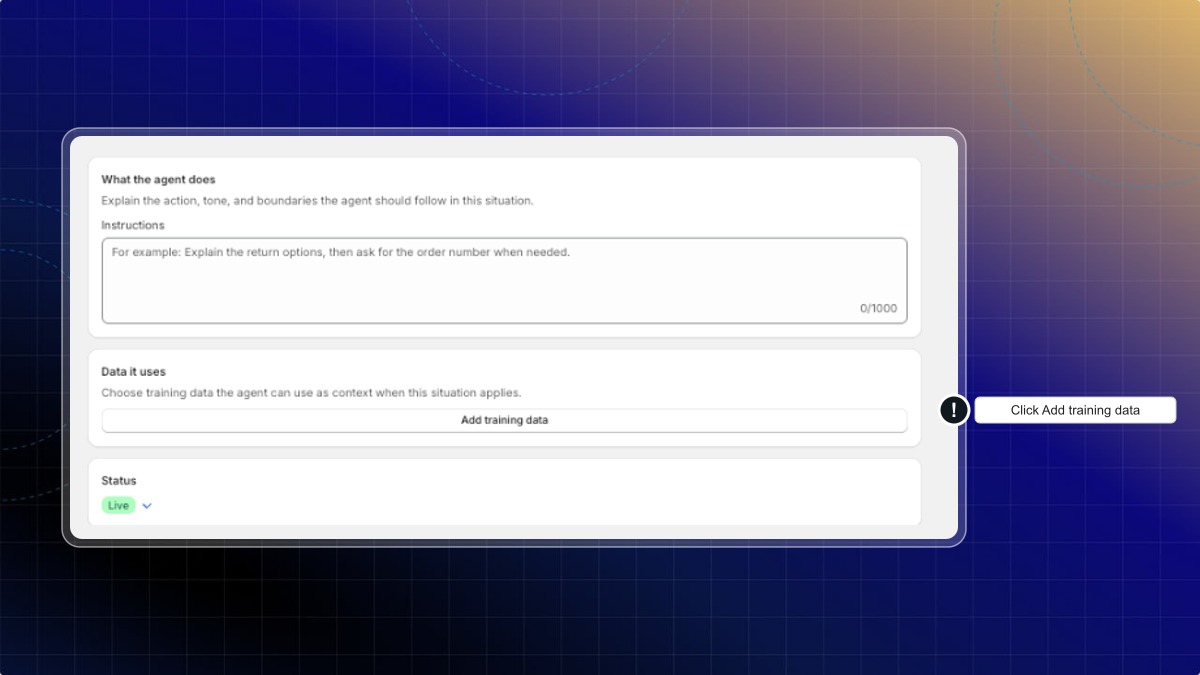
In Add scenario or Edit scenario, find Data it uses and click Add training data.
-
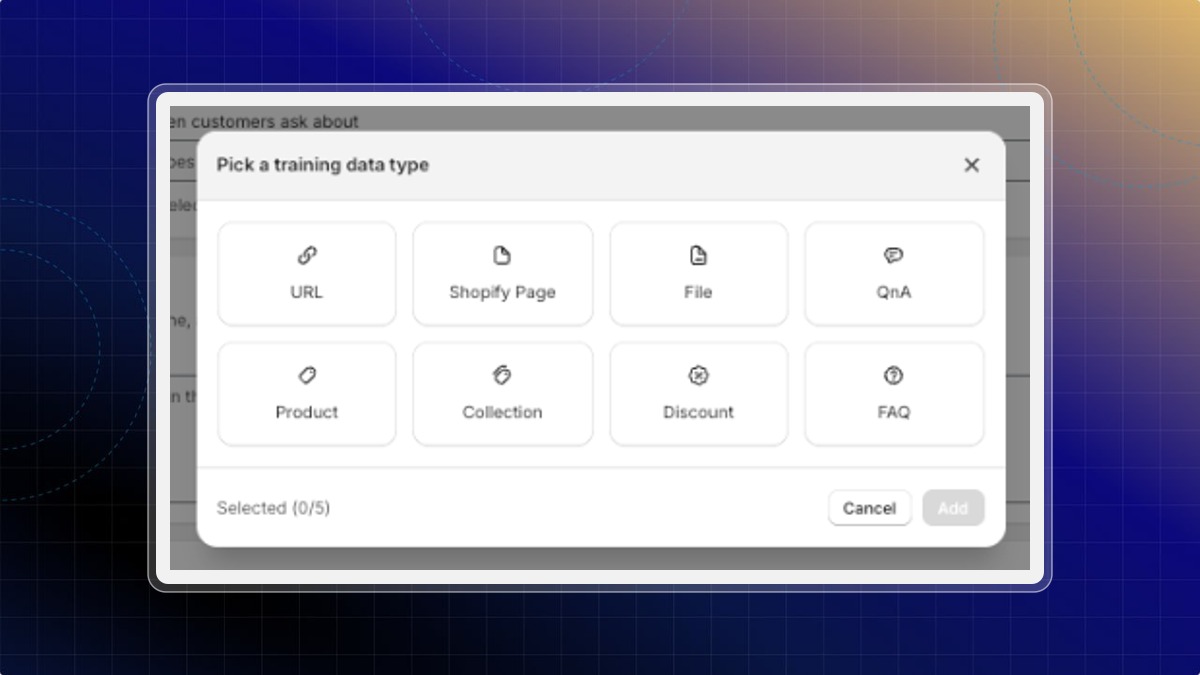
In Pick a training data type, choose URL, Shopify Page, File, QnA, Product, Collection, Discount, or FAQ. You can select up to 5.
Example: for a "Return request" scenario, link your "Return policy" Shopify Page and your refund QnA.
-
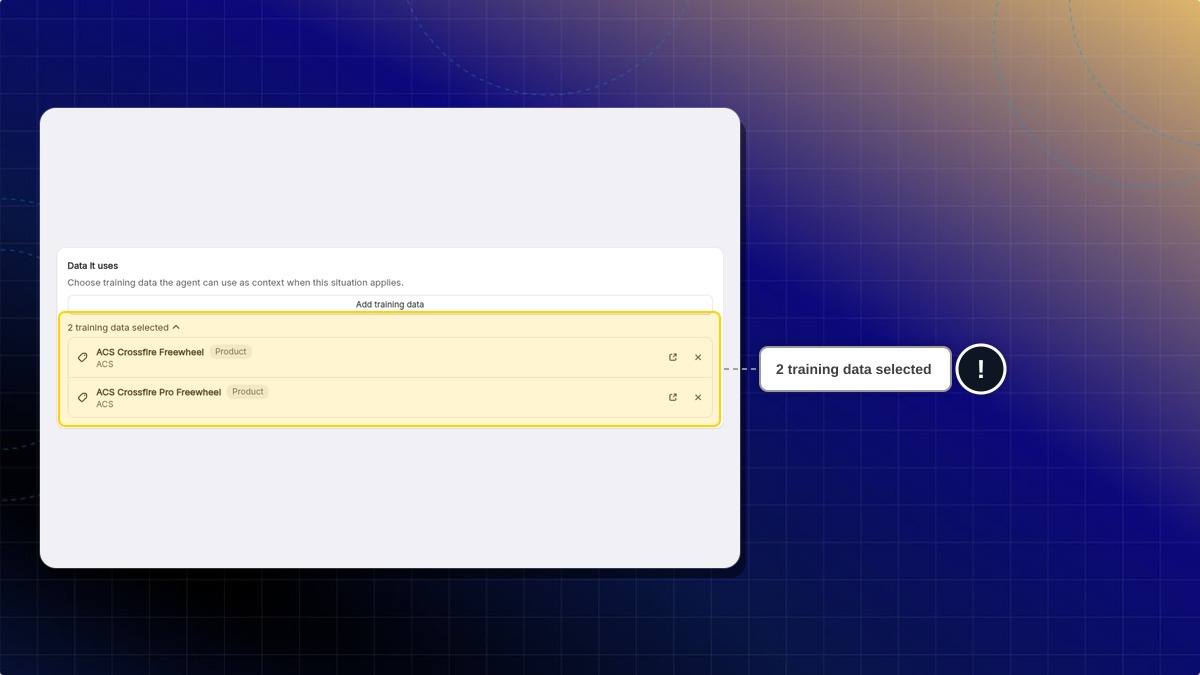
Click Add, then click Save.
Expected result: The Data it uses section shows "2 training data selected" with the linked sources listed below it.
How to test a scenario
-
Click Test AI at the top of the Add scenario or Edit scenario page.
-
Send a message like one of your example messages.
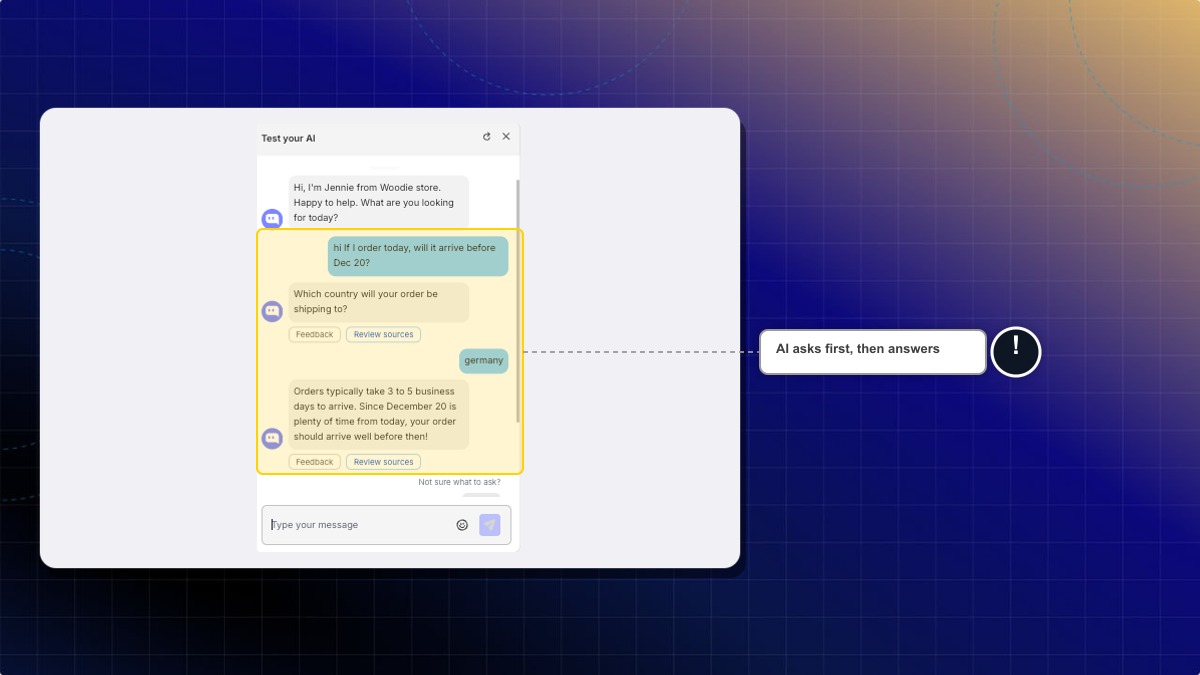
Expected result: The AI follows your instructions. For example, it asks your first question before it answers.
How question types work
Run this scenario when customers ask about decides which customer questions can use the scenario.
- You pick one or more types: the AI uses the scenario only when the customer's message fits one of those types. A return scenario set to Returns and after-sales support stays out of product questions.
- You pick nothing: the scenario works the same way it did before this option existed. The AI decides from your situation, instructions, and example messages alone.
Picking a type does not force the scenario to run every time. It only narrows when the AI may use it. If a question doesn't fit any type, scenarios with types don't run. Leave types empty if the situation can come up in many kinds of questions.
You can choose from these 18 types:
| Question type | Example customer message |
|---|---|
| Product questions and recommendations | "Do you have a waterproof jacket?" |
| Related product recommendations | "Anything similar to this dress?" |
| Complementary product recommendations | "What goes well with these boots?" |
| Cart and checkout | "I can't finish checkout." |
| Order tracking | "Where is my order?" |
| Discounts and promotions | "Do you have a discount code?" |
| Returns and after-sales support | "How do I return this?" |
| Human support requests | "Can I talk to a real person?" |
| Loyalty and rewards | "How many points do I have?" |
| Sizing and fit | "What size should I get?" |
| Shipping and delivery | "How long does shipping take?" |
| Payments | "Can I pay with PayPal?" |
| Store information | "Where is your store located?" |
| Product comparisons | "What's the difference between these two?" |
| Product availability | "Is this back in stock?" |
| Gifts | "Can you gift wrap this?" |
| Subscription changes | "I want to skip next month's box." |
| Order changes | "Can I change my shipping address?" |
How to read your scenario list
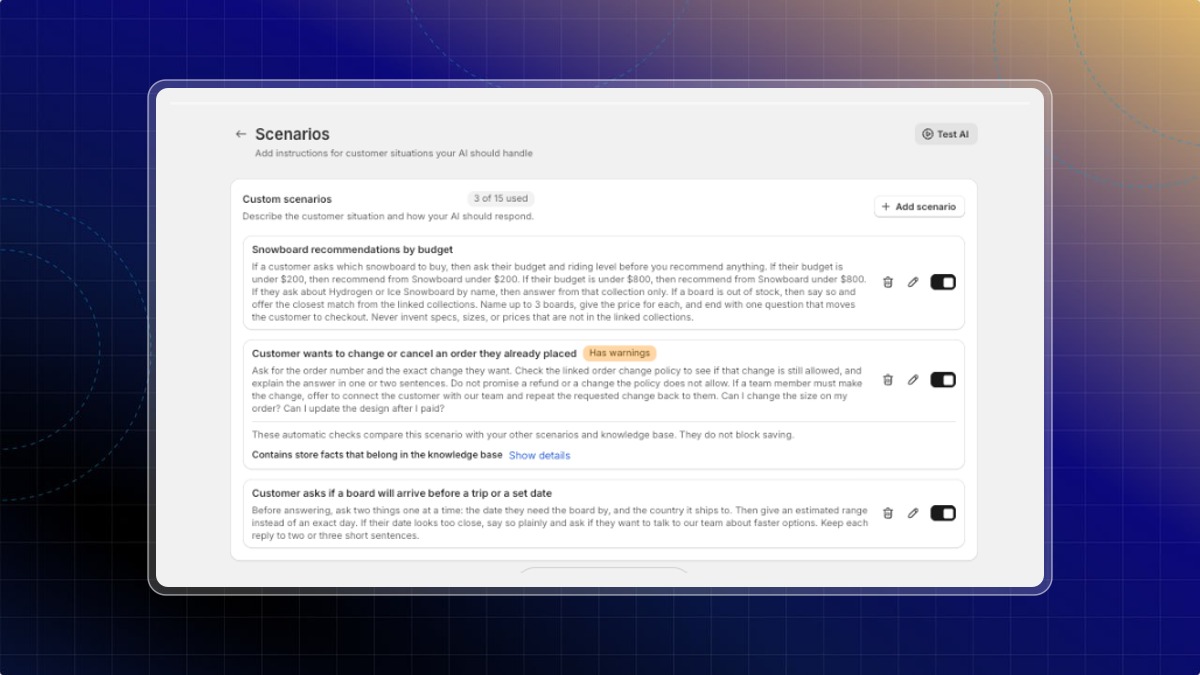
Go to AI agent → Scenarios. Each scenario in Custom scenarios shows:
| What you see | What it means |
|---|---|
| Has warnings | Chatty found something to fix. The warning text shows under the scenario. |
| Matched N times in 30 days | How many times the AI picked this scenario for a customer question in the last 30 days. |
| Not matched in 30 days | The scenario is Live but the AI hasn't used it in 30 days. |
| View conversation 1, 2... | Opens recent conversations where the scenario was used. |
| Status toggle | The scenario's status. Turn it on to use the scenario with customers, or off to stop. |
| N of 5 used | How many custom scenarios you have, out of your plan's limit. |
Match counts show only after Chatty has data for that scenario. A brand-new scenario may show no count yet. Counting started in September 2026, so earlier chats aren't included.
After you switch a status or delete a scenario from the list, click Save in the save bar.
What each warning means
Chatty checks every scenario each time you save it. It reads only the Situation and Instructions, and compares them with your other scenarios and your training data. Warnings never stop you from saving. They point to things that can make the AI answer poorly.
| Warning is about | What to do |
|---|---|
| The instructions don't say what to do | Add a clear action. "Ask for the order number" beats "handle returns well." |
| The instructions are just store facts | Move facts, like your return window, to training data. Keep the scenario for actions. |
| A number or promise with no source | Name the source in the instructions, like your refund policy, or remove the promise. Example: "refund in 3 days." |
| Almost the same as another scenario | Merge the two, or make each situation more specific. |
| Conflicts with another scenario | Fix one of them so they agree. This warning shows on both scenarios. |
When you fix and save one of the two scenarios, Chatty checks the pair again. The conflict warning on the other scenario clears too.
The exact warning text is written for your scenario, so it may not match these words.
When a scenario is not matched
The Not matched in 30 days badge comes with a short reason. Try these fixes:
- Check Run this scenario when customers ask about. Make sure the types match what customers actually ask.
- Add or improve Example customer messages so they sound like real customers.
- Make Situation and Instructions clearer.
- Test the scenario in Test and optimize AI.
How to edit or delete a scenario
Open the scenario
Go to AI agent → Scenarios and click the edit icon next to the scenario.
Make your changes
Change any field, then click Save.
Expected result: You see "Scenario updated successfully." Chatty checks the scenario again and updates its badge.
To delete, click Delete scenario at the top of the Edit scenario page, then click Delete. You can also click the trash icon in the list, then click Save.
How many custom scenarios can I add?
It depends on your plan. Free and Basic plans include 5. The Pro plan includes 15. The Plus plan has no limit. Stores that installed Chatty before February 27, 2026 have no limit. When you reach your limit, Add scenario opens the upgrade options. You can also contact us to ask for more.
Why can't I edit some of my scenarios?
You have more scenarios than your current plan allows, for example after a downgrade. Chatty keeps your oldest scenarios editable up to the limit. To edit the rest, upgrade your plan or delete scenarios you no longer need.
Where are built-in scenarios like after-sales support?
They aren't on this page. This page lists only the scenarios you create. You manage built-in ones, like after-sales support or human handoff, from AI agent → Skills. Question types apply only to the scenarios you create.
A scenario shows "Go live" instead of a status. What does that mean?
The scenario is a draft. Scenarios added through an integration or the API start as drafts. Customers don't see them yet. Click that button, then click Save in the save bar to start using it.
 Chatty Help Center