AI Mode
Who can use this feature?
- This feature is available for all users
What is AI Mode
AI Mode is one of the two chatbox modes in Chatty. It replaces the chat bubble with a search bar that stays on your storefront.
Customers can search your catalog, open a product, add it to the cart, and chat with your AI in the same place. This helps you turn a question into a sale without sending the customer to another page.
The panel has four screens: a home grid of products, suggestions while the customer types, a results page, and the chat. Product details and the shopping bag slide in from the right, one at a time.
Not sure which mode to use? See AI Mode or Legacy chatbox.
Your store runs one mode at a time. Legacy chatbox is the bubble with Live chat, FAQs, Order tracking, Contact, and Categories. AI Mode is the search bar.
Turning on AI Mode turns off the Legacy chatbox. Customers see one or the other, never both. The change takes effect on the next page load.
Conversations are kept when you switch modes. A returning customer continues their latest conversation in either mode when they come back on the same browser. A shopper who is logged in to their store account can also continue on another device.
How to turn on AI Mode
-
Go to Chatbox in your Chatty admin.
-
Turn on Display chatbox on your store. This is the master switch. When it is off, no chatbox appears, in either mode.
-
In the Chatbox mode card, select AI Mode.

-
Click Customize to open the AI Mode settings.
Expected result: The AI Mode page opens on the General tab, with a live preview on the right.
How to place the button and choose the opening tab
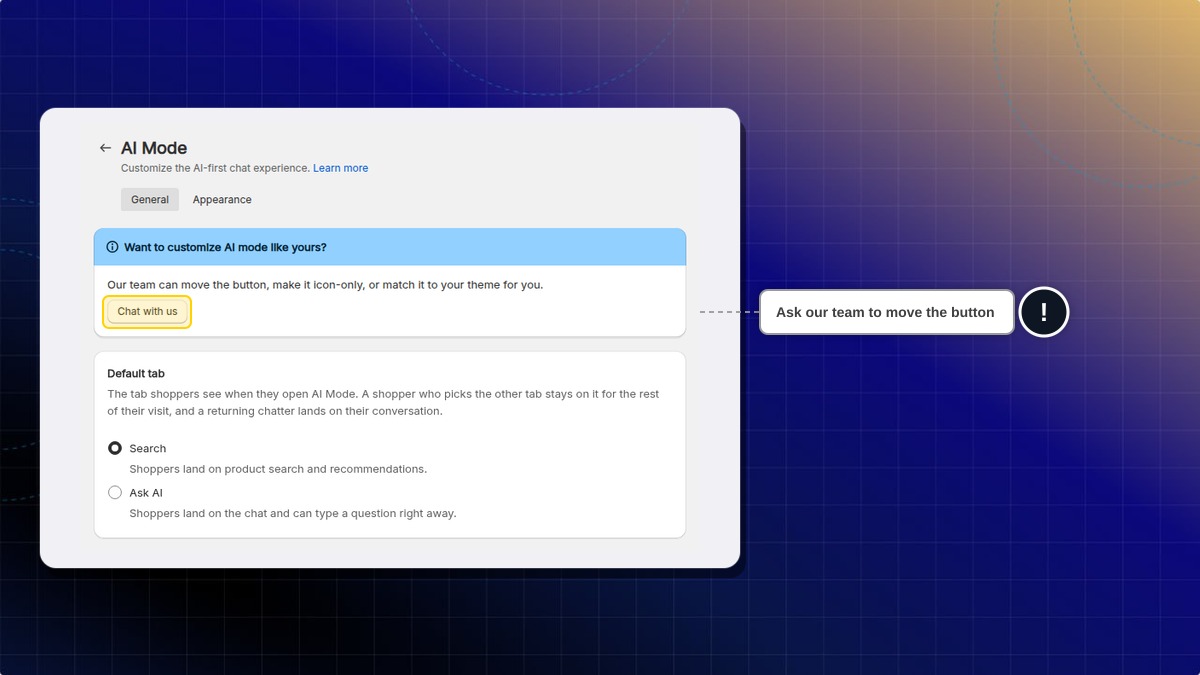
The AI Mode button sits at the bottom center of your storefront by default. Our team can move it for you, or make it show the icon only.
-
Go to Chatbox → AI Mode.
-
In the Want to customize AI mode like yours? banner, click Chat with us.
-
Tell our team where you want the button, for example "top right on desktop".
Expected result: A chat with our support team opens, with your request already sent. Our team places the button for you. If you placed the button before, it stays where it is.
To choose the opening tab:
-
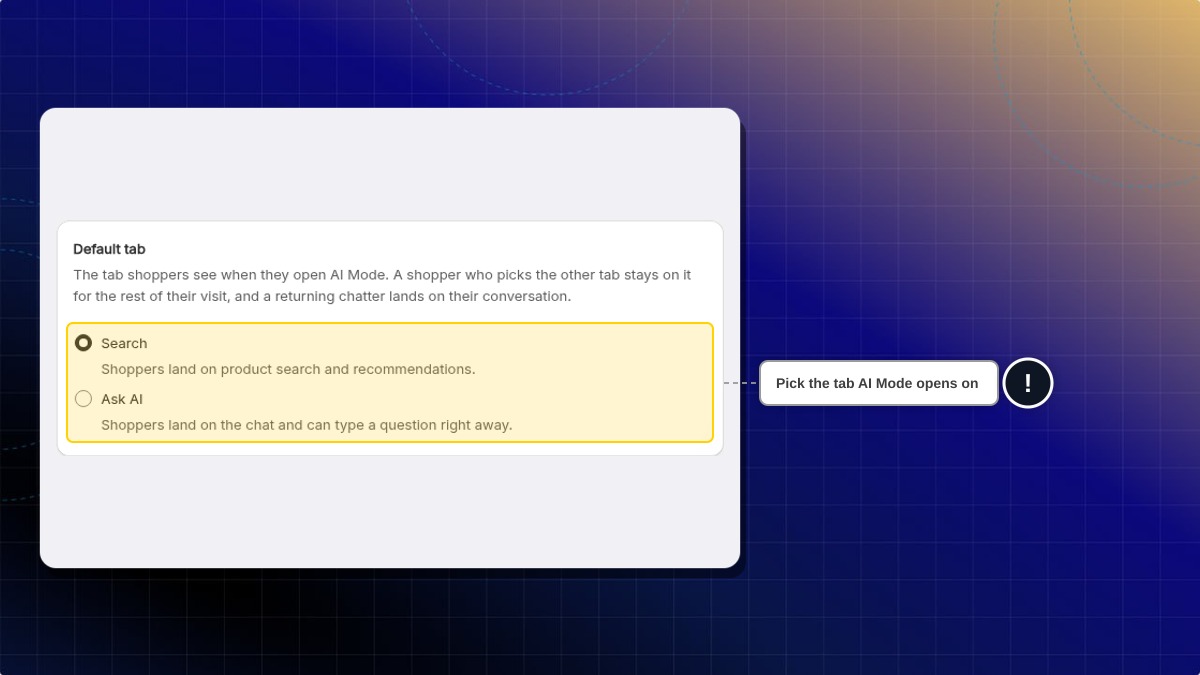
Open General → Default tab.
-
Choose Search or Ask AI. Search is the default.
-
Click Save.
Expected result: AI Mode opens on the tab you chose. If a shopper switches tabs, AI Mode remembers that choice for the rest of their visit. A shopper with an open conversation lands in the chat.
Earlier chats after you switch to AI Mode
When you switch the chatbox from the classic style to AI Mode, a returning shopper continues their latest conversation. Nothing to turn on.
It works the other way too. If you switch back to the Legacy chatbox, the shopper continues their latest conversation, even one started in AI Mode.
This works when the shopper comes back on the same browser. A shopper who is logged in to their store account can also continue on another device.
📸 Screenshot: AI Mode opened by a returning shopper, showing an earlier conversation
The first time you turn on AI Mode, Chatty scans your storefront to collect products for the home grid. Search still covers your whole catalog.
If your AI assistant is off, the page shows a banner: "AI assistant is off. Chat messages in AI Mode will be answered by your team." Chat still works, and your team answers instead of the AI.
How to choose the shopping bag buttons
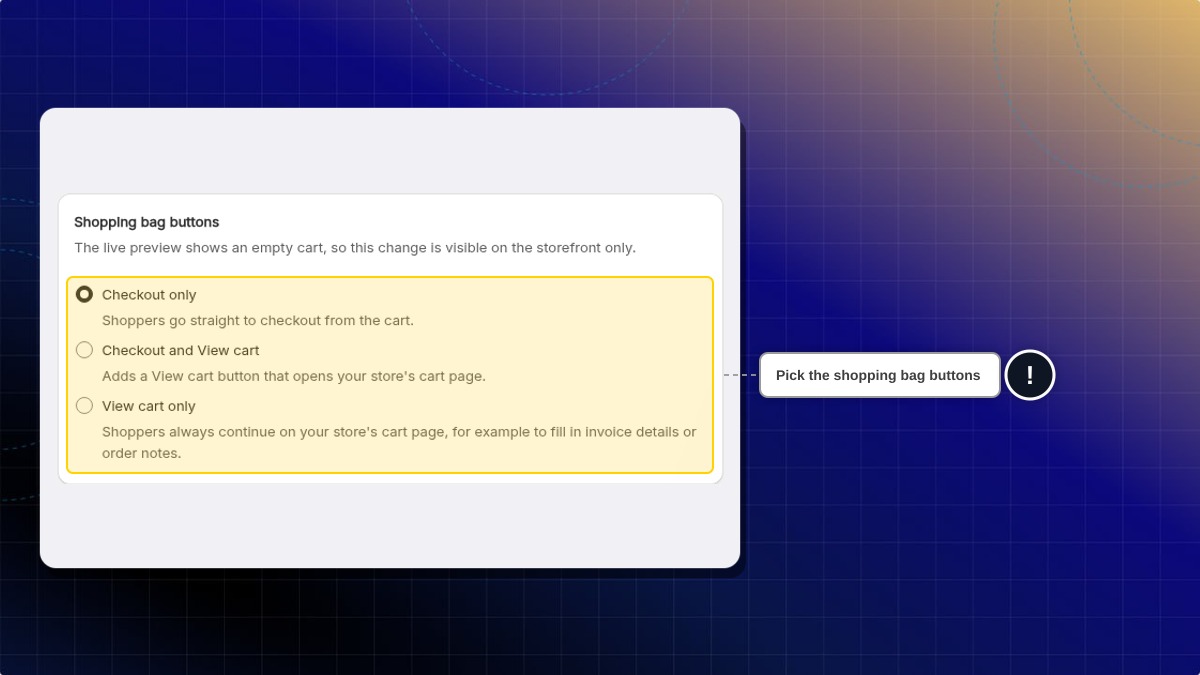
The Shopping bag buttons card on the General tab sets where customers go from the shopping bag.
-
Go to Chatbox → AI Mode → General → Shopping bag buttons.
-
Choose one option.
| Option | What customers get |
|---|---|
| Checkout only (default) | One button that goes straight to checkout. |
| Checkout and View cart | The checkout button, plus a View cart button that opens your store's cart page. |
| View cart only | Only View cart. Use it when customers must fill in something on your cart page, for example invoice details or order notes. |
- Click Save.
Expected result: The shopping bag on your storefront shows the buttons you chose. The live preview shows an empty cart, so check the change on your storefront.
How to set up the suggested sections
The Suggested sections card on the General tab controls what customers see before they type anything.
There are three sections, in this order: Recommend For You, Collections, then Commonly Asked. Recommend For You and Commonly Asked are on by default. Collections is off by default.

Recommend For You
This section shows products on the panel home screen. It carries a Manual badge when you pick the products yourself. Choose one of two sources.
| Source | What it does |
|---|---|
| AI auto-suggest (default) | The AI picks products for each visitor, based on what they browsed, what is in their cart, and your best sellers. Two customers can see two different sets. |
| Manually pick products | You choose the exact products. Every customer sees the same set. |
To pick the products yourself:
- Select Manually pick products.
- Type in Search products, for example "Pearl Layering Necklace", or click Browse to open your catalog.
- Select up to 6 products.
Expected result: The card header counts your picks, for example "3 of 6 products selected", and each product shows its image, title, price, variant, and stock status.
Collections
This section shows links to your store collections on the panel home screen. A customer taps one to open that collection page. This helps customers jump to a whole category before they search.
-
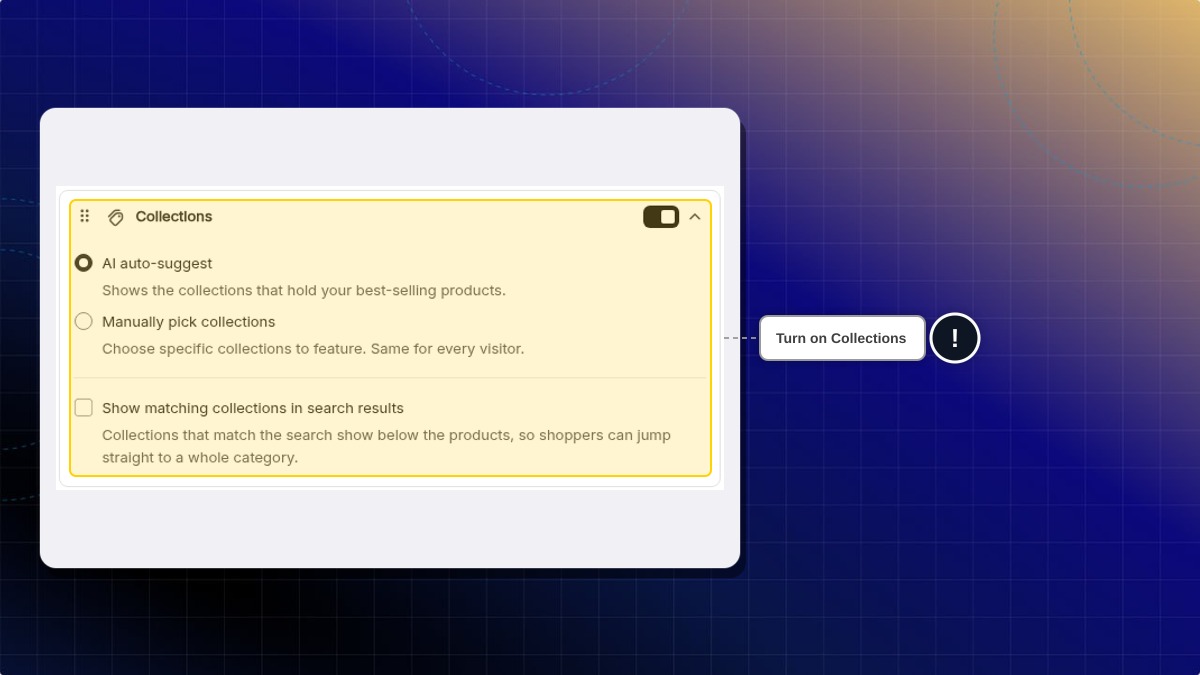
Turn on Collections.
-
Choose one of two sources.
| Source | What it does |
|---|---|
| AI auto-suggest (default) | Shows up to 6 collections that hold the most of your best-selling products. A store with no sales yet sees the collections with the most products. |
| Manually pick collections | You choose the collections. Every customer sees the same set. |
To pick the collections yourself:
-
Select Manually pick collections.
-
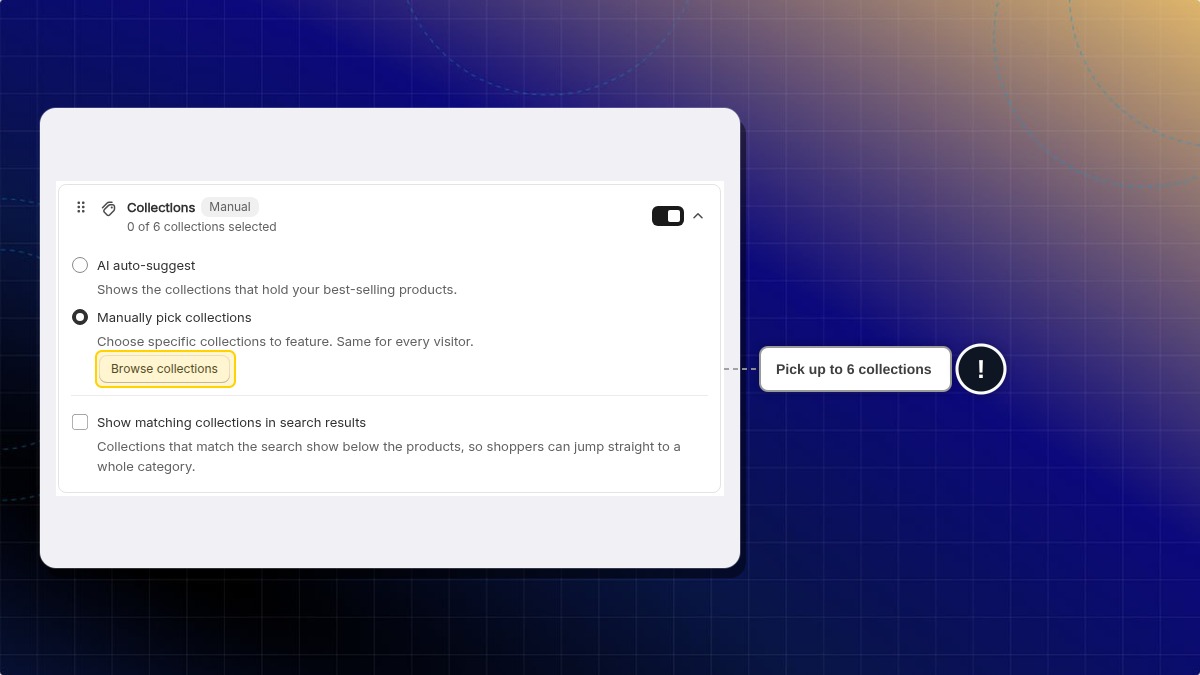
Click Browse collections and select up to 6 collections, for example "Summer dresses" and "New arrivals".
-
Drag a collection to change its order, or click the remove icon to take it out.
Expected result: The card header counts your picks, for example "2 of 6 collections selected". The collections appear on the panel home screen, in the order you set.
With Manually pick collections, add at least one collection before you save. Otherwise Chatty shows "Add at least one collection to Collections" and does not save.
To show collections in search results too, select Show matching collections in search results. Up to 5 collections that match the search appear below the products. This option works even when the Collections section is off.
Commonly Asked
This section carries a Shared badge, because the same list feeds the Legacy chatbox. It shows quick questions customers can tap instead of typing. Use it for the questions your team answers every day, for example "Where is my order?" or "What is your return policy?".
- Click Add question.
- Type the question, for example "Do you ship to Canada?".
- Drag a question to change its order, or click the delete icon to remove one.
Expected result: The questions appear on the panel home screen, in the order you set.
You can keep up to 10 questions.
Commonly Asked is shared with the Legacy chatbox. Editing, reordering, or turning it off here changes the same list in Legacy chatbox.
Reorder the suggested sections
- Drag the ⋮⋮ handle on a section to move it up or down.
- Turn off a section to hide it from the home screen.
Expected result: The preview shows the sections in your order. Turning every section off leaves the home screen empty.
How to change the shared chatbox settings
Some settings apply to both modes. They live on the Chatbox page, in the Shared chatbox settings card marked "Applies to both Legacy and AI Mode".
- Pre-chat form
- Deep links
- Embedded chatbox
- Display rules
- Custom CSS
- Continue as email
- Chat avatar
- Go to Chatbox.
- Scroll to Shared chatbox settings, or click Manage shared settings on the AI Mode page.
- Change the setting once.

Expected result: The setting applies to both AI Mode and the Legacy chatbox.
Brand colors and the Commonly Asked list are shared too, but you edit them inside each mode.
What customers see in AI Mode
Before they type
The assistant bar sits on your storefront and carries your assistant's name, so the customer sees Ask followed by your assistant's name next to Search. It can also invite the customer first, with a product card and an Ask about it button.

Opening the bar shows your suggested sections: Recommend for you with Add to cart on every card, and Commonly Asked as tappable questions.

While they type
Product suggestions and question suggestions appear together, as the customer types. If the text reads like a question, the panel offers "Looks like a question, ask ...".
Pressing Enter opens the results page, with the result count at the top, for example "10 results", and a Load more button. A search that finds nothing still shows products, so the customer always has a next step.

Products and the shopping bag
Opening a product slides in the Product details panel: the image gallery, the description, the options, the price, and Add to cart. A recommended size is marked with a star. Tell me more asks the AI about that product, and View on Store opens the product page. Products with no stock left show Out of stock.

The Shopping bag panel lets customers change quantity and remove an item with a confirmation. From there they go to checkout, to your store's cart page, or both, depending on your Shopping bag buttons setting. Checkout, payment, and orders are handled by Shopify.
Customers can select several products and ask about them together. Each selected card shows Selected, and a tray appears above the message box with the count, Recommend Similar, and Compare. This helps them decide in one place instead of opening a tab per product.

In the chat
The AI replies with cards, not only text. A comparison, for example, comes back as a written breakdown of price, material, and fit, followed by the product cards with Add to cart.

| Card | What it shows |
|---|---|
| Product | Image, price, and a link into the product panel |
| Discount code | A code the customer can copy |
| Offer list | Current promotions |
| Size guide | A recommended size and a buy button |
| Order and shipping | Order status and tracking |
| Shipping updates | A form to subscribe to delivery updates |
| Contact form | A form or your list of contact channels |
| Post-purchase form | Questions after an order |
| Newsletter form | Email signup |
| Survey | A satisfaction rating |
| Attachment | Files sent in the conversation |
Other things customers can do
Customers can start a new chat, or use Continue as email to keep the conversation. Chatting anonymously is allowed. Prices and content follow the customer's language and currency.
Can I run AI Mode and the Legacy chatbox at the same time?
No. Each store runs one mode. Selecting AI Mode turns the Legacy chatbox off from the next page load.
Do my old conversations disappear when I switch modes?
No. Conversations are kept when you switch. In both modes, a returning customer continues their latest conversation when they come back on the same browser. A shopper who is logged in to their store account can also continue on another device.
Why does the home grid show only some of my products?
The first scan collects up to 20 products from your storefront for the home grid. Search still covers your full catalog, so customers can find anything by typing.
An AI answer stopped halfway. What happens?
The answer is restored the next time the customer opens the chat. The customer does not see an error while it is interrupted.
Why did my change disappear after I saved?
Two browser tabs open on the same setting will overwrite each other. The last save wins. Edit your settings in one tab.
How many searches can a customer run?
Up to 30 searches per minute from the same store and device. This protects your store from automated traffic and does not affect normal shopping.
 Chatty Help Center