Automation
Who can use this feature?
- Only the store admin sees the Automation tab. Team members do not.
- Assignment, automatic resolution and satisfaction survey work on every plan.
- Smart spam protection needs the Pro plan.
Automation decides who picks up a conversation, when a conversation closes itself, when customers are asked to rate you, and what happens to junk messages.
All four settings live in one place: Settings → Automation.

Assignment
Choose how a new conversation reaches your team.
| Assignment method | What happens |
|---|---|
| Manual assignment | Conversations stay unassigned until someone picks them up |
| Automatic assignment | Chatty gives each new conversation to a team member, using the rule you pick under Who gets the next conversation |
When you pick Automatic assignment, more options appear.
Choose who gets the next conversation
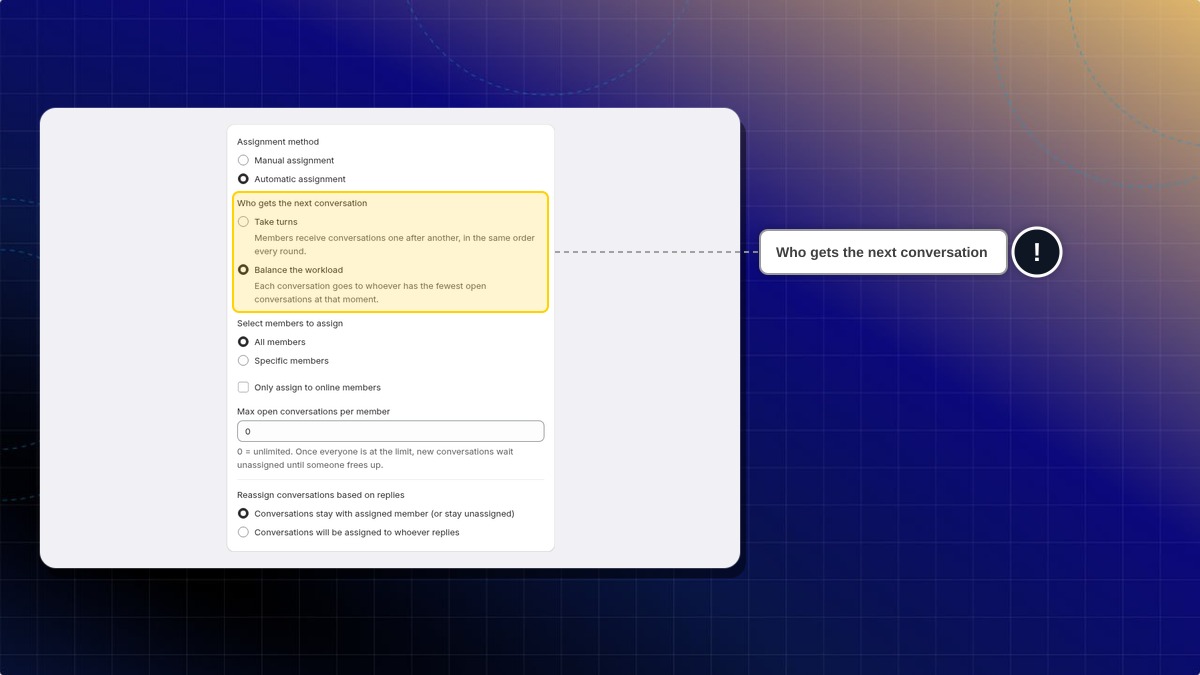
- Take turns: members get conversations one after another, in the same order every round. The order follows when each member joined your team, oldest first.
- Balance the workload: each conversation goes to the member with the fewest open conversations at that moment. This is the default.
Select members to assign
- All members: every active team member takes a turn
- Specific members: only the people you add to the list take a turn
Set a cap on open chats
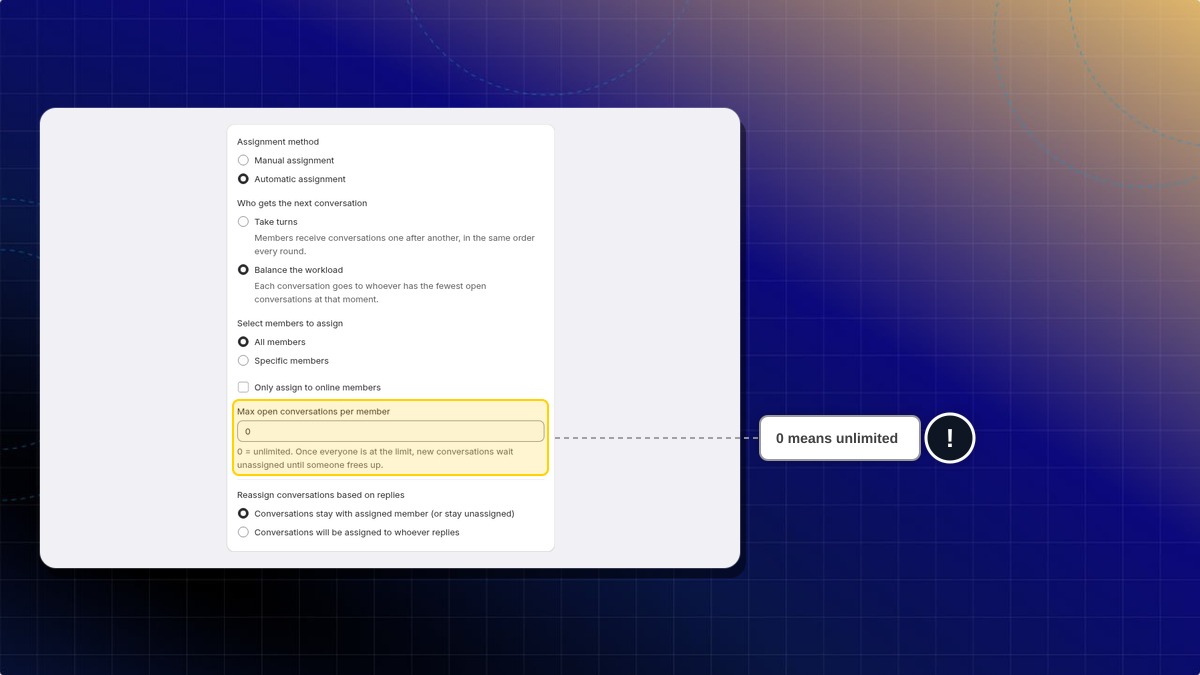
Max open conversations per member shows only when you pick Balance the workload. Take turns has no cap.
- Enter a number.
0means unlimited. - Click Save.
Expected result: A member at the cap does not get another chat. New chats wait, then go to the first member who frees a slot.
Only assign to online members
Check Only assign to online members to skip team members who are not online at that moment. Leave it unchecked and Chatty assigns conversations whether the person is online or not. Admins are an exception: they stay in the rotation even while offline, because they answer from the embedded app.
Click Save
Automatic assignment only shares conversations between active team members. Someone you deactivated in Settings → Team never gets a turn — unless they are an admin, who keeps their turn either way.
Reassign conversations based on replies
This decides what happens when someone other than the assignee answers.
- Conversations stay with assigned member (or stay unassigned): the assignee does not change
- Conversations will be assigned to whoever replies: the person who answers becomes the new assignee
Automatic resolution
Close conversations that have gone quiet, so your open list stays honest.
Turn on Automatic resolution
Set Auto resolve after

Enter a number and pick Minute, Hour or Day.
Click Save
The countdown runs from the last message your team sent, not from the customer's last message.
Expected result: a quiet conversation moves to Resolved on its own, with a note in the chat saying it was resolved automatically. You can reopen it from the conversation header at any time.
Satisfaction survey
Ask customers to rate the help they got, right inside the chat.
Open the survey settings
In Settings → Automation, click Manage on the Satisfaction survey card.
Turn on Display satisfaction survey
Pick a survey format

- Star rating: customers give one to five stars
- Emoji scale: customers pick one of five faces, from Very dissatisfied to Very satisfied
Write the survey content
- Intro: the question customers see, up to 100 characters. Default: How was your experience?
- Thank you message: shown after they rate, up to 100 characters. Default: Thank you for your feedback!
Choose the trigger time
Pick one or both. The survey goes out as soon as either one happens.
- Conversation is resolved
- When specific keywords appear in conversation: add the words that usually mean the customer is happy. Chatty starts you with Thank you, Thanks, Got it, That helps and Perfect. Add or remove any of them.
Click Save
You have to select at least one trigger time. Saving with both cleared shows an error.
The panel on the right previews the survey in the chatbox as you edit.
Where the answers show up
- On a single conversation: Inbox → open the conversation → Conversation details
- Across your store: Analytics → Overview, in the satisfaction survey card
Smart spam protection

Available on the Pro plan. On Free and Basic the toggle is visible but greyed out.
Turn this on and Chatty classifies incoming messages and blocks the ones that are spam, sexual, hateful or violent, before they reach your inbox.
- Go to Settings → Automation.
- In Spam Protection, turn on Smart spam protection.
- Click Save.
FAQs
Why can't I see the Automation tab?
Only the store admin sees it. If you need one of these settings changed, ask your admin to change it for you. No permission in Settings → Team unlocks the tab for a team member.
Does automatic assignment include the AI agent?
No. It shares conversations between your active team members. The AI agent picks up conversations through its own settings in AI agent → Settings.
Can I change the survey question per language?
Yes. The intro and thank you message are customer-facing text, so they go through Settings → Translations like the rest of your chatbox content.
 Chatty Help Center