Who can use this feature?
- Helpdesk is in early access. Request early access (opens in a new tab) and we turn it on for your store.
- Once Helpdesk is on for your store, it works on every plan
- You see Helpdesk when your role can view tickets
Notifications
Choose which Helpdesk events reach you in the app, by email, or in the browser.
What this is for
Notifications decide which Helpdesk events reach you, and on which channel.
This helps you hear about a ticket assigned to you, or a customer reply, without turning on every event.
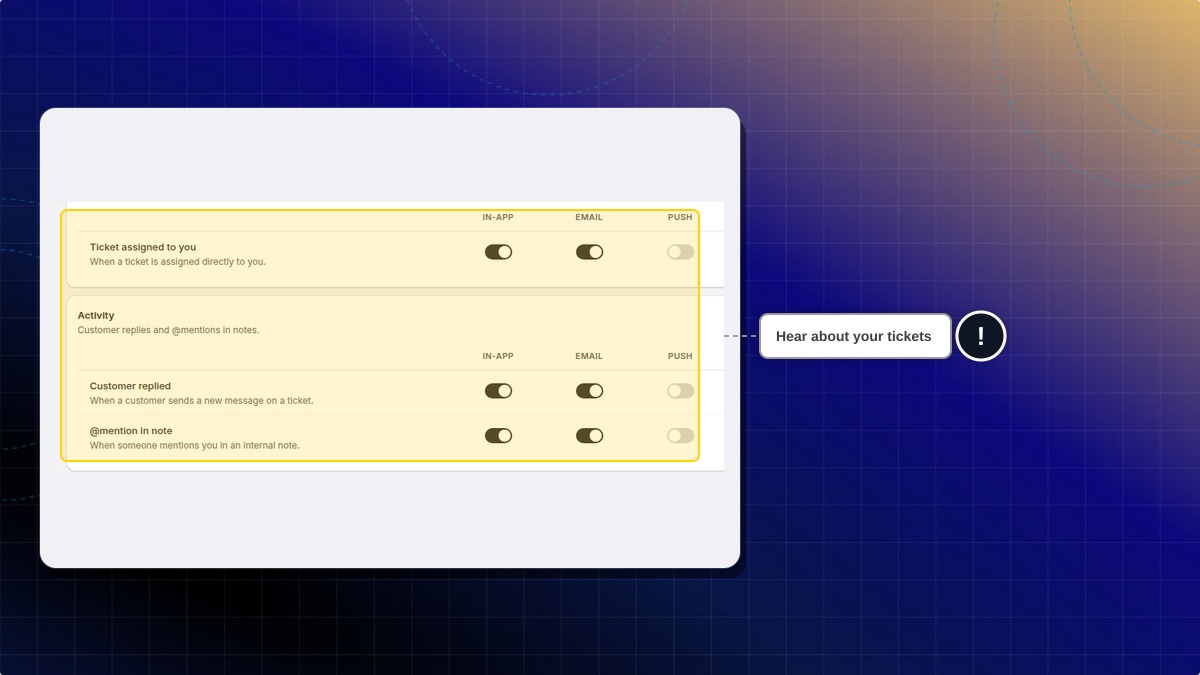
Each row has its own In-app, Email, and Push switches. Browser notifications are for when this tab is not open.
@mention in note fires when someone mentions you in an internal note. SLA warning and breach fire when a ticket is near its target, or past it. Neglected ticket fires when a customer has waited more than 24 business hours for a reply.
How to allow browser notifications
- In Helpdesk, open settings, then open Notifications.
- Click Enable browser notifications.
- Allow notifications in the browser prompt.
Expected result: Web push leaves Not enabled. You can get a browser notification when this tab is not open.
How to choose ticket alerts
- On the same page, find Ticket assigned to you.
- Turn on In-app, Email, or Push for that row.
- Do the same for Customer replied.
Expected result: You are notified on the channels you left on.
| Event | When it fires |
|---|---|
| @mention in note | Someone mentions you in an internal note |
| Automation rule | A rule notifies you |
| SLA warning / breach | A ticket is near its SLA, or past it |
| Neglected ticket | A customer has waited more than 24 business hours for a reply |
Are email and push on for every event?
No. Each row has its own In-app, Email, and Push switches. Turn on only the ones you want.
 Chatty Help Center