Quick start
Chatty is a platform that helps Shopify users engage with their customers better.
After installing Chatty from the Shopify App Store, you can get access to the app in your Shopify admin.
For the full path from install to a live chatbox, see Set up Chatty in 15 minutes.
Embed the app in your theme
Chatty shows a chatbox on your storefront, so the app has to be embedded in your theme first.
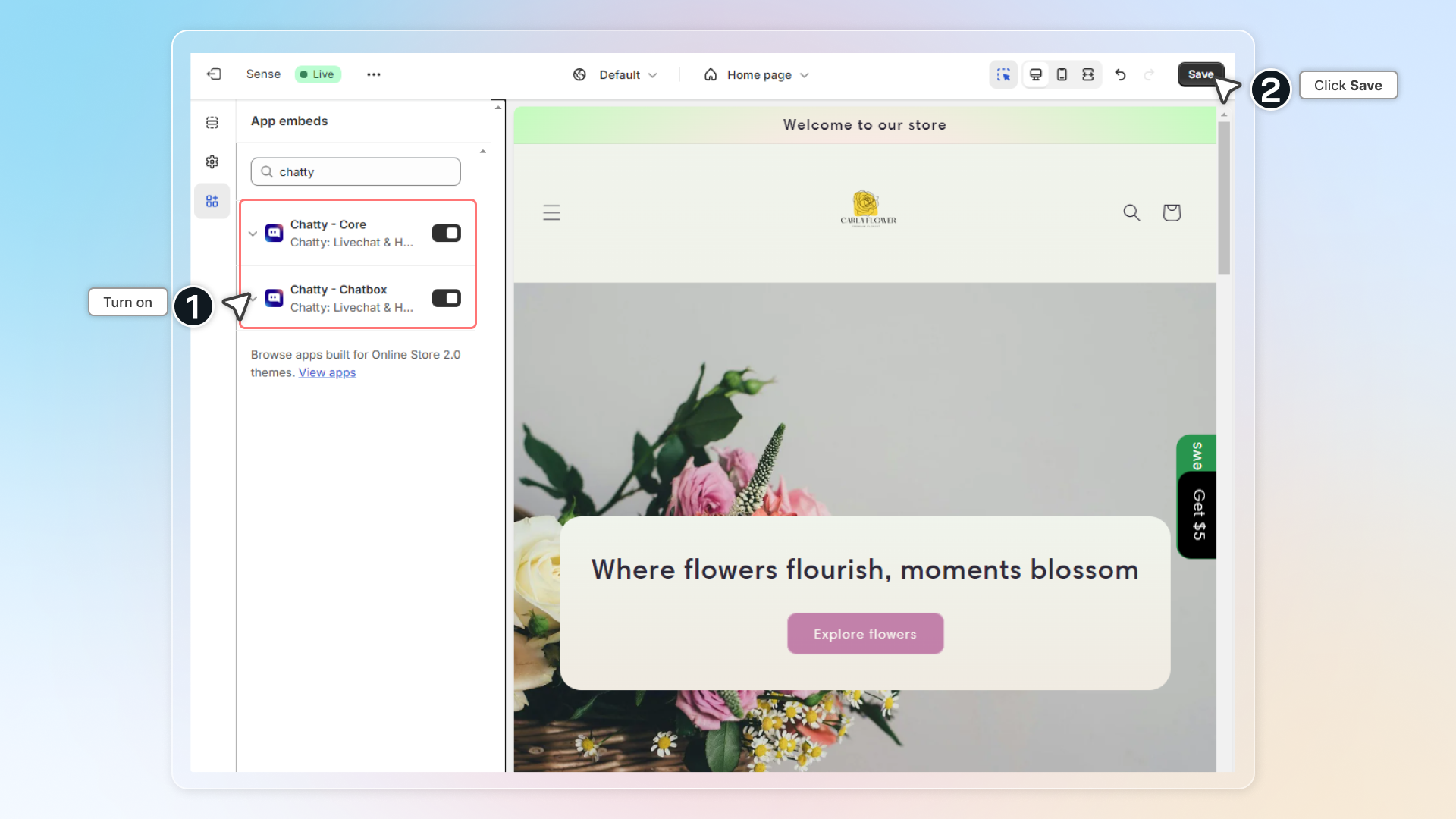
- On the dashboard, find the Embed app to your theme card and click Turn on
- You're taken to the theme editor, on the App embeds panel
- Switch on Chatty - Core and click Save
Set up FAQs
1. Build FAQs hub
Write the questions your customers ask most. See Add questions.
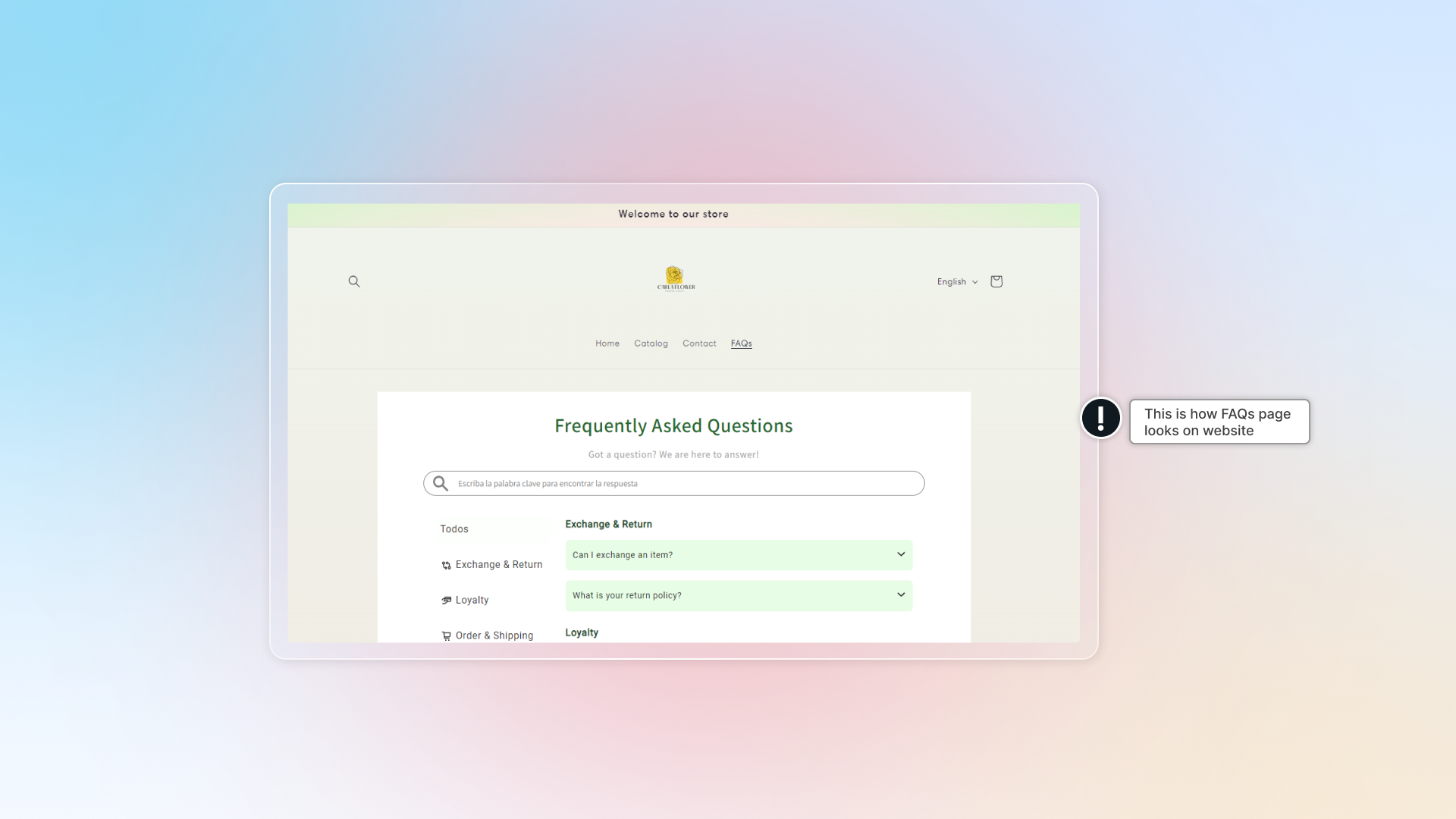
2. Create FAQs page
Show a page of FAQs on your Shopify site.
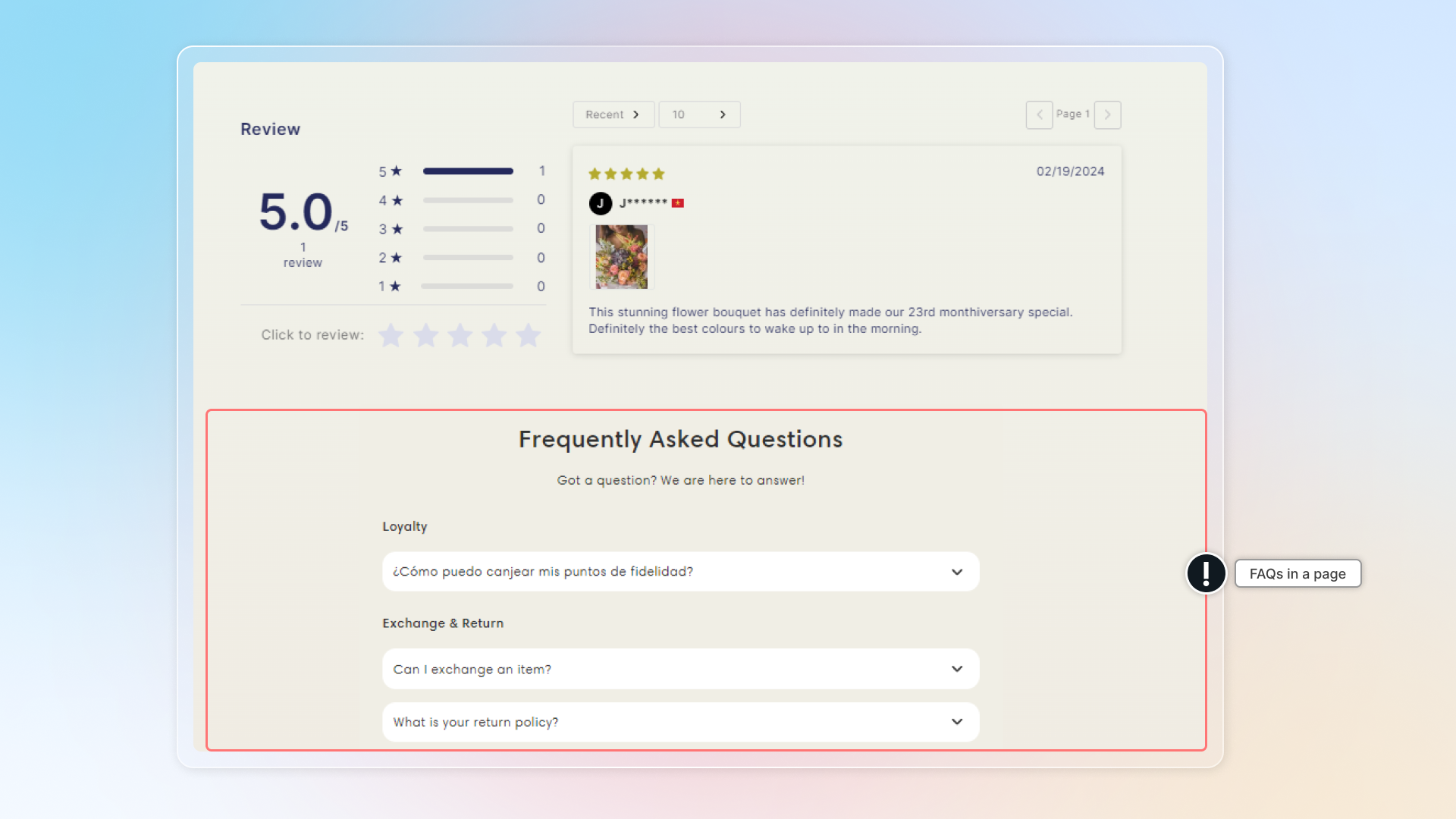
3. Add FAQs block
You can show a FAQs list on any page of your store.
Set up live chat
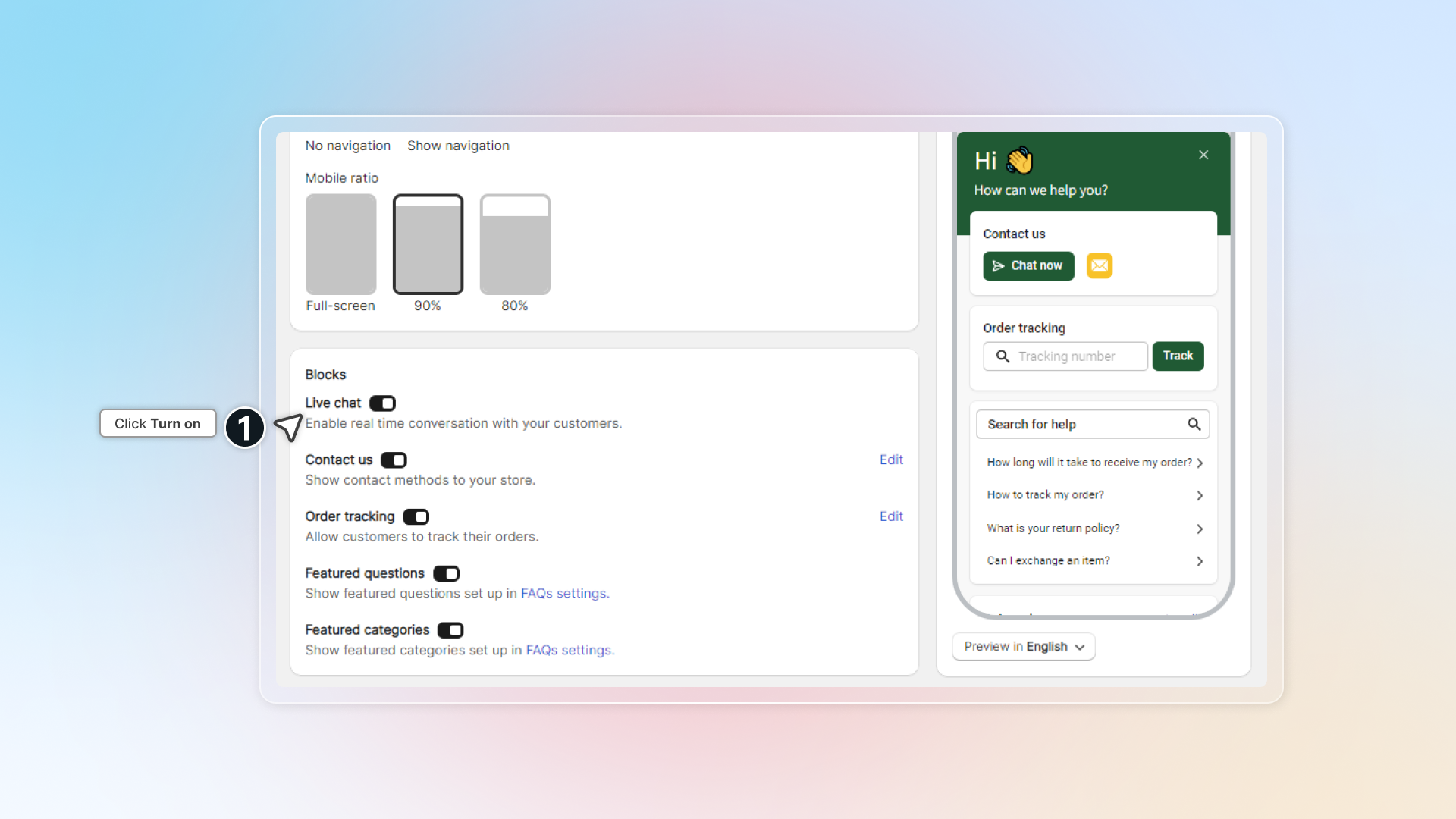
1. Enable live chat
-
Go to Chatbox and turn on Display chatbox on your store
-
On the General tab, under Blocks, turn on Live chat
-
Click Save
2. Customize your chatbox appearance
Set your colours, launcher button and chat page on the Appearance and Chat page tabs of Chatbox.
3. Connect channels
Connect your other channels to manage all conversations in the Chatty inbox. See Channels.
4. Install the mobile app
With the Chatty mobile app, you can answer customer questions anytime, anywhere.
Go to Settings → Notifications and find the Chatty mobile app section. Pick the Android or iOS tab, then either scan the QR code with your phone or click the store badge to open Google Play or the App Store.
 Chatty Help Center