Test & optimize AI
How to test AI assistant
AI test zone helps simulate customer interactions before going live, ensuring your AI responds appropriately to customer inquiries.
Before AI assistant test
- Add your data (FAQs, product info, etc.)
- Add custom instruction for AI response (tone, voice, length of answer)
- Set up other settings (chatbot name, avatar, etc.)
Can I test AI assistant without enabling it?
You can still test AI assistant with data sources that you added without enabling AI assistant.
Go to test zone
Go to AI agent → Go to Test AI
You can also click Test AI in the top right of any AI agent page. It opens the same test chat in a side panel, so you can try a change without leaving the page you are editing.
Chat with your AI
In chatbox, ask and interact with AI assistant as a customer. You can use question examples to ask AI. Pick a topic from the dropdown above the examples — Store Info, Product Recommendation, Order Issue, Shipping, Return/Refund, or FAQ — to load a different set of questions. Click the reset icon in the header to clear the test conversation and start over.
Tips for better testing:
- Test one topic at a time
- Ask the same question in different ways
- Make sure responses aren't too long or too short
Test order questions with sample orders
You can test order questions without a real order. Turn on the Order tracking skill first.
- In Test AI, send:
Where is my order TEST-1002? My email is [email protected] - Or use the phone:
Has order TEST-1003 arrived? My phone is +1 555 0100
| Order | What it is |
|---|---|
| TEST-1001 | Paid, not shipped |
| TEST-1002 | In transit with DHL |
| TEST-1003 | Delivered |
| TEST-1004 | Refunded |
| TEST-1005 | Cancelled |
Expected result: AI says the order is sample data, then answers with the status. Shipped orders include a tracking link. These orders exist only in Test AI.
📸 Screenshot: Test AI answering TEST-1002, with the sample-data note
Check the responses and make improvements
What to check in AI response:
- Is the information correct?
- Is the tone friendly but professional?
- Are product details accurate?
- Are prices and availability correct?
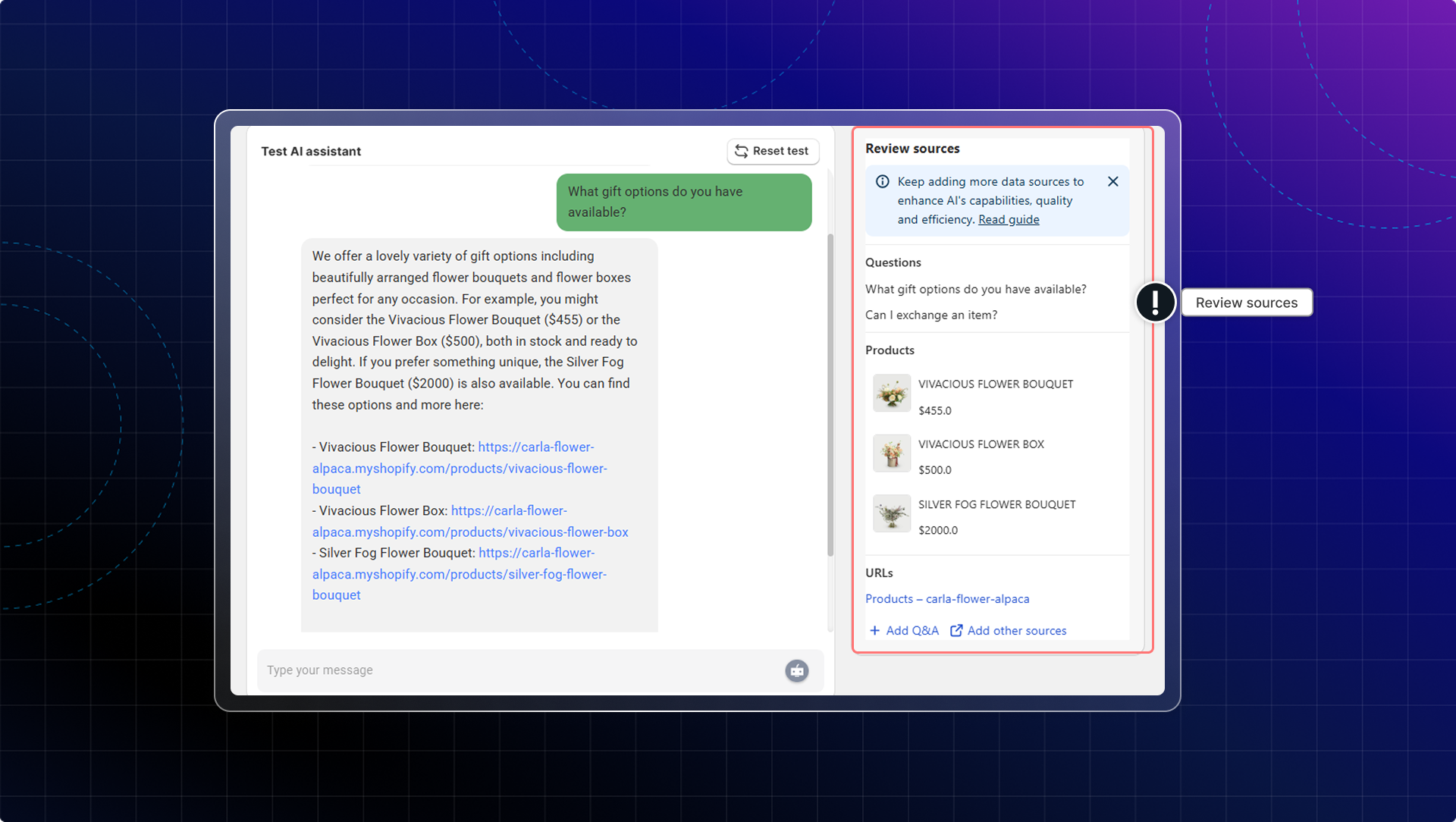
You can also review what data sources your AI uses to answer customer questions in test zone.
AI completion score
The AI completion score tells you how well your AI handles customer questions, so you can see where to improve. It is calculated from the past 30 days of conversations only.
AI Completion Score = (0.7 × RR + 0.3 × MRR) × 100%- RR (resolution rate) = AI resolved conversations / total AI conversations × 100
- MRR (merchant review rate) = unresolved questions reviewed / total unresolved questions × 100. With zero unresolved questions, MRR is 100%.
| Score | Badge |
|---|---|
| Under 50% | Red bar, Need optimize |
| 50–80% | Orange bar, Good |
| Over 80% | Green bar, Optimal |
Two ways to raise it: resolve more conversations — mark AI-handled chats as Resolved in the inbox, or turn on Settings → Automation → Automatic resolution — and review the unresolved questions below.
How to optimize AI responses
A. Unresolved questions
Unresolved questions are customer inquiries that your AI Assistant couldn't answer effectively.
The page counts them for the past 30 days and splits them by reason, so you can see what is really going wrong:
| Reason | What it means |
|---|---|
| Missing knowledge | Your training data has no answer for the question |
| Customer request human | The customer asked to speak to a person |
| Negative sentiment | The customer was frustrated or angry |
| Configured handover | One of your own handover rules sent the chat to your team |
We only show unresolved questions in the past 30 days
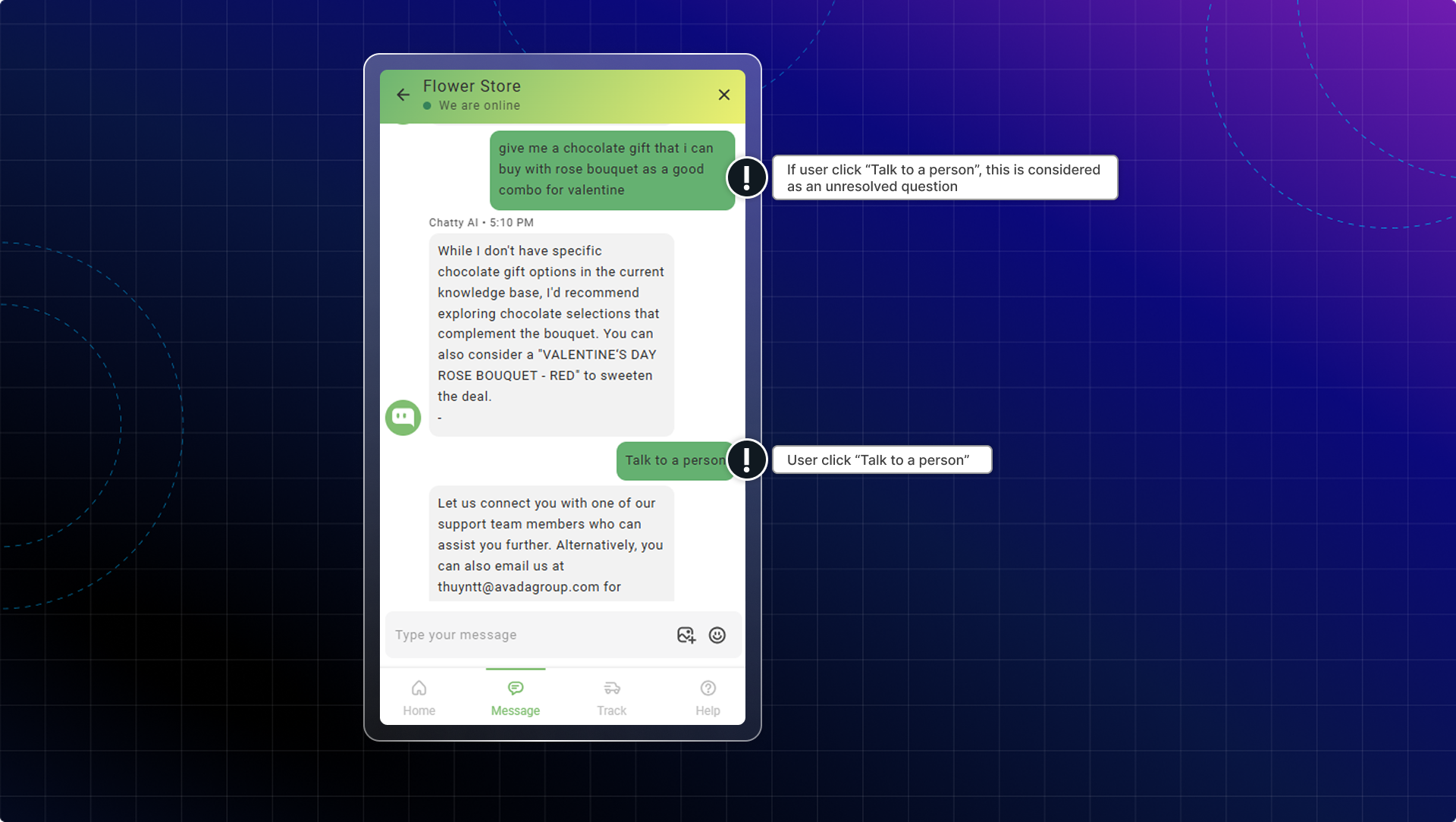
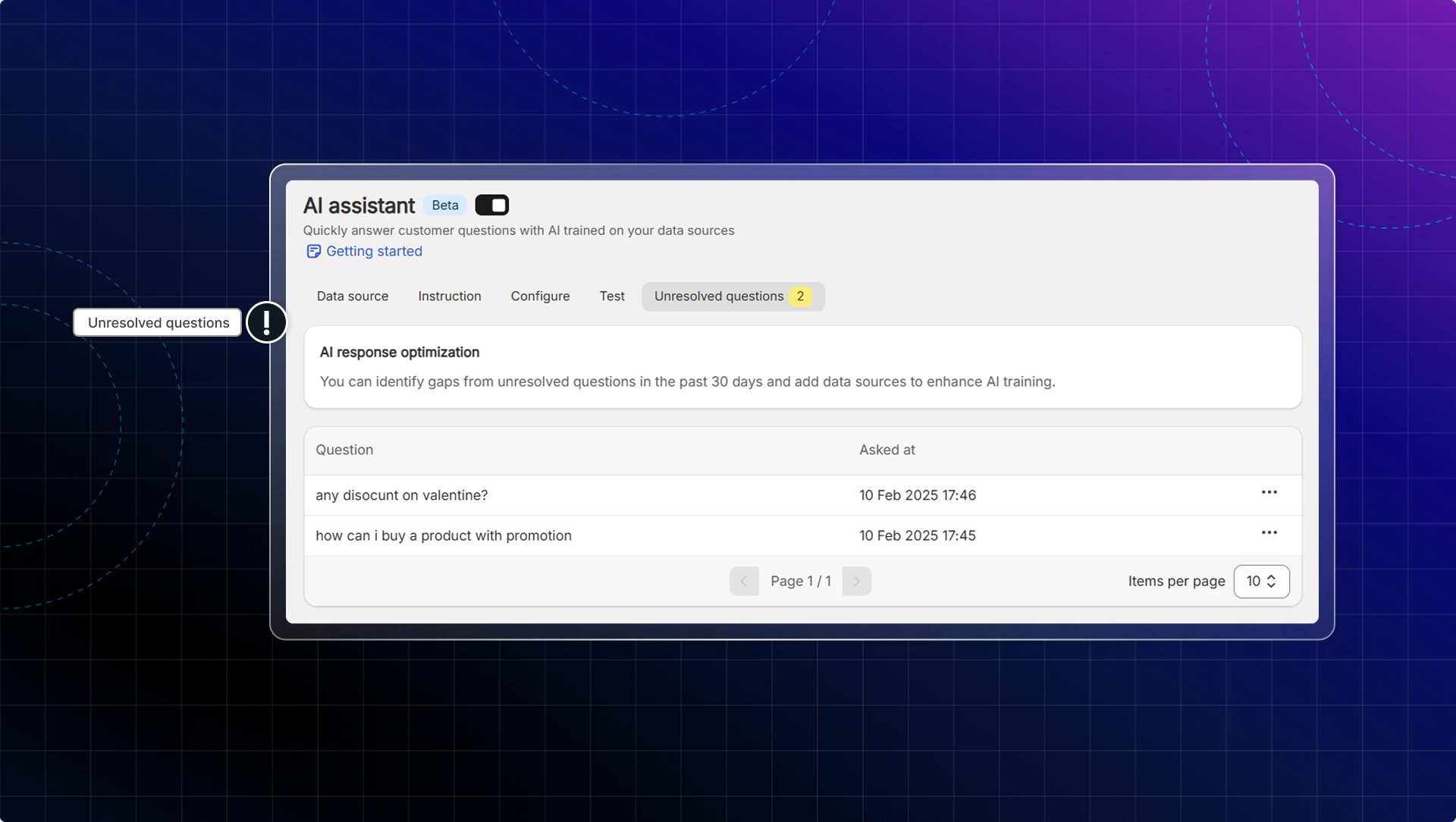
How to optimize unresolved questions
Go to Unresolved questions
Check unresolved questions
What you should do with unresolved questions:
- Look for patterns in unresolved questions to identify gaps in your training data
- Group similar unresolved questions to create comprehensive answers that address various phrasings of the same inquiry
- Use unresolved questions to identify new FAQs to add to your help center
Add answers to unresolved questions
Select a question from the unresolved list and click Add answer → Enter your answer.
Questions and answers will be added to data sources. (in Question list)
Test again
Go to AI agent → Test AI and ask the question to ensure that AI assistant can handle that question now.
With duplicate or spam questions, you can click Ignore to delete the question from the list.
B. AI responses review
Each AI response now includes a "Review sources" button to see what information was used
This helps you understand why the AI responded the way it did.
Use this feature to:
- Add missing product information the AI should have included
- Correct inaccurate policy details
- Expand on partial answers that need more detail
- Add variations of common questions that weren't properly understood
What you should do
- Identify and correct inaccurate responses
- When you notice incorrect or incomplete answers, click "Add relevant data"
- You'll be redirected to the data sources page to add the appropriate information
- Watch for patterns in corrections
- If you're frequently adding the same type of information, consider creating comprehensive entries about that topic
- Group similar corrections into comprehensive answers to improve overall AI performance
 Chatty Help Center