Filters, bulk actions and reminders
Who can use this feature?
- Filters, bulk actions, reminders, creating conversations and exporting transcripts are available for all users.
- Delete in bulk actions is available for admins, and for team members an admin has given the Delete conversations permission. See Team member.
If you open Inbox every morning to dozens of conversations, this page is for you. It covers the tools that cut a long list down to the conversations you actually need, let you clear the rest in one move, and remind you to come back to the ones that are still waiting.
Narrow the list with filters
Filters stack. The left sidebar sets the group, the Open chip below the search box sets the state (click it to switch to Resolved), and the filter menu refines it further. Everything you turn on applies at the same time.
| Control | Where it is | What it filters by |
|---|---|---|
| Conversations group | Sidebar | All, Your inbox, Unassigned, Starred, Blocked |
| Chatty AI group | Sidebar | Processing, Handover, Resolved |
| Channels group | Sidebar | Online store, Email, Messenger, Instagram, WhatsApp |
| Open / Resolved chip | Below the search box | Whether the conversation is still open or already resolved. Click the chip to switch |
| Search box | Above the conversation list | Customer name, email, phone number, or order number |
| Read state | Filter icon | Unread only shows only conversations you haven't read |
| Assignee | Filter icon | Unassigned, a specific team member, or AI Agent |
| Custom filters | Filter icon | Tags you saved into a named filter |
Some controls only appear where they make sense. The filter icon shows on every view, but the sections inside it change. Read state and the bulk action icon show on All, Your inbox, Unassigned and the five channel views. Assignee shows on All, Handover and the five channel views, and lists AI Agent only on All, Online store and Email. Custom filters shows only on All and Handover. The Open / Resolved chip shows on All, Your inbox, Unassigned, Handover and the five channel views.
Save a filter you use every day
A custom filter is a saved set of tags with a name. Tick it once and the list only shows conversations carrying those tags.
Click the filter icon above the conversation list.
Under Custom filters, click Add custom filter.
Enter a Filter name, up to 50 characters.
Search and select the tags you want, up to 20 per filter.

Click Create filter.
Your filter now appears in the filter panel with a checkbox. To change it later, hover over it and use the edit or delete icon.
You can tick more than one custom filter at a time. Chatty then shows conversations that carry the tags of any of the filters you ticked. Clear removes all of them at once.
Act on many conversations at once
Click the bulk action icon above the conversation list.
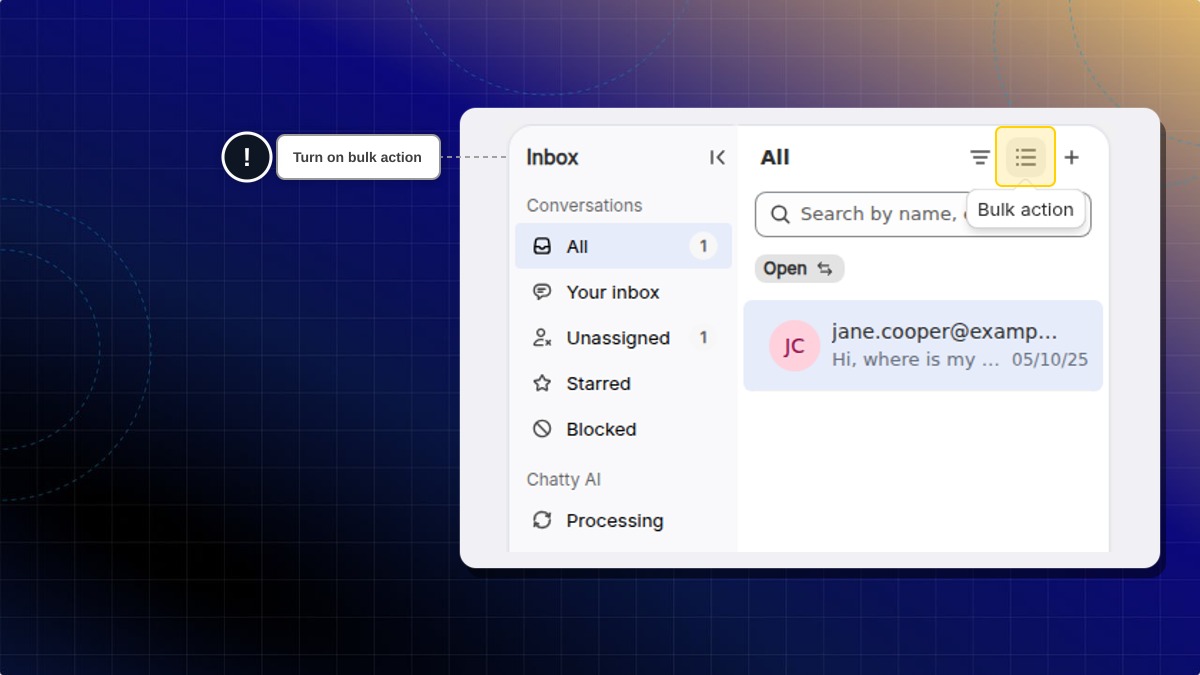
Tick the conversations you want, or use the checkbox at the top to take everything on the page.
Click the action you want.
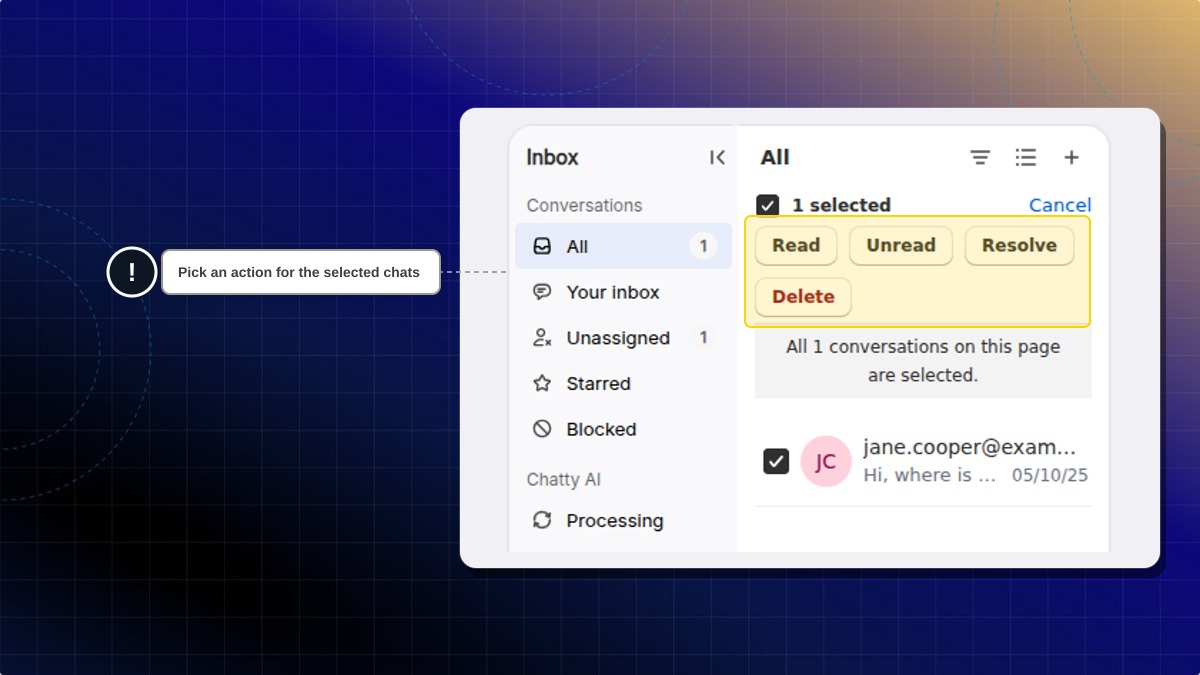
The bar shows how many conversations you have selected, and Cancel leaves bulk mode without changing anything.
| Action | What happens | Notes |
|---|---|---|
| Read | Marks the selected conversations as read | — |
| Unread | Marks them back as unread | — |
| Resolve | Closes them, same as resolving one by one | Only while the chip shows Open. Sends the satisfaction survey if you have it turned on |
| Reopen | Reopens them | Only while the chip shows Resolved |
| Delete | Removes the conversations, and the contact profile too if that customer has no other conversation left | Admins, and team members with the Delete conversations permission. Cannot be undone |
How many you can take at once. Ticking selects the conversations currently loaded in the list. When they're all ticked and more still match your filters, a link appears: Select all conversations in this view. Click it and Chatty applies the action to every matching conversation, including the ones not loaded yet. Those are processed in the background, so the list may take a moment to settle.
Delete asks you to confirm and tells you how many conversations are affected. It also deletes the contact profile of any customer left with no other conversation, and there is no way to bring them back. Deleting always runs in the background, so it reports as in progress rather than finished.
Changing a filter or switching between Open and Resolved clears your selection. Select first, then act.
Set a reminder to come back
A reminder reopens a conversation for you at a time you choose, so you don't have to keep it unread as a mental note. You set it from the Reminder tab above the message box, and you can send it to any active team member. See Set a reminder.
Start a conversation yourself
Use this when a customer emailed you elsewhere, or when you need to follow up first.
Click the plus icon above the conversation list.
Enter the customer Email.
Optionally add participants with Add a participant, up to 5.
Optionally enter a Subject of the email, up to 50 characters.

Click Create.
Participants are extra recipients on the email thread. They receive the messages alongside the main customer. The new conversation is assigned to you and opens straight away.
You can add 5 participants while you are creating the conversation. Once it exists, Conversation details lets you go up to 10.
If a conversation already exists on the email channel and only the subject is wrong, you don't need a new one. Open it, click the three-dot menu in the conversation header, and choose Set subject.
Save a copy of a conversation
The three-dot menu in the conversation header can email the conversation to yourself, to the customer, or to another address, and can download it as a CSV or text file. See Send or download a transcript.
A routine for a busy day
Start in Unassigned with Unread only picked under Read state in the filter menu, so you see what nobody has picked up yet.
Reply or assign each one, then clear the ones that need nothing with Read in bulk.
Switch to Your inbox and work through what is actually yours.
Set a reminder on anything waiting on a supplier, a refund, or a colleague, instead of leaving it unread.
Finish on All with a custom filter for your recurring topic, and Resolve the batch that is already done.
Search does not work while you're viewing conversations from all connected stores at once. Switch back to a single store to search by name, email, phone or order.
 Chatty Help Center