Uninstall Chatty
What do I need to do after uninstalling app?
Please note, when the app is removed from your Shopify store, the FAQs page Chatty created stays in your store. This happens because we lose access to your store as soon as you uninstall our app, so we can't remove the page for you.
Follow these steps to ensure that your store continue to run smoothly.
1. Verify uninstallation process
Make sure that you've properly uninstalled Chatty from your store.
Go to Settings → Apps. Double-check app list to confirm that Chatty is no longer available.
2. Delete FAQ page
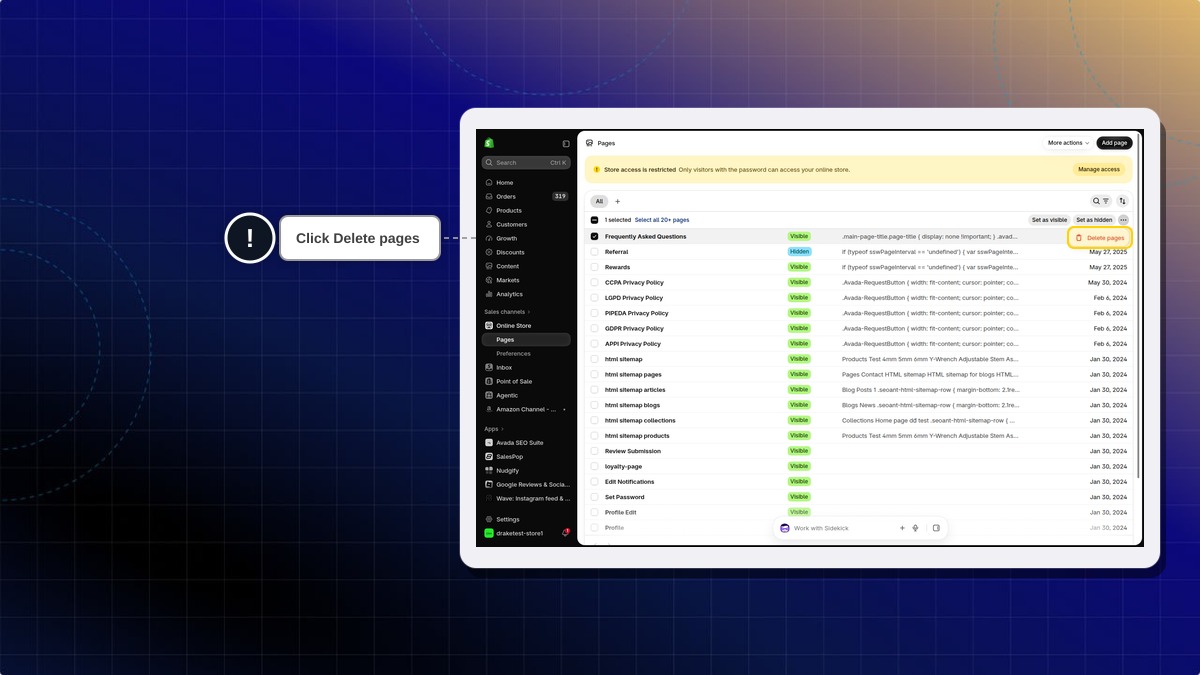
- Go to Online Store → Pages in your Shopify admin.
- Select the FAQs page Chatty created. By default it is named "Frequently Asked Questions". If you changed the FAQs page heading in Chatty, the page may use that name instead.
- Click the three-dot button next to Set as hidden.
- Click Delete pages.
3. Handle lost conversations
The first thing to consider when uninstall Chatty is that you will lose access to all chat convesations you have with customers.
- Before uninstalling, check important conversation data and manually save critical information from recent conversations
- Inform your team that chat data will no longer be accessible
- Create a plan for addressing customer concerns about previous conversations
4. Update new customer service
Chatty helps you provide customer service and support. Now Chatty's uninstalled, consider:
- Setting up a new FAQs page to help answer customers' questions
- Updating your "Contact Us" page with clear instructions
- Implementing an alternative live chat solution
If you have any more concern, please contact our support team at [email protected].
 Chatty Help Center