Proactive chat
Who can use this feature?
- Proactive chat is available on every plan, but some templates need a paid plan:
- Pro or above: Cart booster, View cart, Abandoned cart reminder
- Any paid plan: Collection boost
- Free plan: all other templates
- Inside a campaign, the Product Quiz content tab and the Recommend similar products option also need Pro or above.
What is Proactive chat?
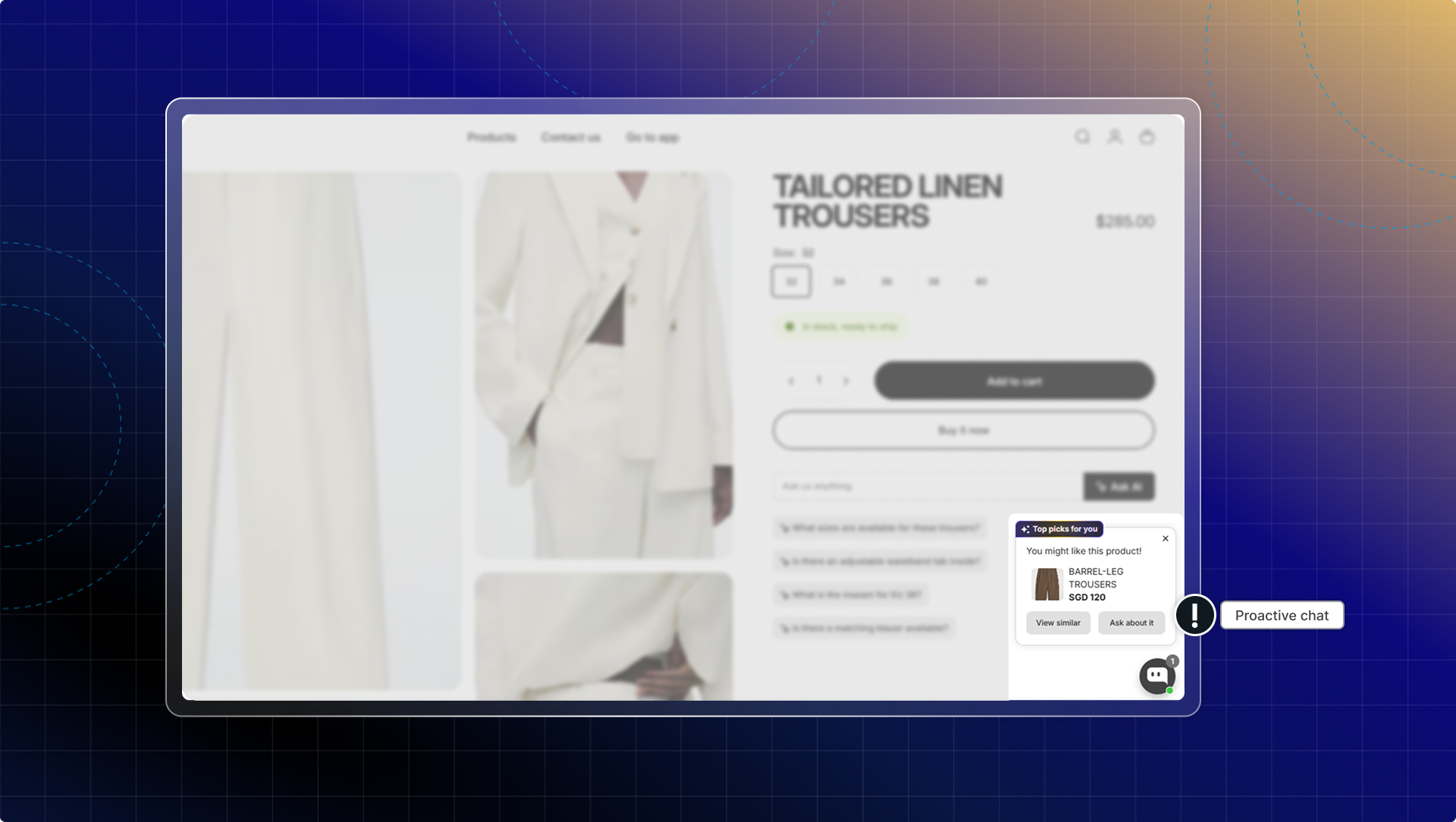
Proactive chat sends targeted messages to website visitors before they ask questions.
Instead of waiting for customers to contact you, these campaigns reach out at key moments in their shopping journey to guide them toward purchases.
Why use Proactive chat?
- Turning visitors into customers: Welcome new visitors and guide them to relevant products instead of letting them browse aimlessly.
- Recovering lost sales: Automatically target customers who add items to cart but haven't completed purchase with incentives or assistance.
- Growing your email list: Offer exclusive discounts to visitors who subscribe to your newsletter at strategic moments.
- Increasing average order value: Recommend bestselling or complementary products when customers show buying intent.
Proactive chat templates
Chatty provides pre-built templates to help you create effective proactive chat campaigns quickly.
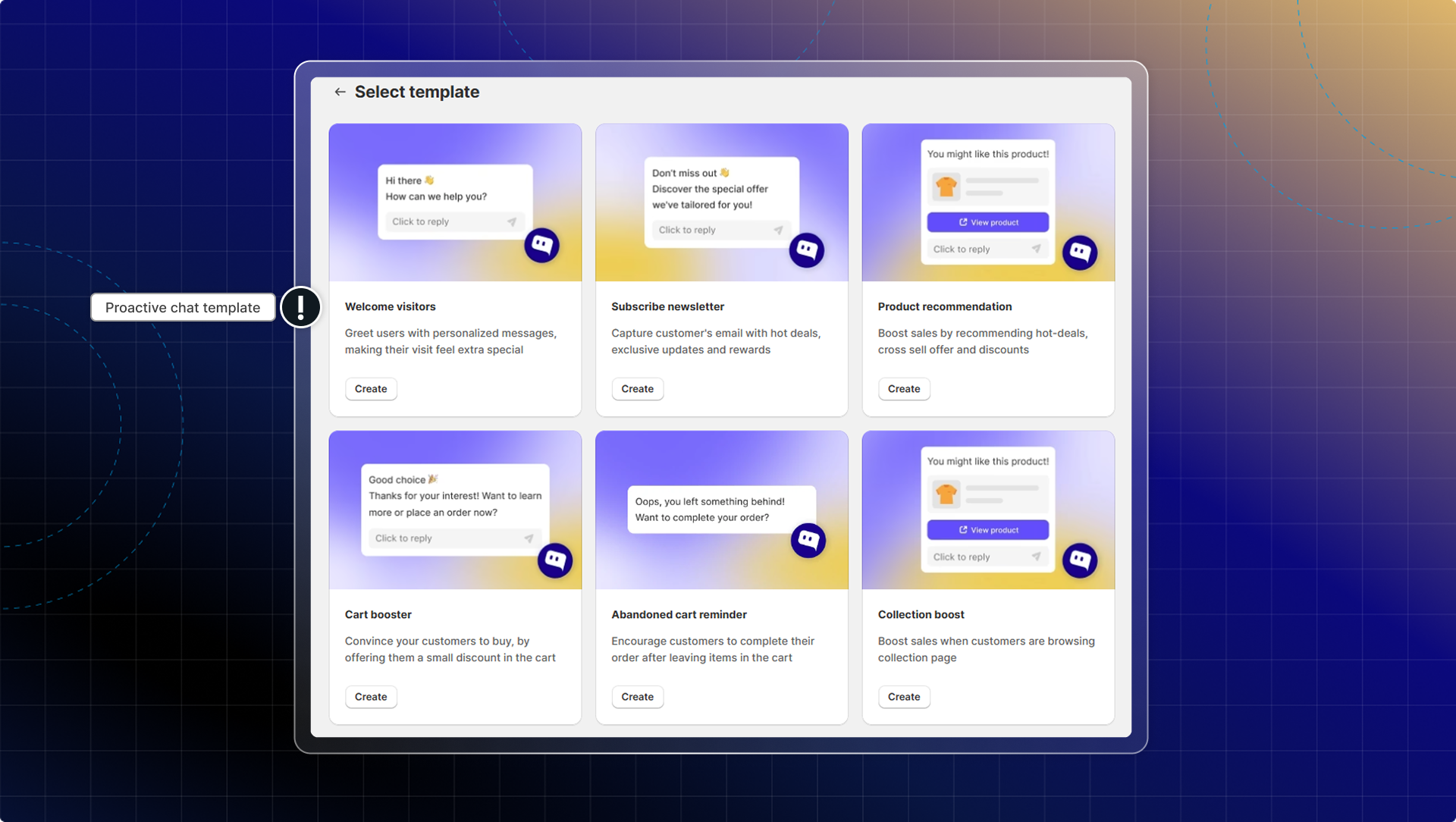
Each template is designed for specific customer scenarios and includes proven messaging that drives results.
| Template | Goal | Trigger moment | Plan |
|---|---|---|---|
| Welcome visitors | Greet new visitors and guide them to products | Homepage, landing pages | All plans |
| Subscribe newsletter | Capture emails with discount offers | Product pages, repeat visitors | All plans |
| Product recommendation | Show relevant products to browsing customers | Category, product detail pages | All plans |
| Smart Product Page | Show a floater with a variant picker and in-chat Add to cart | Product pages | All plans |
| Collection boost | Drive engagement when customers browse your collections | Collection pages | Any paid plan |
| Search page | Assist customers actively searching for products | Search results page | All plans |
| View cart | Engage customers the moment they open their cart | Cart page | Pro or above |
| Cart booster | Target customers with items in cart | Cart page, checkout | Pro or above |
| Abandoned cart reminder | Recover carts by reminding customers what they left behind | After activity | Pro or above |
| Remove items from cart | Win back customers who remove products with a coupon or alternative | Cart page | All plans |
How to set up proactive chat
Go to Proactive chat
Click Create proactive chat
Choose your type
- Welcome visitors: Greet new visitors and guide them to products
- Subscribe newsletter: Capture emails with discount offers
- Product recommendation: Show relevant products to browsing customers
- Smart Product Page: Show a floater with a variant picker and in-chat Add to cart
- Collection boost: Drive engagement when customers browse your collections
- Cart booster: Target customers with items in cart
- Abandoned cart reminder: Recover carts by reminding customers what they left behind
- View cart: Engage customers the moment they open their cart
- Remove items from cart: Win back customers who remove products with a coupon or alternative
- Search page: Assist customers actively searching for products
Templates that need a paid plan show a plan tag on the card. See the plan table above.
Configure settings
Campaign details
- Campaign name: Enter a name to identify this campaign in your dashboard
- Activate campaign: Turn on to make the campaign live on your storefront
Targeting options
- Trigger options: When to send proactive chat
- Pages: Select which pages show this campaign (If you select specific pages, click Enter after URL to add)
- Audience: Choose who sees the campaign (all visitors or returning customers)
- Countries: Show the campaign to every country, or pick the countries you want (not available on View cart)
- Cart value: On the four cart templates — Cart booster, View cart, Abandoned cart reminder, Remove items from cart — set a minimum and maximum cart value so the campaign only fires in that range
- Devices: Select desktop, mobile, or both
- Display time: Set when the campaign appears (after page load, scroll percentage, or time delay)
- Display duration: Choose how long the campaign stays visible
Message content
- Proactive message: Write the message that appears above your chatbox.
- Content type: Most templates let you pick what the popup sends. Choose one of four tabs:
| Content tab | What customers get | Available in |
|---|---|---|
| Text | A plain chat message when they click the teaser | Welcome visitors, Product recommendation, Collection boost, Search page, Cart booster, View cart, Abandoned cart reminder, Remove items from cart |
| Product Recommendation | A product card list — best sellers, new arrivals, similar products, complementary products, or your own picks. Recommend similar products needs Pro or above and is not offered on Welcome visitors | Same templates as Text |
| Discount | A discount code from your Shopify discounts, with a usage instruction you write | Same templates as Text |
| Product Quiz | A short quiz that guides customers to the right product, with your own teaser, Yes and No button labels | Welcome visitors, Product recommendation, Collection boost, Search page — Pro or above |
Activate proactive chat
- Check Preview to see how your campaign appears on your storefront.
- Click Activate to make your campaign live
Publish proactive chat
If you have never published before, activating a campaign is not enough on its own: your campaigns stay drafts until you publish once. Chatty shows the prompt below until you do, then stops asking.
- From the campaign form, click Publish now in the "Next action: Publish new version" banner.
- Or go back to Proactive chat and click Publish proactive chat.
Recommend products from a collection
In the Product Recommendation content tab you can point a campaign at a whole collection instead of picking products one by one. Chatty then picks products from that collection at random, so the campaign stays current when your inventory changes. This suits seasonal collections, new arrivals, and category promotions such as "Summer Sale".
- Open the Product Recommendation content tab and select Custom recommendation.
- Choose Products from collection.
- Choose the collection you want to feature.
- Save and activate the campaign, then publish it to your storefront.
If a collection is empty or all its products are out of stock, the campaign shows no product recommendation.
Use collections for evergreen campaigns — Best Sellers, New Arrivals, seasonal ranges. For a specific product launch, pick the products manually instead.
Products excluded from AI training
When AI is turned on for a campaign, Chatty removes products you excluded from AI training (AI agent → Training Data) from the recommendation pool, so your AI can answer every follow-up question about what it recommends. Nothing to configure — the filter applies on its own.
| AI enabled? | Excluded products shown? |
|---|---|
| Yes | Never shown in recommendations |
| No | All active Shopify products shown |
A product stays out of AI training when you excluded it yourself, or when it has no description for the AI to learn from. If a product you want to recommend does not appear while AI is on, check whether it is excluded — re-include it and Proactive chat picks it up after the next sync.
Campaign priority
When multiple campaigns could show at the same time, priority is determined in two steps:
- Priority number (primary rule): Each campaign has a priority number from 1 to 10. Lower number = higher priority. Drag and drop campaigns in your list to reorder them.
- Closest to checkout (tiebreaker): If multiple campaigns share the same priority number and trigger conditions fire at the same time, the campaign with the trigger closest to a checkout action wins:
Cart Booster → Abandoned Cart → View Cart → Remove Items from Cart → Smart Product Page → Product → Collection → Search → Subscribe → Welcome
Session limit: Maximum 5 proactive chats per session. Only 1 displayed at any given time.
Marketing double opt-in (in Subscribe newsletter)
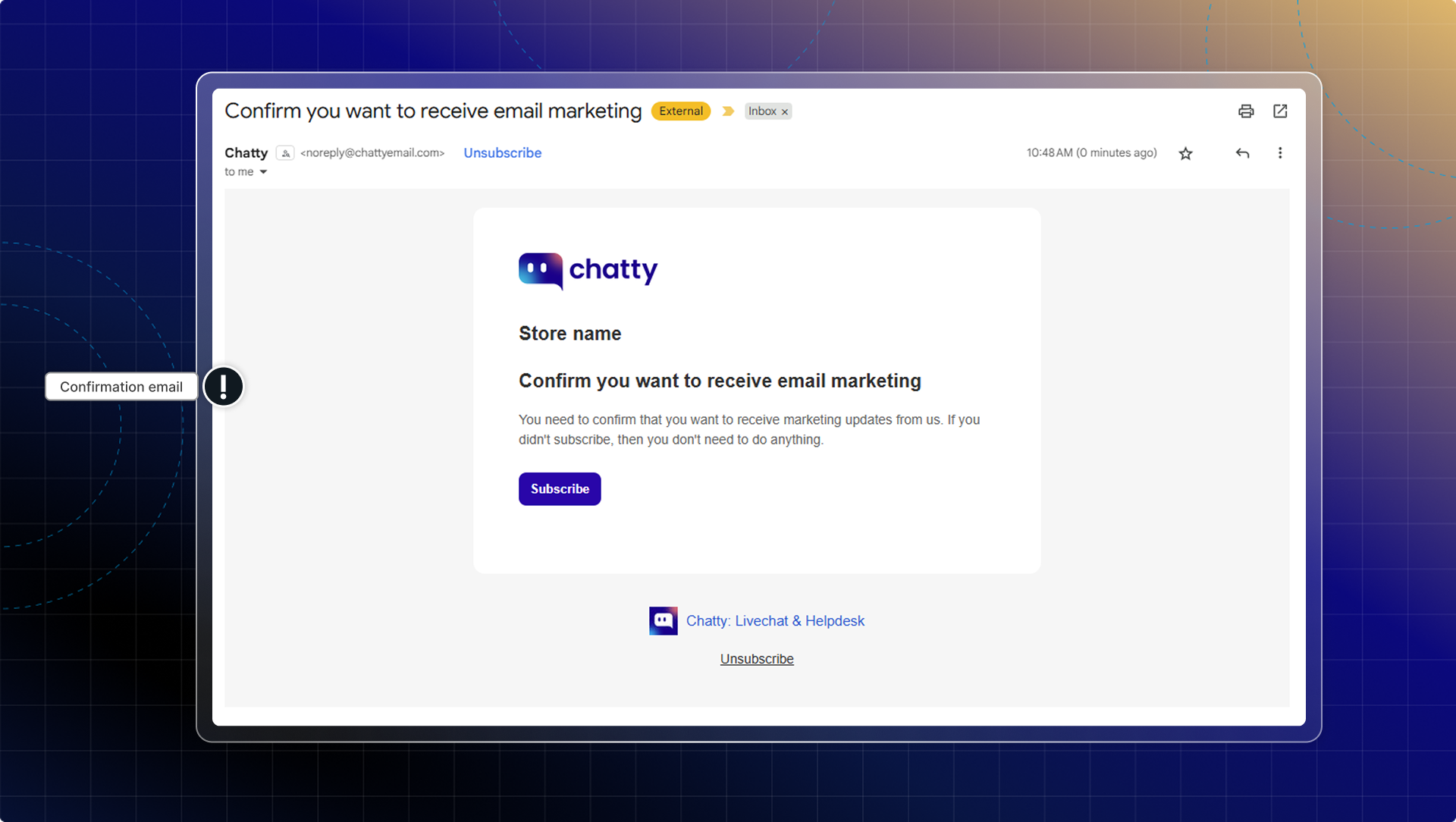
By enabling this option, customers will receive a confirmation email to confirm their subscription before get the discount.
Timing best practices
- Welcome messages: 5-10 seconds after page load
- Product recommendations: After 30-50% page scroll
- Cart boosters: 2-3 minutes after adding items to cart
- Newsletter signup: Before exit intent or after browsing multiple products
 Chatty Help Center