Contacts
Contacts is the list of everyone who has chatted with your store. Open it from the main menu.
From here you can search a contact, read their chat history, edit their profile, convert a lead into a Shopify customer, and export the list.
If you delete a contact, all conversations of that contact are deleted too.
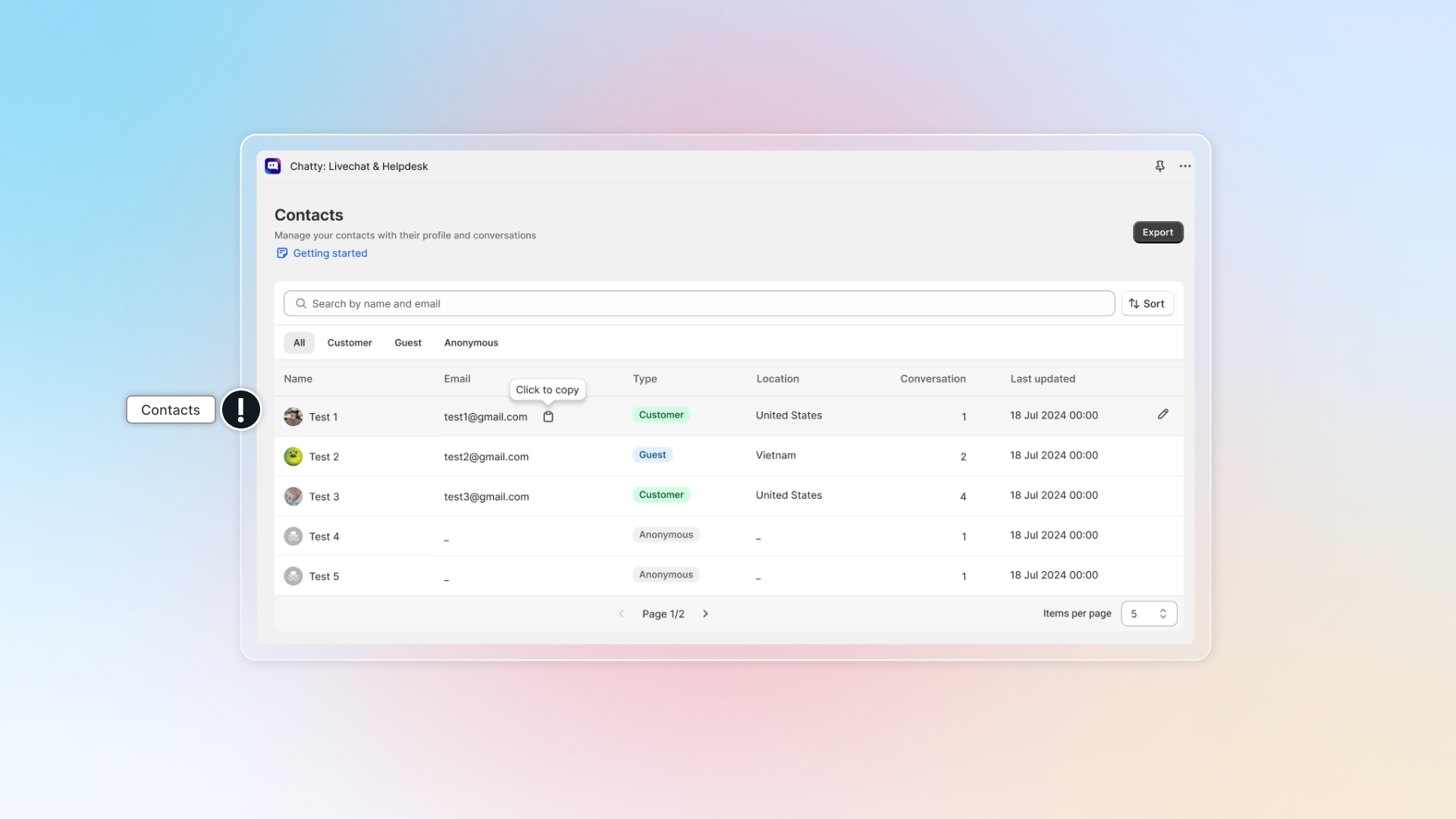
Contact types
The Type column carries a badge. There are three types you create by chatting, plus one Shopify sets for you.
| Type | Who it is |
|---|---|
| Customer | Placed an order on your store, or subscribed to it. |
| Lead | Left an email to start a chat, or reached you through Email, Messenger or Instagram. |
| Anonymous | Started a chat with "Chat with us as anonymous" and left no details. |
| Redacted | Shopify asked to erase this person's data. The profile is emptied and stays in the list. |
Find a contact
The list holds six columns: Name, Email, Type, Channel, Location and Conversation. Channel lists every channel this person has used, Conversation counts their chats.
- Search by name or email in the search field.
- Sort by Name, Customer added date or Last updated, each in both directions.
- Filter by type with the All, Customer, Lead and Anonymous buttons above the table.
- Copy an email with the clipboard button next to it, without opening the contact.
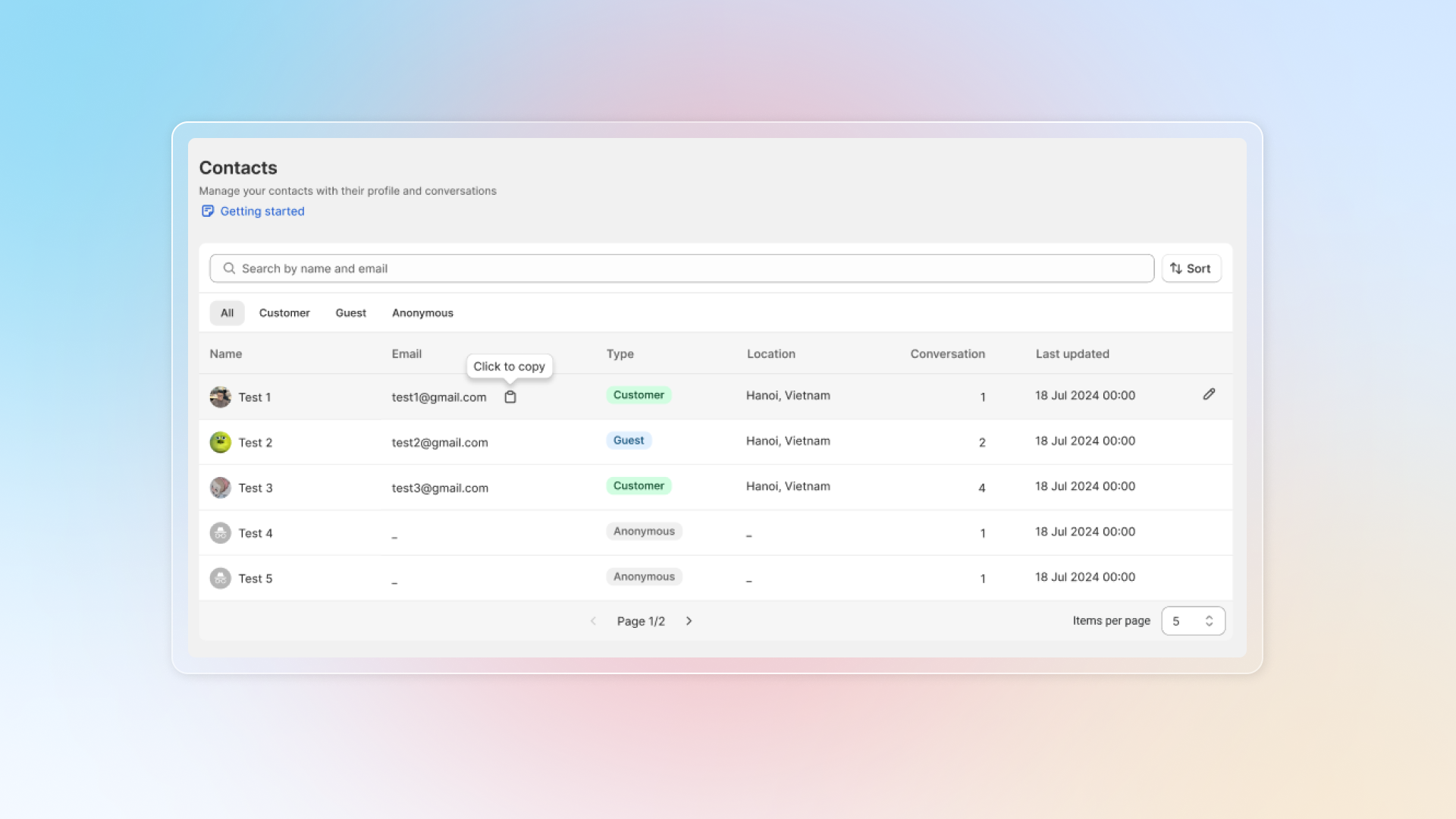
A contact opens only if they have at least one conversation. Rows showing 0 in Conversation stay closed.
Read a contact
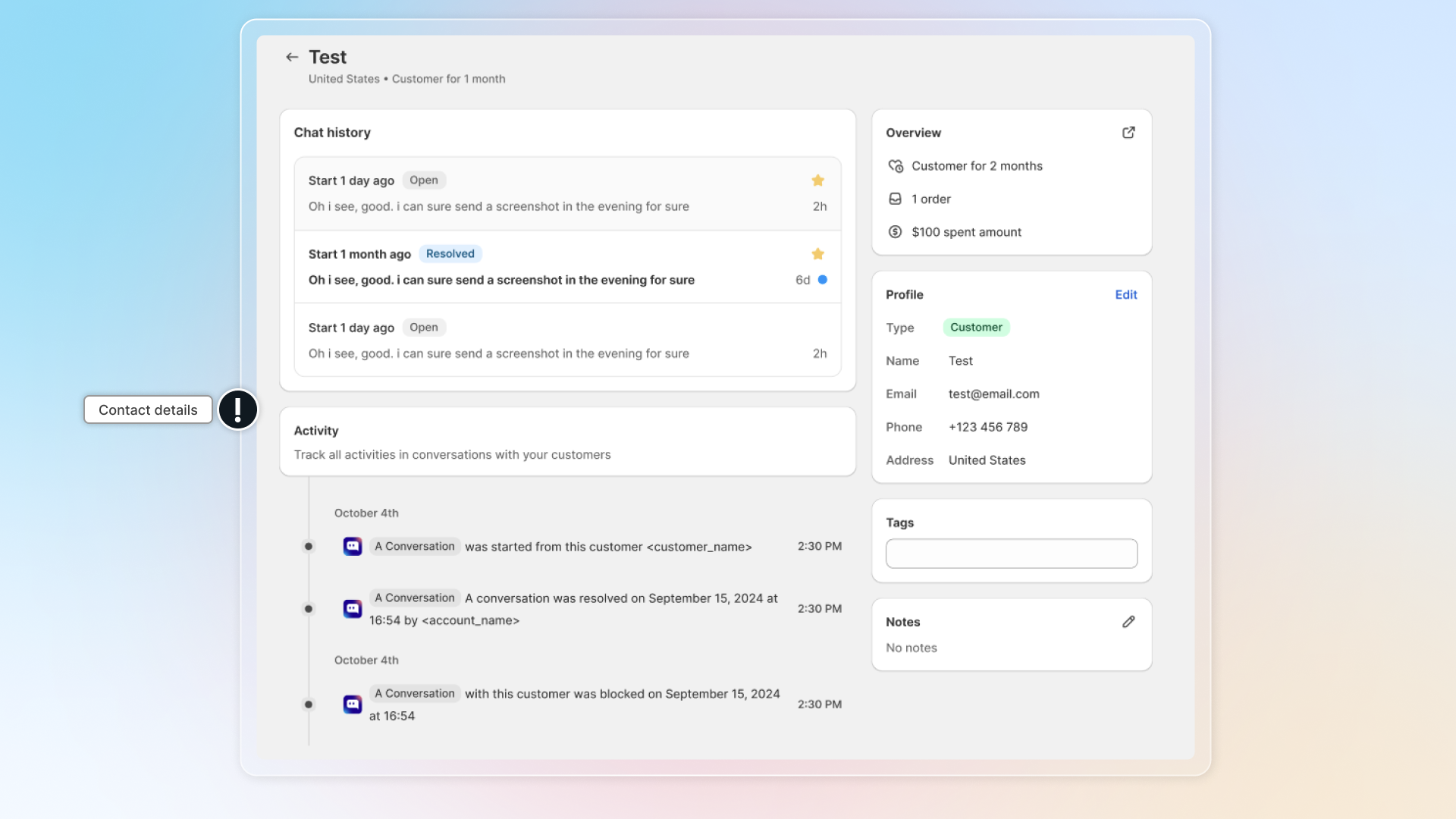
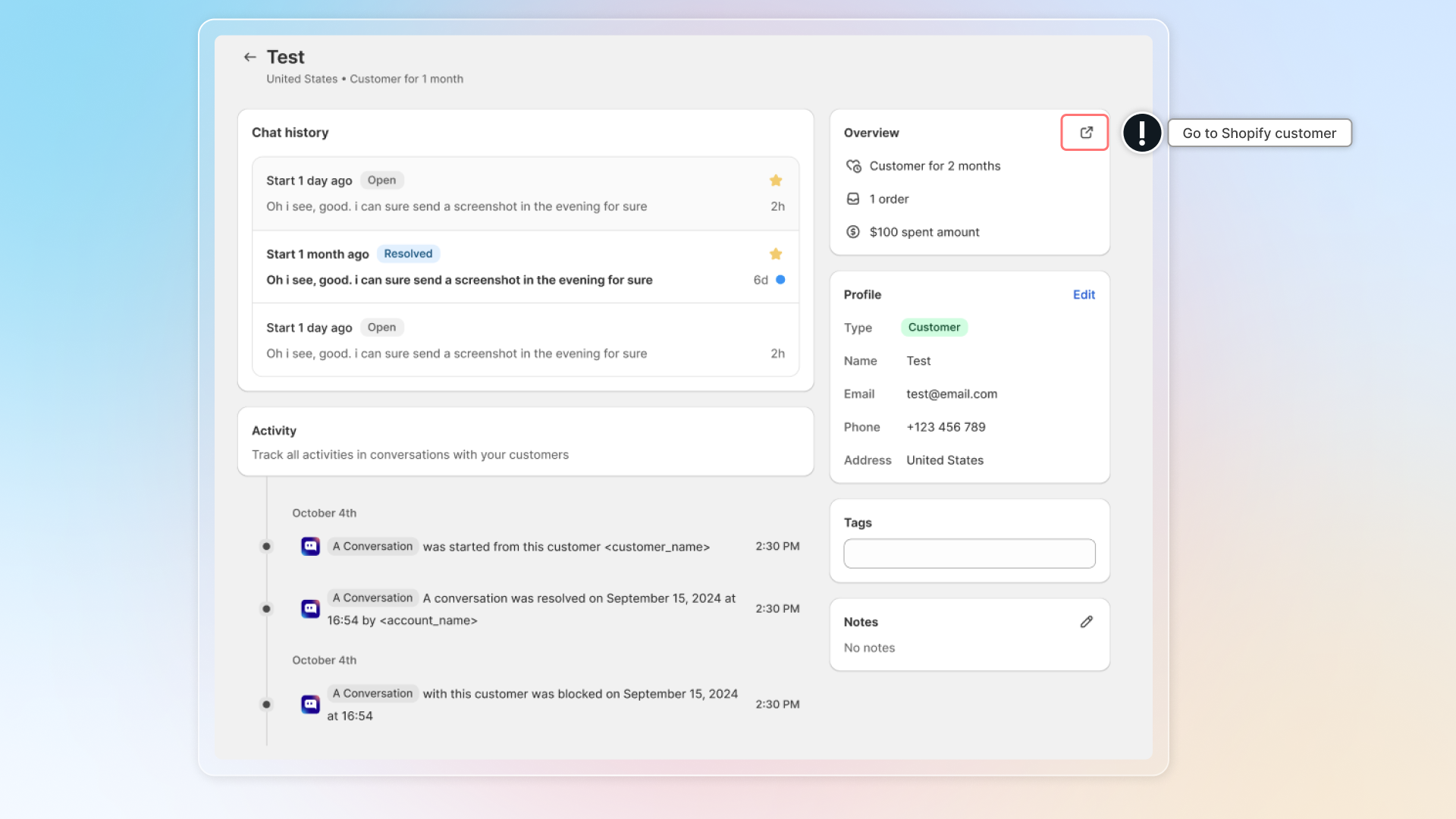
Click a row to open the contact. The page carries:
| Section | What it holds |
|---|---|
| Customer | Overview for Shopify customers — how long they have been a customer, order count, amount spent — then Type, Name, Email, Phone and Address. |
| Channels | Every channel this person has reached you on. |
| Joy loyalty profile | Their points and tier, if you have the Joy app connected. |
| Tags and Note | Your own labels and internal notes. |
| Chat overview | Conversation count and Last chat at. |
| Customer snapshot | What Chatty learned about this person from their chats. |
| Chat history | The last five conversations, with View more for the rest. |
| Activity | Every change made to this contact and their conversations. |
To edit, use the button next to Profile and pick Edit contact or Edit address. Tags and Note are edited in place. To remove the contact, use Delete contact at the top right, or the bin icon on its row in the list.
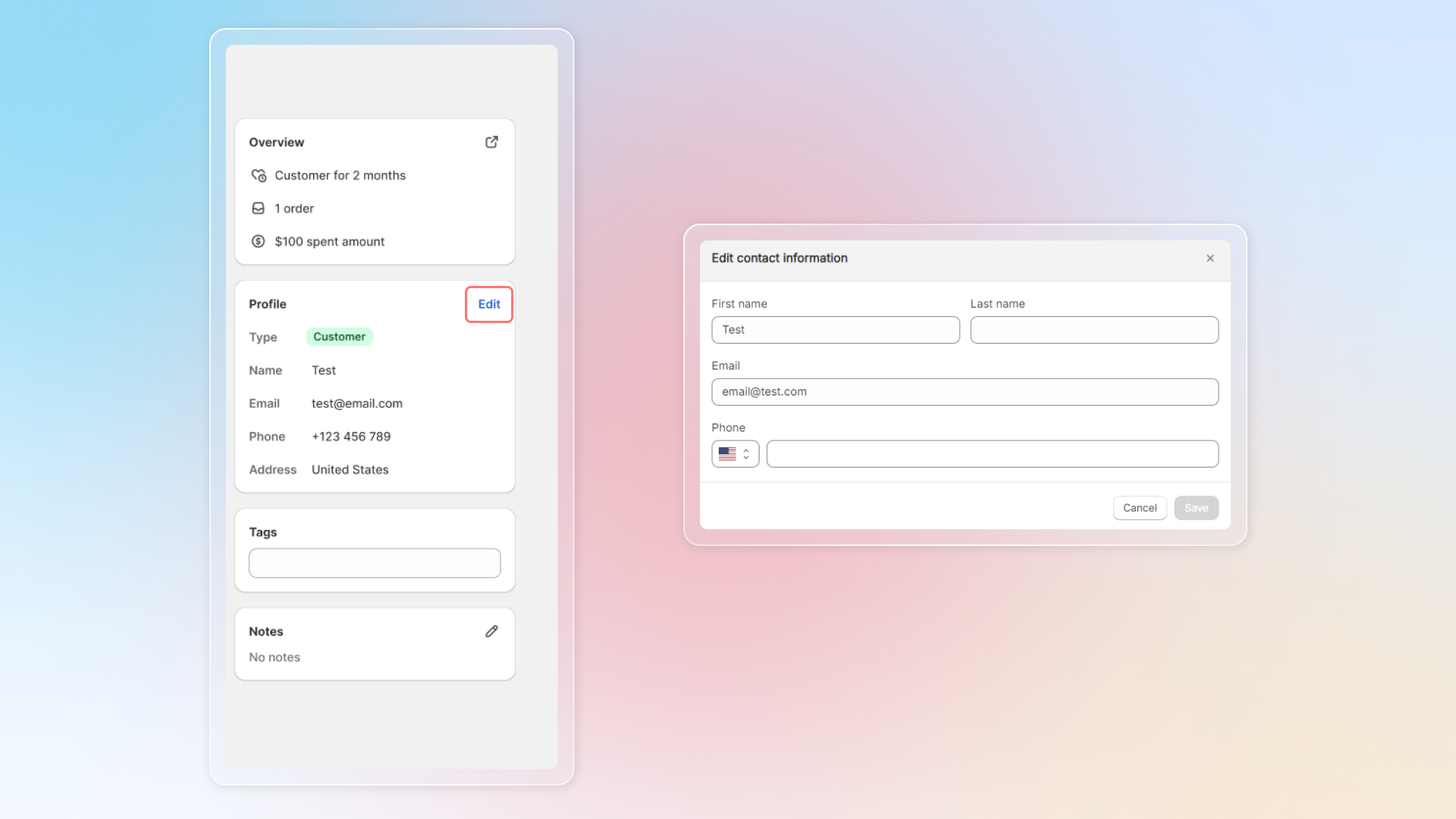
For a Shopify customer, the icon next to Overview opens their profile in Shopify.
Customer snapshot
Customer snapshot is built from this person's conversations, so you don't have to reread them before replying.
- Summary — a short profile in plain sentences, plus their average sentiment, conversation count and tags. It appears after their first conversation.
- Key facts — single lines Chatty picked up, such as a size or a preference. A fact you added yourself carries a Manual chip; a fact that is no longer current carries an Expired chip.
Admins can add, edit and remove facts. Use the plus button next to Key facts, write the fact, and pick its Type: Behavior, Preference, Size, Demographic, Issue or Contact. Other team members can read the snapshot but not change it.
Convert a lead into a customer
A lead or an anonymous contact has no Shopify customer record. Converting one creates that record so their next order links to the same person.
Open the contact
Click Convert to customer
The button sits at the top right. It is hidden for contacts that are already Shopify customers.
Fill the Create customer form
First name, last name, email address and phone. At least one field must be filled.
Click Create
Export contacts
Export downloads your contact information in a standard format, ready for an email marketing or loyalty platform.
What you get: contact type, name, email, phone, address, total orders, total spent, customer since, last updated, tags and note.
Go to Contacts and click Export
Choose what to export
Current page exports the contacts on screen. All contacts exports every page.
Confirm the email address
For All contacts, the file is sent to the address shown under Your export will be sent to.
Click Export
Current page downloads straight away. All contacts arrives by email.
Who can do what
Contacts follow the team permissions you set in Settings → Team.
| Permission | What it controls |
|---|---|
| Contacts — view | Opening the Contacts page and reading a contact. |
| Contacts — edit | Editing a profile, tags and notes, converting a lead, and deleting a contact. |
| Export contacts | The Export button. |
Without the view permission, the page opens with a no-access message instead of the list.
 Chatty Help Center