FAQs block
What is FAQs block?
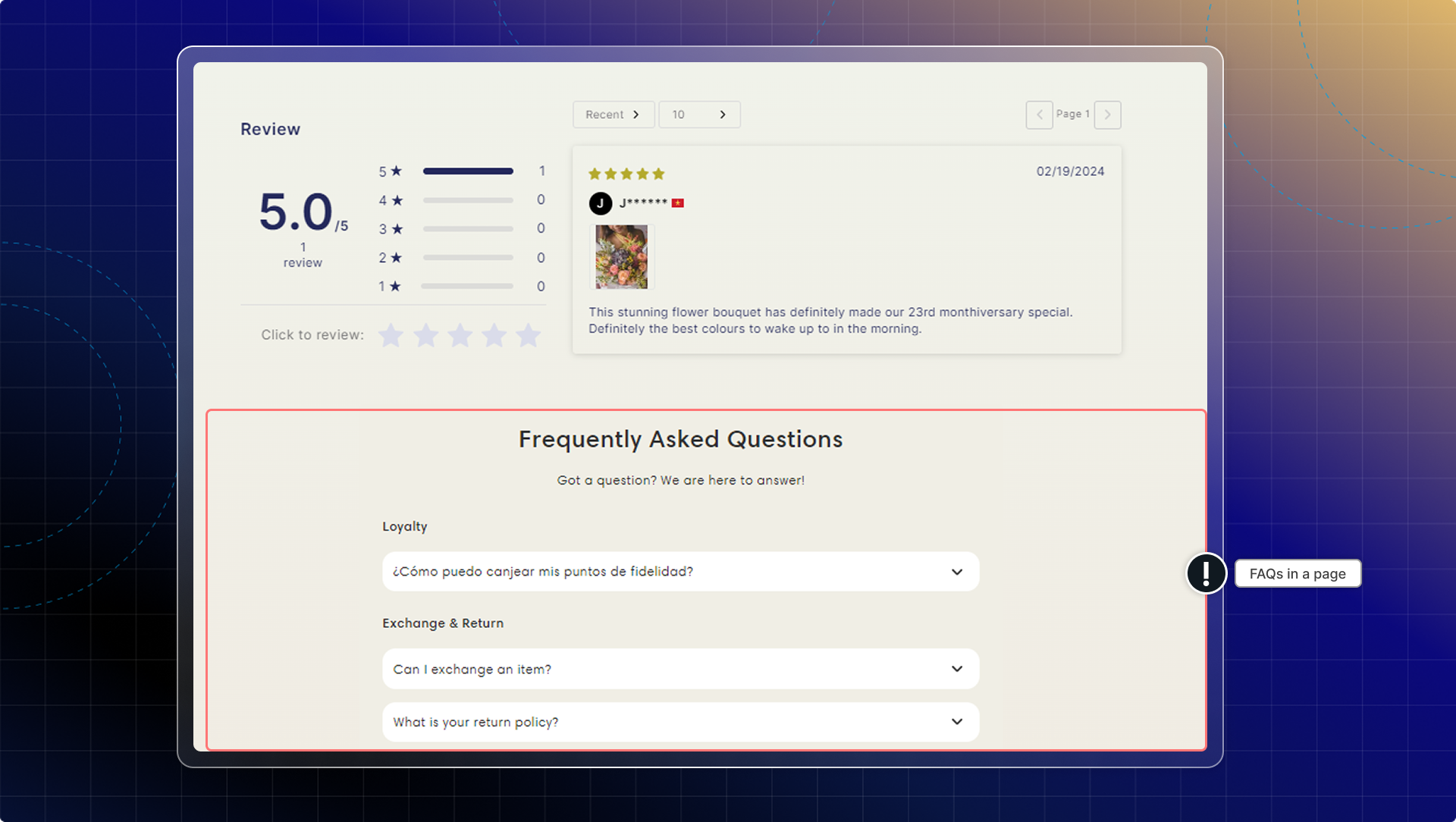
This allows you to display different FAQs for different pages on your store.
You can create custom FAQ blocks with specific questions that appear only on relevant product pages, helping customers find product-specific information faster.
How to set up FAQs block
Go to FAQs from navigation
Go to FAQs block
Set General information
- Block name: Give it a specific name to identify blocks, up to 30 characters. This is only visible in admin.
- Heading & Subheading: Content in the block (check preview while editing)
Select FAQs to show in block
Click Browse and select FAQs.
Don't categorize FAQs: In default, questions will be shown under their categories. If you turn on "Don't categorize FAQs", categories will be hidden. Questions are shown in the same list.
Set display condition
Choose where the block appears. You can tick Product pages, Specific pages, or both.
Under Product pages, pick one of four options:
| Option | Where the block shows |
|---|---|
| All product pages | Every product detail page in your store |
| Specific product pages | Only the products you search for and select |
| Product pages by collection | Every product in the collections you select |
| Product pages by tag | Every product carrying the tags you select |
Under Specific pages, tick any of Homepage, Collection pages, Cart page, Blog pages, and Custom URL page. Custom URL page opens a box where you type one storefront path per line, for example /pages/avada-faqs.
Customize appearance
You can customize appearance of the block:
- Heading size: Small, Medium or Large
- Heading alignment: left, centre or right
- Card corner radius: 0 to 24 px
- Colors: Title, Block background, Subtitle, Question text, Question background
Make sure to keep the appearance consistent across your pages.
Click Save
Copy Block ID
Go to theme editor
Add Chatty FAQs block as a section
- Go to pages you want to add FAQs block
- Click Add section
- Search for Chatty FAQs block and add to page
- Paste Block ID in settings
Click Save in theme editor
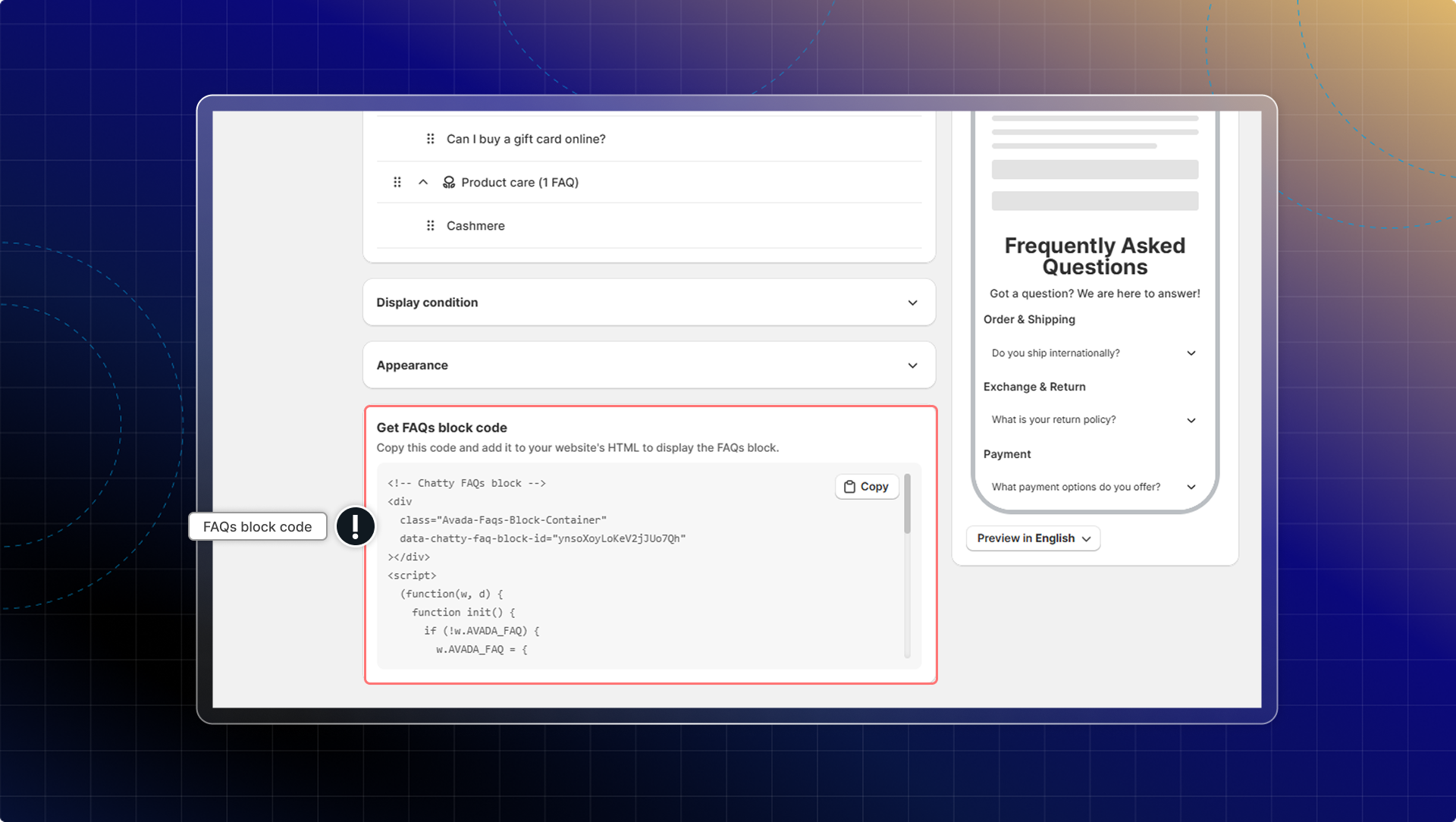
You can also add FAQs block to your site by using code.
Go to FAQs block code → Click Copy → Add to your website's code (HTML)
Manage FAQs block
In FAQs block, you can:
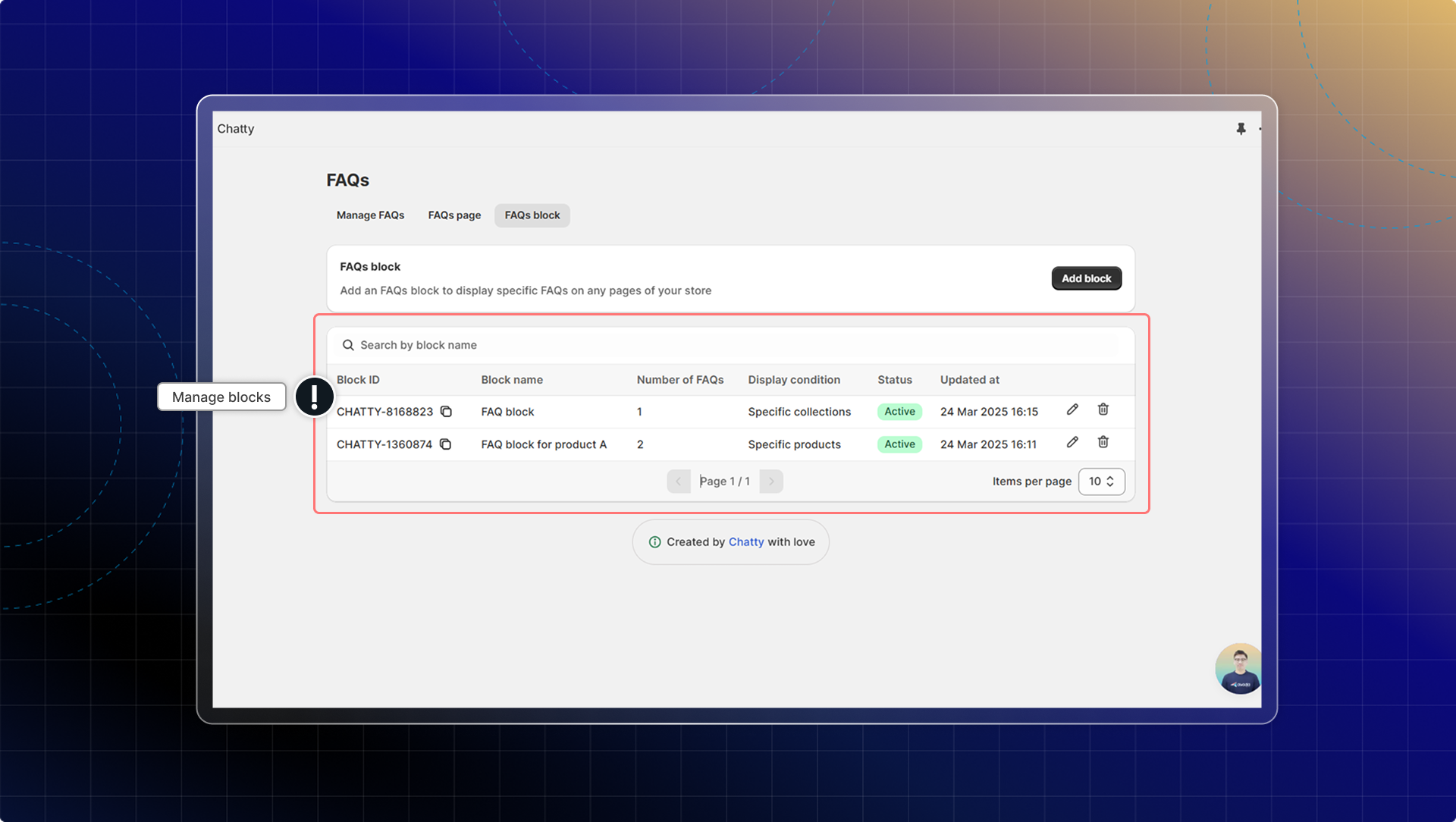
- View all your FAQs blocks in the FAQs block tab
- See details including Block ID, Block name, Number of FAQs, Display condition, Status and Updated at
- Edit or delete blocks as needed
- Create multiple blocks for different products or collections
To reuse a block you already set up, open it and click Duplicate. You get a copy with the same questions and appearance, which you can rename and point at different pages. Delete removes a block for good, so remember to take its Block ID out of your theme first.
How many different FAQs blocks can I create?
You can create as many different FAQs blocks as you need for your store. There's no limit, so you can have specific blocks for each important product or collection.
Can I use the same FAQ in multiple blocks?
Yes. Select the same question in each block you want it to appear in. One question can sit in any number of blocks, and editing it in FAQs updates it everywhere.
 Chatty Help Center