FAQs page
What is FAQs page?
FAQs page on your website that displays frequently asked questions and their answers. Customers can find quick answers without contacting support.
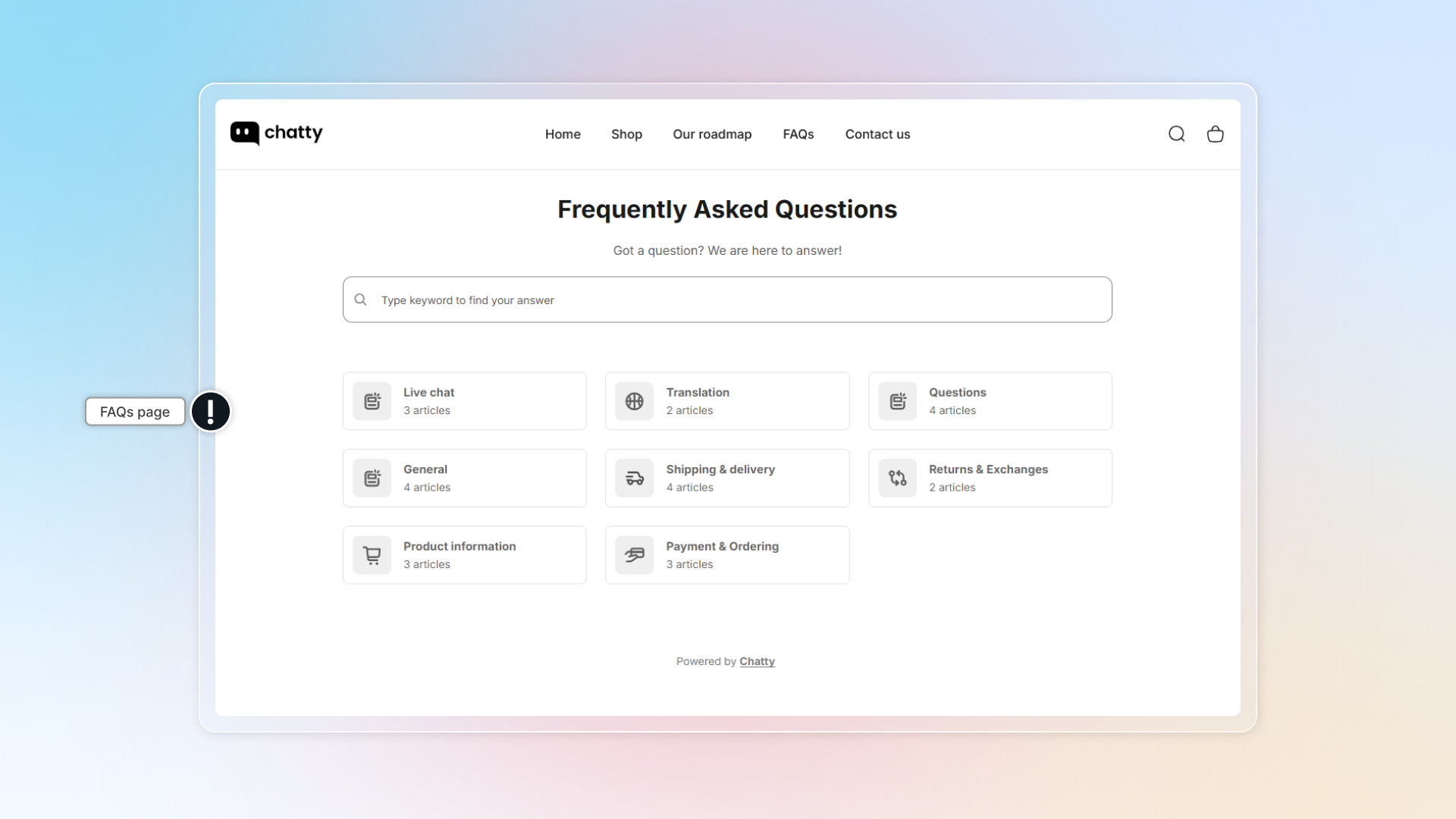
Set up FAQs page
In FAQs, go to FAQ page
Turn on Display FAQs page
Set up URL
Your FAQs page always lives under /pages/. Fill in the part after it, then click Save. For example, entering faqs gives you yourstore.com/pages/faqs.
Set up appearance
First pick a layout:
- 1 page layout — best for simple FAQs, showing all questions in one list.
- Card layout — best for a detailed help center, grouping questions into categories.
Then set the look. Preset gives you ready-made colour sets. Custom lets you set each colour yourself: title, subtitle, body text, page background, question text, question background, answer text, answer background, button label and button background.
If you customize your text & background color, make sure contrast is good enough for users to read. You can check your color combo by this tool: https://coolors.co/contrast-checker (opens in a new tab)
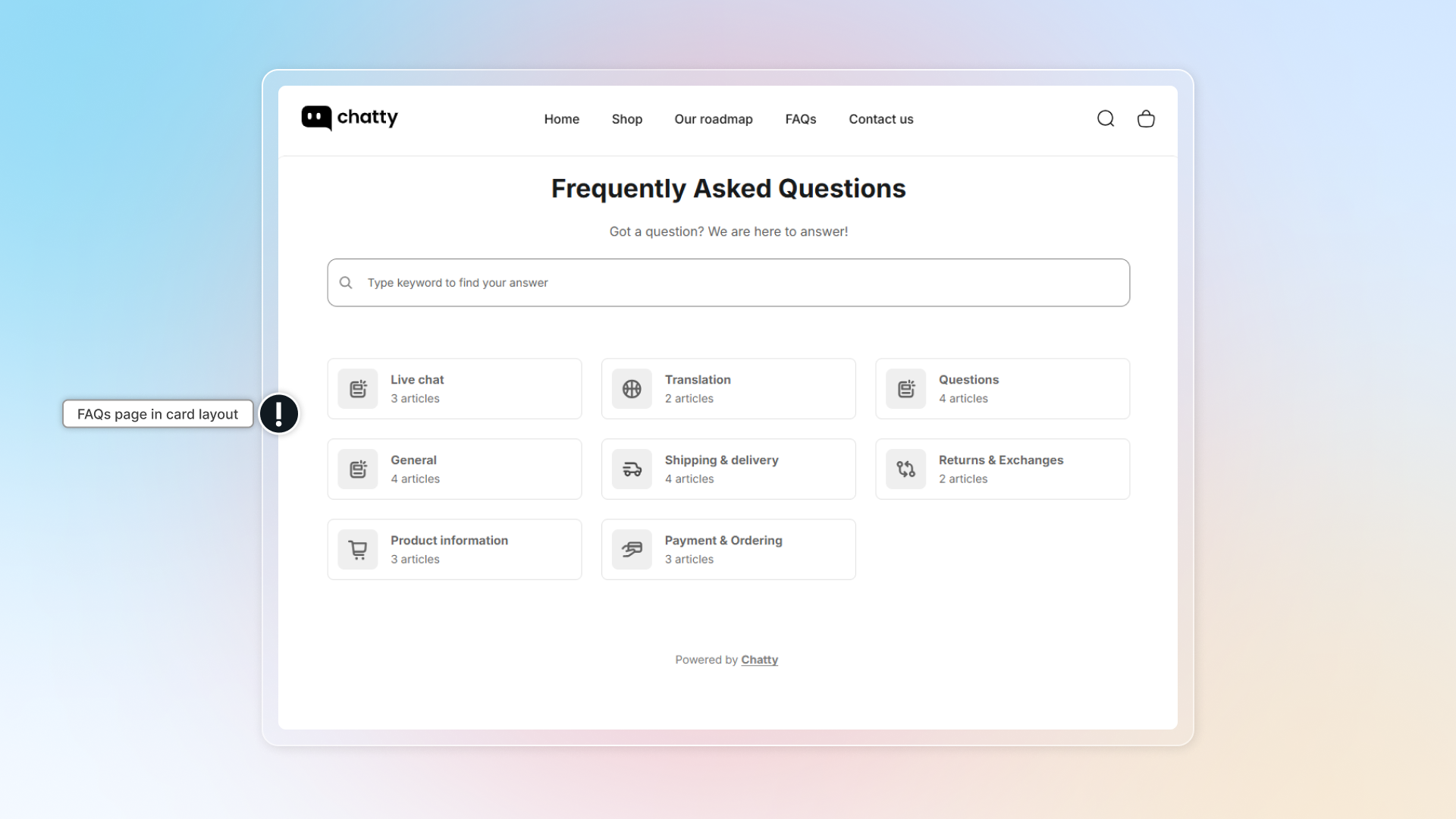
Set up header
- Heading — the page title, up to 60 characters.
- Description — the line under the title.
- Banner — the strip behind the header. Choose a plain colour, or upload an image.
Banner images must be PNG, JPG, JPEG, GIF, SVG or WebP and smaller than 2MB. The recommended size is 1920 x 240px.
Set up Contact us
Contact us in FAQs page helps user reach your team when they need more help.
- Turn on Display contact us
- Heading — up to 40 characters. Defaults to "Not finding what you are looking for?"
- Description — up to 100 characters
- Click behavior — what happens when a customer clicks the block:
- Open chatbox — starts a chat with your team. Make sure the chatbox is set to show on your FAQs page, otherwise nothing opens.
- Open another tab — opens a link you choose. Paste the address in the URL field that appears;
https://is added for you.
Advanced settings
- Branding removal: Remove the Chatty branding line from the FAQs page. Available on the Pro plan and above.
- Custom CSS: Paste your own CSS to make the FAQs page match your theme. This needs coding knowledge. If you want a hand, use the Chat now link next to the field to reach our team.
How to show FAQ page in main menu?
-
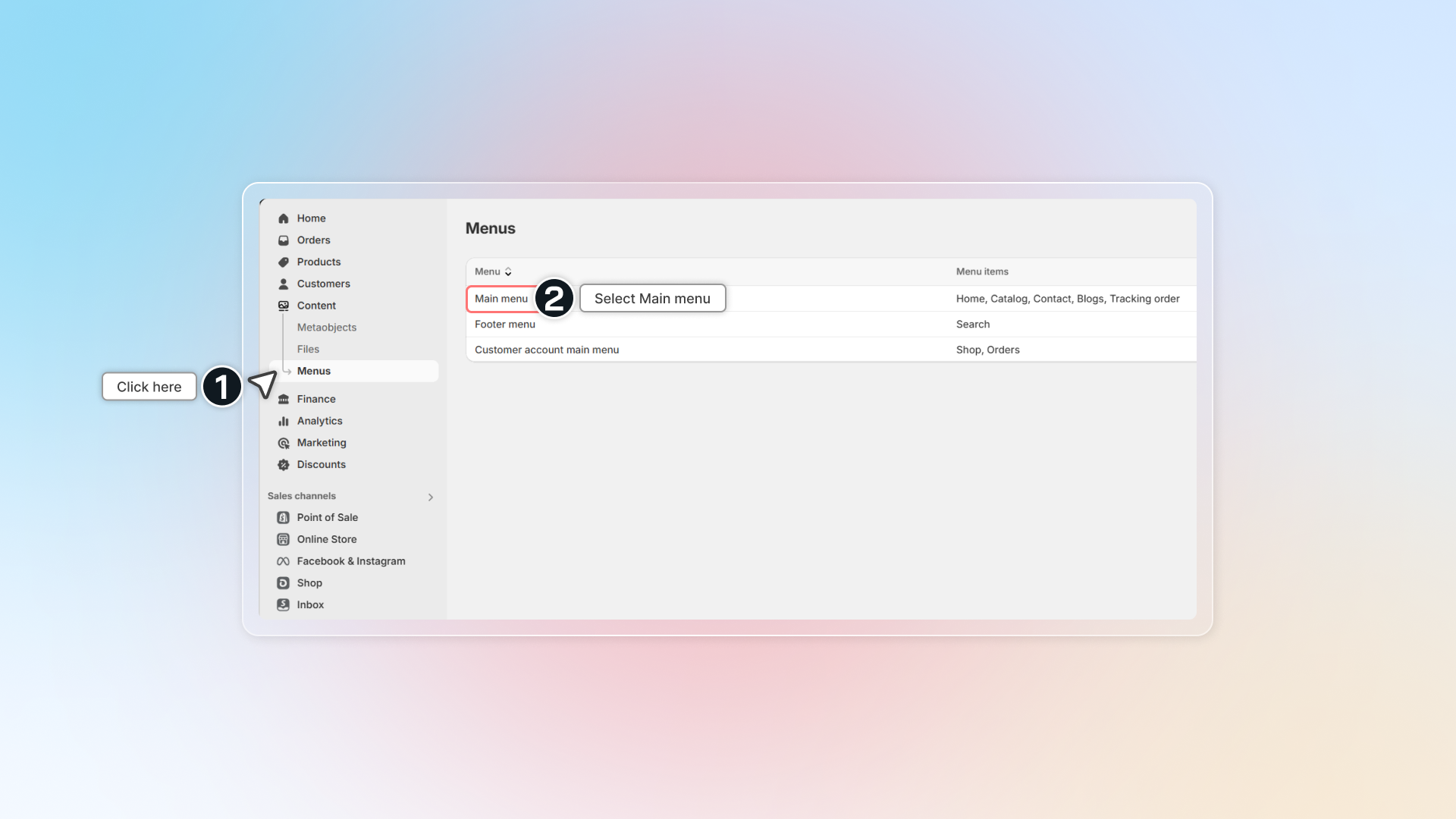
In Shopify admin, go to Content -> Menus
-
Click Main menu or the menu you are using
-
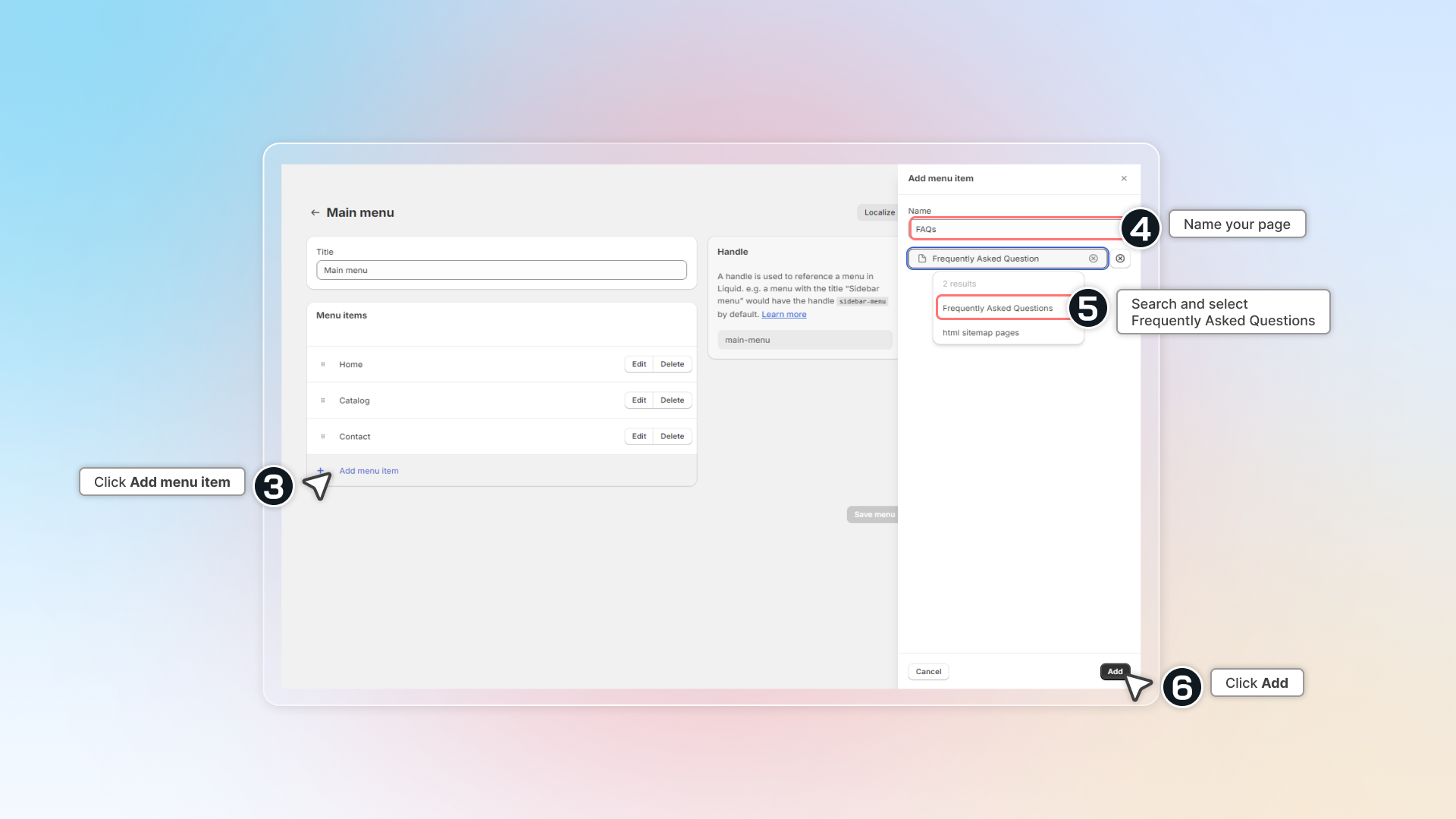
Click Add menu item
-
Name your page (FAQs,..)
-
In the link box, search for
Frequently Asked Questionsor Heading (title of FAQs page). If you're using custom URL, paste the link in box. -
Click Add
-
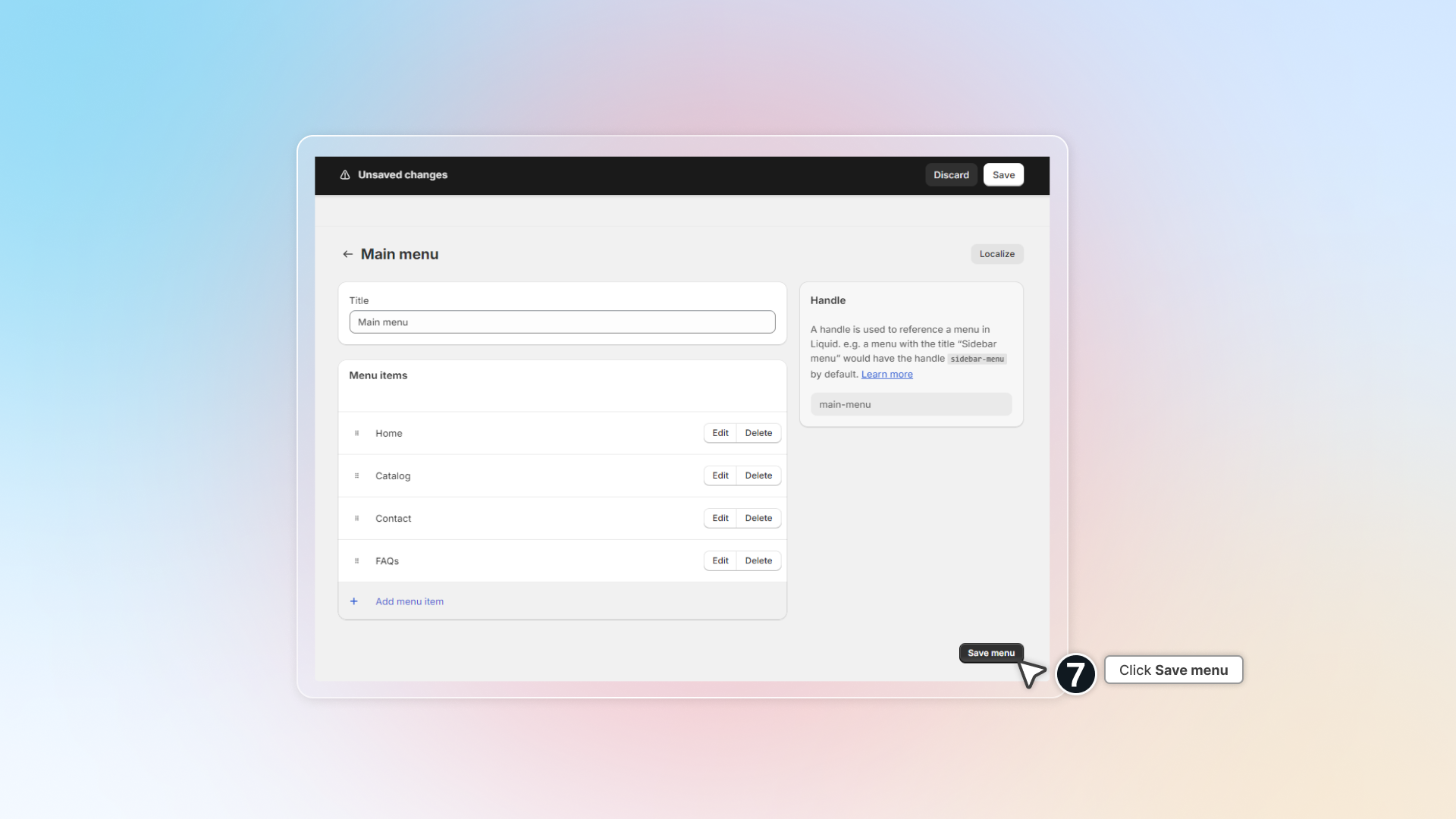
Click Save menu
-
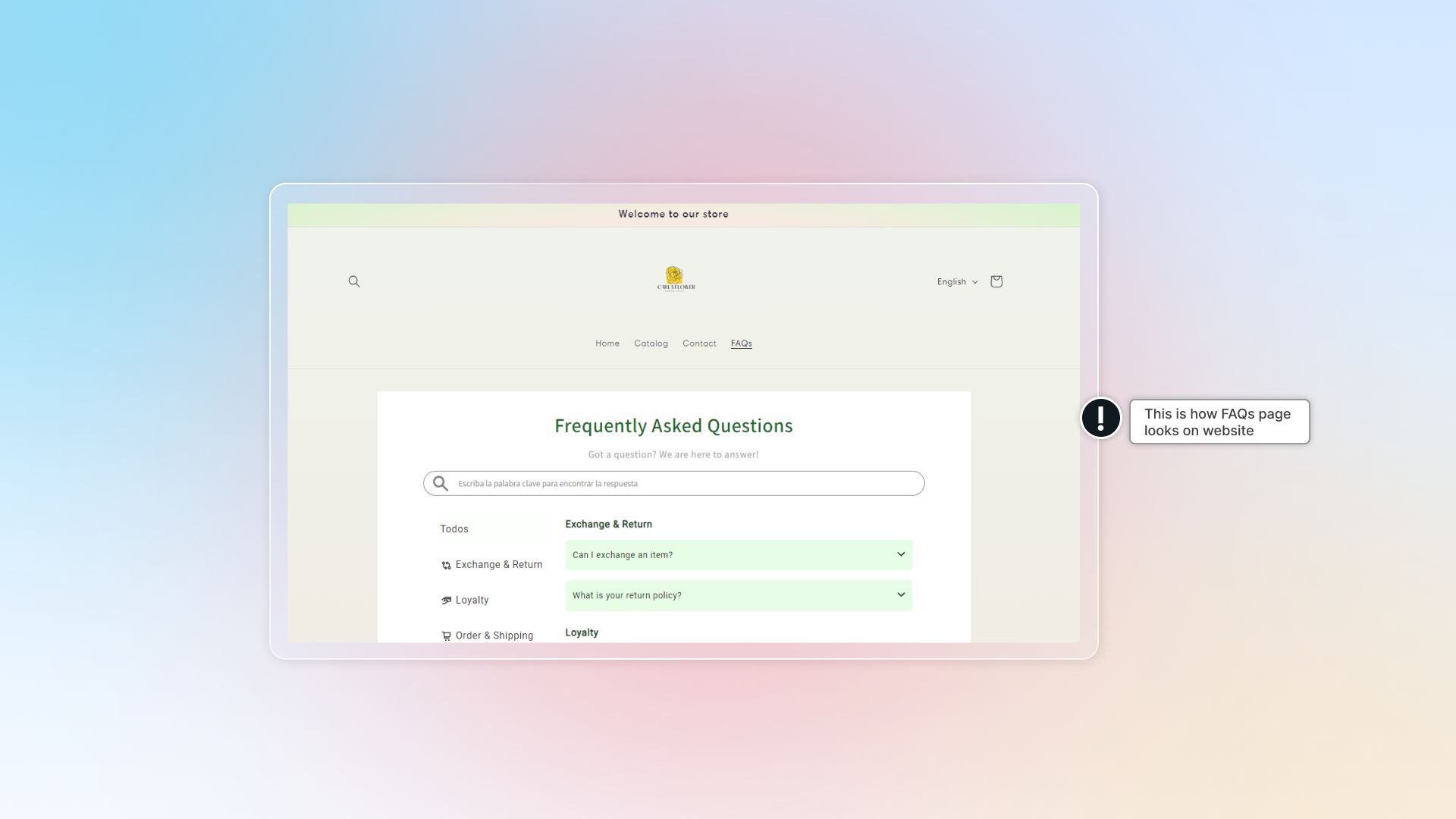
Go to your store front & check the menu to access FAQs page
How to show FAQ page in footer?
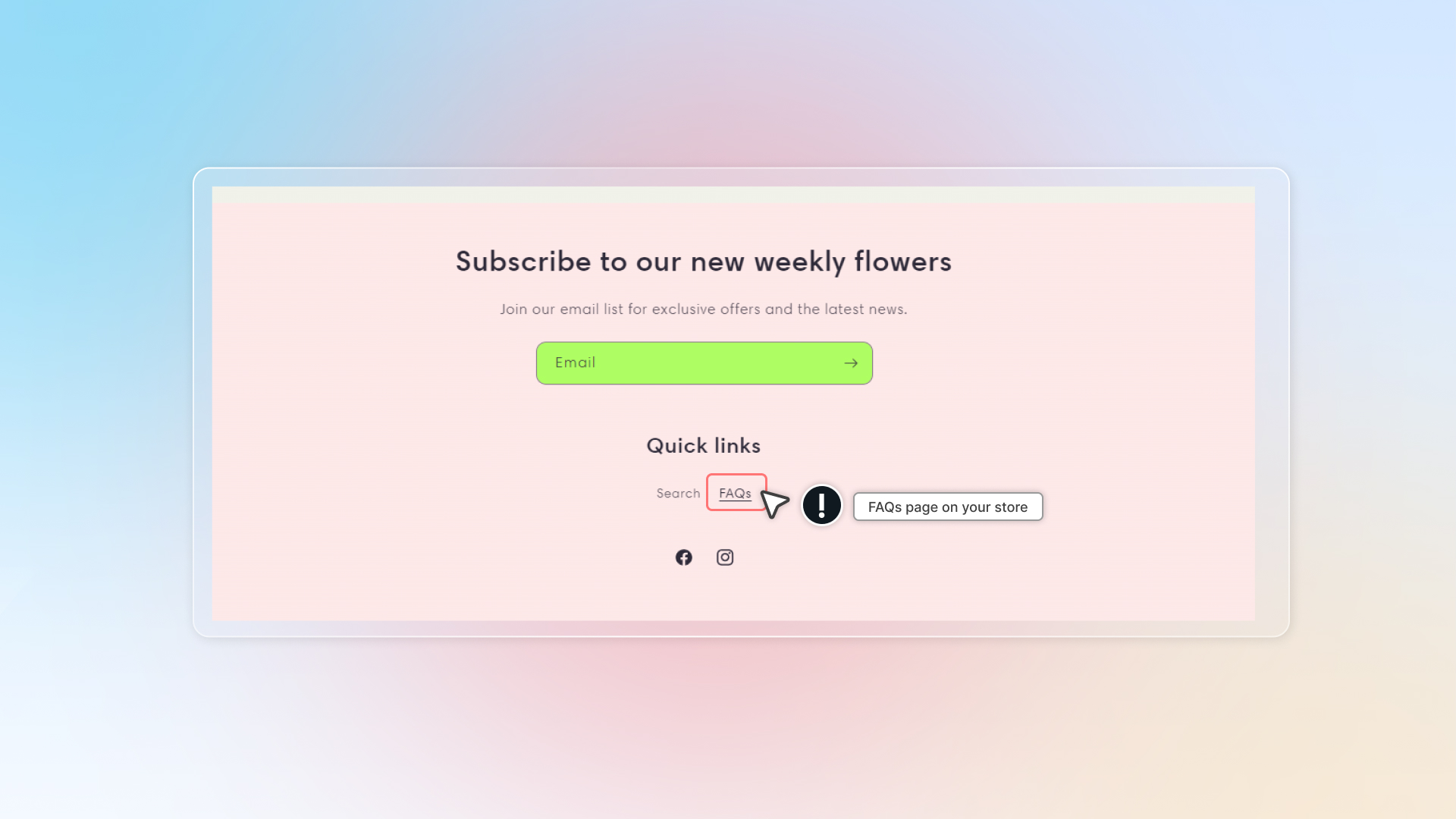
Same as set up FAQ page in main menu, you can add FAQs link in the footer menu.
- In Shopify admin, go to Content -> Menus
- Click Footer menu and add FAQs to your footer.
- Go to your store front & check footer to access FAQs page
 Chatty Help Center