Pricing display rules
Who can use this feature?
- This feature is available for all users.
What are pricing display rules
Pricing display rules decide when your AI hides a product price. The page has two separate rules:
- Hide prices from logged-out visitors: only signed-in customers see prices in Chatty.
- Quote-only products: products you quote by hand show a label like Call for Price instead of a price.
Each rule has its own product list and its own label. Matching products also lose their add-to-cart button in chat.
This helps you sell call-for-price, quote-only, or wholesale items without the AI showing a wrong price like "0.00".
How to turn on pricing display rules
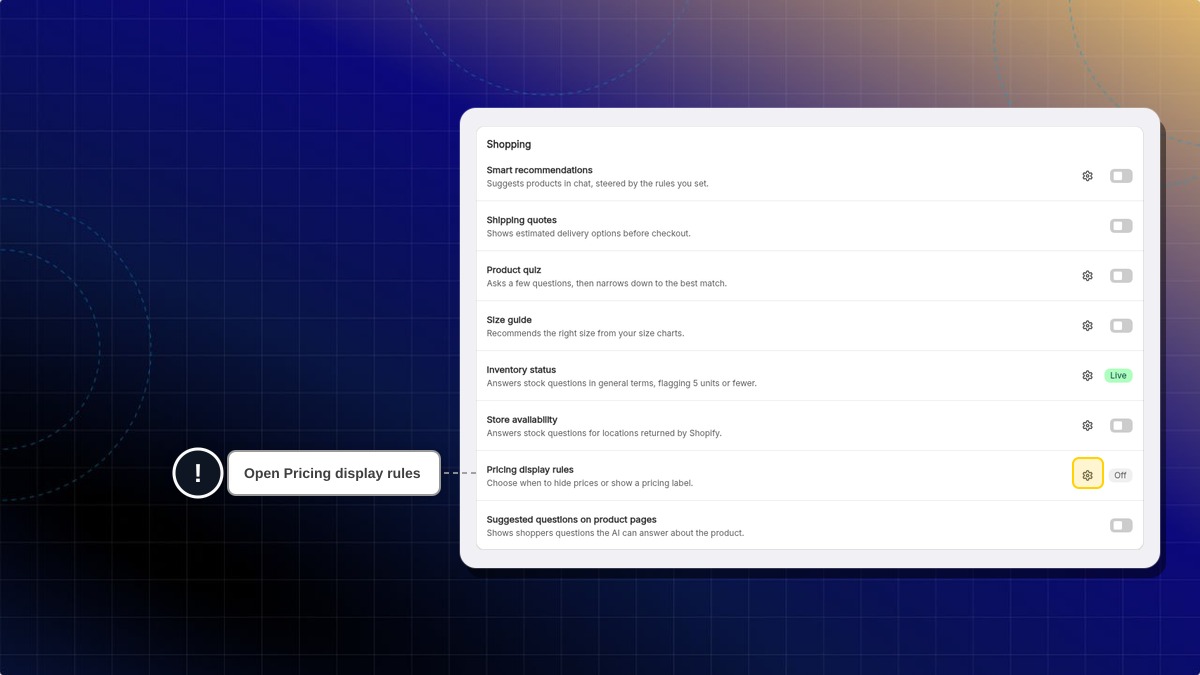
Open Pricing display rules
Go to AI agent → Skills. Under Shopping, find Pricing display rules and click the settings icon next to it.
Turn on the rule
Turn on the toggle of the rule you need: Hide prices from logged-out visitors, Quote-only products, or both. The rule's settings open below its toggle.
Save your change
Click Save in the top bar.
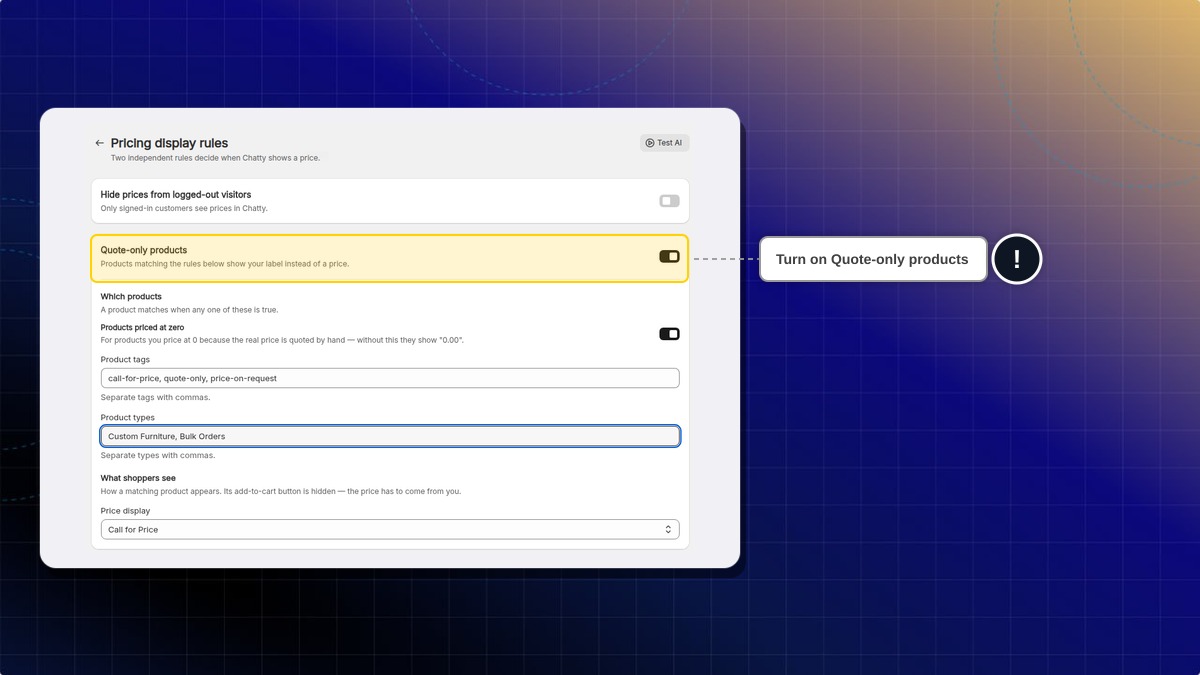
Expected result: The text under Quote-only products changes to "Products matching the rules below show your label instead of a price." Next, choose which products the rule covers.
Both rules are off by default. The Pricing display rules row in Skills has no toggle. It shows a status: Off when both rules are off.
How to choose which products the rule covers
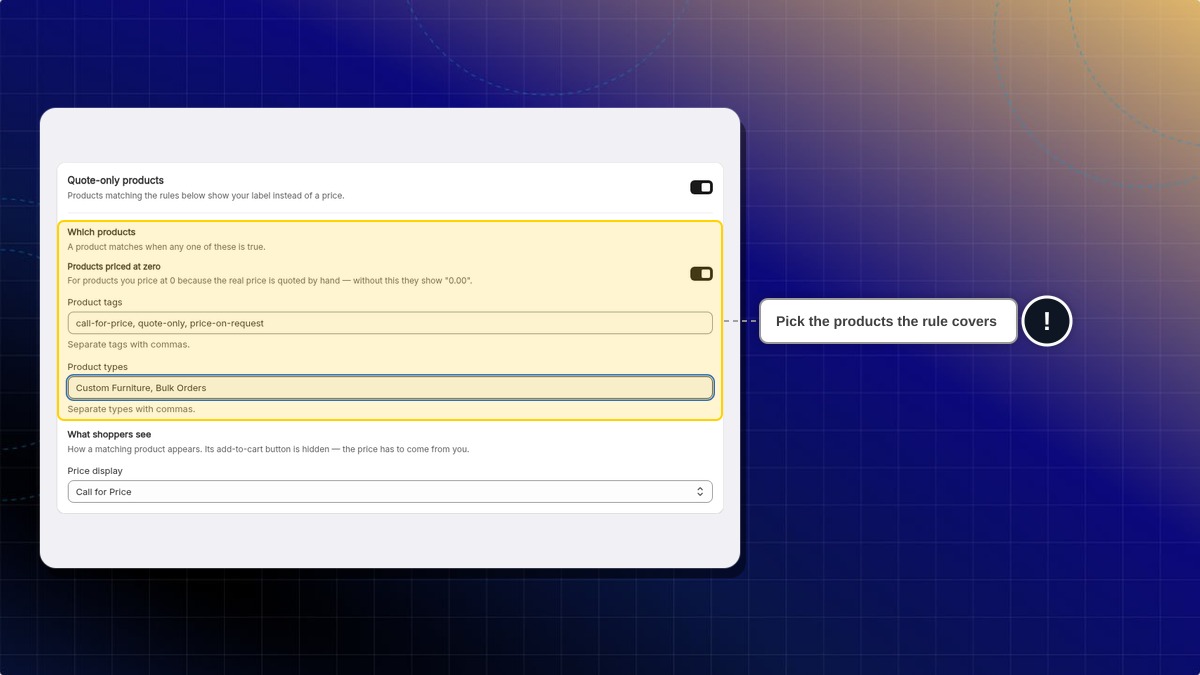
Each rule has its own Which products section. Fill in only the fields that fit how you set up these products in Shopify. A product follows the rule if it matches any one of them.
Cover products priced at zero
Turn on Products priced at zero if you set these products to a price of 0 in Shopify. Without this, the AI shows them as "0.00".
Add product tags
In Product tags, enter the Shopify tags that mark these products. For example, call-for-price, quote-only, price-on-request.
Add product types
In Product types, enter the Shopify product types that never have a fixed price. For example, Custom Furniture, Bulk Orders.
Save your change
Click Save in the top bar.
Expected result: Any product with a listed tag, a listed type, or a price of 0 (when that toggle is on) now follows the rule.
Separate each tag or type with a comma. Capital letters don't matter, but each entry must match the whole tag or type in Shopify. For example, quote does not match a product tagged quote-only.
To check a product's tags and type, go to Shopify admin → Products and open the product. Both are in the Product organization card.
How to choose what shoppers see
-
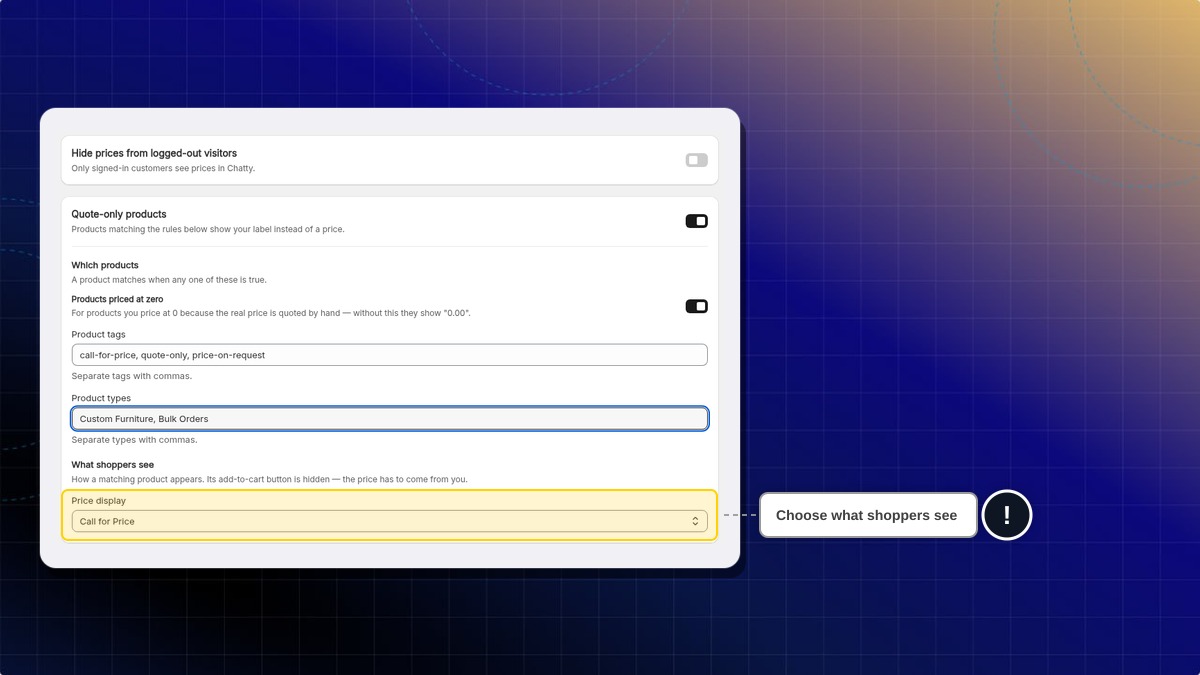
In the rule's What shoppers see section, open Price display.
-
Pick the label that fits how shoppers get a price from you.
-
Click Save in the top bar.
| Option | What shoppers see | Best for |
|---|---|---|
| Log in to view price (logged-out rule only, default there) | A "Log in to view price" link instead of a number | Wholesale or members-only prices |
| Call for Price (default for quote-only) | The card reads "Call for Price" instead of a number | Items you price over the phone |
| Contact for pricing | "Contact for pricing" takes the price spot | Stores that reply by chat or email |
| Price on request | The card shows "Price on request" in place of the price | Made-to-order or custom items |
| Request a quote | A "Request a quote" line replaces the price | Bulk and wholesale orders |
| Hide the price | The price spot stays empty, with no label | Items where you'd rather say nothing |
Expected result: Matching products show your choice in chat and AI product cards. The add-to-cart button is gone on those cards.
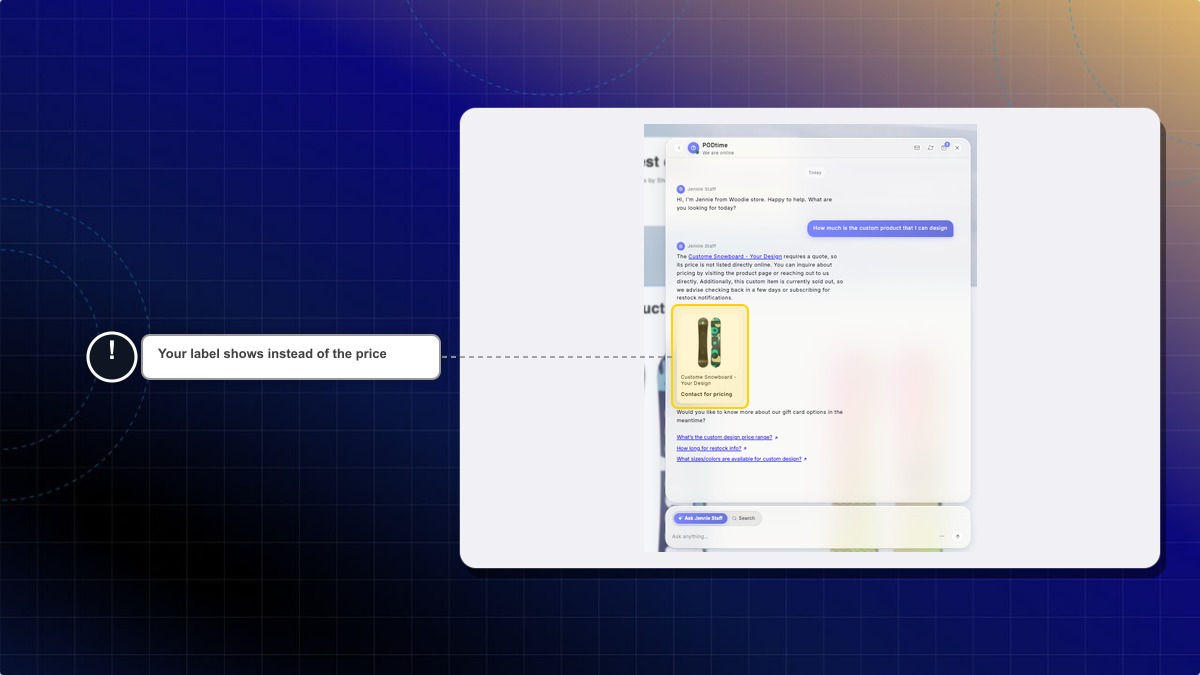
Chatty translates the label into the shopper's language. You can only pick from the labels in this menu. You can't type your own.
How to hide prices from logged-out visitors
Before you start, make sure your store lets customers log in to a customer account.
This example hides prices only on wholesale products for shoppers who are not logged in.
- Go to AI agent → Skills → Pricing display rules.
- Turn on Hide prices from logged-out visitors.
- In that rule's Product tags, enter
wholesale. - In that rule's Price display, keep Log in to view price.
- Click Save in the top bar.
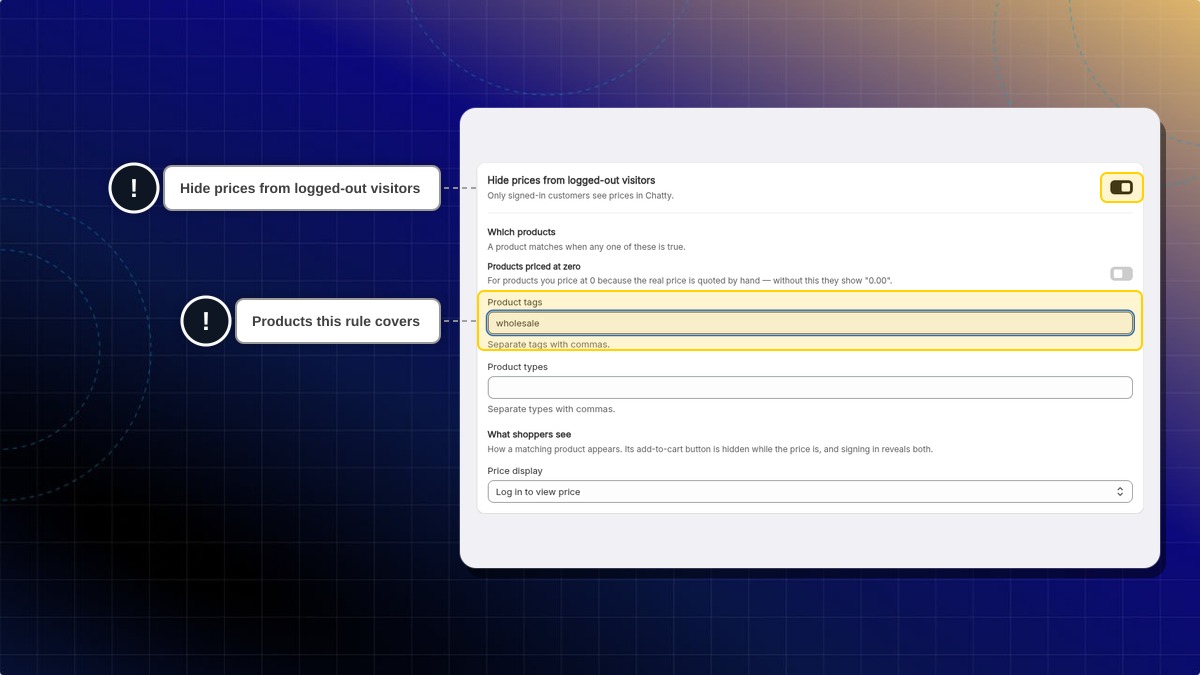
Expected result: Logged-out shoppers see Log in to view price instead of a price on products tagged wholesale. The add-to-cart button is hidden. After they log in, they see the price and the button again. Size guide cards are the exception: they stay without a price. Other products keep their normal price.
To hide prices on every product from logged-out visitors, leave every condition in this rule empty.
What your AI does for matching products
When a shopper asks about a product that matches Quote-only products, your AI:
- Never states, guesses, or makes up a price
- Never says the product is free
- Doesn't say whether it fits the shopper's budget
- Won't add it to the cart, and tells the shopper it couldn't be added
- Points the shopper to the product page, or to a contact method your store has shared, so they can ask for a price
When Hide prices from logged-out visitors applies and the label is Log in to view price, your AI tells a shopper who asks for the price to log in, and shares your store login link. It still answers their other questions about the product.
Products that don't match keep their normal price and add-to-cart button.
Does the rule work on Messenger, Instagram, and WhatsApp?
Yes. Matching products show no price on these channels. They show the product name and link, but not your label.
Does the rule cover size guide answers?
Yes. Size guide cards for matching products don't show a price.
With Hide prices from logged-out visitors, this also applies after the shopper logs in. Their size guide card stays without a price or label. Product cards and AI answers show the price again as usual.
I switched to Hide the price. How do I get my label back?
Open Price display again and pick the label you want. Then click Save.
What if I turn on the rule but leave every condition empty?
It depends on the rule. In Quote-only products, no product matches, so every product still shows its price. In Hide prices from logged-out visitors, every product matches, so logged-out shoppers see no prices at all.
What happens when a product matches both rules?
By default, the quote-only rule wins. Turn on both rules, and a When both rules match menu appears below them. Pick Quote-only rule wins or Logged-out visitor rule wins, then click Save.
Will product cards from past chats change?
No. Cards already sent keep what they showed at the time. The rule applies to new answers only. This also works the other way: if you turn the rule off, old cards keep the label.
How many tags and product types can I add?
You can add up to 100 tags and 100 product types in each rule. Each one can be up to 200 characters.
Does this change the price on my Shopify store?
No. The rule only changes what your AI says and shows in chat. Your theme product pages and Shopify prices stay the same.
 Chatty Help Center