💬Get free consultation
Who can use this feature?
- Helpdesk is in early access. Request early access (opens in a new tab) and we turn it on for your store.
- Once Helpdesk is on for your store, it works on every plan
- You see Helpdesk when your role can view tickets
Macros
A macro is a saved reply you can insert while you write.
What this is for
A macro is a reply you saved for a question that comes up often.
This helps you answer in the same words, faster, and still edit the text before you send it.
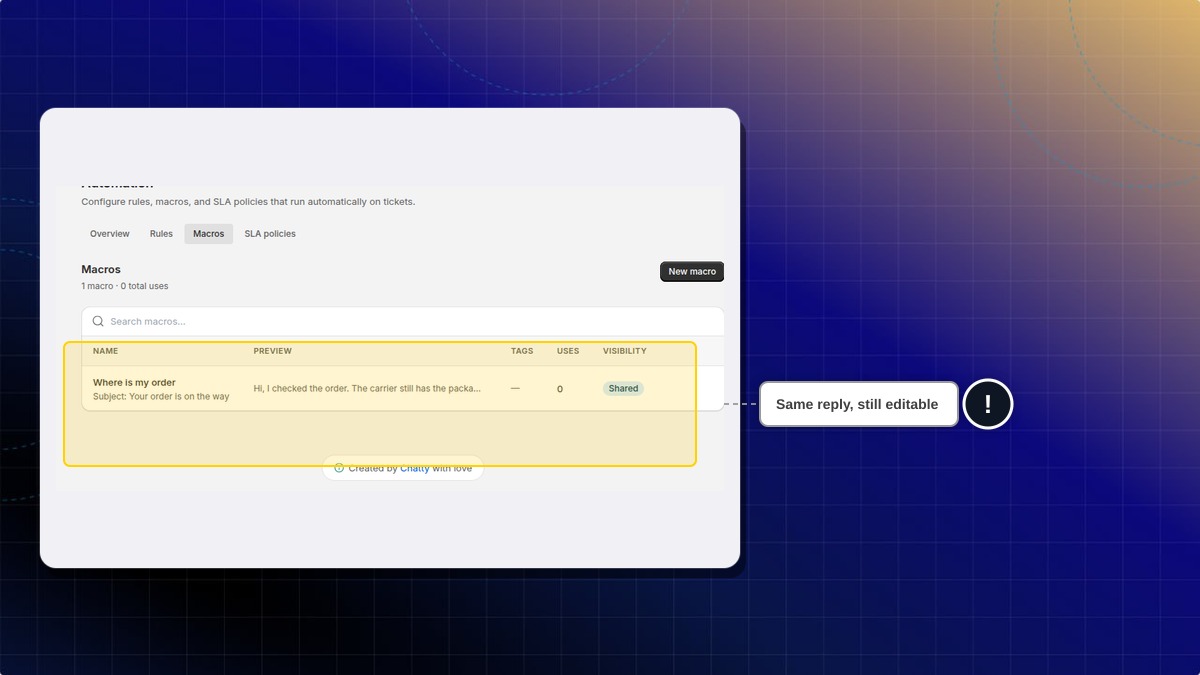
Shared means the team can use it. A personal macro stays with you. Insert it from the reply box when you are on the ticket.
How to create a macro
- In Helpdesk, open settings, then open Automation.
- Open Macros.
- Click New macro.
- Write the reply and save it.
Expected result: The macro is listed, with a use count and a visibility such as Shared.
How to insert a macro
- Open the ticket.
- In the reply box, type / and pick the macro.
Expected result: The saved reply is inserted. Send it from Reply when you are ready.
Does every store start with a macro?
No. A sample you already see was added on that store.
 Chatty Help Center