Inbox
What is Inbox
Inbox is your central hub for managing all customer conversations across multiple channels.
It brings together messages from live chat, email, Facebook Messenger, and other connected channels into one workspace
You can easily track, respond to, and organize every customer interaction.
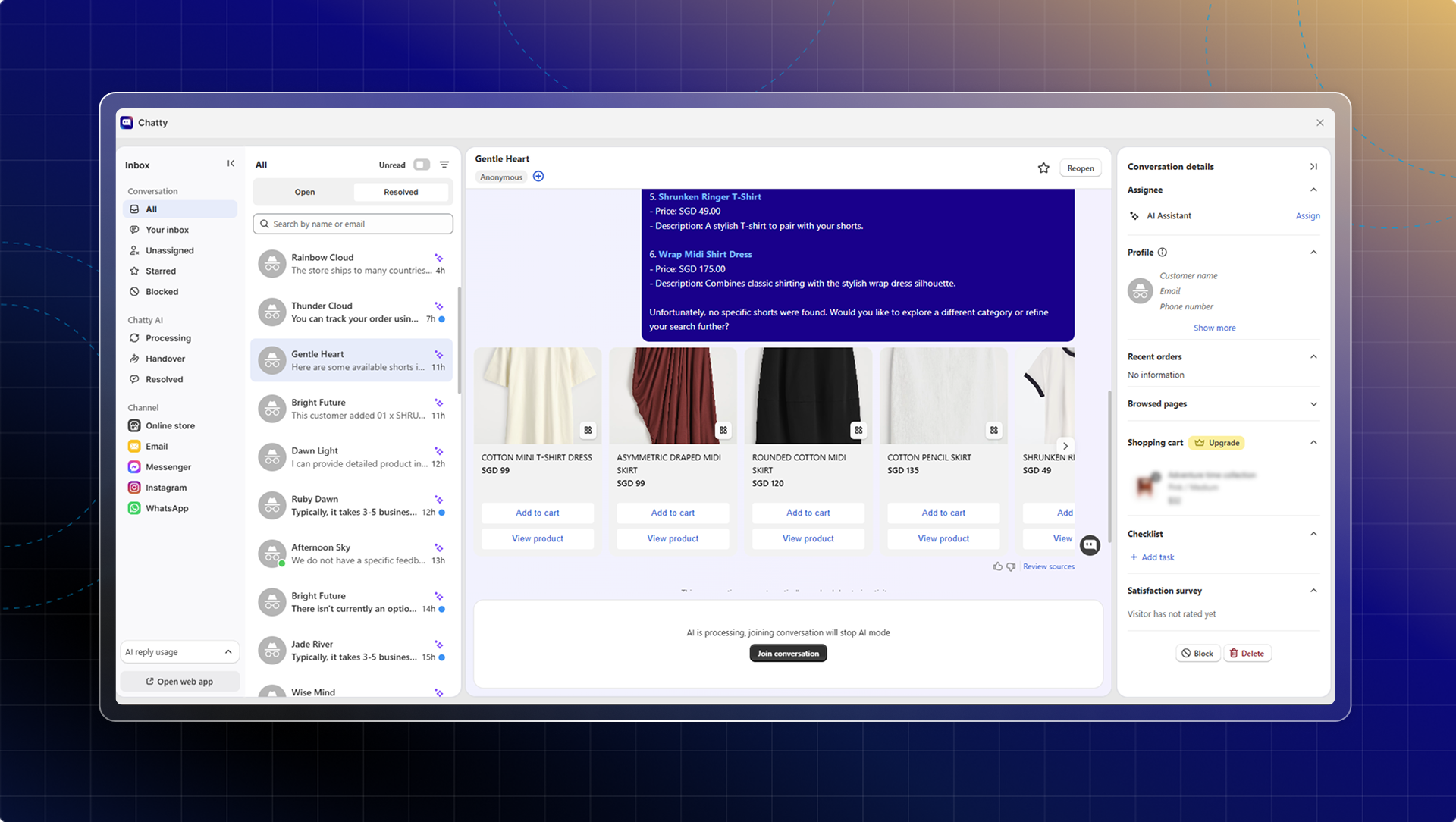
What Inbox helps you do
- Respond to all conversations from all channels in one place
- Easily find conversation with smart filter & search
- Check customer details while chatting
- Manage conversations effectively: star, mark as resolved, etc.
How to use Inbox
Access your inbox
- Go to Chatty in your Shopify admin
- Click Inbox tab in the main navigation
- Or click Go to inbox from Dashboard
Your inbox opens with the conversation list on the left and chat details on the right.
Respond to conversations
Send messages
- Select a conversation from the list
- Click the message input field at the bottom
- Type your message
- Press Enter or click Send
With conversation assigned to AI, click Join conversations to start responding. You can reassign to AI anytime for AI auto-reply.
Change send behavior
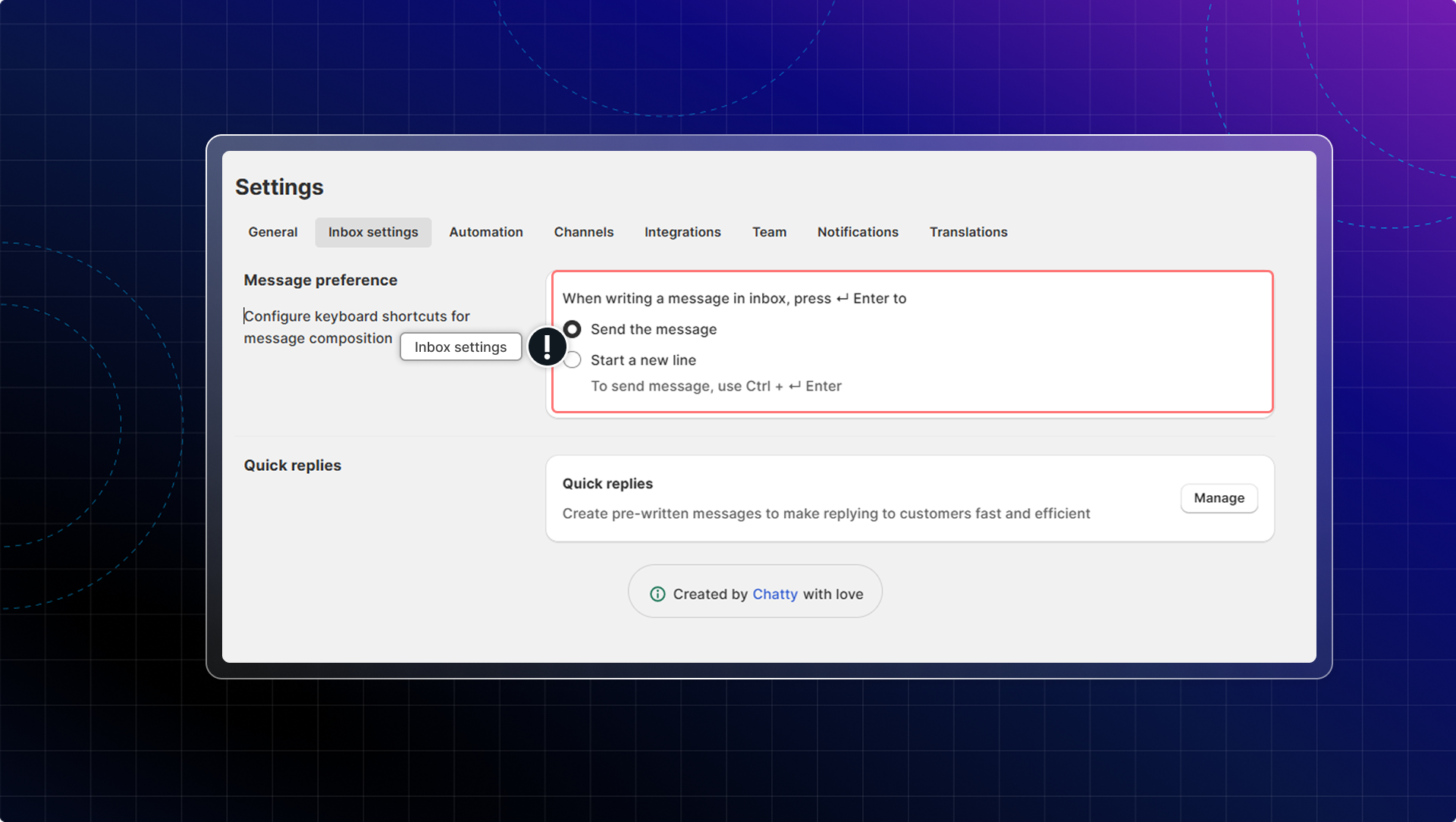
By default, pressing Enter sends your message. You can change this in settings (Settings → Inbox settings → Message preference)
Learn more about responding in chat zone.
Filter conversations
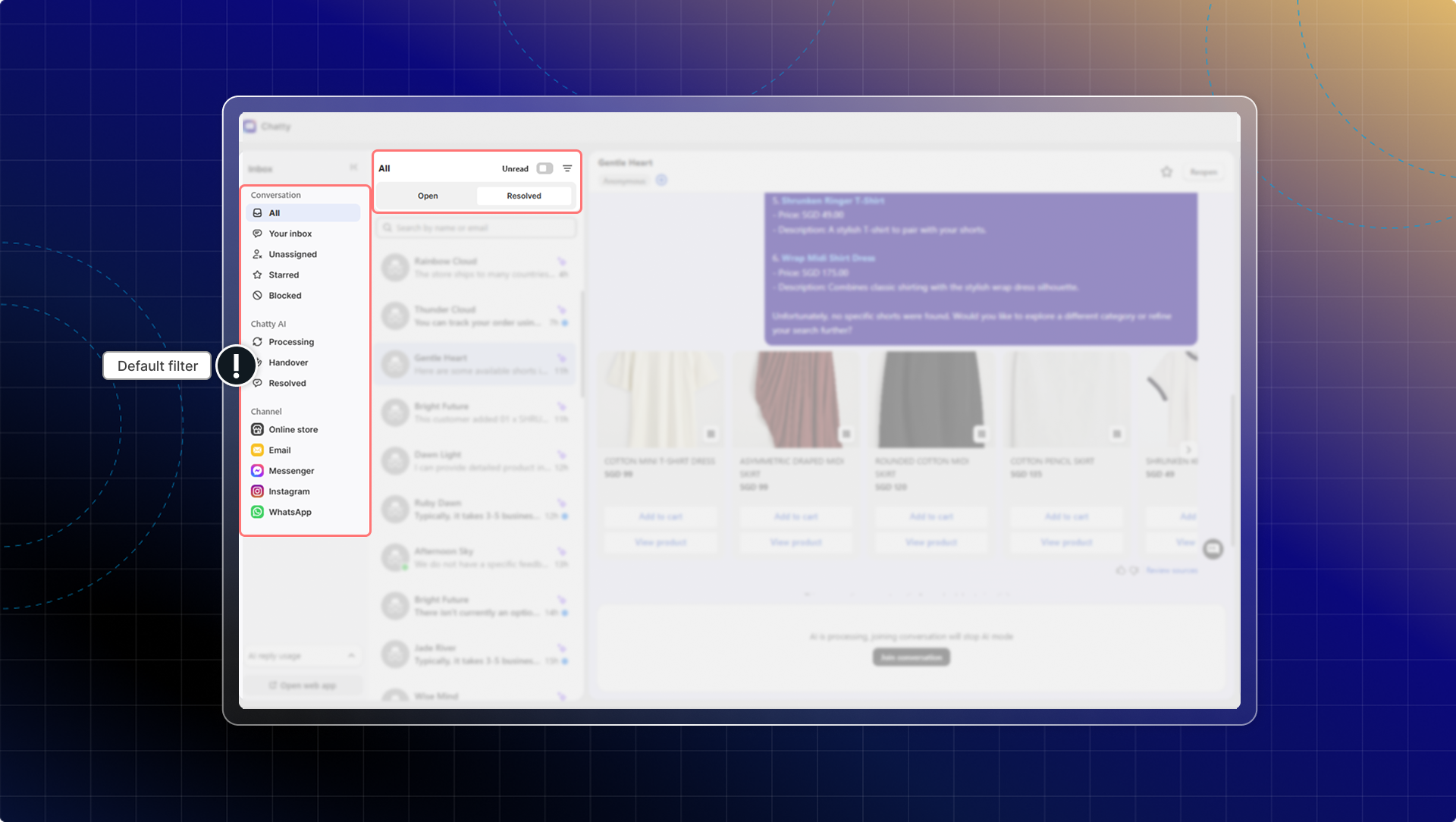
Use the left sidebar
The sidebar groups conversations so you can jump to the pile you care about.
| Group | Items |
|---|---|
| Conversations | All, Your inbox, Unassigned, Starred, Blocked |
| Chatty AI | Processing, Handover, Resolved |
| Channels | Online store, Email, Messenger, Instagram, WhatsApp |
Chatty AI splits conversations by what the AI did with them. Processing is what the AI is handling right now, Handover is what it passed to a person, and Resolved is what it closed on its own.
Switch between Open and Resolved
Above the conversation list there are two tabs, Open and Resolved. Search and filters only look inside the tab you are on, so switch tabs if a conversation does not show up.
Show only unread
Turn on the Unread toggle above the conversation list to hide everything you have already read. The toggle shows on All, Your inbox, Unassigned, and on each channel.
Filter by assignee
- Select Your inbox (Conversation assigned to you), Unassigned from the filter menu; or select an assignee in the list at the top of conversation list
- View conversations assigned to that assignee.
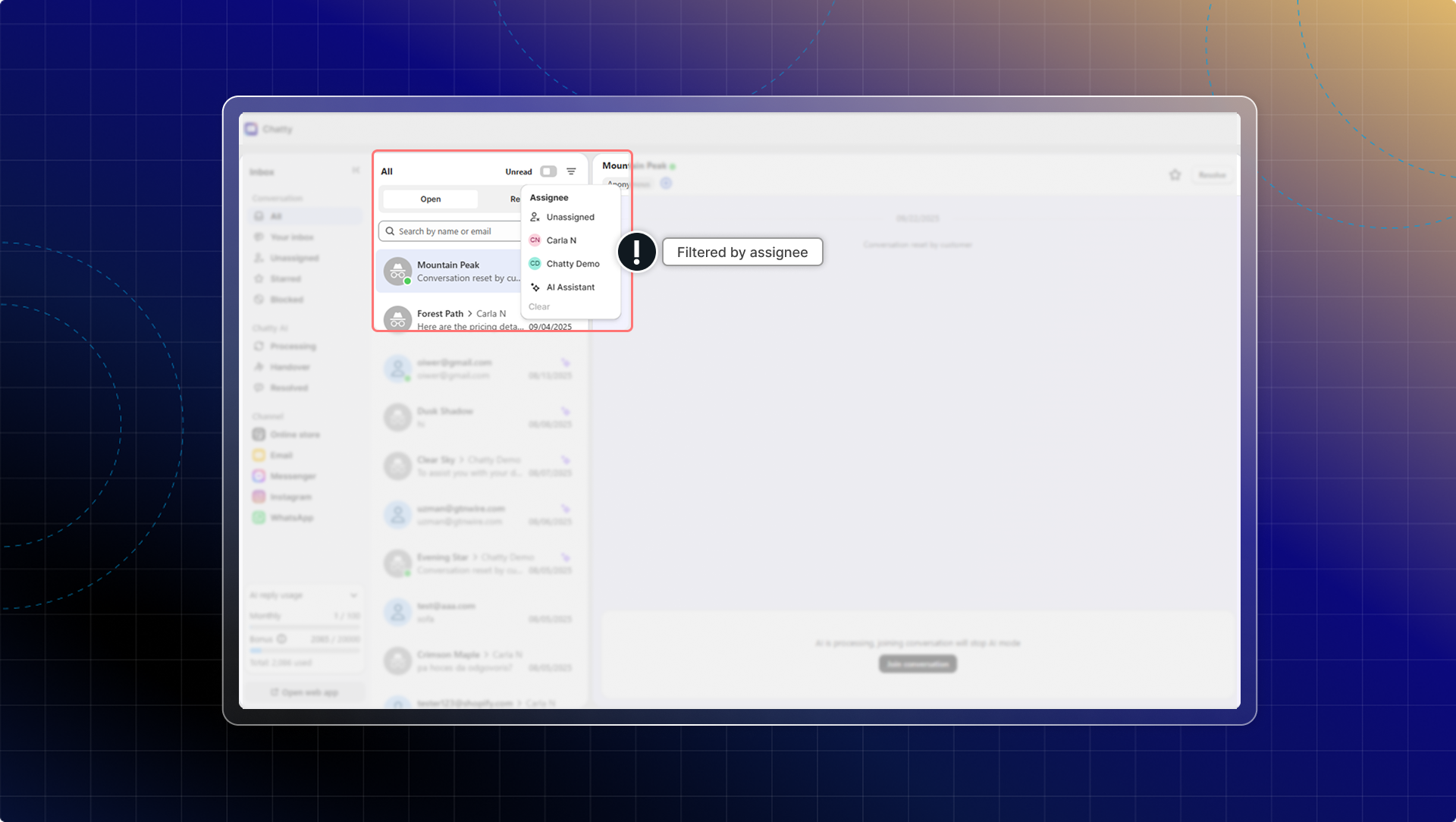
The assignee list also has Unassigned and AI Agent, so you can pull up everything the AI is still holding.
Save a filter you use every day
A custom filter is a saved set of tags, built under Custom filter in the filter menu. Tick it and the list only shows conversations carrying those tags. Custom filters are only available on All and Handover. See Save a filter you use every day.
Start a conversation yourself
You do not have to wait for a customer to message first. Click the plus icon above the conversation list, enter the customer email, add a subject and your message, then click Create. See Start a conversation yourself.
See every store in one inbox
Who can use this feature?
- Multi-store inbox is available on the Plus plan.
Click the store icon in the header, or press Cmd/Ctrl + Shift + A, to switch between one store and all connected stores. In the all stores view the search bar is turned off, so switch back to a single store to search.
Manage conversations
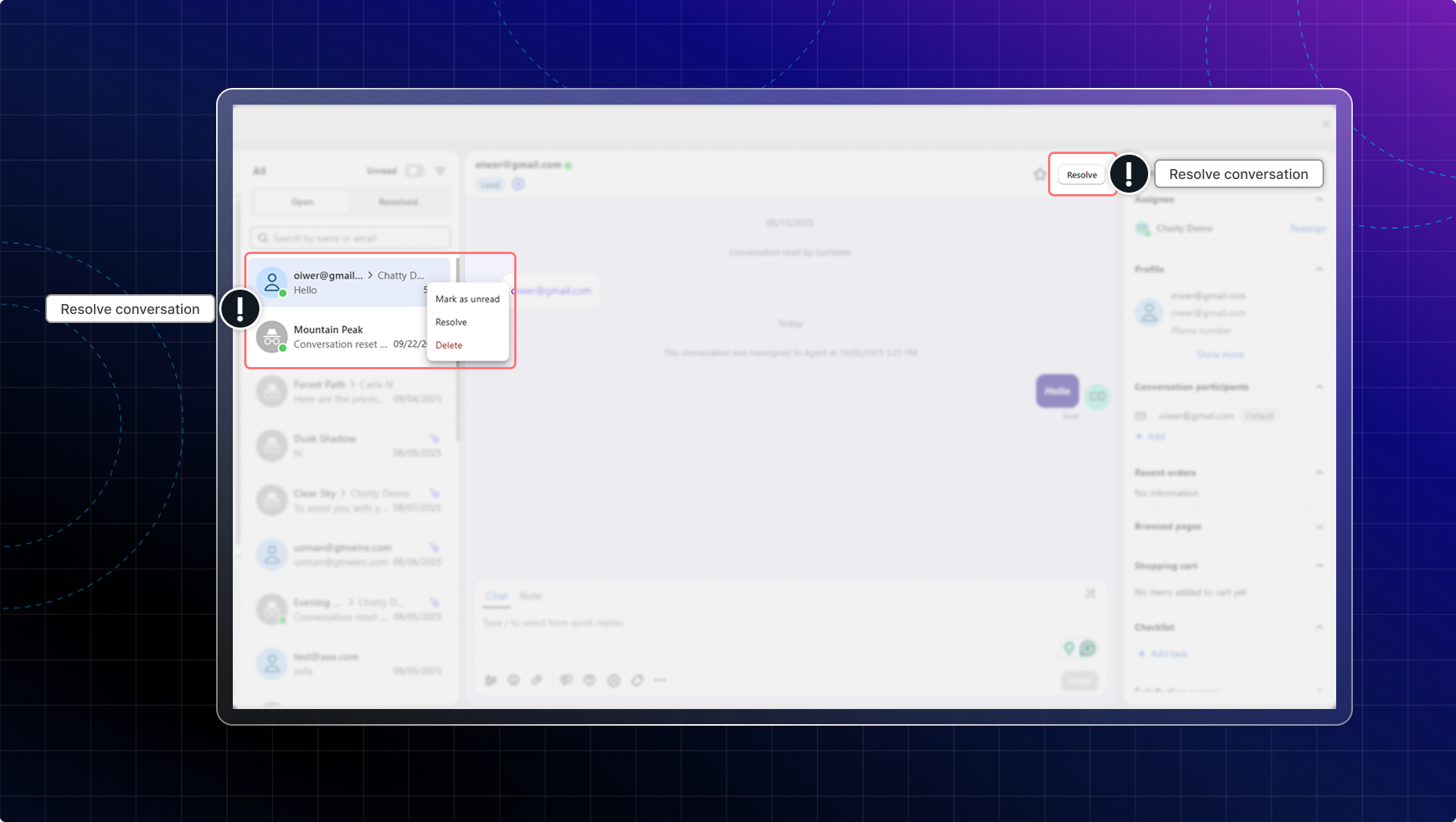
Mark as resolved:
- Open the conversation
- Handle the customer inquiry completely
- Click Resolve
- Conversation moves to Resolved filter.
Learn how to resolve conversations automatically.
Star conversations:
- Open important conversation
- Click the star icon in the conversation header. The tooltip reads Star conversation
- Find starred conversations in the Starred filter
Click the star again to unstar it.
Send or download a transcript:
Open the conversation, then click the three-dot menu in the conversation header. The menu shows on desktop.
| Action | What it does |
|---|---|
| Send transcript | Emails the chat. Choose To me, To [customer], or To someone else and type an address |
| Export transcript | Downloads the chat to your computer. Choose CSV file or Text file under Export as, then click Export |
| Set subject | Sets the email subject carried by this conversation when it goes out by email |
Timestamps in the exported file follow the date format set for your store and the time zone of the computer you are on.
Delete conversations:
- Open conversation to delete
- Click Delete
Handle conversations in bulk:
Mark many conversations as read or unread, resolve them, reopen them, or delete them in one move. See Act on many conversations at once.
If you delete conversations, it will also delete contact info of anonymous users and leads. Contact info of customers stays the same.
If you delete contacts, all conversations of that contact will be deleted.
Check customer details
See important customer information while chatting:
- Contact information (email, phone)
- Order history and purchase details
- Customer tags and notes
- Pages they've browsed on your store
- Real-time actions:
- View FAQs
- Add products to empty cart (with product details)
- Add products to existing cart (with product details)
- Remove products from cart (with product details)
- Place an order
These behaviors help you understand customer intent and respond appropriately.
Use with team members
When working with team members:
- Assign conversations: Select team member in conversation details
- Add notes: Leave context for teammates handling the conversation
- Track assignments: Filter by assigned conversations
- Collaborate: Multiple team members can view conversation history
Learn more about team collaboration.
 Chatty Help Center