Add questions
After creating category, you can add questions in category.
Add new question
Go to FAQs
Click Add new
Click Add FAQ
Enter question and answer
Set up FAQ
- Select status: Published or draft
- Select category (required)
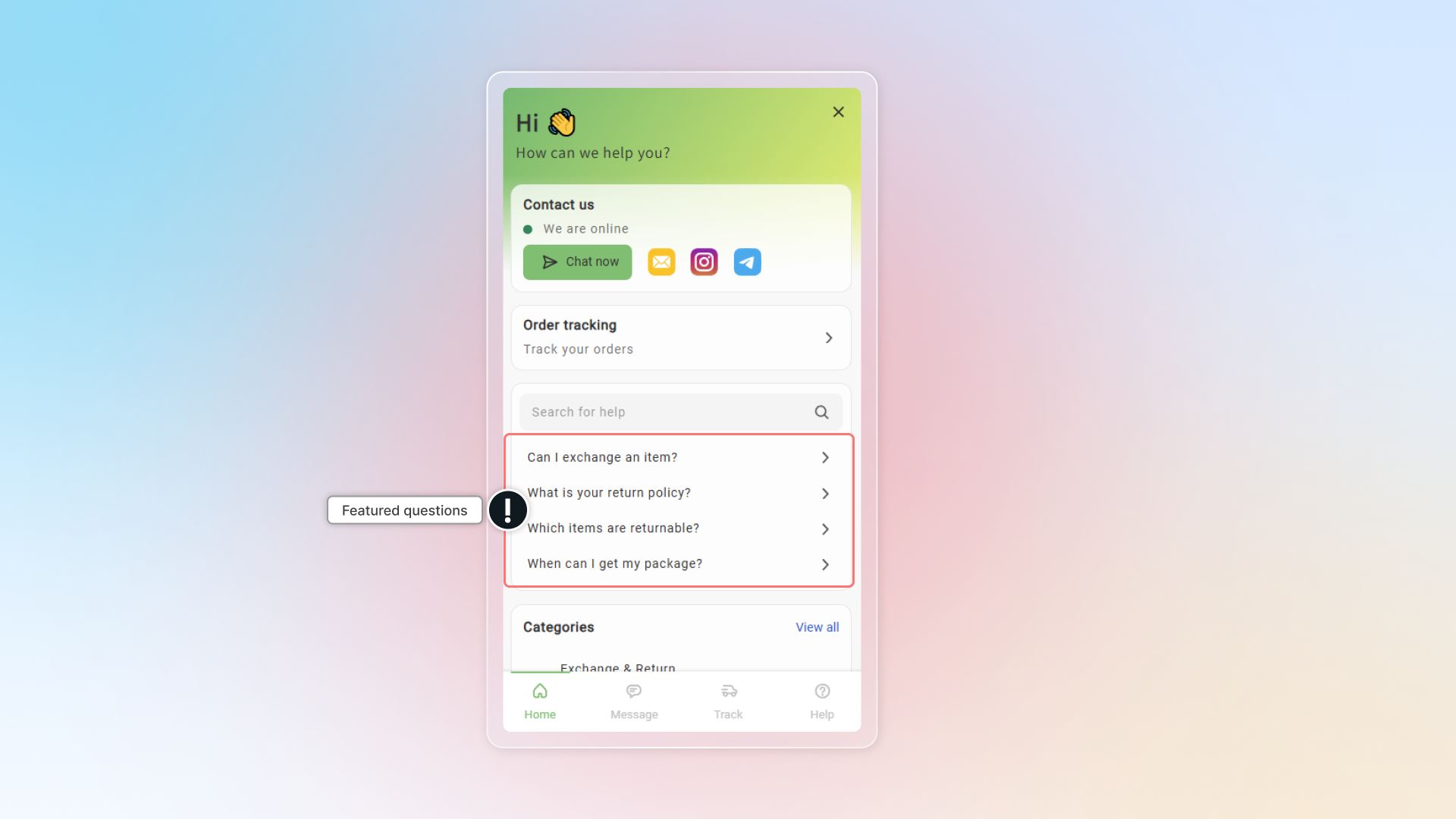
- Featured question: Show this question on the first page of the chatbox. If off, it only appears inside its category.
Click Save
Manage FAQs
- To edit question, hover on that question and click
- To delete question, hover on that category and click the delete icon
- Change position of question in a category by dragging it to new position
- Star or unstar category to make it featured
Search and filter FAQs
When your list gets long, use the search and filter bar above the category list.
- Search — type in the Search all categories and FAQs box. It matches both category names and the text of questions and answers.
- Status — show only Published or only Draft categories.
- Featured — show only Featured or only Not featured categories.
Both filters apply to categories, so a filtered view shows the matching categories with their questions inside. Click Clear all to go back to the full list.
Import FAQs
You can import many questions and answers to Chatty by CSV file.
Import is limited while your store has fewer than 10 questions. Once the file you upload would take you to 10 questions or more, Chatty shows a banner in the import window. Use the Chat with us link in that banner to get unlimited questions for free.
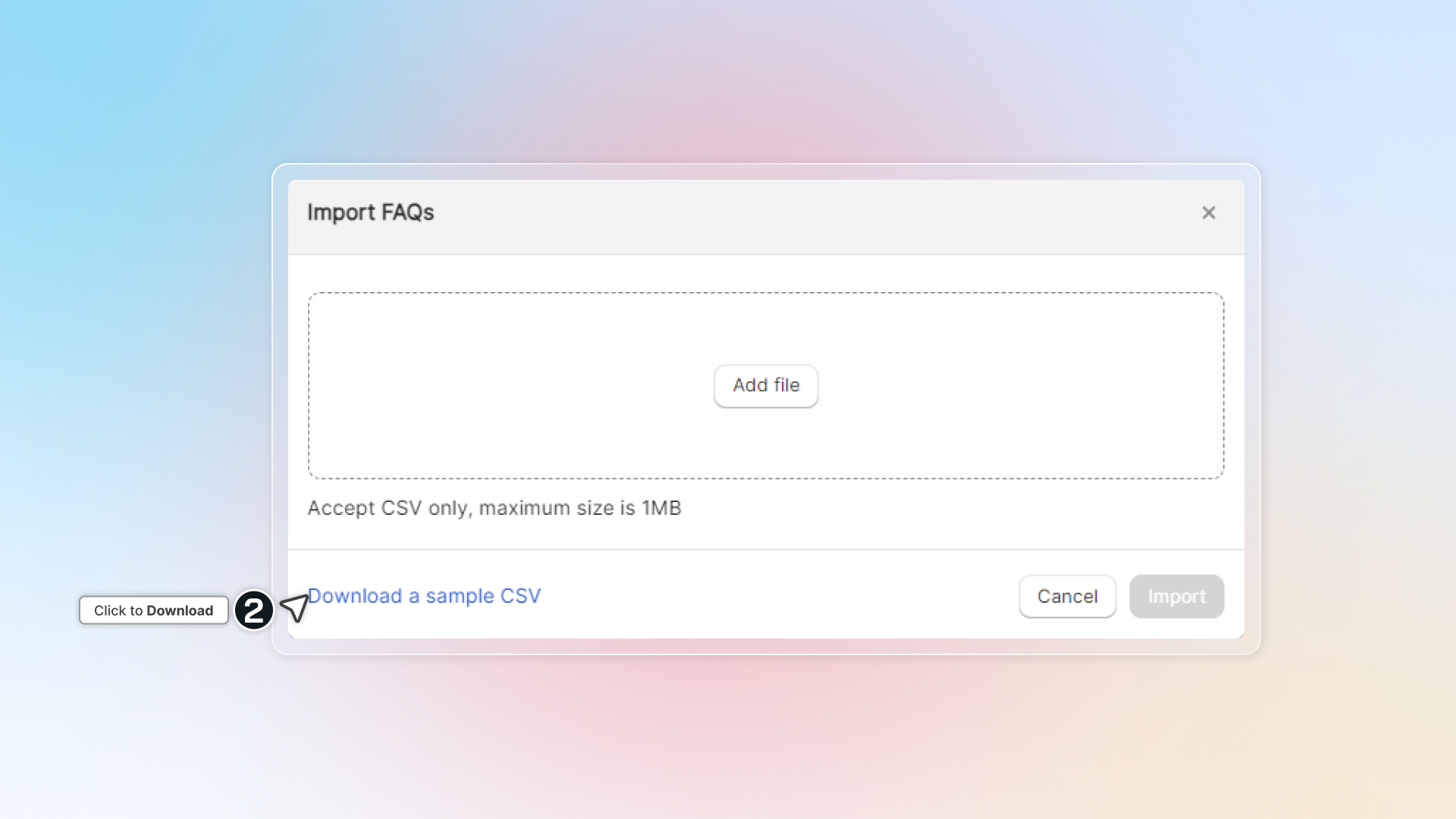
Get the sample file to import FAQs
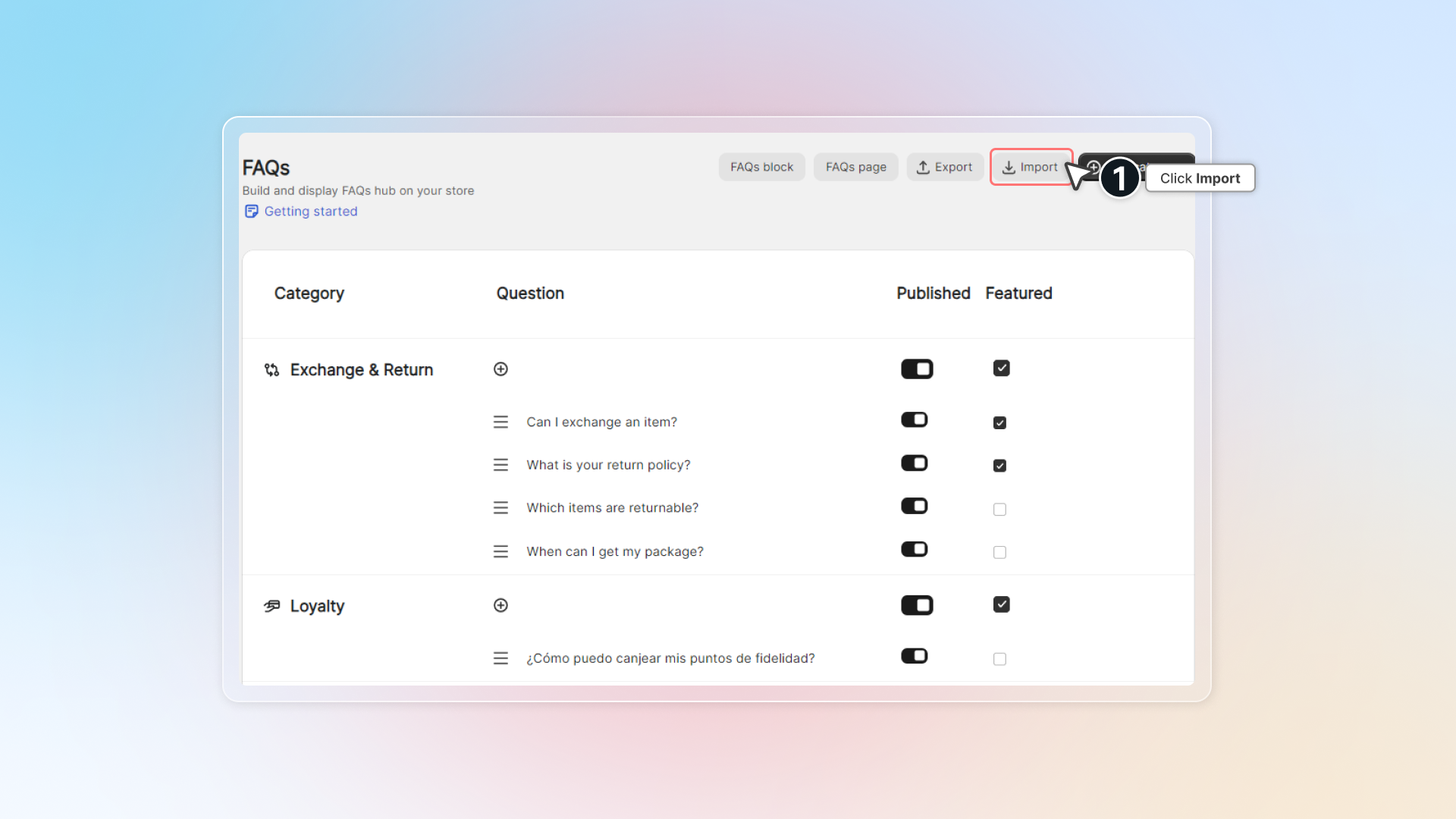
Go to FAQs → Select More actions → Click Import FAQs → Download a sample CSV
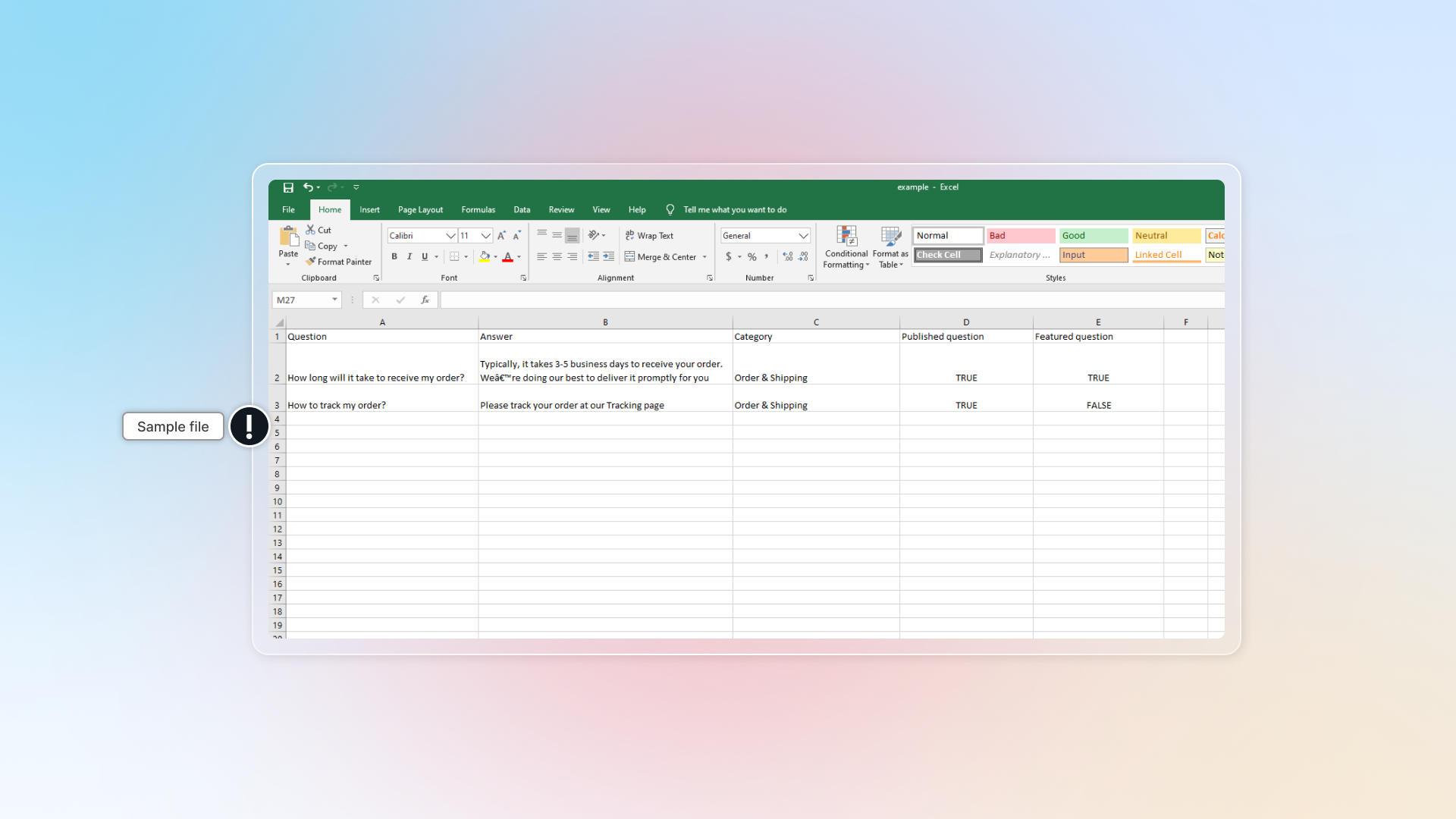
Enter your questions and answers in CSV file
It is required to fill in all information, and keep all five headers exactly as they are in the sample:
- Question
- Answer
- Category: Category name that question belongs to
- Published question: TRUE = published question, FALSE = unpublished question
- Featured question: TRUE = featured question, FALSE = not featured question
If any of the five headers is missing, the upload is rejected before it starts.
The file must be .csv and smaller than 1MB.
Save and upload file
Click Import FAQs -> Drop CSV file and select your option for all FAQs
- Overwrite FAQs that have same questions
- Published all new categories
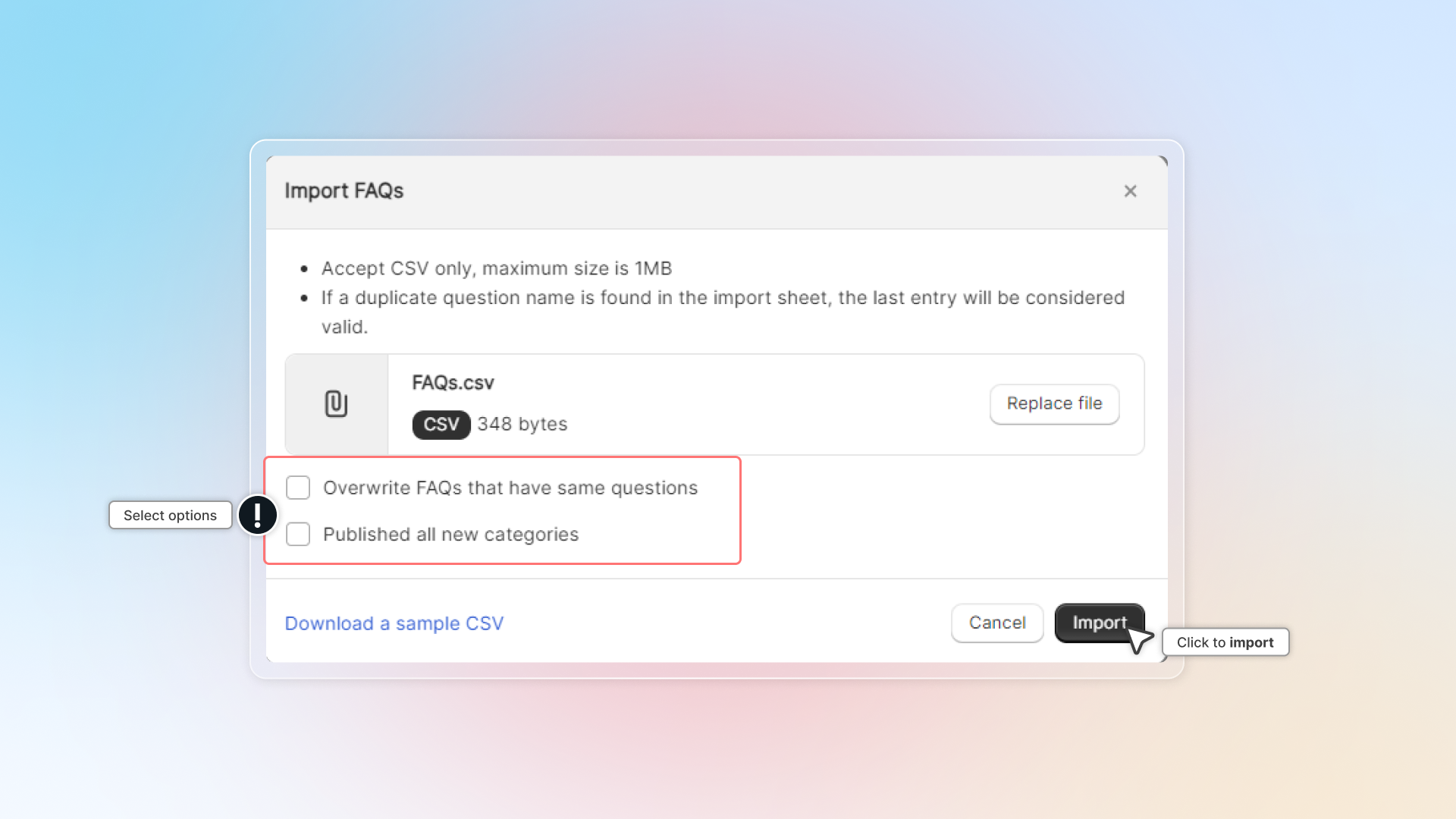
Review the preview, then click Import
Chatty shows how many questions it found and a preview of the first row so you can confirm the columns landed in the right place.
Read the import summary
When the import finishes, the window switches to FAQs import summary, and the same details are emailed to you.
| Row | What it tells you |
|---|---|
| Imported | Number of questions and categories added |
| Failed | Number of questions rejected, the reason, and the line numbers in your file |
| Skipped | Number of duplicate questions that were not added |
Failed rows list the exact reason, for example a missing question, a missing answer, a question with no category, or a Published/Featured value that is not TRUE or FALSE. Fix those lines in your file and import again.
If you left Overwrite FAQs that have same questions off, duplicates are skipped rather than replaced.
Export FAQs
You can also export FAQs in CSV file.
Go to FAQs → Select More actions → Click Export FAQs → Choose what to export → Click Export
You have two choices:
- All FAQs — everything, published and draft. The file downloads as
faqs_export.csv. - Only published FAQs — just the live questions. The file downloads as
published_faqs_export.csv.
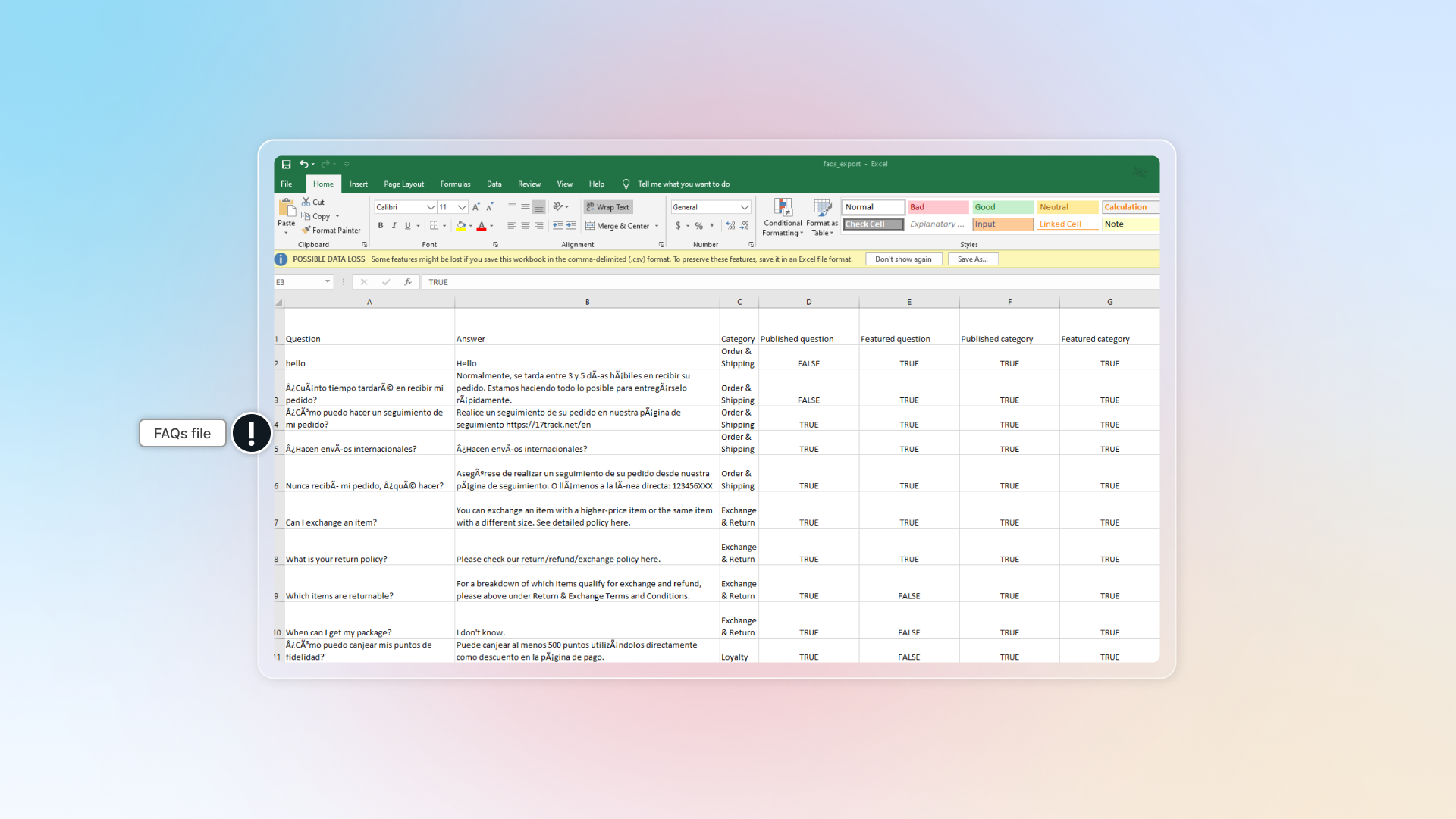
In FAQs file, there are 7 fields:
- Question
- Answer
- Category: Category name that question belongs to
- Published question: TRUE = published question, FALSE = unpublished question
- Featured question: TRUE = featured question, FALSE = not featured question
- Published category: TRUE = published category, FALSE = unpublished category
- Featured category: TRUE = featured category, FALSE = not featured category
 Chatty Help Center