Customers
Customer type
In your inbox, you can check each customer and their conversations in the left panel of inbox.
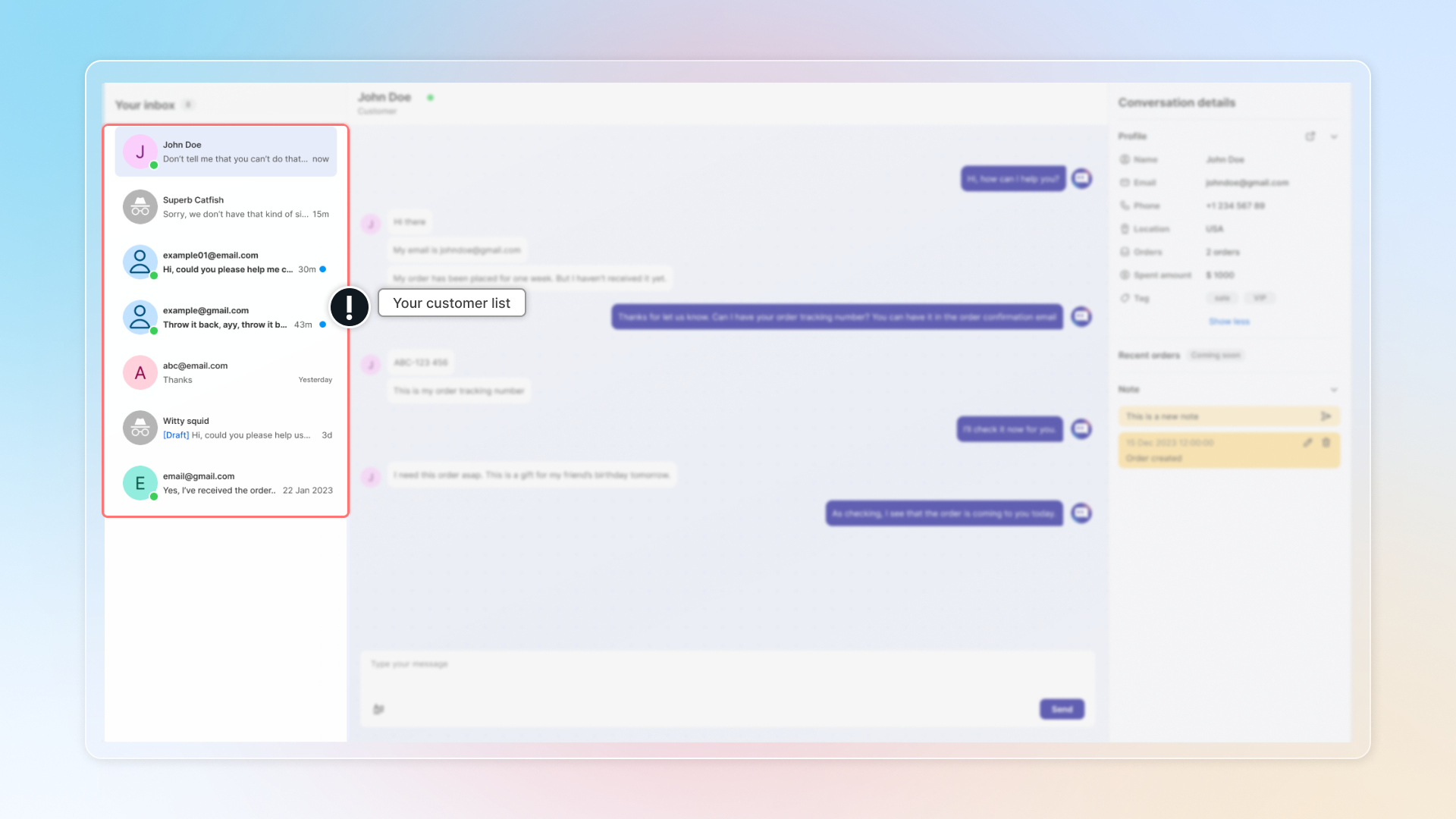
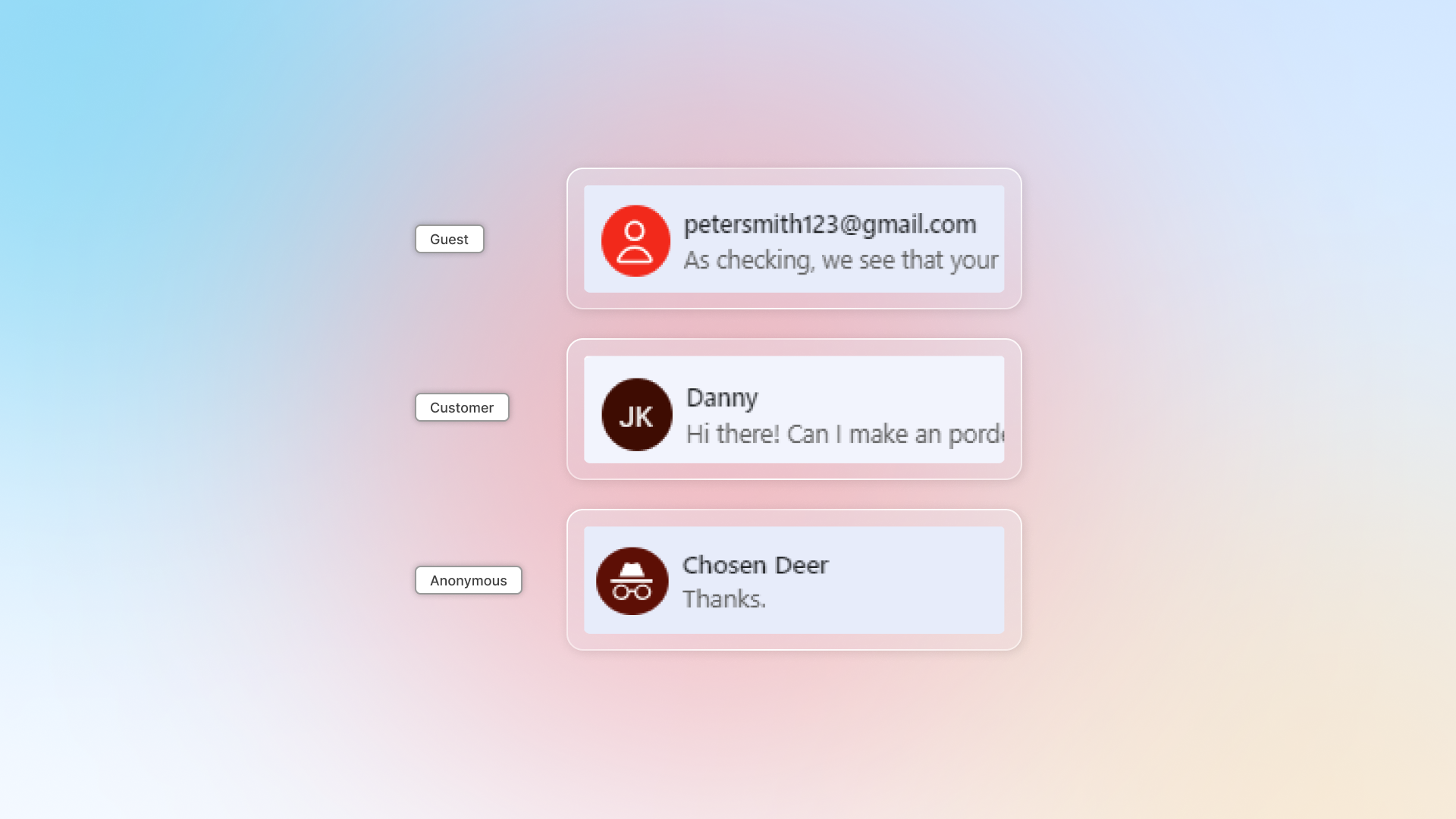
There're 3 types of customers in the list.
| Types | Definition | How it displays |
|---|---|---|
| Guest (lead) | Who visits your website and haven't made an order yet | Customer icon + email |
| Customer | Who made an order on your store | Name in icon + customer name |
| Anonymous user | Who chats on your store by clicking "Chat with us as anonymous" | Anonymous icon + random name |
Why can't guest automatically convert to customer?
Chatty doesn't automatically convert guest to customer to maintain data accuracy and protect your customers' experience:
- Prevents duplicate or inaccurate customer profiles: Automatic conversion could create multiple profiles for the same customer or generate profiles with incomplete information.
- Protects customer login access: Creating customer accounts without verification could prevent customers from accessing their actual accounts later.
What you can do instead:
- Review guest information manually before creating customer profiles
- Create customer profiles with validated information
A guest or an anonymous visitor can be turned into a real customer without leaving Inbox. Click the plus icon in the conversation header (tooltip Create customer profile). Fill in Create customer, then click Update for a guest or Create for an anonymous visitor. You can also fill in the contact fields in Conversation details.
Manage customers
Block customers
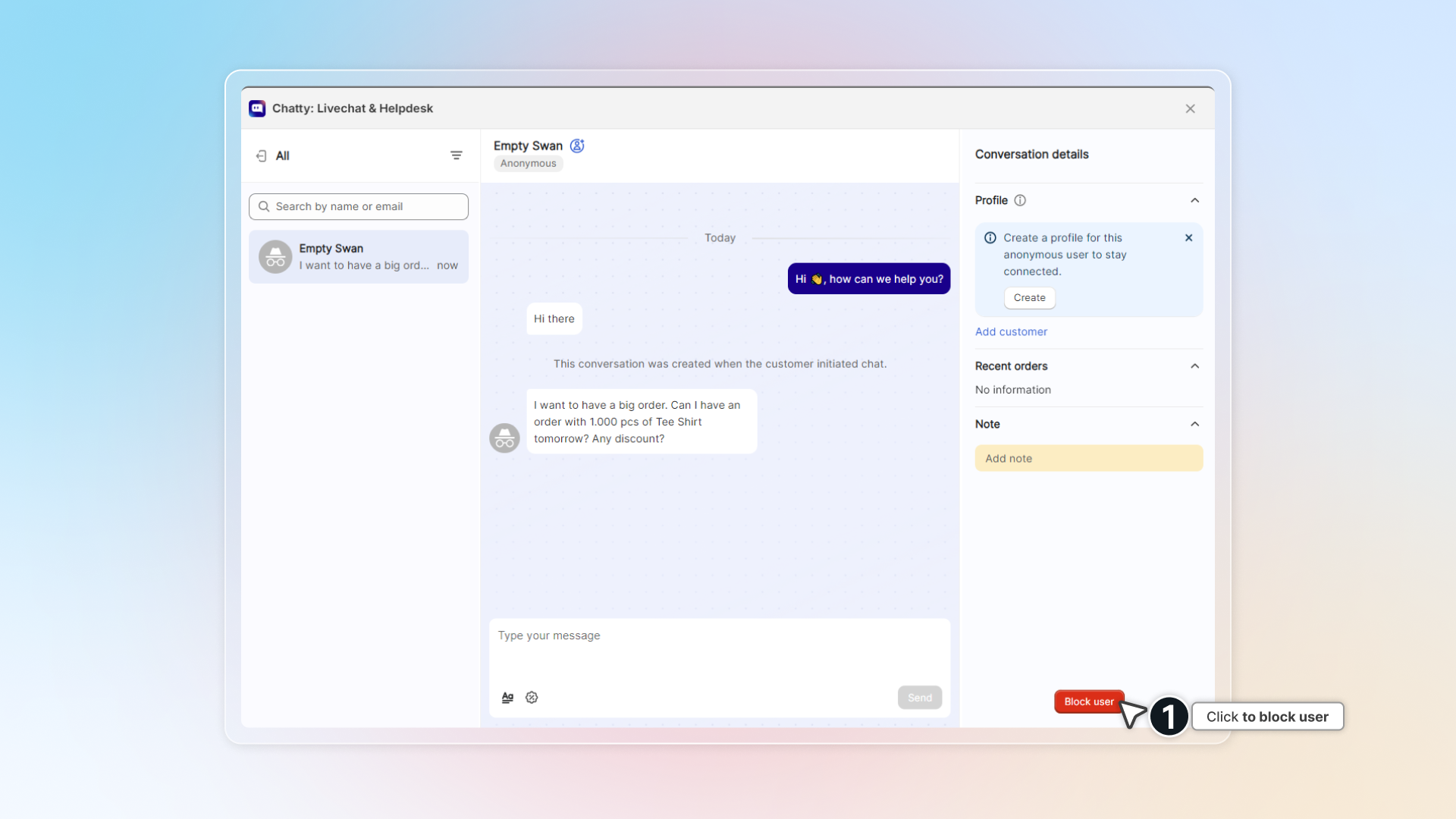
You can block a customer so that you do not get any messages from that customer.
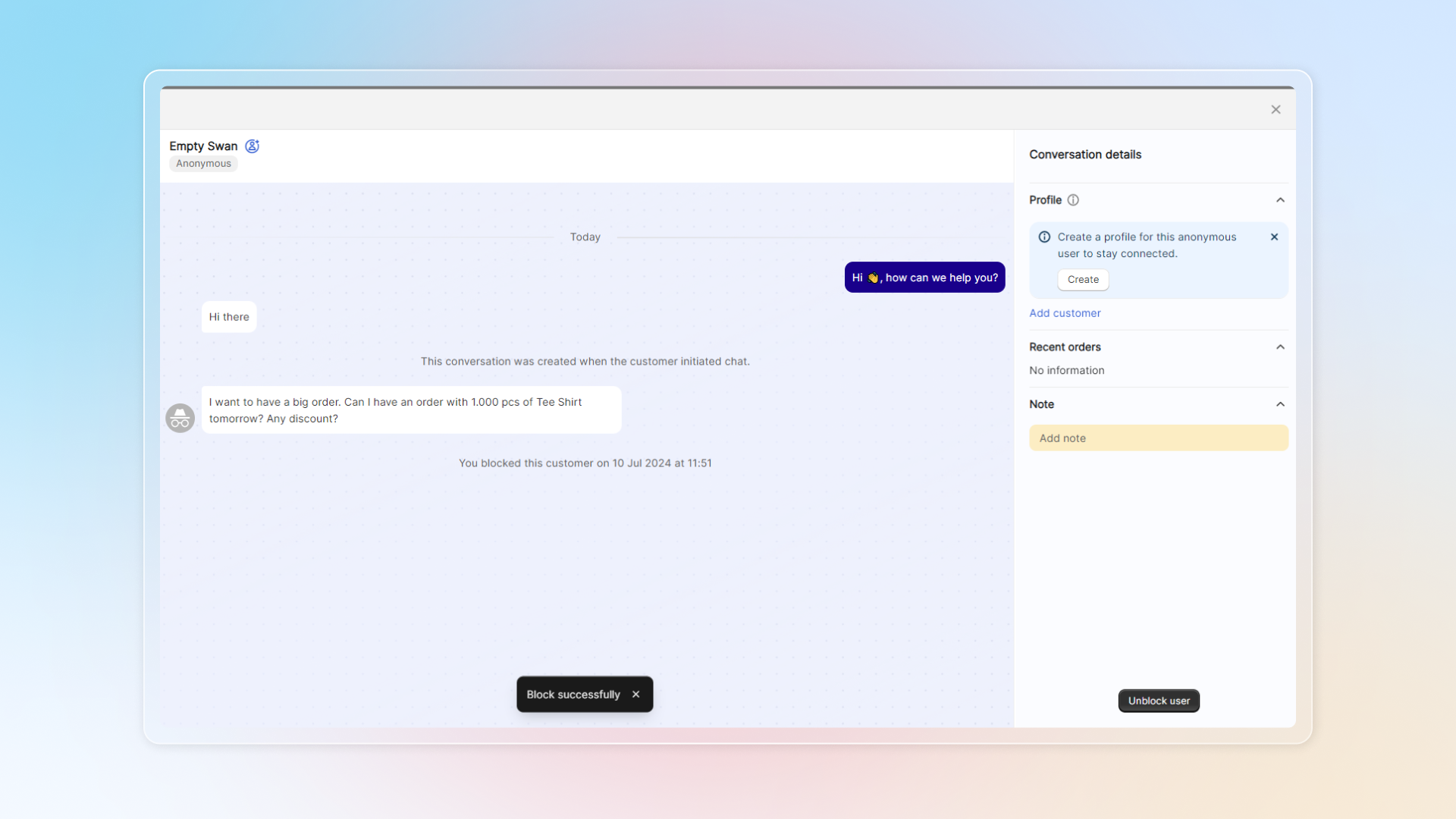
In their conversation, scroll to the bottom of the right panel and click Block, then confirm. The button reads Unblock once they are blocked, so you can undo it any time.
Customers who get blocked won't be notified that they're block. They can still message you in the chatbox, but they cannot receive replies.
Blocking also covers future chats from the same email or account. Those chats are blocked automatically and show a Customer blocked banner. Click Unblock to let them chat again.
Delete customers
You can delete customers in Contacts, where you can manage customer information.
Deleting a contact also deletes their Shopify customer profile, if they have one, and all linked conversations. This cannot be undone. If the contact has conversations, you need the Delete conversations permission.
 Chatty Help Center