Bundle app deals in chat
Who can use this feature?
- This feature is available for all users
- Works with Kaching Bundles (opens in a new tab), Bundler - Product Bundles (opens in a new tab) and AOV.ai Bundles Quantity Breaks (opens in a new tab)
What are bundle app deals in chat
If you run quantity breaks or bundles with Kaching, Bundler or AOV.ai, the AI agent can recommend them in chat. Shoppers see the deal tiers in a card and add the deal to cart with its discount.
Each app has its own page in Settings → Integrations. The deals are off until you turn them on there.
What shoppers see in chat
- AI brings up a deal only when a shopper asks about discounts, items that go with a product, or their cart.
- The deal belongs to the product the shopper is viewing, asking about, or adding to cart.
- The card lists the deal tiers with an add to cart button. The app's discount applies in the cart.
- If a tier can't be added from chat, the card opens the product page instead.
- AI shows one deal per reply and doesn't repeat a deal in the same conversation.
How to recommend Kaching Bundles deals
Before you start, install Kaching Bundles and create at least one deal in it.
-
Go to Settings → Integrations.
-
Click Manage on the Kaching Bundles card.
-
Make sure Install Kaching Bundles shows Installed and at least one deal.
-
Turn on the toggle in Recommend Kaching deals in chat.
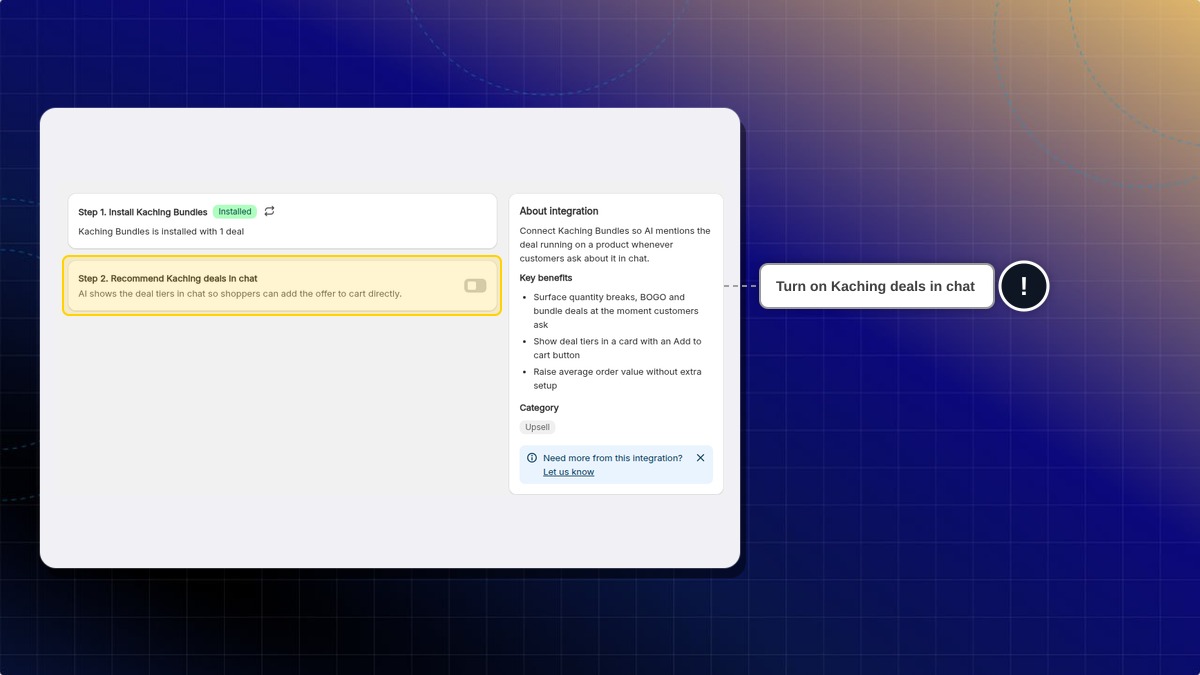
Expected result: AI starts recommending your Kaching deals when shoppers ask about them.
The toggle stays locked until Chatty finds Kaching Bundles on your store. If you turn it on with no deals, a warning asks you to create a deal in Kaching Bundles first.
How to recommend AOV.ai offers
-
Go to Settings → Integrations.
-
Click Manage on the AOV.ai Bundles Quantity Breaks card.
-
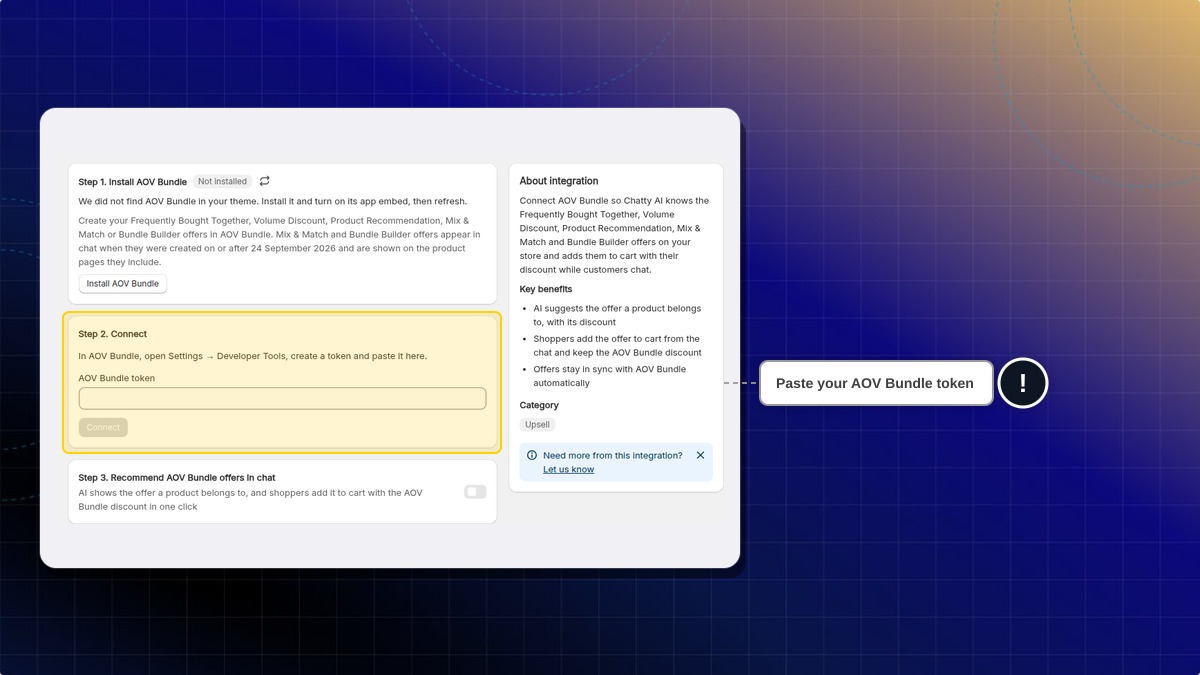
If the app is missing, click Install AOV Bundle and turn on its app embed in your theme.
-
In the AOV Bundle app, go to its Settings → Developer Tools and create a token.
-
Back in Chatty, paste the token in AOV Bundle token.
-
Click Connect.
-
Turn on the toggle in Recommend AOV Bundle offers in chat.
Expected result: Step 2 shows how many active offers Chatty AI can recommend, for example "12 active offers Chatty AI can recommend."
How to recommend Bundler deals
-
Go to Settings → Integrations.
-
Click Manage on the Bundler - Product Bundles card.
-
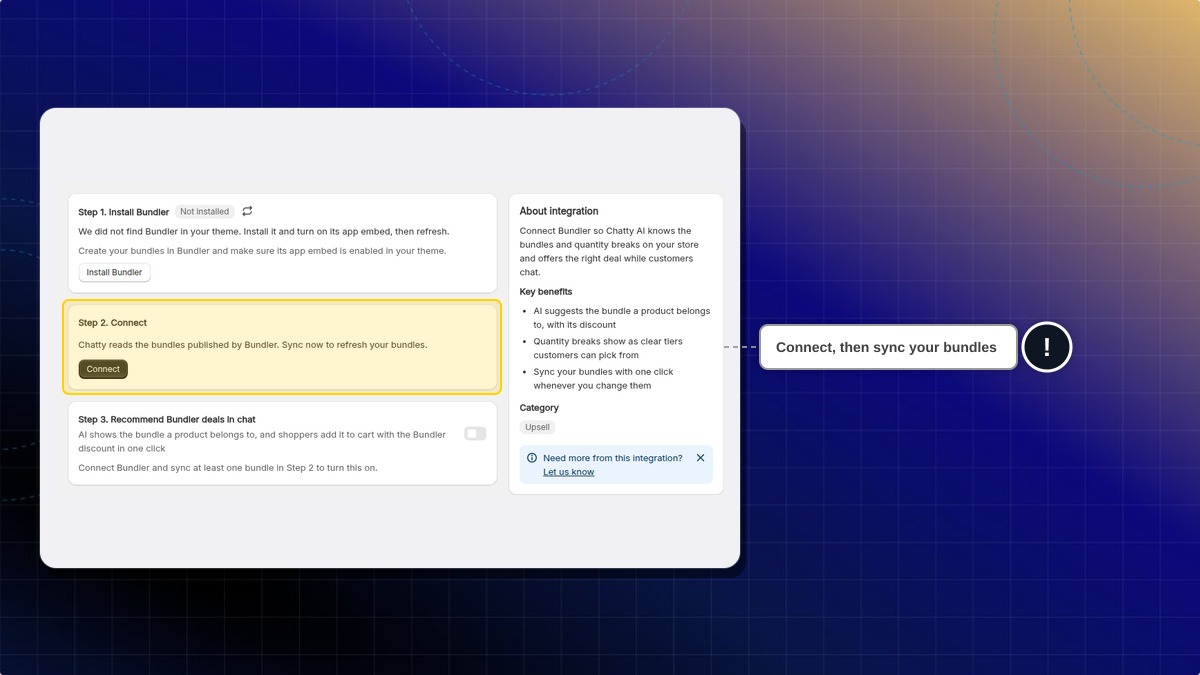
If the app is missing, click Install Bundler and turn on its app embed in your theme.
-
Click Connect in Step 2. No token is needed. Chatty starts reading your bundles right away.
-
Turn on the toggle in Recommend Bundler deals in chat.
Expected result: Step 2 shows how many active bundles Chatty found and when it last synced.
The toggle stays locked until Bundler is connected and at least one bundle has synced.
Which plans can use bundle app deals?
All plans. There is no plan limit on these three integrations.
How does Chatty pick up changes I make in the bundle app?
It depends on the app:
- Kaching Bundles: Chatty reads your deals from your store each time, so changes show up on their own.
- AOV.ai: Chatty refreshes your offers about every 10 minutes.
- Bundler: Chatty syncs your bundles once a day. Click Sync now in Step 2 to update them right away.
Why doesn't AI show my deal?
Check these common reasons:
- The shopper didn't ask about discounts, matching items, or their cart.
- You hide prices from logged-out visitors, and the shopper isn't logged in. AI never shows deals to shoppers who can't see prices.
- For Kaching and Bundler, Chatty checks each tier's price in your store's cart first. If the cart price doesn't match the deal, AI skips that tier.
- For AOV.ai, AI skips offers that aren't active, have no discount, or target a customer segment.
How do I stop AI from recommending deals?
Turn off the toggle on the app's page. If you disconnect AOV.ai or Bundler, Chatty also turns the toggle off for you.
 Chatty Help Center