Who can use this feature?
- Helpdesk is in early access. Request early access (opens in a new tab) and we turn it on for your store.
- Once Helpdesk is on for your store, it works on every plan
- You see Helpdesk when your role can view tickets
Rules
Rules run when a ticket matches the conditions you set.
What this is for
A rule runs the actions you chose when a ticket matches.
This helps you tag, assign, or answer the same kind of ticket every time, without remembering the steps.
Automation rules react to a trigger. Routing rules pick an owner, in the order of their priority number. The first match wins for that list.
AI rule suggestions are not open yet. A rule you already see on a store was added there. It is not a product default.
How to add a rule
- In Helpdesk, open settings, then open Automation.
- Open Rules.
- Open Automation rules.
- Click New rule.
- Set the trigger, the conditions, and the actions.
Expected result: The rule is listed. A new store can have none.
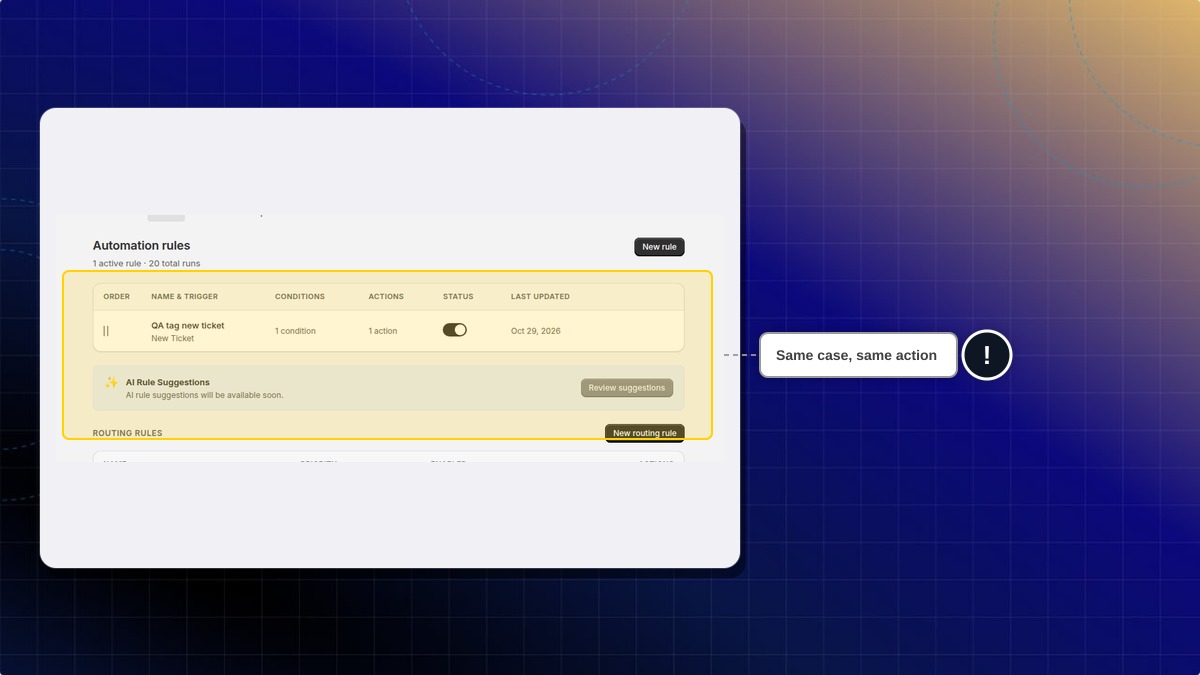
Routing rules are a second list on the same page. Click New routing rule to add one. Each row has a priority number.
Can Chatty suggest rules for me?
Not yet. The page says AI rule suggestions will be available soon. Review suggestions is shown, and it is not open yet.
Is a rule I already see a default?
No. Rules on a store were added there.
 Chatty Help Center