Klaviyo
Who can use this feature?
- The Klaviyo integration is available on every plan, including Free.
- You need the Integrations permission in Chatty to connect or disconnect it.
- You need a Klaviyo account. Chatty does not create one for you.
What this integration does
Klaviyo is an email and SMS marketing platform. The integration sends your Chatty contacts to Klaviyo as customer profiles, so you can build segments and flows around who has talked to you and how often.
Data moves one way only: from Chatty to Klaviyo. Chatty does not read your Klaviyo lists, campaigns, or subscribers back into the inbox.
Learn more about Klaviyo (opens in a new tab)
Before you connect
- A Klaviyo account you can sign in to.
- Contacts in Chatty with an email address. Klaviyo identifies profiles by email, so contacts without one are skipped.
Connect your Klaviyo account
Open the Klaviyo integration
Go to Settings → Integrations, find Klaviyo, and click Manage.
Authorize Chatty
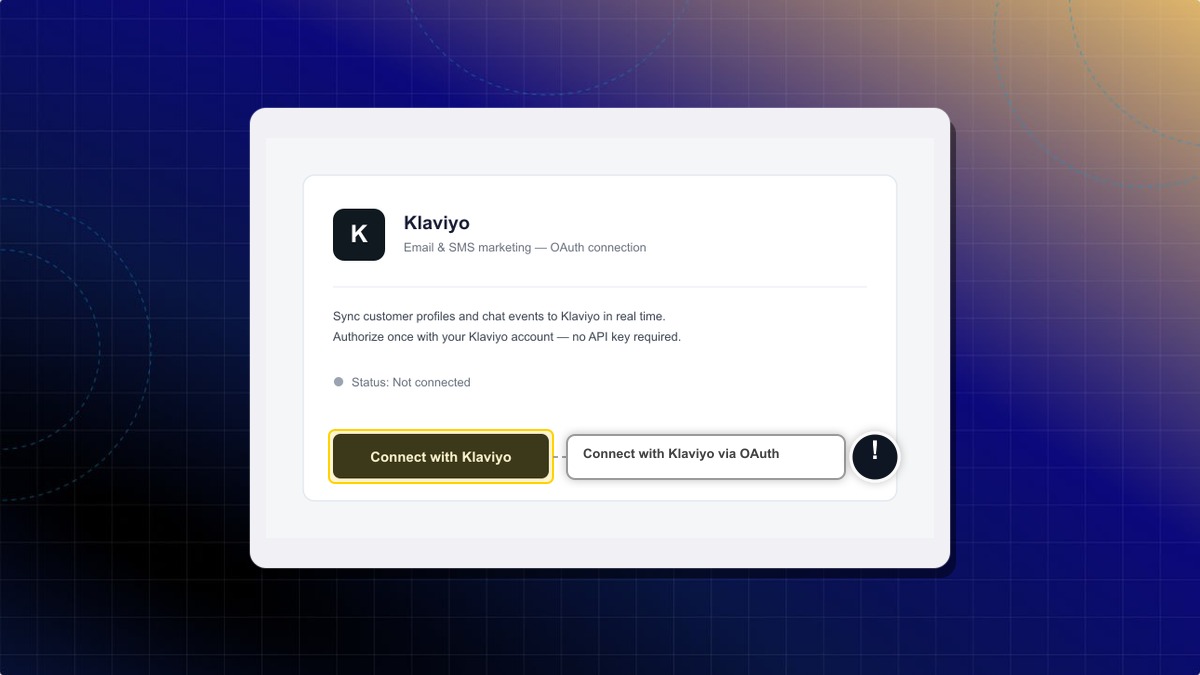
Click Connect. Chatty sends you to Klaviyo, where you sign in and confirm access. Klaviyo asks for permission to read and write profiles and lists, and to read your account details.
Allow access
Click Allow. Klaviyo returns you to Chatty and the status next to the page title changes to Connected.
Wait for the first sync
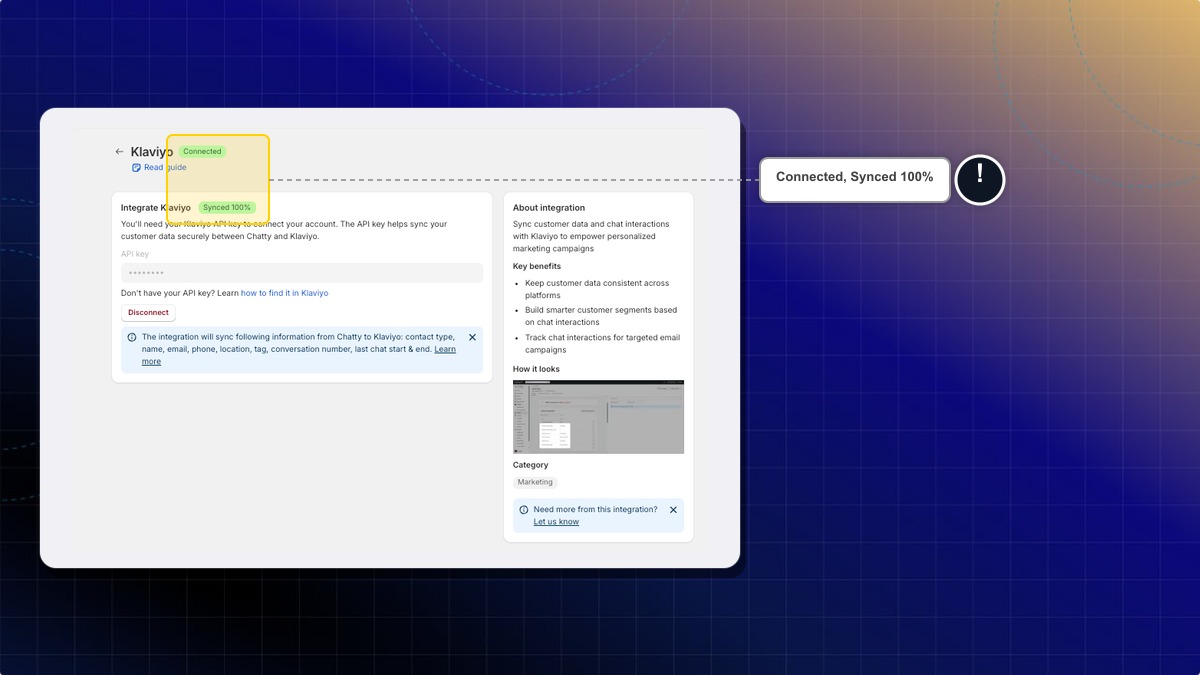
Chatty sends every existing contact with an email to Klaviyo in one batch. A badge next to Integrate Klaviyo shows Syncing with the percentage done, and turns into Synced 100% when the batch finishes. Large contact lists take a few minutes.
Seeing an API key field instead of a Connect button?
Chatty is moving stores to the authorized sign-in above in stages. Until your store is moved, the page asks for a Klaviyo API key. Follow Connect with an API key instead.
If you close the Klaviyo screen or decline the request, nothing is connected and no data is sent. Return to Settings → Integrations → Klaviyo and click Connect again.
Connect with an API key
This is the older setup. Use it if your Klaviyo page shows an API key field, or if you connected this way before and want to keep it running.
Open the Klaviyo integration
Go to Settings → Integrations, find Klaviyo, and click Manage.
Paste your API key
Paste the private API key you created in Klaviyo into the API key field. See How to get Klaviyo API key below.
Click Connect
Chatty checks the key against Klaviyo. If the key is wrong or lacks the right access, the page shows Fail to connect. Check again your API key and nothing is sent.
Once your store moves to the authorized sign-in, a warning appears telling you the API key connection is deprecated. Click Disconnect, then Connect again to switch. Profiles already in Klaviyo are not affected.
How to get Klaviyo API key
Log in to Klaviyo
Go to Settings
Click your profile in the bottom left corner, then click Settings.
Create an API key for Chatty
- Go to API keys
- Click Create Private API key
- Name the key, for example
Chatty integration - Select access level Custom key
- Under API scopes, grant Read/Write Access to Accounts, List, and Profiles
Copy the key
Click Create, copy the key, and paste it into Chatty.
What Chatty sends to Klaviyo
Each Chatty contact becomes one Klaviyo profile, matched on email address. Chatty writes these fields:
| Field in Klaviyo | What it holds |
|---|---|
email | The contact's email address. This is what matches the profile. |
Chatty contact name | The contact's name in Chatty. |
Chatty phone | The contact's phone number. |
Chatty location | The location Chatty detected for the contact. |
Chatty tag | The contact's Chatty tags, separated by commas. |
Chatty contact type | Whether the contact is a customer, guest, or anonymous visitor. |
Chatty conversation count | How many conversations the contact has had. |
Chatty last chat | When the contact last chatted. |
Chatty writes to Klaviyo at two moments:
- Right after you connect — all existing contacts with an email are sent in one batch.
- Whenever a contact is created or updated in Chatty — that single profile is updated in Klaviyo.
Chat transcripts, message content, and order data are not sent.
Check that it worked
- The status next to the page title reads Connected.
- The sync badge reads Synced 100%.
- In Klaviyo, open Profiles and search for a contact you know chatted with you. The
Chatty ...fields appear on the profile.
If the connection fails, Chatty shows a red banner on the Klaviyo page with a link to contact support.
How to disconnect
Go to Settings → Integrations → Klaviyo → Manage and click Disconnect.
Disconnecting stops the sync immediately and removes Chatty's access to your Klaviyo account. Profiles Chatty already created in Klaviyo stay there. Delete them in Klaviyo if you don't want to keep them.
Need help?
Contact the Chatty support team from your dashboard. Include your store URL, whether you connected with the Connect button or an API key, and the email address of a contact you expected to see in Klaviyo.
 Chatty Help Center