Order tracking
What is the order tracking skill
When customers ask about an order, AI checks who they are and sends the order status and tracking information right in chat. You can also let AI change the shipping address, change details on the order, or add the customer's request to the order note. AI changes an order only after the customer confirms.
The Order tracking skill is on by default. Find it under AI agent → Skills → Customer support.
To set up the order tracking block in your chatbox, or AI-powered tracking with live carrier updates, see Order tracking in the chatbox.
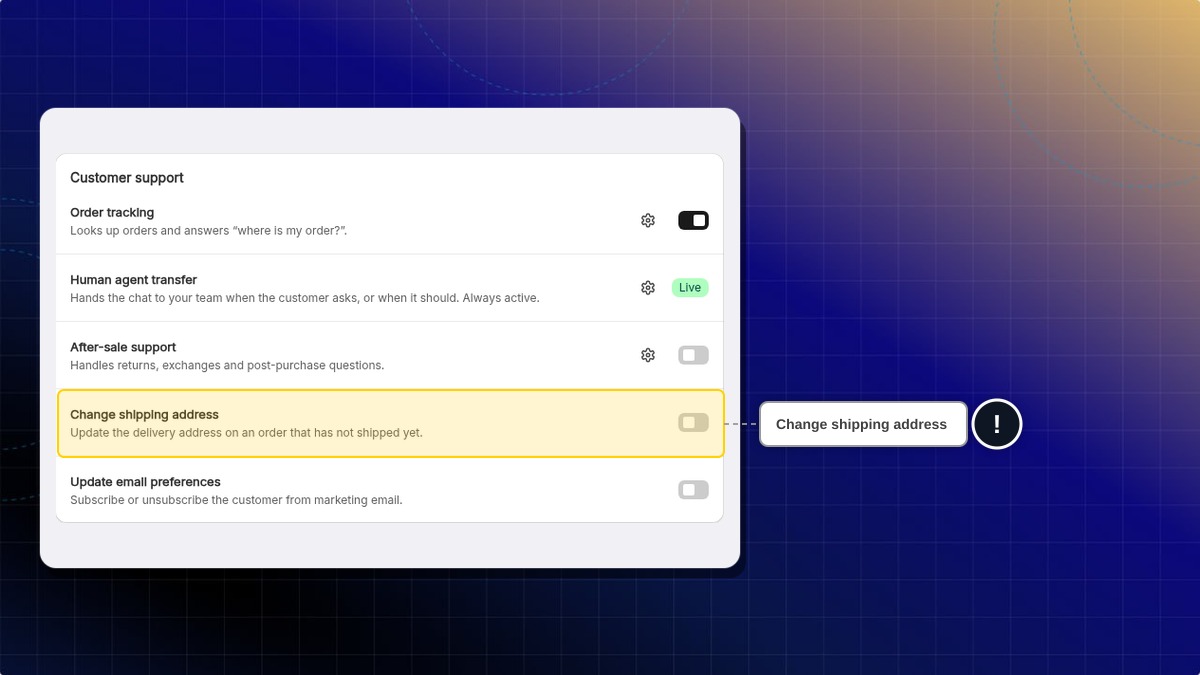
Two rows under Order tracking in the Customer support list: Change shipping address and Update email preferences. Both are off until you turn them on.
How to let AI change the shipping address
AI updates the delivery address on an order, so the customer does not have to wait for your team.
- Go to AI agent → Skills.
- Under Customer support, make sure Order tracking is on. AI can only change an address while Order tracking is on.
- Turn on Change shipping address. The change saves right away.
AI makes the change only when all of these are true:
- The customer is signed in to their account on your store. An email address or phone number typed in chat is not enough.
- The order belongs to that signed-in customer.
- The order has not been fulfilled or partly fulfilled, and it is not cancelled.
- The customer has confirmed the full new address in chat.
AI shows the current address and the new one before it changes anything. The order is updated only after the customer clicks Confirm or agrees in chat.
What AI says when it cannot change the address
| Situation | What AI does |
|---|---|
| Change shipping address is off | Tells the customer the store does not make this change in chat, and offers to pass it to your team. |
| Customer is not signed in | Does not change anything, and asks the customer to sign in. It shares no order details. |
| The order is on another customer's account | Does not change anything or share order details, and offers to pass it to your team. |
| The order is fulfilled or partly fulfilled | Explains the order has shipped, and offers your returns process or a person from your team. |
| The order is cancelled | Tells the customer the order is already cancelled. |
| No order matches the number | Asks the customer to check the order number. |
Update email preferences
The Update email preferences toggle is in the list, but the current AI agent does not act on it yet. Turning it on does not let AI subscribe or unsubscribe customers from your marketing emails. Handle these requests from your Inbox or in Shopify.
How to let AI change order details and add order notes
You can let AI change details on a customer's order, like a pickup or delivery date. AI can also add the customer's request to the order note. Nothing changes until the customer confirms the change in chat.
Who can use this feature?
- This feature is available for Pro & Plus plan users.
Before you start, make sure Order tracking is on. The date or detail must be saved as an order metafield in Shopify.
-
Go to AI agent → Skills.
-
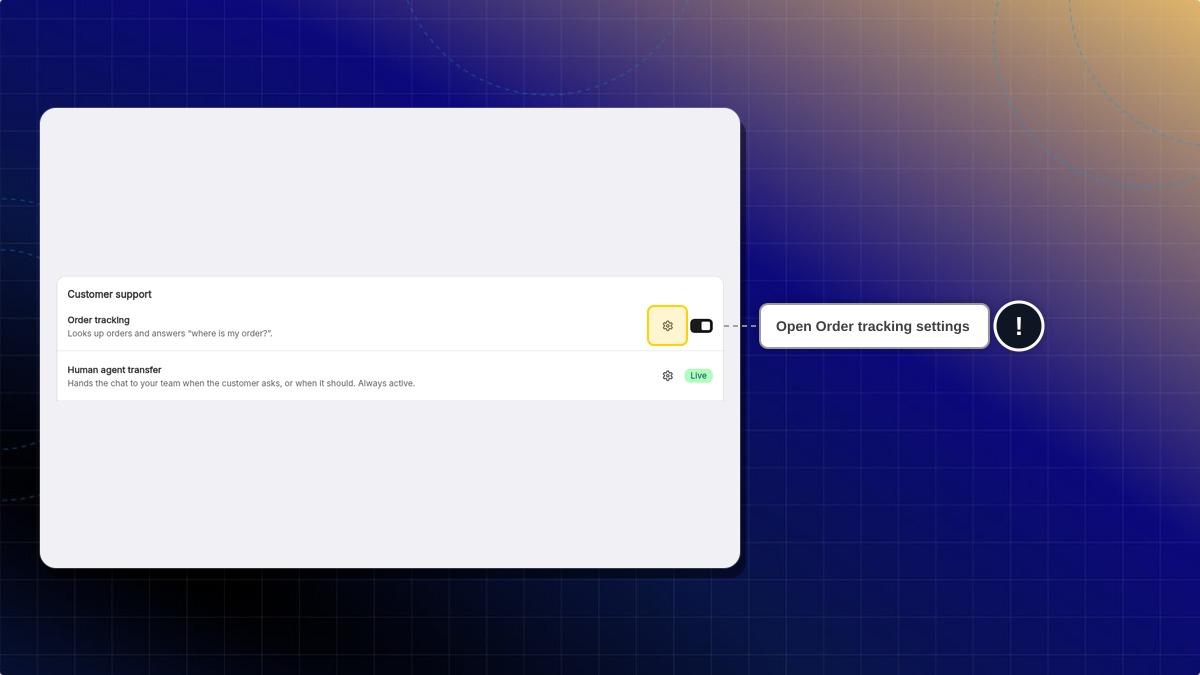
Under Customer support, click the settings icon next to Order tracking.
-
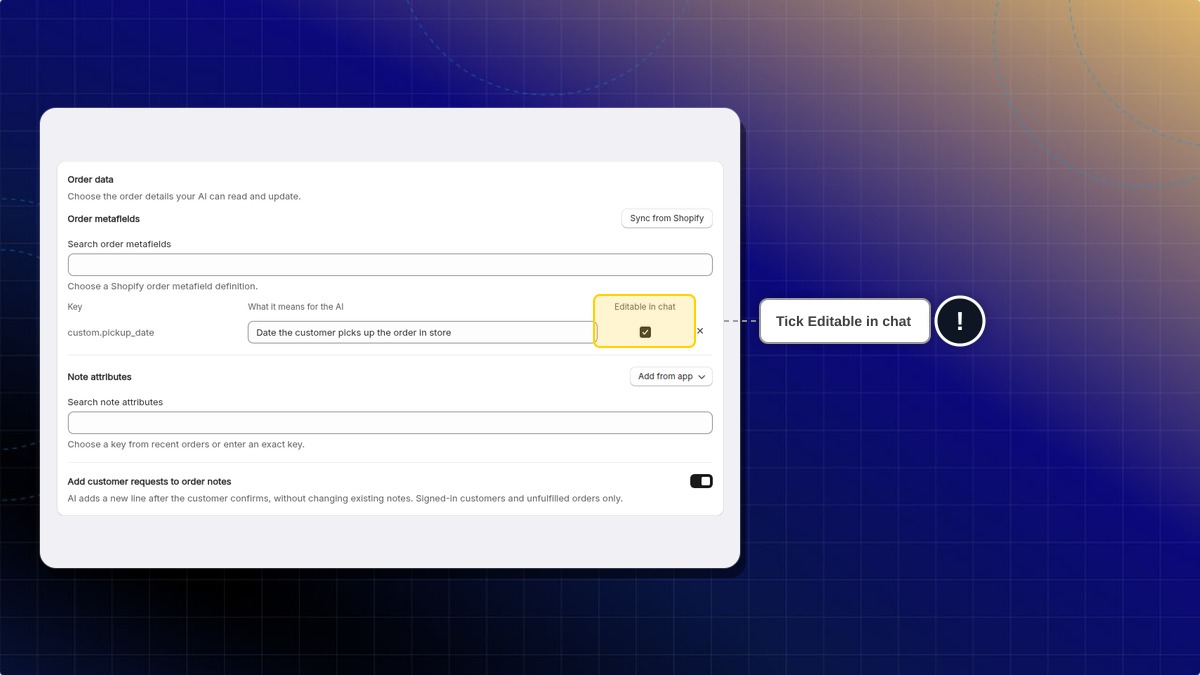
Scroll to Order data. Under Order metafields, search for the field and select it. Example:
custom.pickup_date. -
Under What it means for the AI, describe the field. Example: "Date the customer picks up the order in store".
-
Tick Editable in chat for each field AI may change.
-
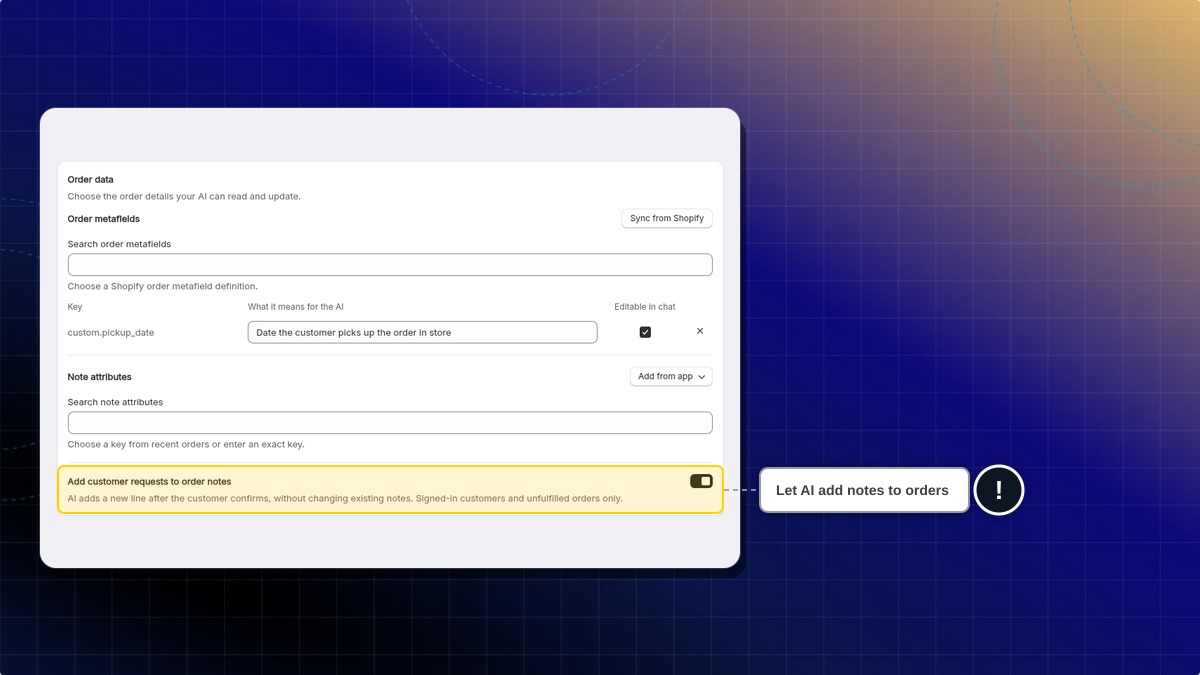
Turn on Add customer requests to order notes if AI may add notes to orders.
-
Click Save.
Expected result: When a signed-in customer asks to change a ticked field, AI shows the current and new value with Confirm and Don't change buttons. AI saves it to the order only after the customer clicks Confirm or agrees in chat.
AI makes the change only when all of these are true:
- The customer is signed in to their account on your store.
- The order belongs to that signed-in customer.
- The order has not been fulfilled or partly fulfilled, and it is not cancelled.
- The customer has confirmed the change in chat.
When AI adds a note, it adds one new line at the end of the order note. It does not change the existing note. The line starts with [Chatty AI · and the date and time in your store's time zone.
Why can't I tick Editable in chat for a field?
AI can only change four field types: date, date and time, single line text, and multi-line text. AI also cannot change a field that belongs to another app. Hover over the checkbox to see the reason.
Can AI change note attributes, like Zapiet delivery dates?
No. AI can read Note attributes, including the ones added with Add from app, but it cannot change them. AI can only change fields under Order metafields.
What happens if a customer asks to change a field that is not ticked?
AI tells the customer this detail cannot be changed in chat. If Add customer requests to order notes is on, AI can offer to add the request as a note. Otherwise, it offers to pass the request to your team.
Can a customer pick a date that has already passed?
No. AI does not accept a date before today in your store's time zone. It also follows the rules you set on the field in Shopify.
How many fields can I add?
You can add up to 10 fields under Order metafields and 10 under Note attributes. A note from a customer can be up to 500 characters.
 Chatty Help Center