Chat zone
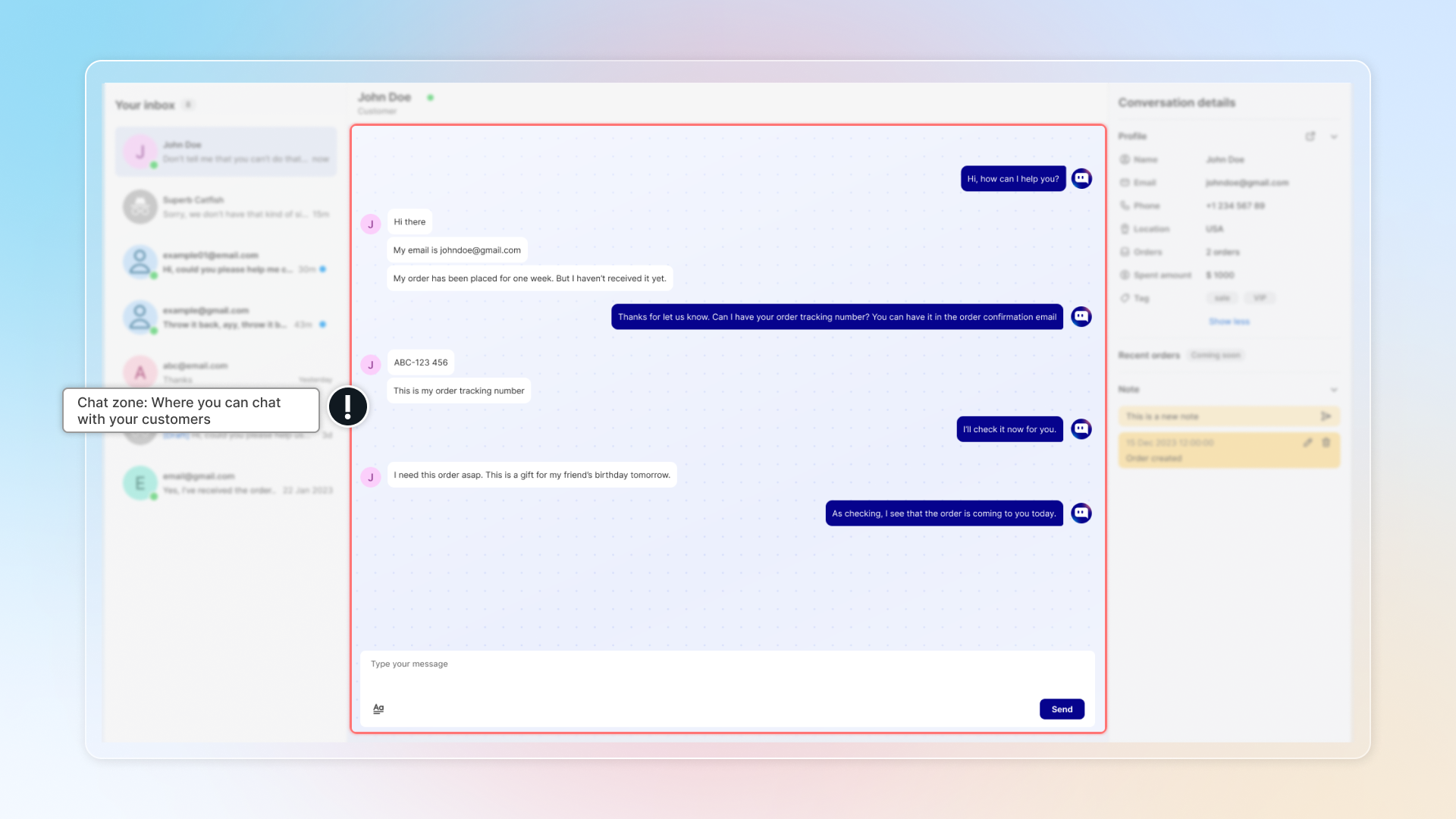
Shortcut
| Shortcut in chat zone | Action |
|---|---|
/ | Open quick replies |
? | Insert FAQs |
% | Insert discounts |
! | Insert products |
Ctrl + B | Bold text |
Ctrl + I | Italic text |
@ (in Note) | Tag team member |
Type the character in the message box and the picker opens right where you are typing. You can also click the matching icon on the toolbar.
Chat, Note, and Reminder tabs
Above the message box there are three tabs. Each one sends a different kind of message.
| Tab | What it does | Send button |
|---|---|---|
| Chat | Sends the message to the customer | Send |
| Note | Saves a private note for your team, type @ to tag and notify a member | Send |
| Reminder | Sets a reminder note to come back to this conversation | Set |
Notes and reminders are never shown to the customer.
Quick replies, FAQs, products, and discounts can be inserted in the Chat and Note tabs. They are turned off in the Reminder tab.
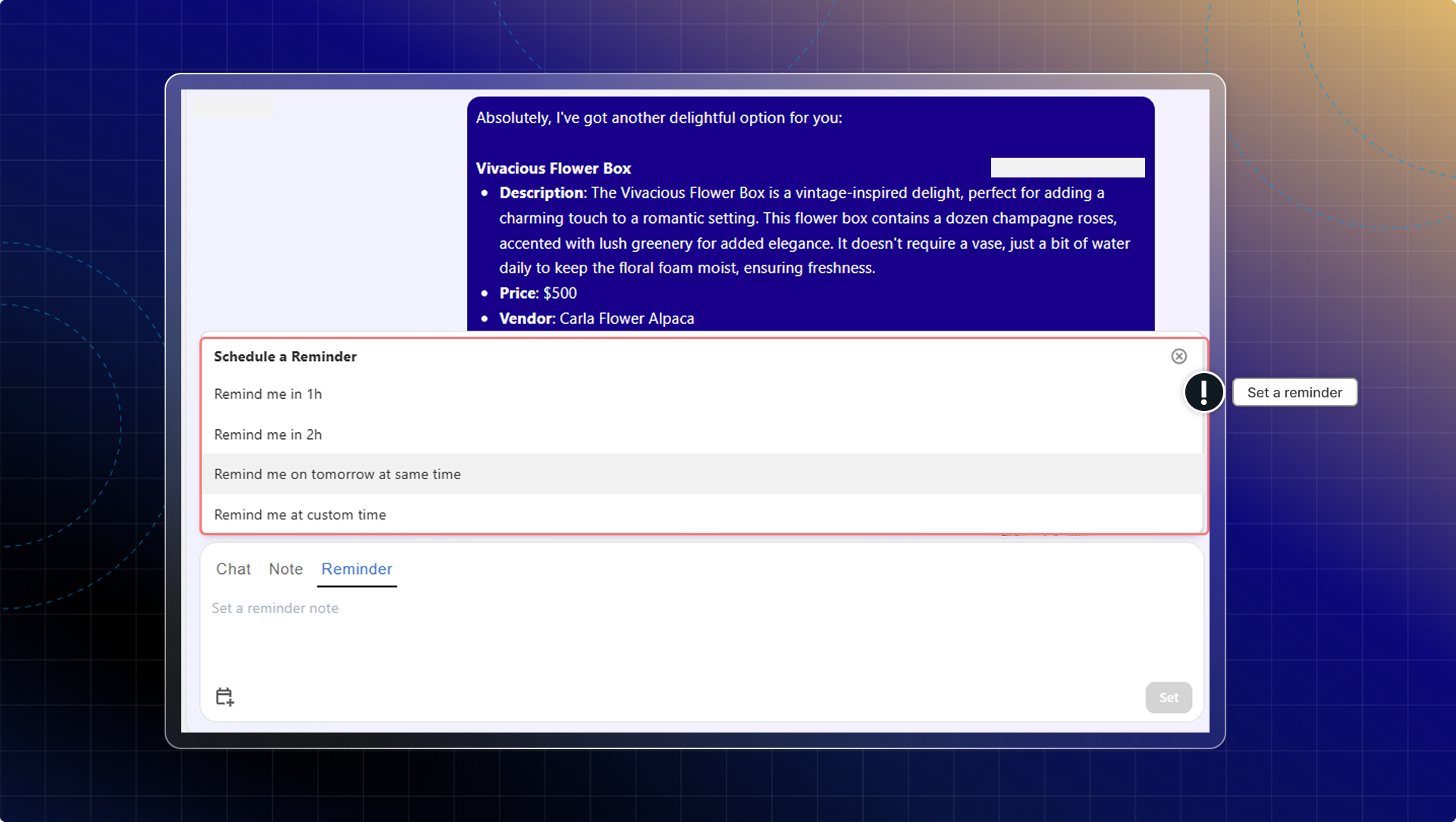
Set a reminder
Use a reminder when you need to follow up later, for example while you wait for a supplier to confirm stock.
In the conversation, click the Reminder tab.
Type your reminder note.
Click the clock icon to open Schedule a Reminder.
Choose a time: Remind me in 1h, Remind me in 2h, Remind me on tomorrow at same time, or Remind me at custom time.
Click Assign to to open Select reminder assignee, then pick the team member who should get the reminder.
Click Set.
Only active team members show in the assignee list. If you do not pick anyone, the reminder stays with the person the conversation is assigned to. You can hand a follow-up to whoever is on shift when it comes due, not only to yourself.
When the reminder comes due, three things happen at once:
- The assignee gets an email titled Reminder: conversation with the customer's name, with your note and the last three messages.
- The assignee gets a push notification.
- The conversation goes back to unread and moves to Open, even if it had been resolved.
Each reminder belongs to one conversation, so set a separate reminder for each follow-up you need.
Delete a reminder
The reminder shows as an internal card in the conversation thread, with the time, who created it, and the note. Click the trash icon on that card and confirm to cancel it. The icon disappears once the reminder has fired.
AI writing tools
In the Chat tab, open the AI menu next to the message box.
- Improve writing rewrites your draft so it reads better. It only works in the Chat tab.
- Chat summary reads the conversation and inserts a summary into the message box, split into Chat summary, Main issues, and Recommendations. It works in the Chat tab and the Note tab.
Both tools write into the message box. Nothing is sent until you click Send, so you can edit the result first.
Customer's online status
You can check customer's online status on the top banner.
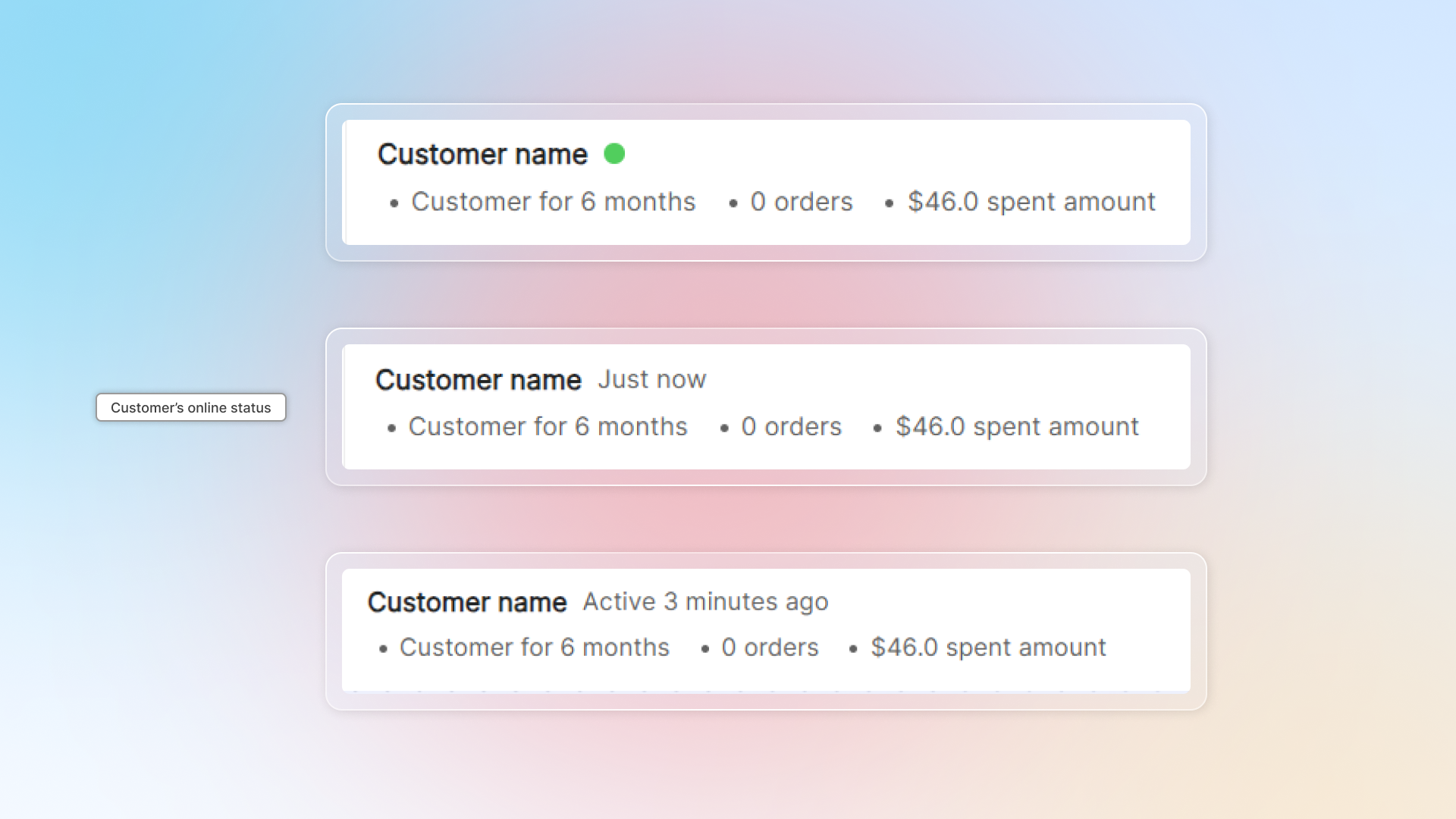
If the customer goes offline, Send asks whether to email the reply. Anonymous visitors have no email, so ask for one if you need to continue by email.
Email a reply while the customer is online
The Send button has an arrow beside it. Use it when the banner says the customer is online, but you still want the reply in their email.
- Open the conversation and stay on the Chat tab.
- Type your reply.
- Click the arrow beside Send.
- Click Send and email.
Expected result: The reply shows in the chat. The status under it reads Sent to email, then Read in email once the customer has seen it. Your next Send goes to the chat only.
To email every reply in this conversation, click Always email this customer in the same menu. It then reads Stop emailing this customer. This choice is off by default, and Chatty saves it for this conversation in the browser you are using.
The arrow shows only on a website chat, on the Chat tab, when the customer has an email address.
To track the request as a ticket, turn the conversation into a Helpdesk ticket.
📸 Screenshot: Send options open beside Send, with Send and email
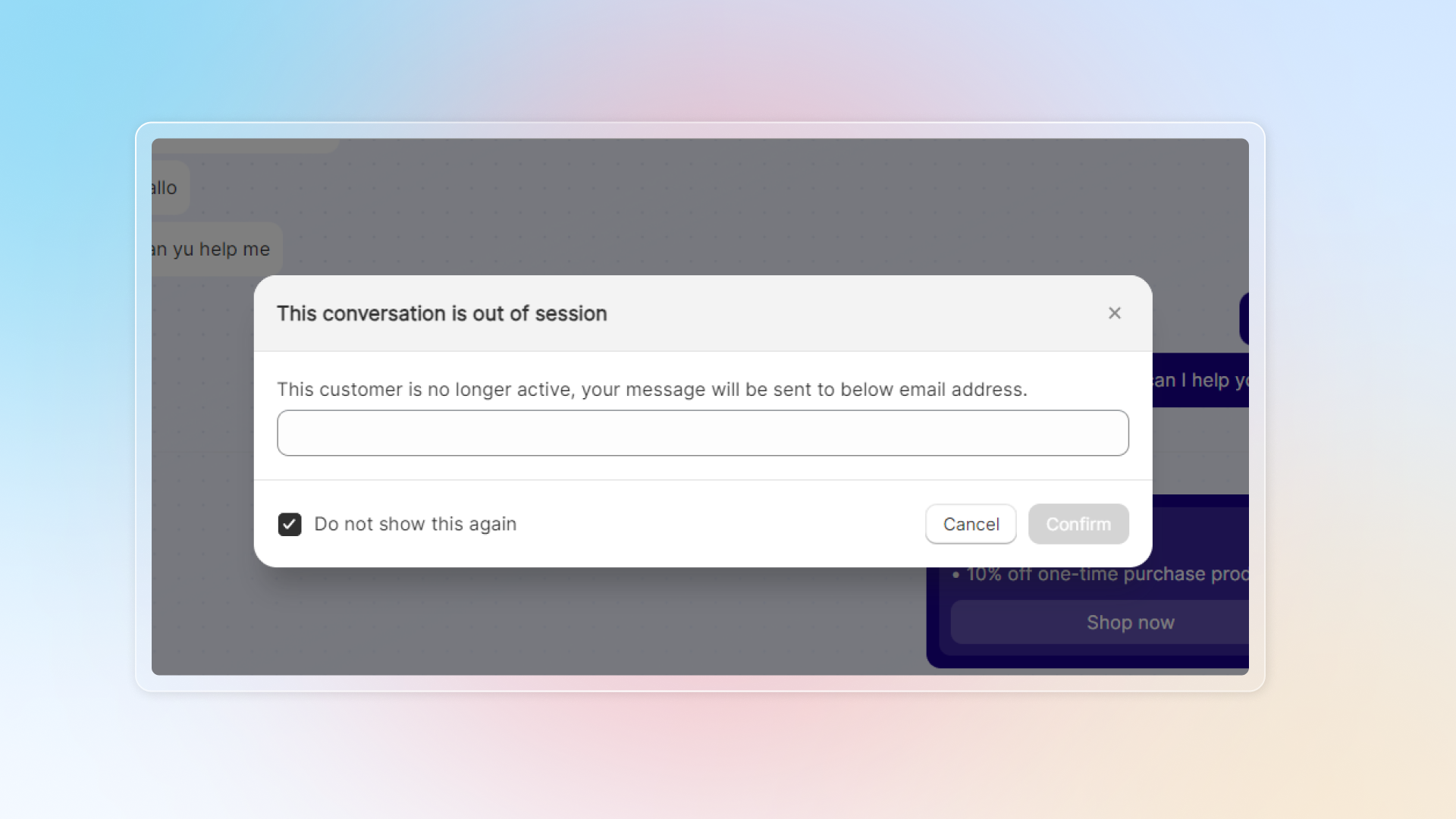
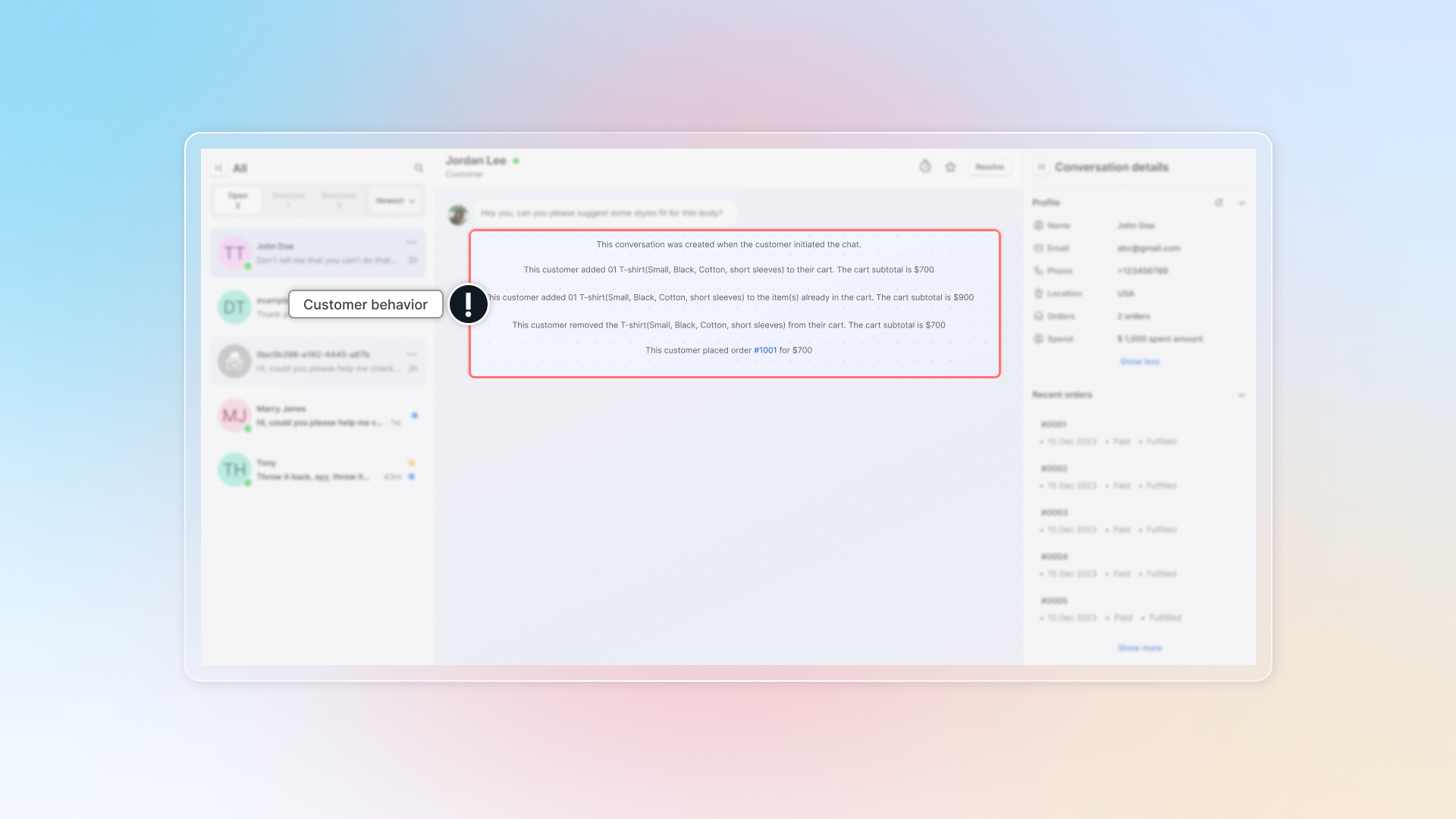
Customer behavior
In chat zone, you can check customer behaviour like add to cart or place an order.
List of customer behavior:
- Start a chat
- Add products to empty cart (show with product details)
- Add products to existing cart (show with product details)
- Remove products from cart (show with product details)
- Place an order
Send message
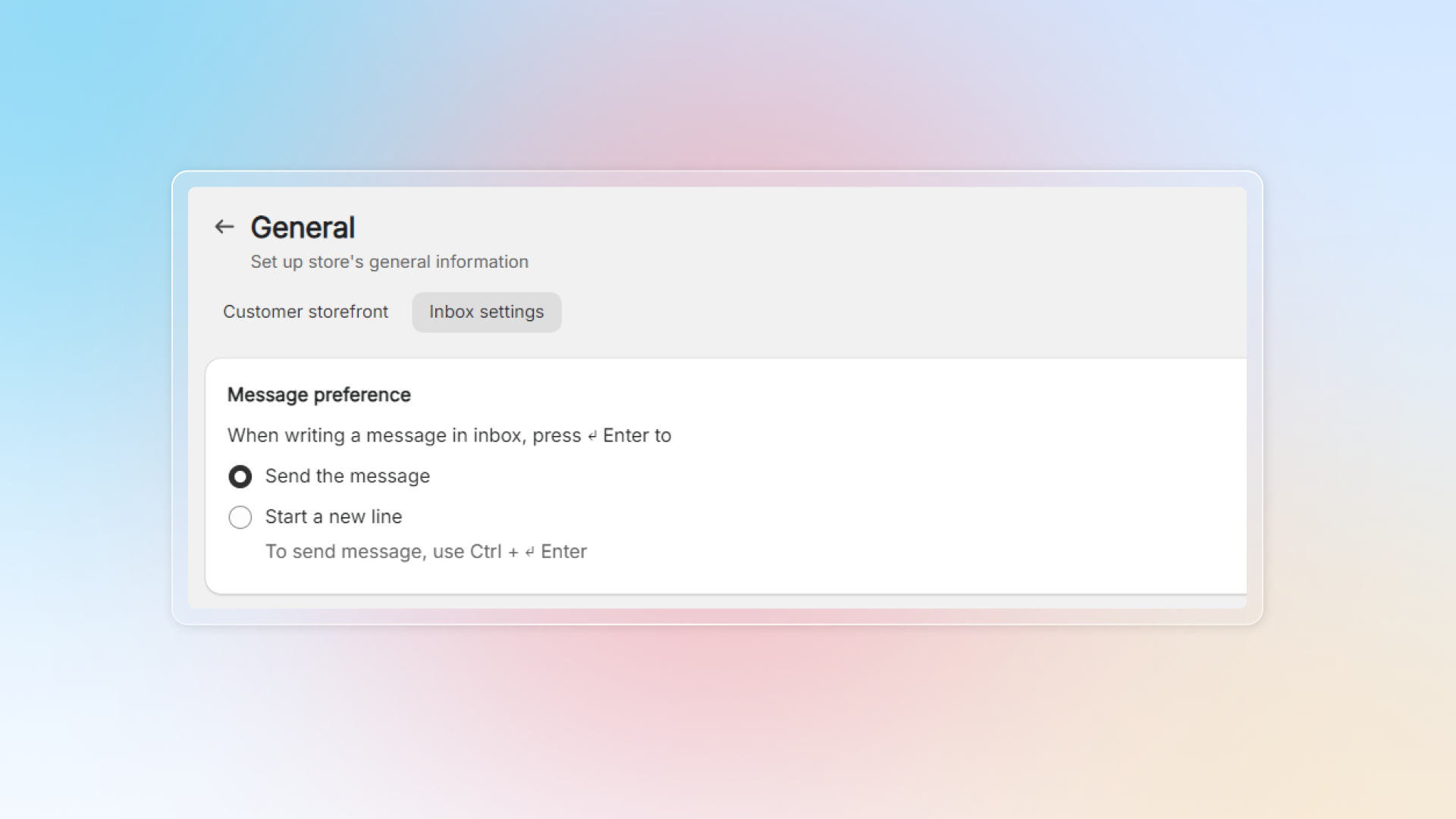
In chatzone, enter your message and click Send or Enter to send messages.
You can change the action of Enter in settings.
Go to Settings -> General -> Go to Inbox settings -> Select method to send message
Format text
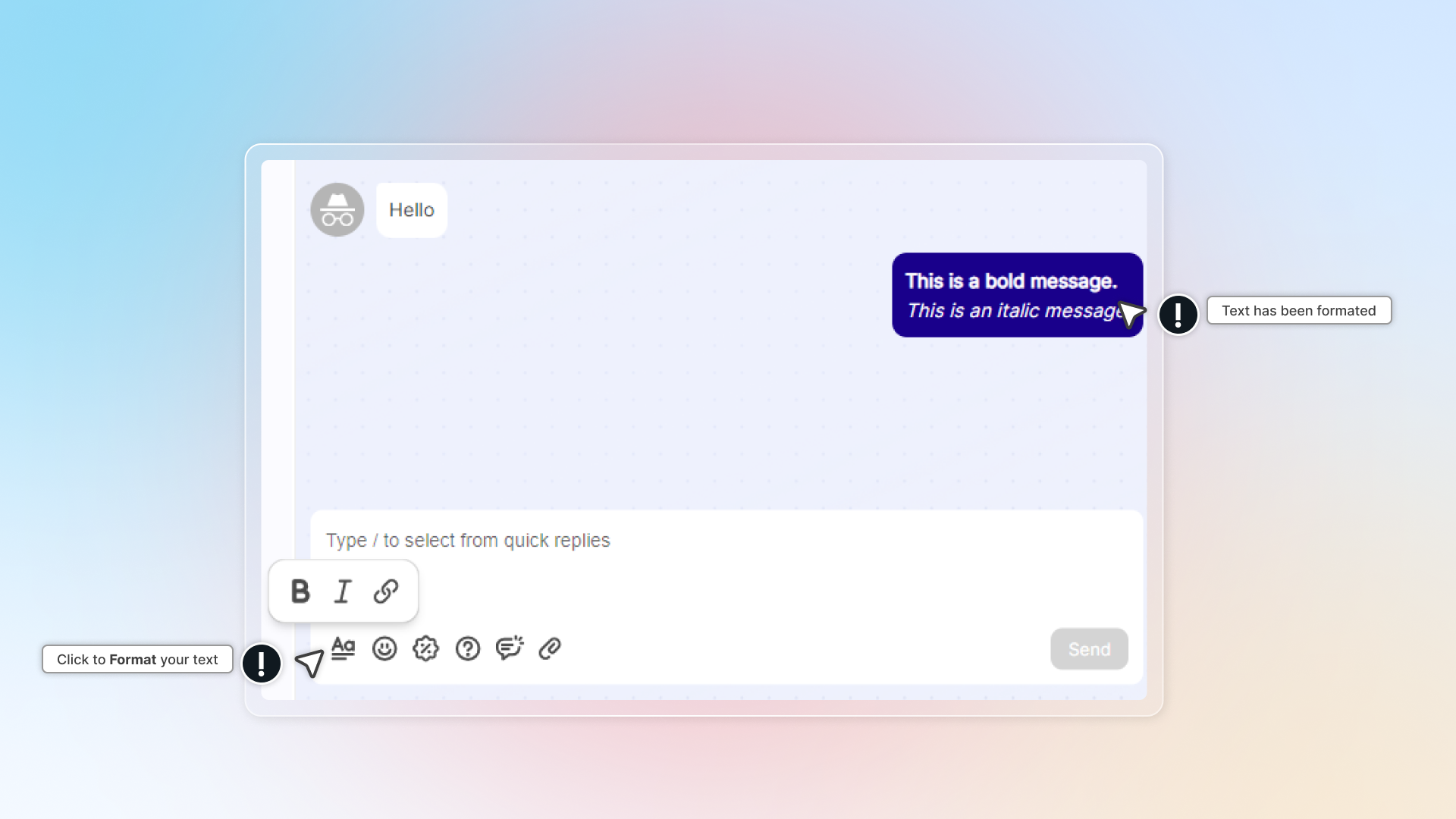
Make your messages clearer with text formatting: Bold text, Italic text, Insert link
You can use icon B , I or keyboard shortcut. (Ctrl + B, Ctrl + I)
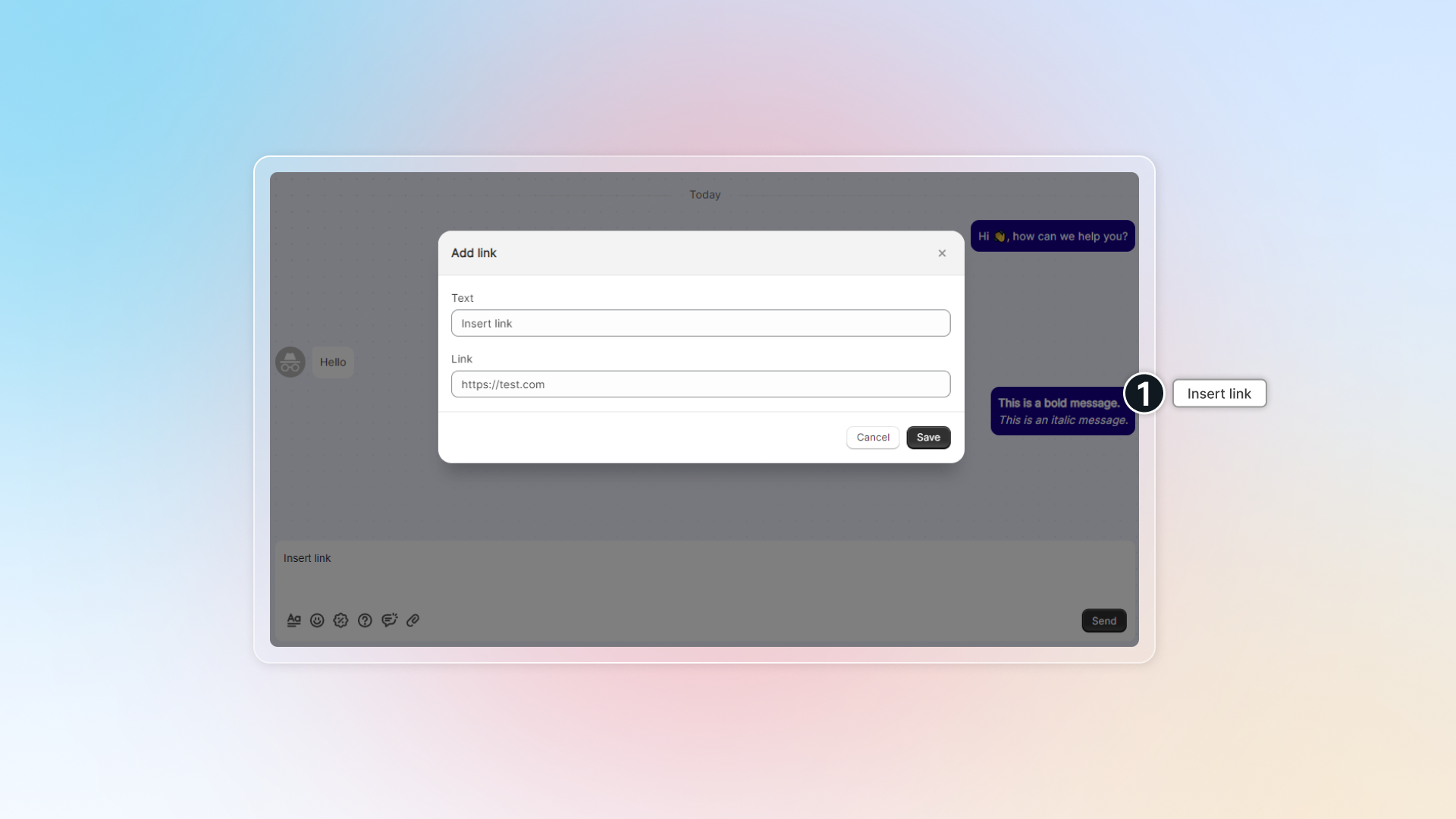
To add link into text in chat, you can:
- Click and enter your text and link
- Enter your text in chat -> Select text and click -> Enter your link
- Enter your link in chat -> Click Edit
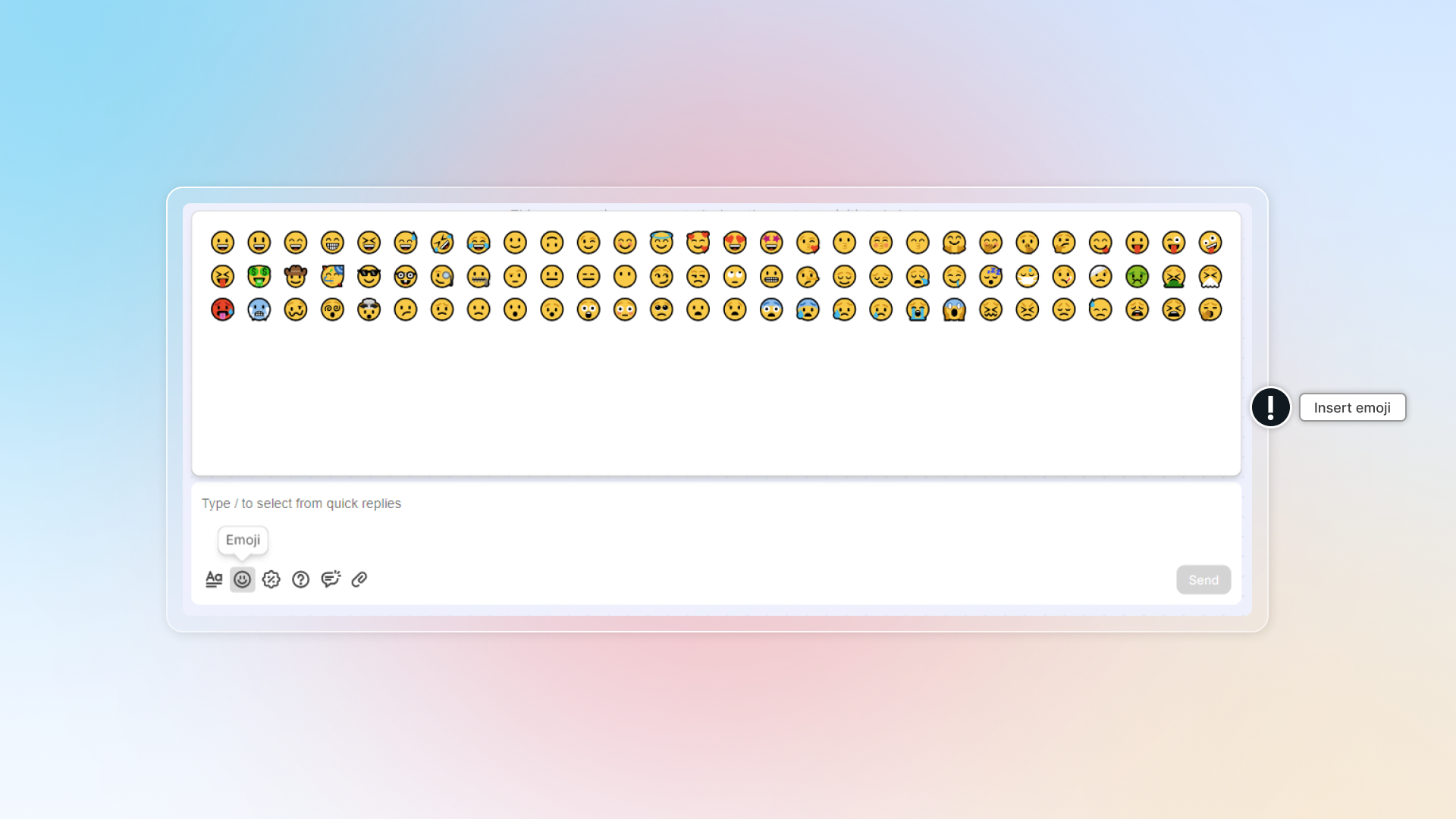
Send emoji
Send emoji to your customers in conversation by clicking icon
The same picker has a GIF tab. Search the GIF library, then click a result to send it.
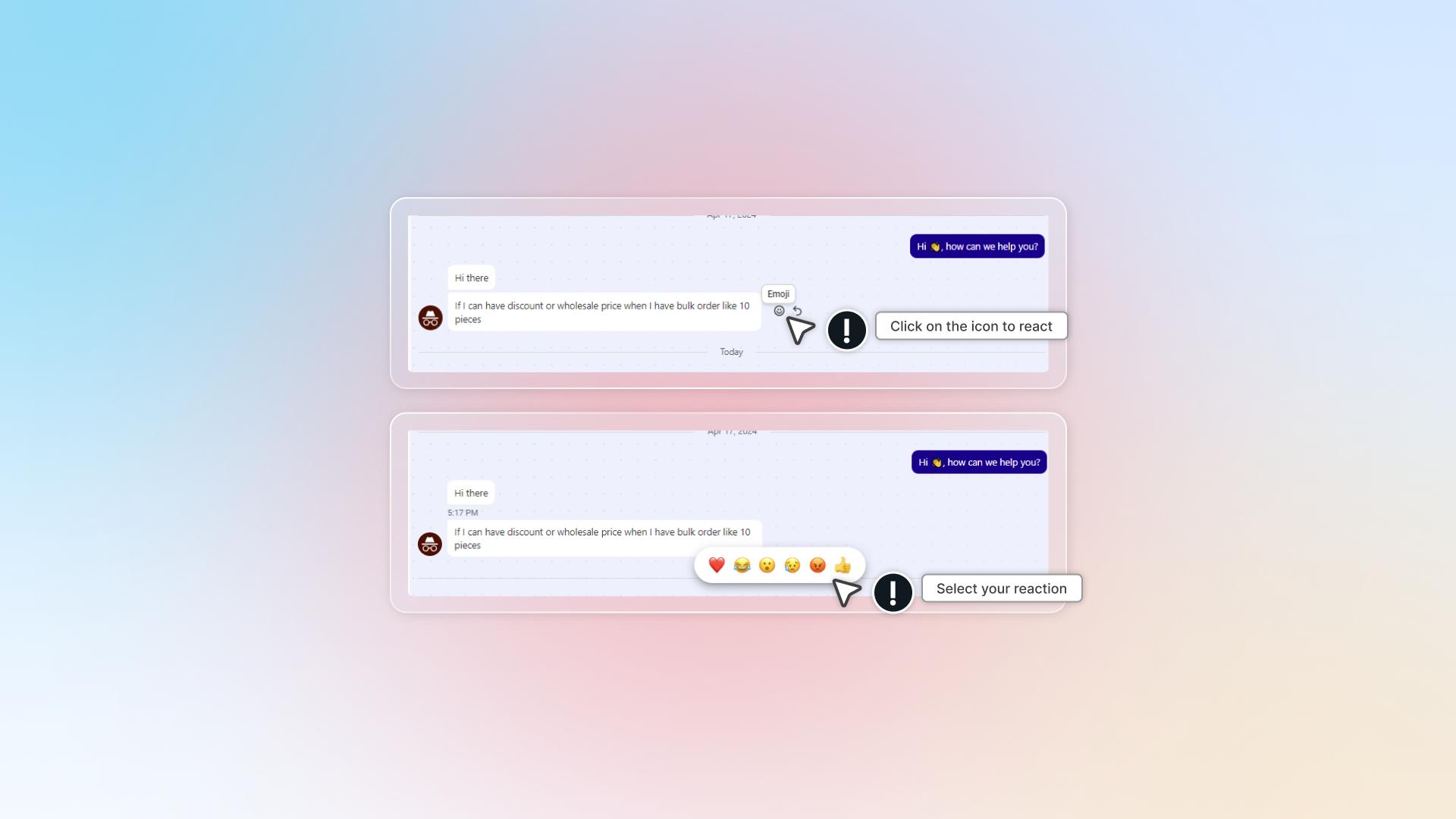
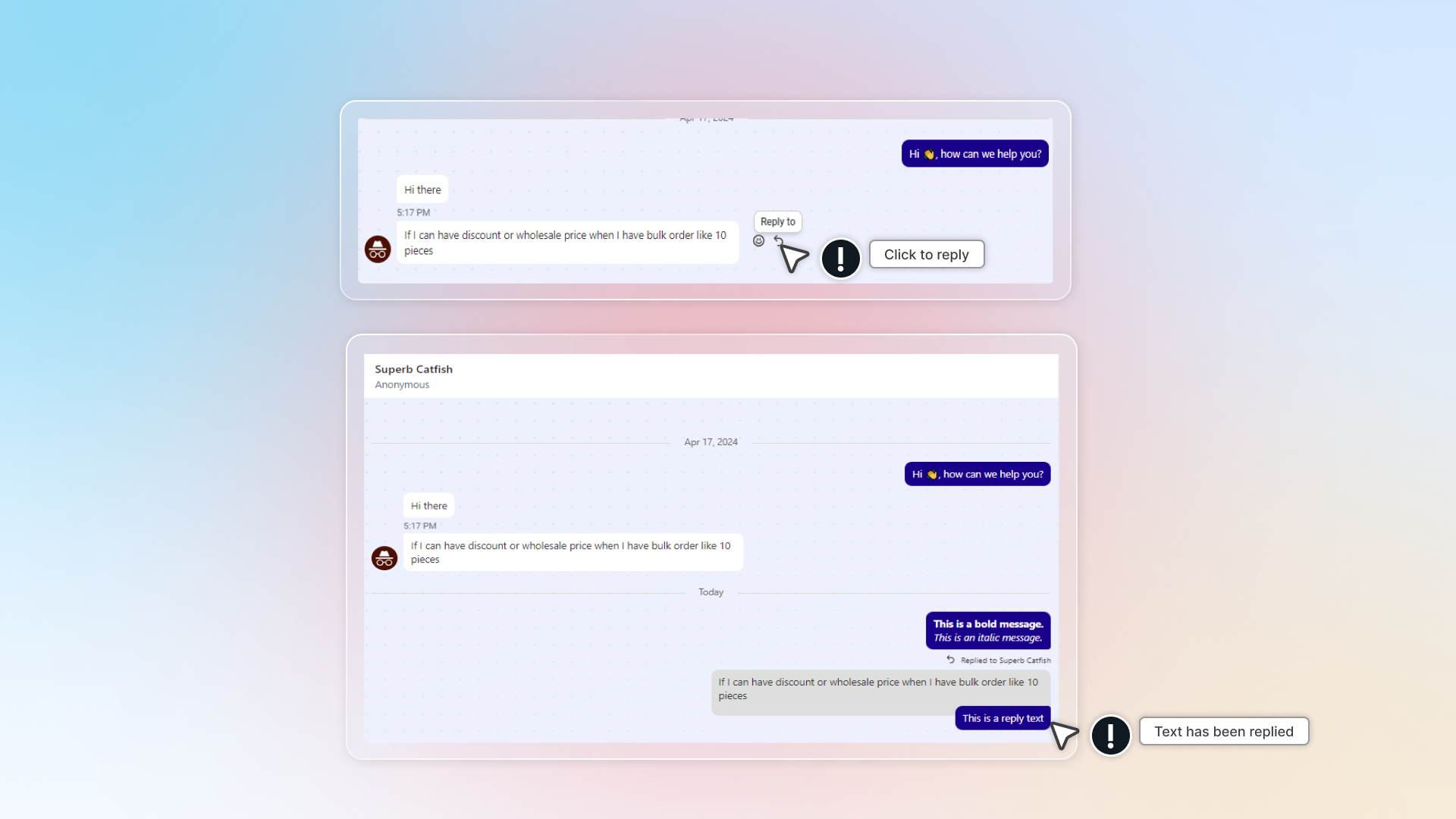
React and reply message
In chat, you can reply ro react to a message.
Real-time translation
Real-time translation detects the customer's language and lets you translate messages in Inbox.
Who can use this feature?
- This feature is available on paid plans. Each plan has a monthly translation quota: Basic 50, Pro 300, Plus 700. The Free plan has no quota.
Click Translate to [your language] on the bar above the chat to start, and Stop to go back to the original language. See Real-time translation.
Insert discount
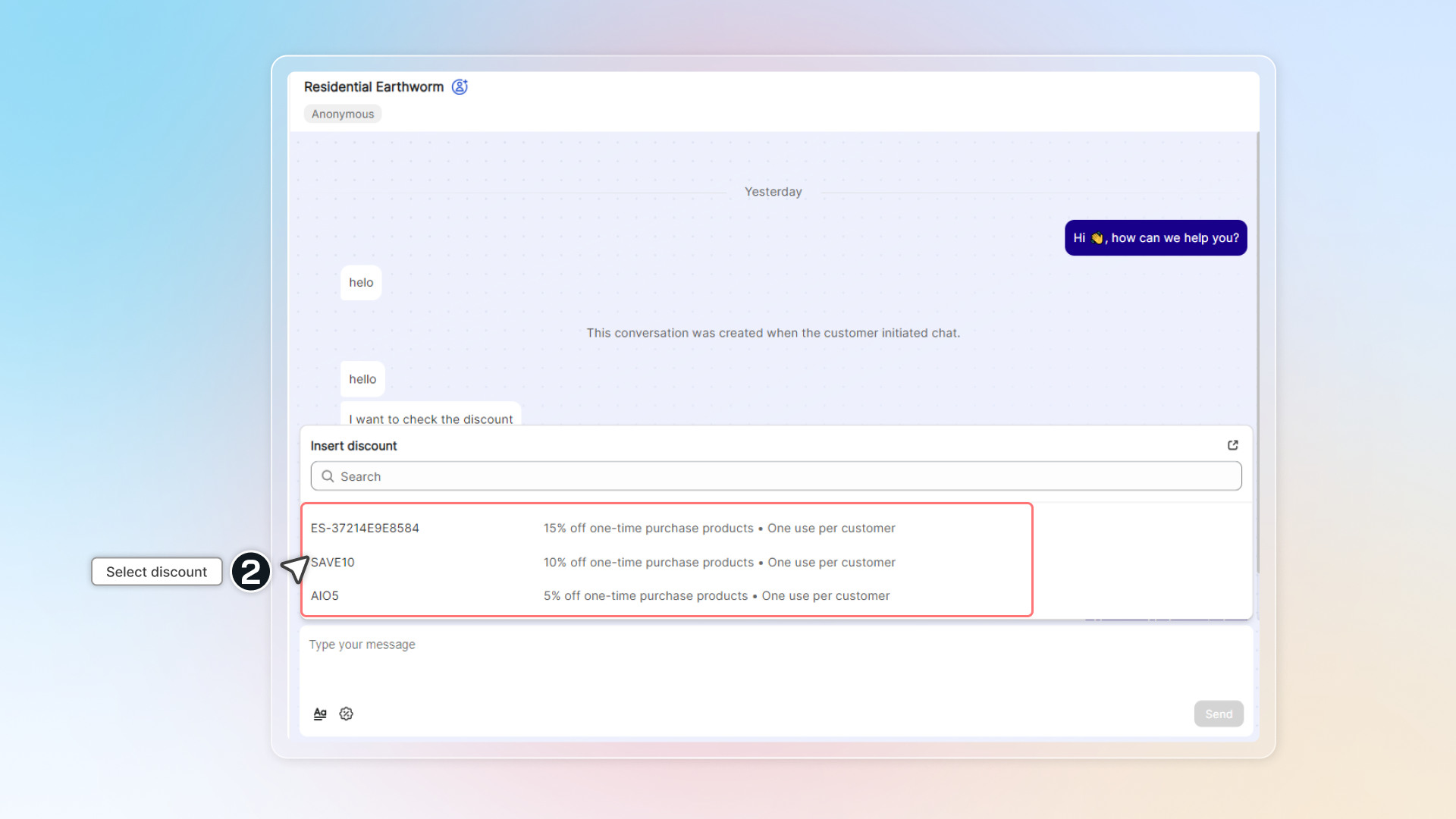
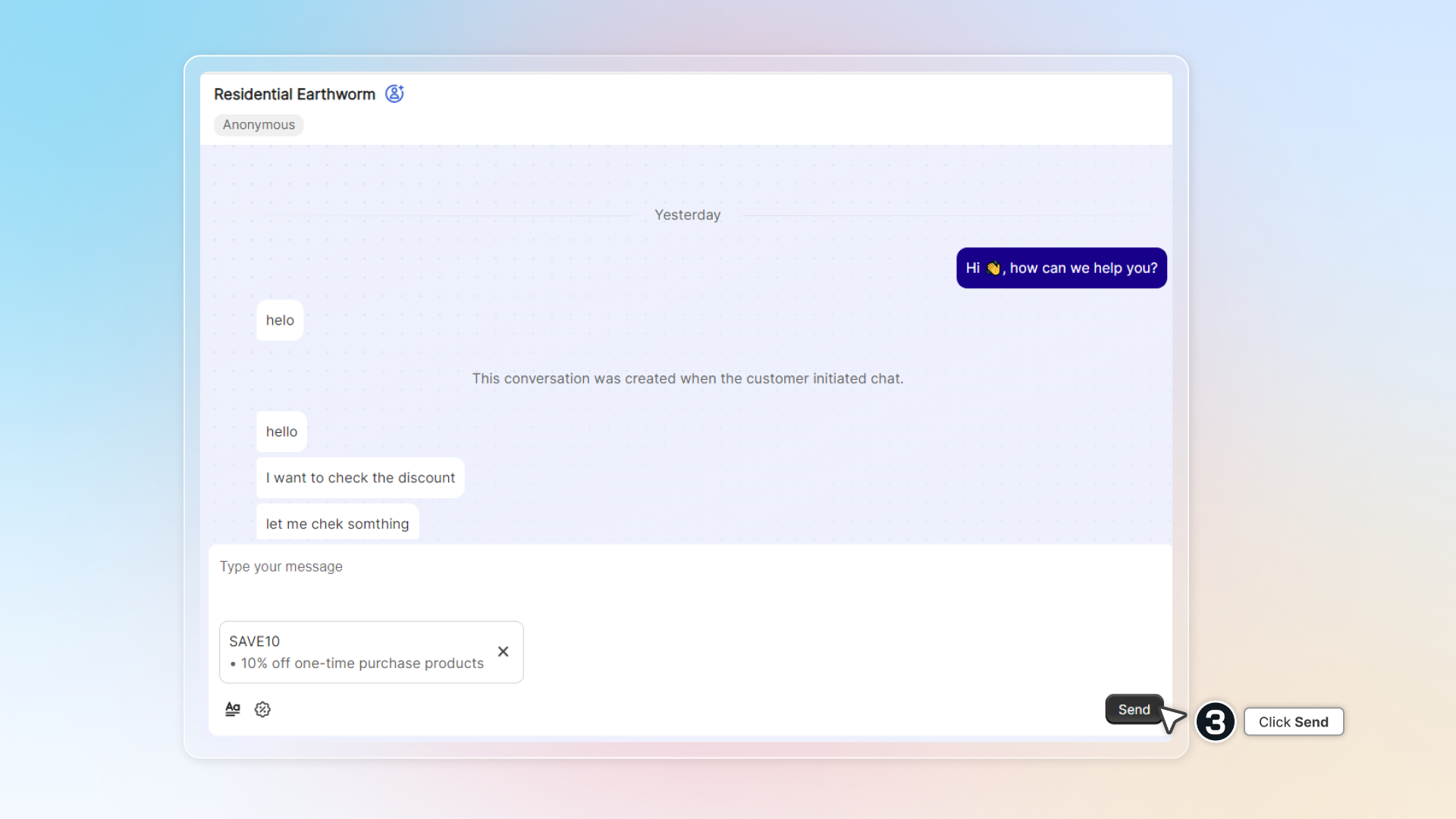
In chatzone, you can insert and send customer discounts available in your store.
-
In conversation, click
-
Select your discount
-
Click Send
-
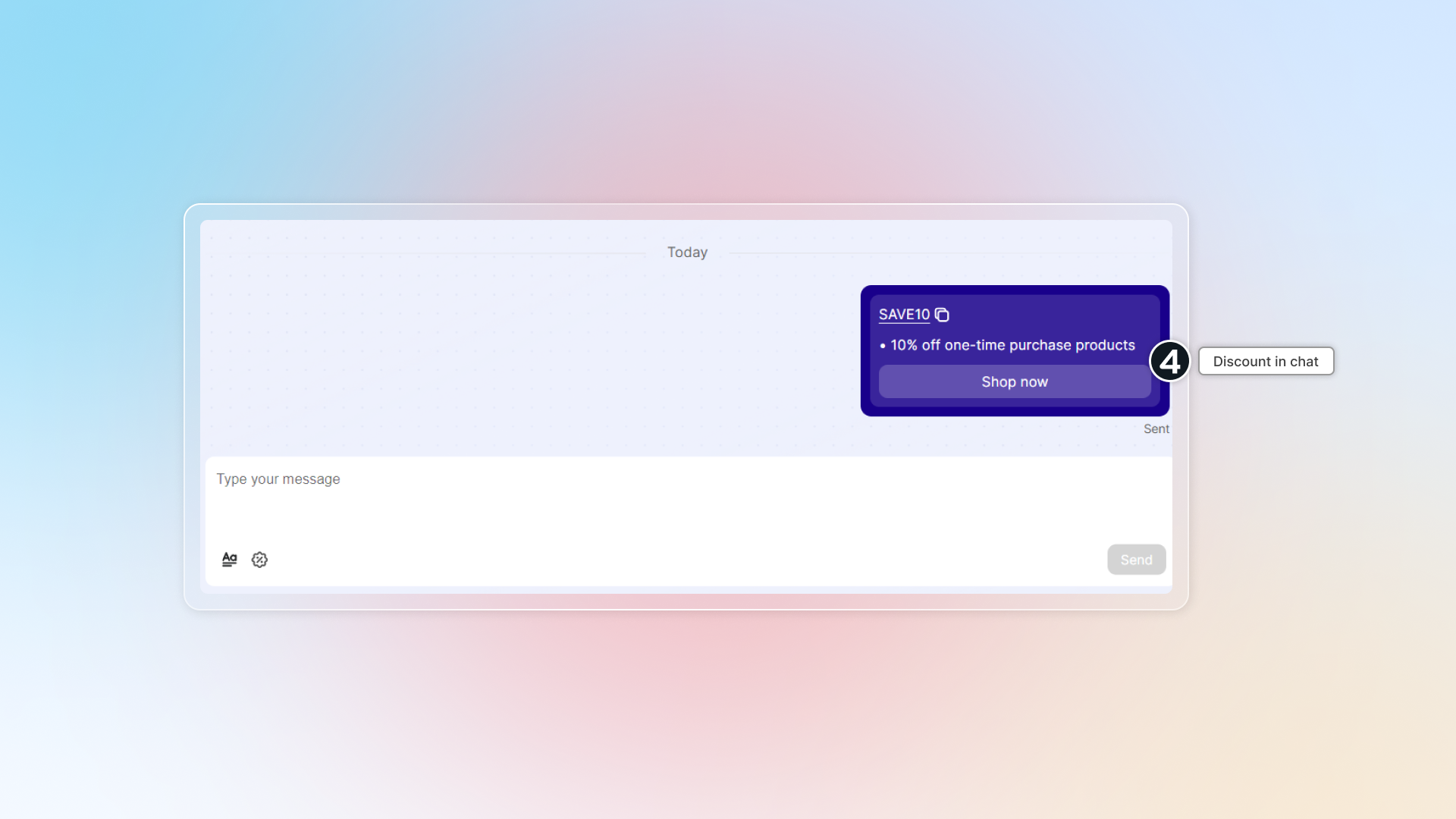
Discount will be shown in conversation with Shop now button. Customer can click Shop now to go shopping with your discount.
Insert FAQs
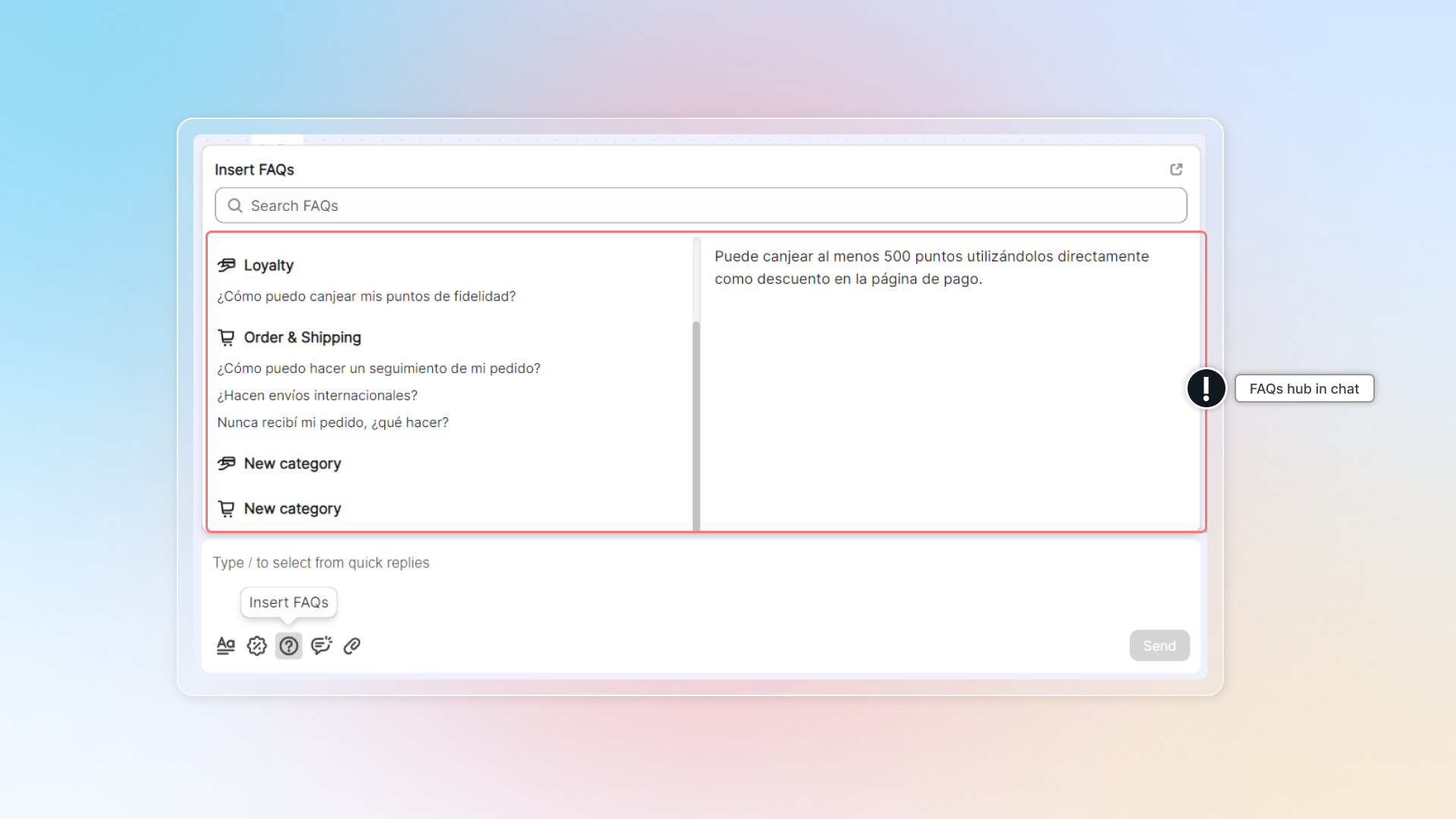
You can send answers from your FAQs hub directly in chat.
In conversation, click icon to get access to FAQs hub. Click to quickly insert your answer and send.
You can only add FAQs in default language.
Send files
-
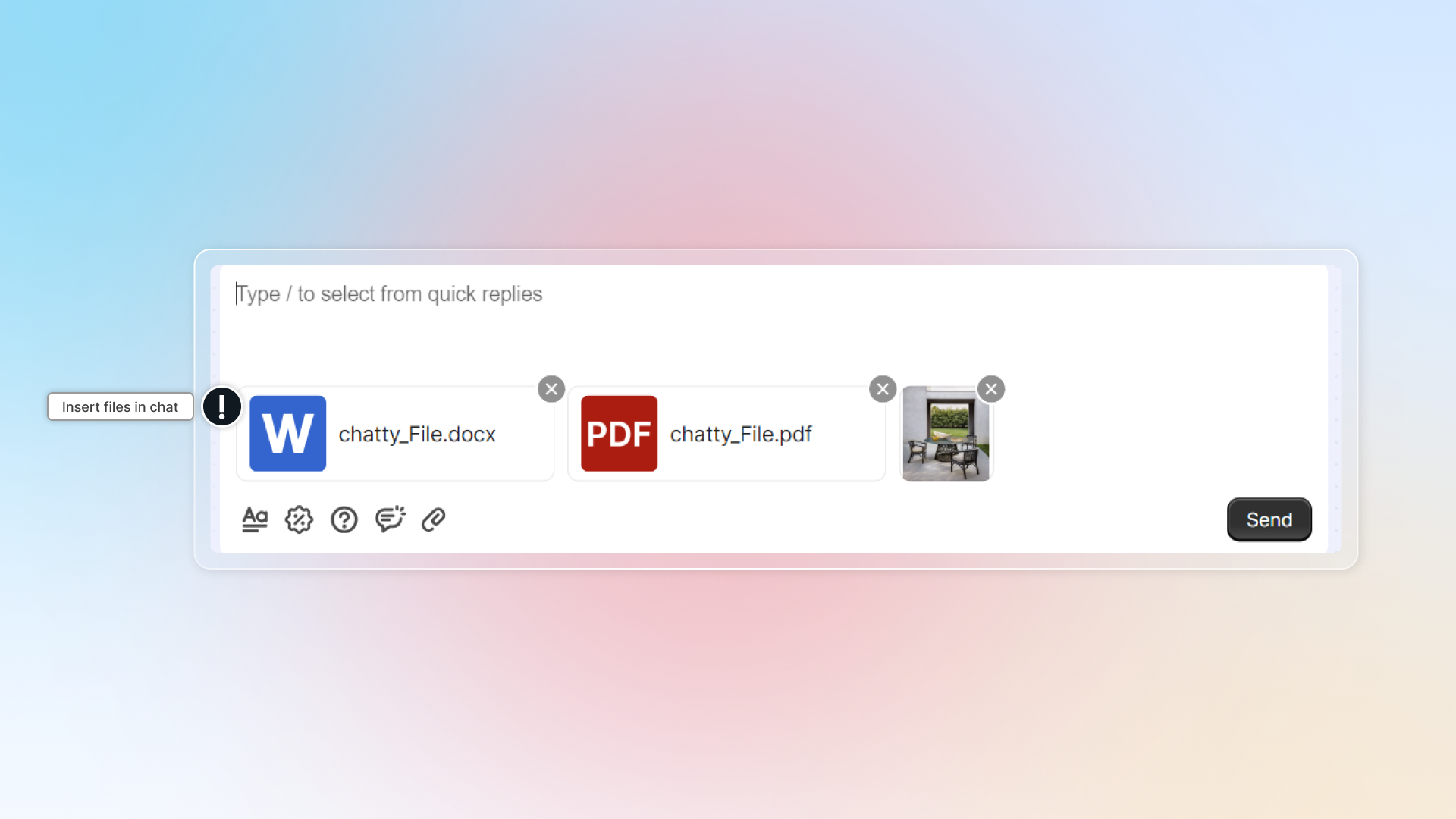
In conversation, click icon
-
Select your files. You can send unlimited images and files in chat, maximum 10 files per time.
Supported image types are: JPG, JPEG, PNG, GIF. File size must be less than 20MB.
-
Click Send
Quick replies
In conversation, click icon or type / to get access to quick replies. Then simply click to select your quick replies.
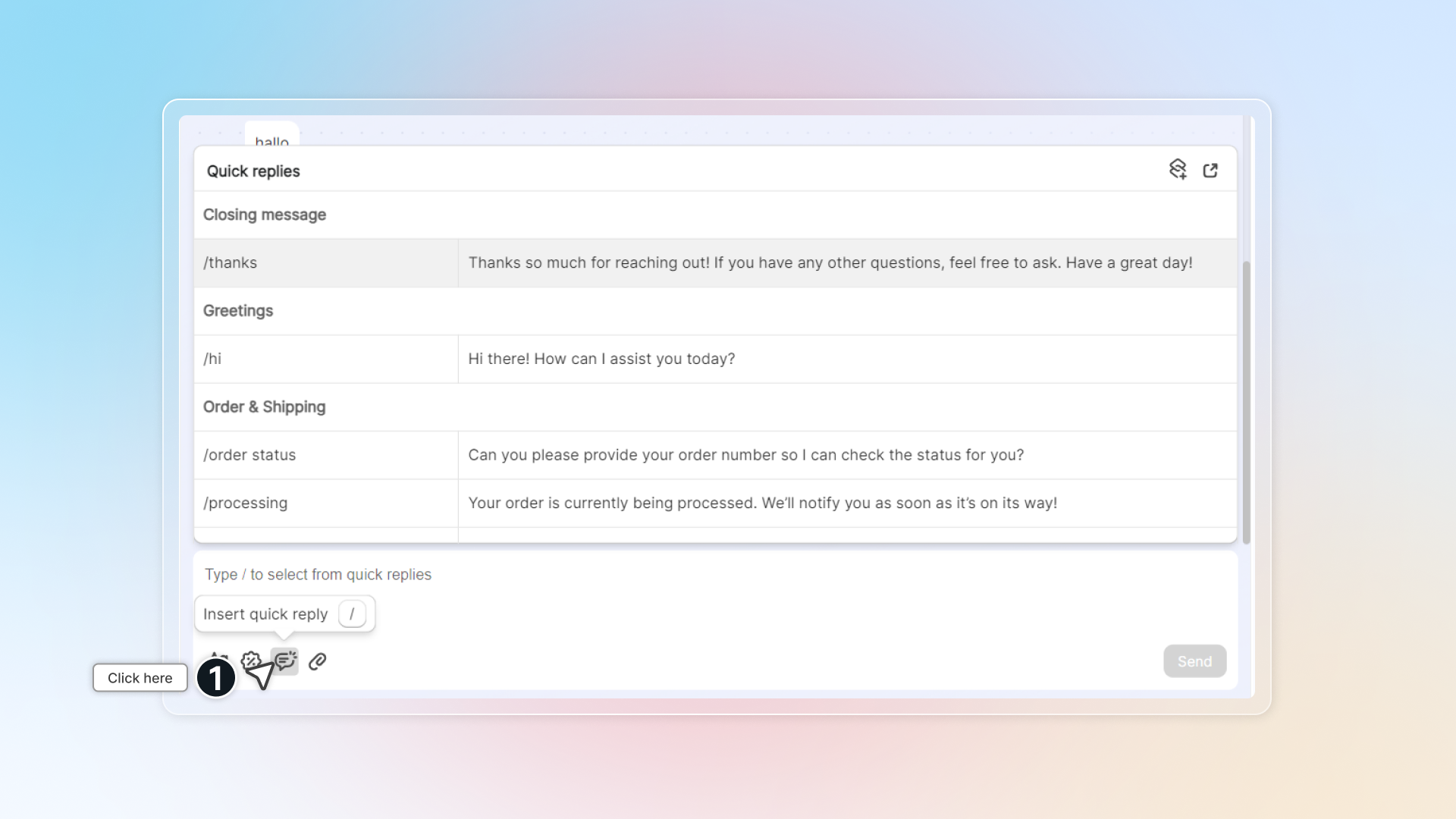
To set up quick replies, go to Settings -> Quick replies. Learn more how to set up quick replies.
Insert products
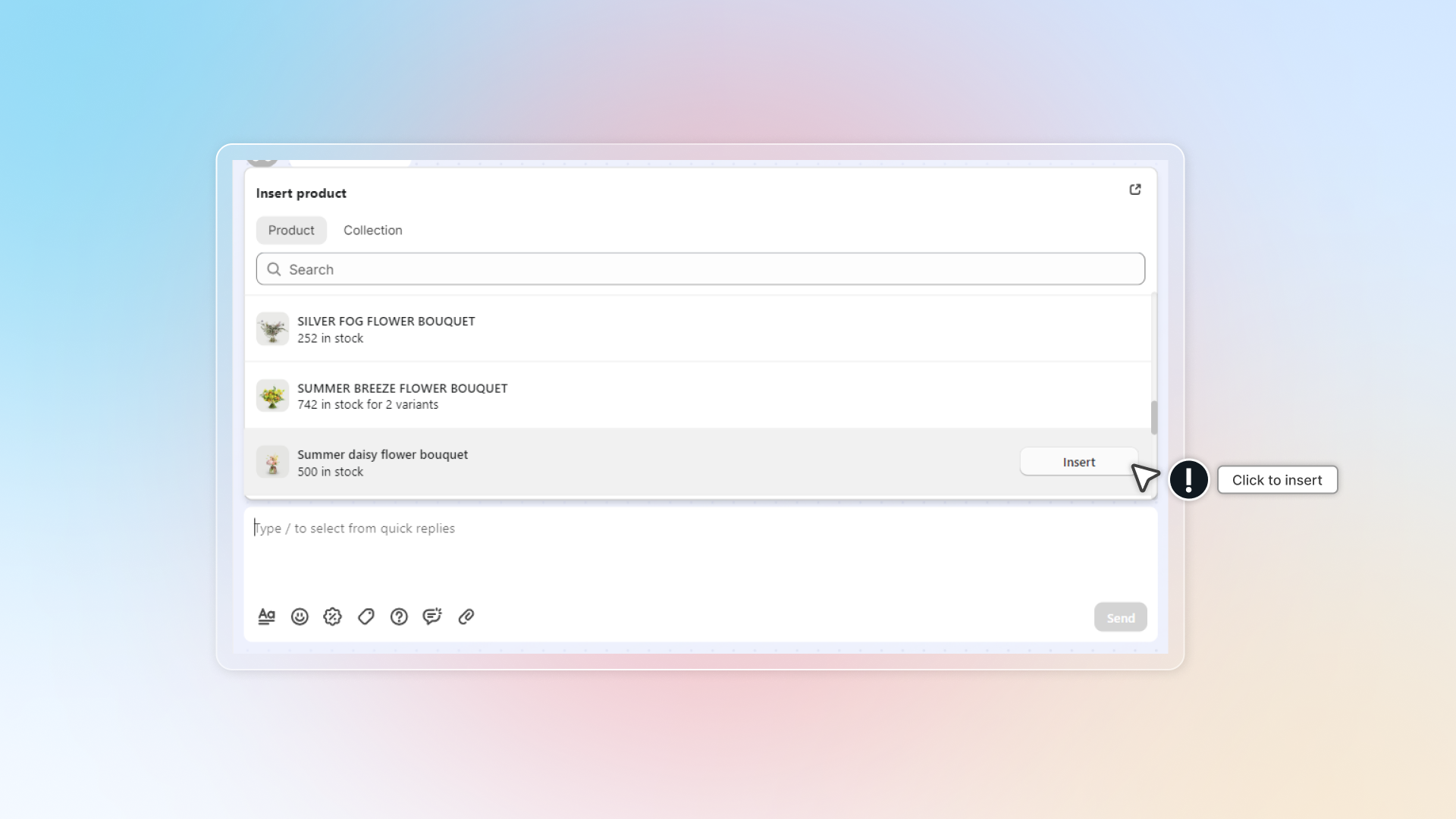
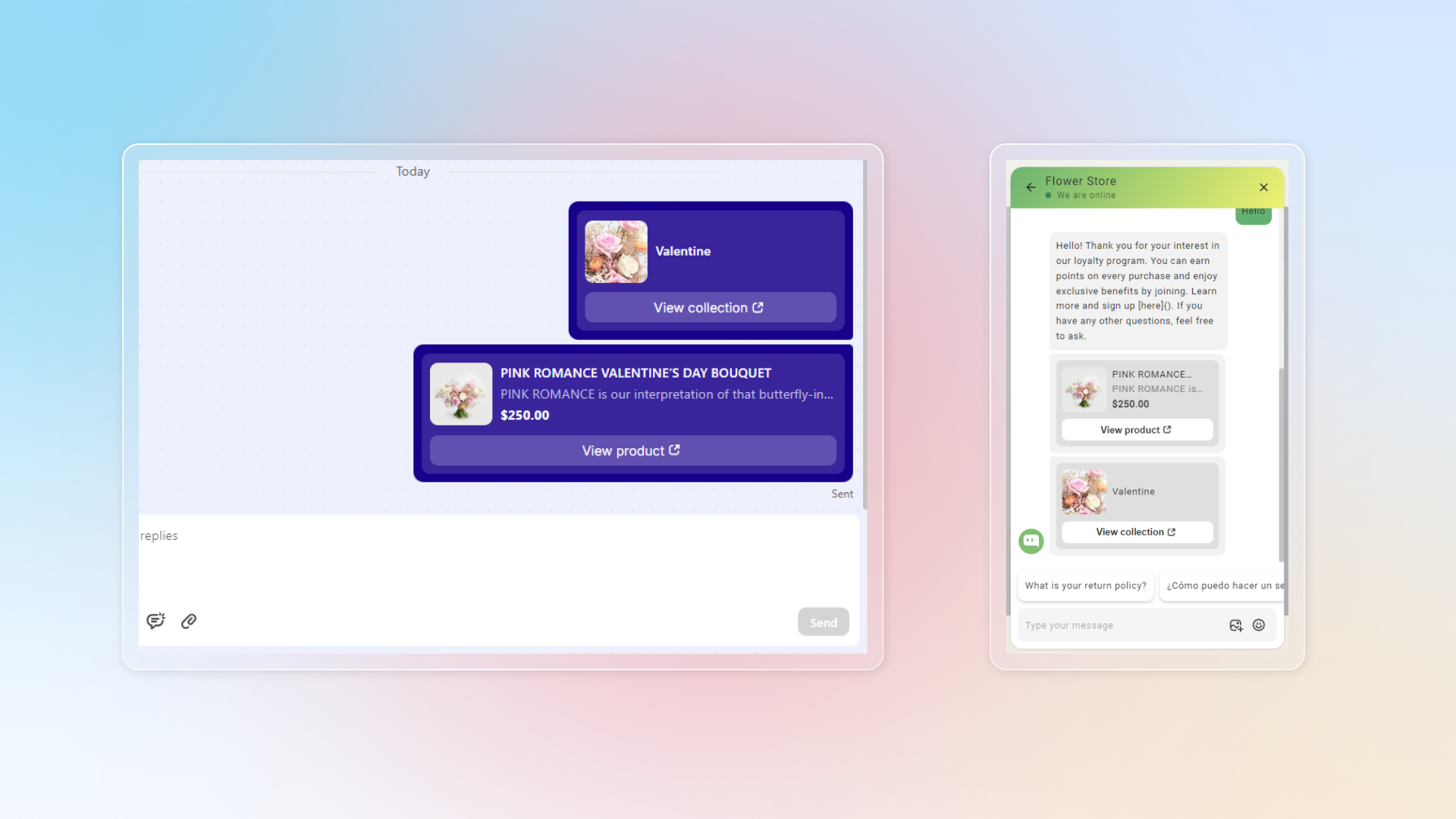
You can send producs (product variants) or collections to customer in chat.
In conversation , click icon -> Select product or collection -> Click Insert
Insert product and Insert discount are not available on WhatsApp conversations.
Choose which actions stay on the toolbar
The toolbar only shows the actions you pin, so you can keep the ones your team uses every day within one click. Insert product and Insert discount are the two actions you can pin.
In the message box, click the three-dot icon to open the action list.
Find Insert product or Insert discount.
Click the pin icon on that row.
A pinned action shows on the toolbar. Click the pin again to unpin it. Your choice is saved for the store, so it stays after you reload. Pinning is available on desktop only.
Check why the AI answered that way
Under every AI reply there is a Review sources button. Click it to see what the answer was built from: scenario instructions, FAQs, questions, products, product pages, URLs, and discounts.
From the same panel you can add a custom answer, so the next customer asking the same thing gets the reply you want.
Send feedback on an AI reply
Next to Review sources there is a Feedback button. Click it to open Share feedback and write what was wrong or right about that response, up to 1000 characters.
Feedback goes to the team that trains the AI. It does not change the reply already sent to the customer.
 Chatty Help Center