After-sales support
What is after-sales support
After-sales support is an AI skill that handles customers who ask about after-sales issues, such as returns, refunds, cancellations, order problems, and order changes. Instead of guessing, AI recognizes the request and handles it the way you choose: collecting details in a form, transferring to your team, or showing contact methods.
When you route a request to email, AI opens a form to collect the details. You can customize the message AI sends when it opens the form, and the message the customer sees after they submit it.
What after-sales support covers
AI recognizes these after-sales requests and opens the form for each one:
| Request type | When AI uses it | Example |
|---|---|---|
| Return & Refund | When customers ask for return or refund | "I want to return this" |
| Cancel order | When customers ask to cancel orders | "Please cancel my order" |
| Order issue | When customers report issues with their orders | "My item arrived damaged" |
| Edit order | When customers ask to edit orders | "Can I change my shipping address?" |
Each type has its own toggle, so you can handle returns through the form while leaving order edits to your team.
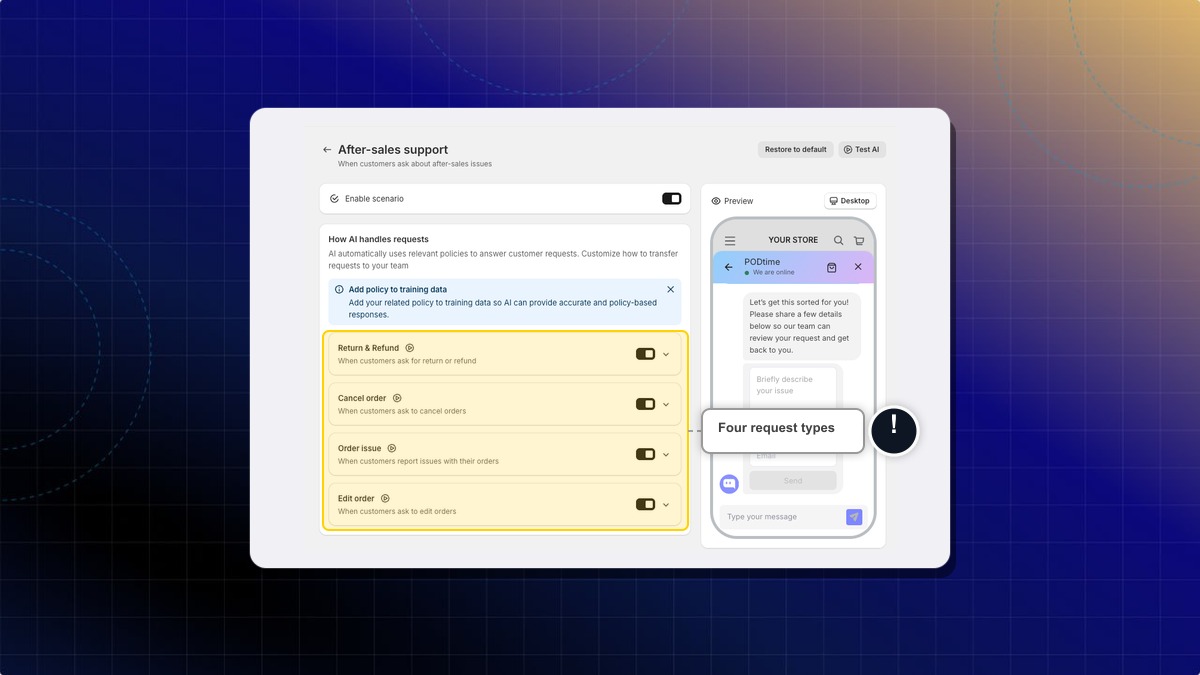
AI answers after-sales questions from the policies in your training data. Add your return, refund, and cancellation policies there so the answers match what you actually offer.
What the form collects
When you route a request to email, AI shows a form with these fields:
- Email (required)
- Issue description (required)
- Order number (required)
- Phone number (optional)
- Photo upload (optional)
Email, Issue description, and Order number are always on. Turn on Phone number or Photo upload if you need them.
How AI transfers the request
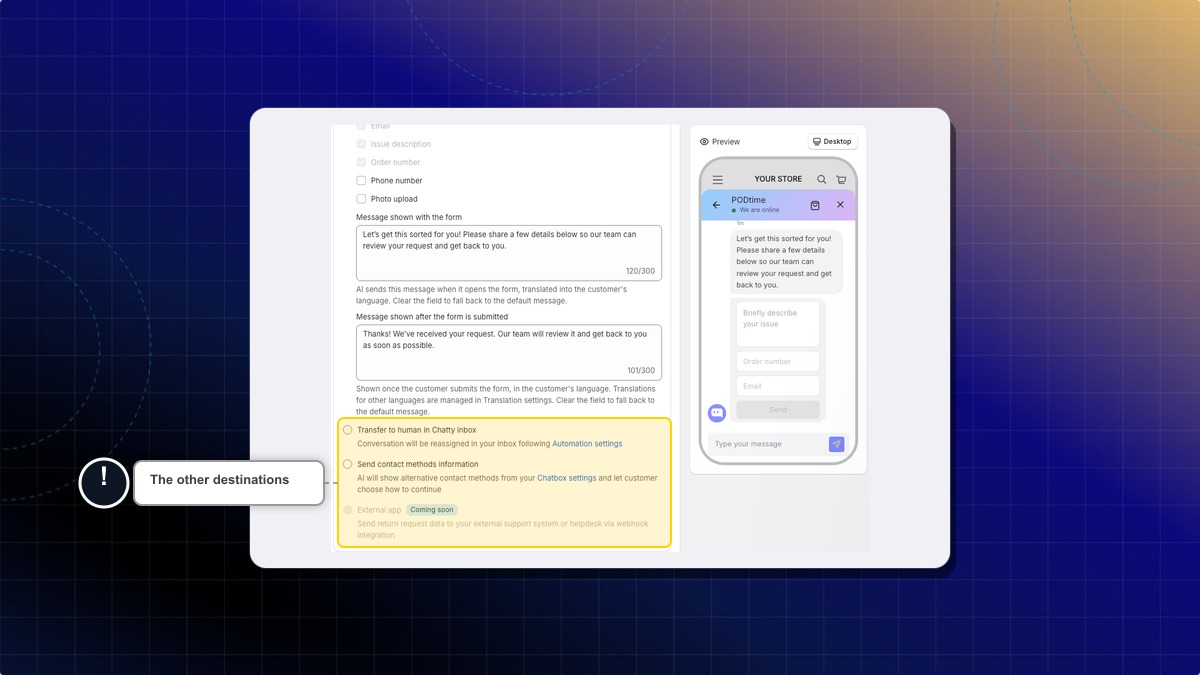
Under each request type, pick where AI sends the request after it collects the details:
| Option | What happens |
|---|---|
| Transfer to email | AI opens the after-sales form. Submissions go to your email, and the conversation is resolved in your inbox. |
| Transfer to human in Chatty inbox | The conversation is reassigned in your inbox, following your Automation settings. |
| Send contact methods information | AI shows the contact methods from your Chatbox settings and lets the customer choose how to continue. |
External app Coming soon | Sends request data straight to your own helpdesk. |
The form fields and the two custom messages appear only under Transfer to email.
Customize the after-sales messages
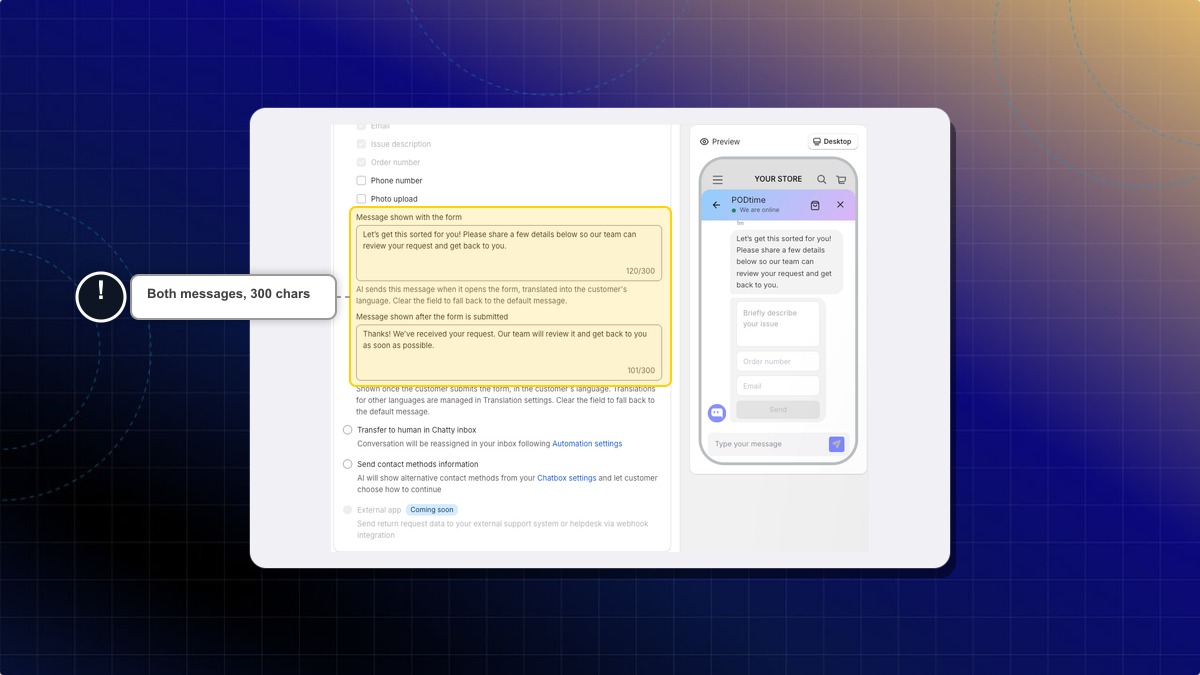
When you choose Transfer to email, two message fields appear so the wording matches your brand. Both are translated into the customer's language. Clear a field to fall back to the default message.
Each message can be up to 300 characters. Translations for other languages are managed in Translation settings.
Message shown with the form
This is the message AI sends when it opens the form, translated into the customer's language.
For example: "Sorry to hear about the trouble. Please share a few details and our team will help you sort it out."
Message shown after the form is submitted
This is the message shown once the customer submits the form, in the customer's language.
For example: "Thanks! We've received your request and will get back to you by email within 24 hours."
How to set up after-sales support
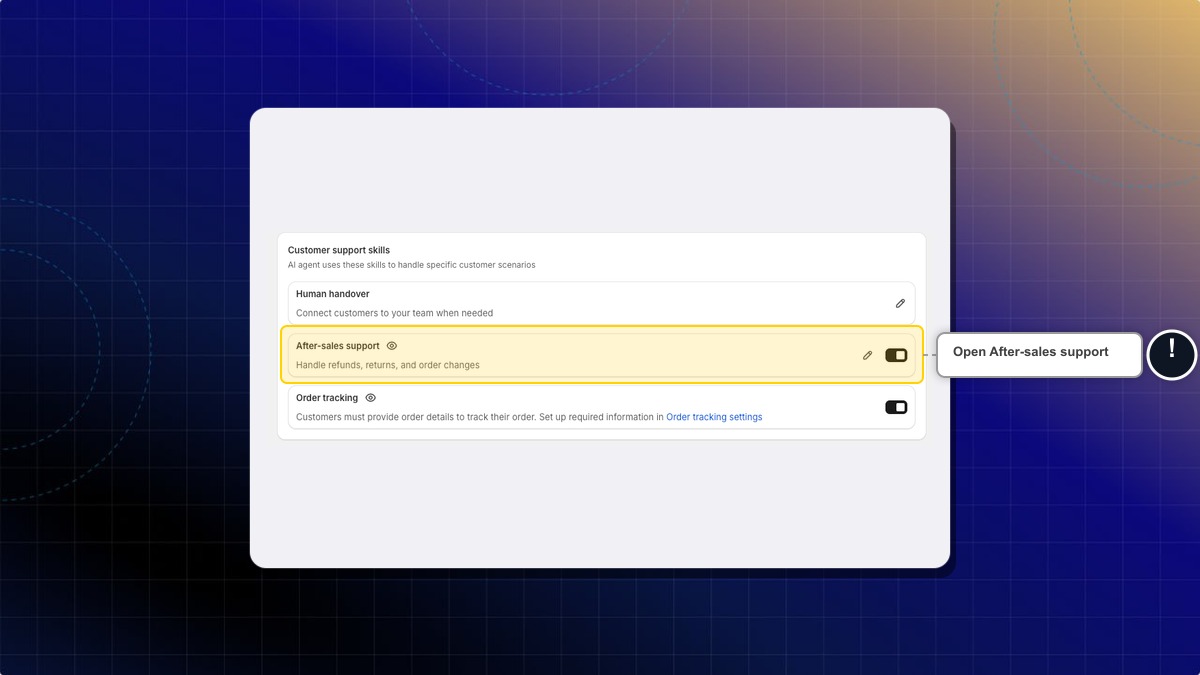
Open After-sales support
Go to AI agent → Instructions → Assistant skills. Under Customer support skills, find After-sales support and click the edit icon.
Turn on the scenario
Switch Enable scenario on at the top of the page.
Turn on a request type
Open the request type you want to set up, for example Return & Refund, and switch on its own toggle.
Choose how AI transfers the request
Pick Transfer to email to open the form fields and message settings. The other destinations do not use these messages.
Pick the form fields
Email, Issue description and Order number are always on. Turn on Phone number or Photo upload if you need them.
Write the message shown with the form
Type the message AI sends when it opens the form, for example "Sorry to hear about the trouble. Please share a few details and our team will help you sort it out." Leave it blank to use the default.
Write the message shown after the form is submitted
Type the message the customer sees after submitting, for example "Thanks! We've received your request and will get back to you by email within 24 hours." Leave it blank to use the default.
Save
Click Save in the top bar. Nothing on this page is kept until you save.
Expected result: AI opens the after-sales support form with your message, and shows your confirmation message once the customer submits it.
What happens if I leave a message field empty?
AI falls back to the default message for that field, translated into the customer's language.
Do the custom messages apply to every transfer option?
No. Both messages, and the form field selector, appear only under Transfer to email. The other options (Transfer to human in Chatty inbox, Send contact methods information) do not use them.
How do I set these messages in other languages?
Both messages are translated into the customer's language automatically. To adjust the wording for a specific language, open Translation settings.
 Chatty Help Center