What customers see in the chatbox
Your chatbox settings decide how the chatbox looks. This page covers what a shopper can actually do inside it, so you know what to expect when someone asks.
Opening the chatbox
Shoppers open the chatbox from the floating button in the corner of your store. In the Legacy chatbox, the button bounces to draw attention while a desktop visitor has not opened it yet. It bounces when a page loads, again after 30 seconds, and when the visitor scrolls near the bottom of the page. It does not bounce on mobile, and it stops for the rest of the visit once the visitor has opened the chatbox. The AI Mode button does not bounce.
Moving around
A navigation bar sits at the bottom of the chatbox with up to four tabs:
| Tab | What the shopper does |
|---|---|
| Home | Lands on the opening page with the blocks you turned on: contact methods, order tracking, featured questions and categories. |
| Message | Chats with your AI agent or your team. |
| Track | Looks up an order. Only appears when the order tracking block is on. |
| Help | Browses your FAQ categories, opens an answer, or searches your questions. |
You can hide this bar in Chatbox → Legacy chatbox → Appearance → Chatbox style. The tabs also disappear on their own when you turn the matching block off.

Making the chatbox bigger
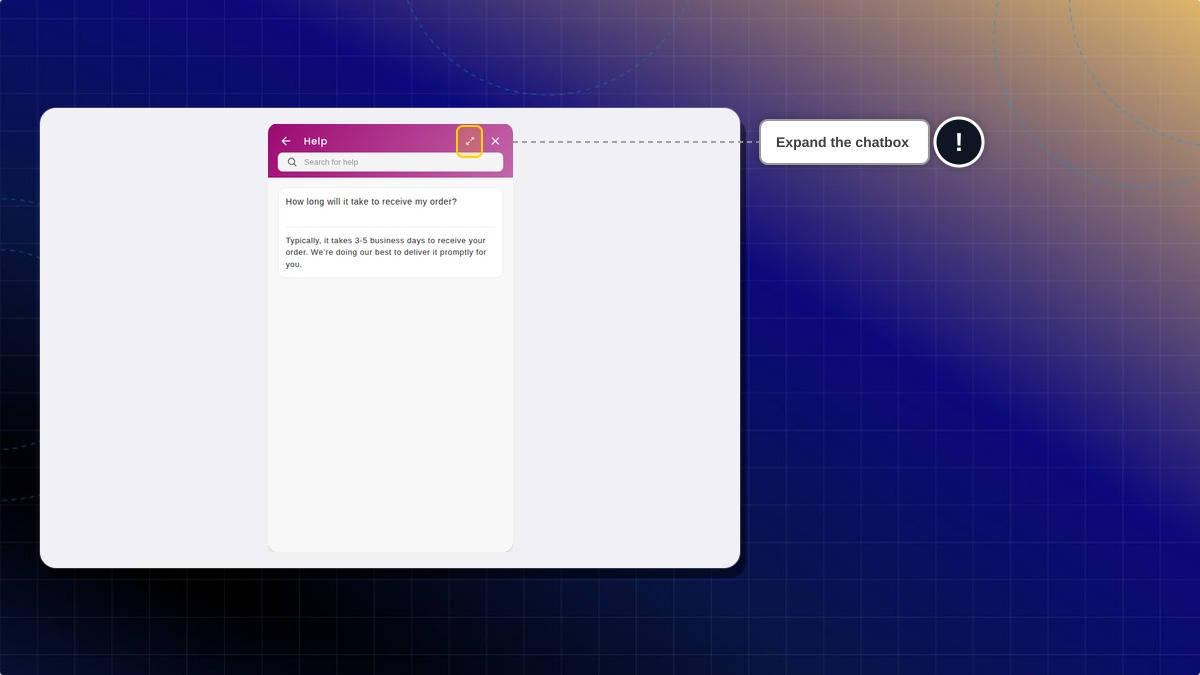
On the Help tab — a category list, a single answer, or search results — a desktop shopper can click the expand icon in the header to widen the chatbox for easier reading, then click again to shrink it back. The icon is not offered on mobile or on the other tabs.
The three-dot menu
In the Legacy chatbox, a three-dot menu can appear in the chatbox header on the Message tab. It shows only when at least one of the options below is available. What it holds depends on your settings and on whether the shopper has sent a message.
Continue as email moves the conversation to email so the shopper can reply from their inbox. It shows only when you have turned on Continue as email in Chatbox → Shared chatbox settings.
Reset conversation clears the current chat and starts a fresh one. It appears once the shopper has sent a message. Use this as your answer when a shopper says the AI is stuck on an old topic. Resetting does not delete the transcript from your Inbox, and it does not use an extra AI conversation from your plan within the same 24 hours.
Email transcript lets the shopper type an address and have a copy of the chat sent to it. Handy when a customer wants a record of what your AI promised.
Talk to a person can also appear here when your AI agent is set to hand chats to your team.
In AI Mode, there is no three-dot menu. Continue as email and Reset conversation are separate icon buttons in the chatbox header. Hover over a button to see its name. Email transcript is not available in AI Mode.

Sending files
On the Message tab, a shopper can attach files next to the message box. They can also drag files onto the chatbox, or paste an image.
Several files at once are fine. Each new pick adds to the files already waiting. Sending files is always on. There is no switch to turn it off.
Up to 10 files per message. Each file must be under 20 MB.
| Chatbox | Accepted files |
|---|---|
| Legacy chatbox, while your team is replying | Images and video |
| Legacy chatbox, while the AI is replying | Images only |
| AI Mode | Images only |
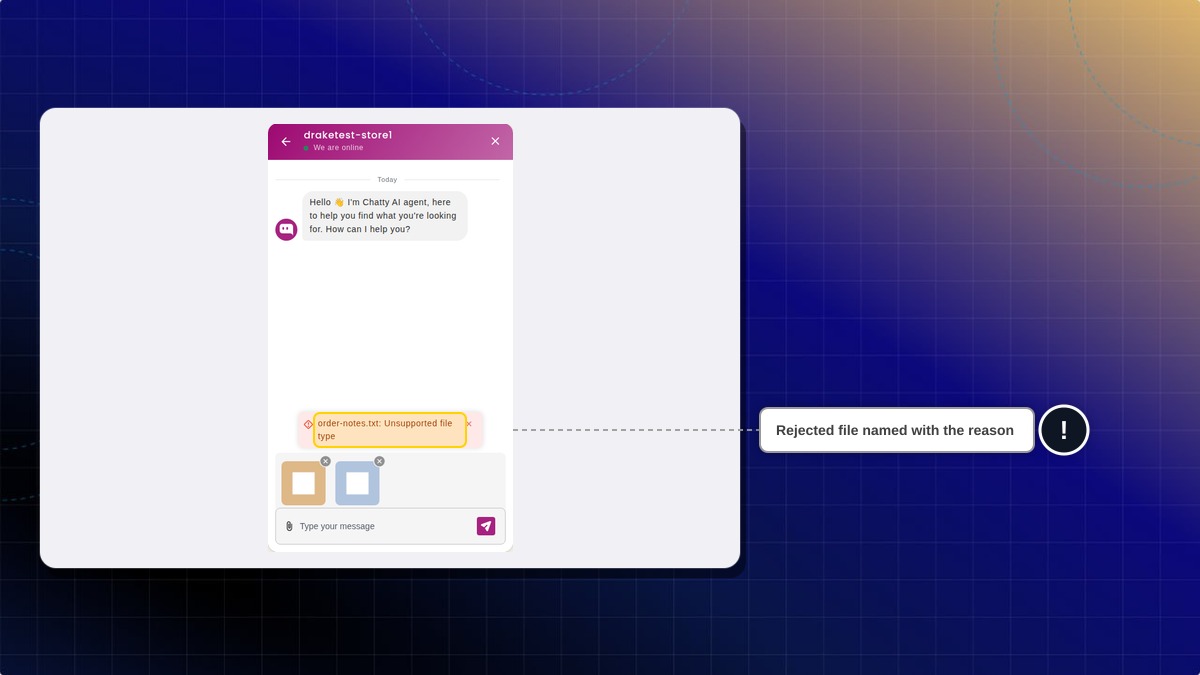
A file that is too large, or of a type the chatbox does not accept, is named with the reason. The rest of the selection still sends.
Buying from the shopping bag
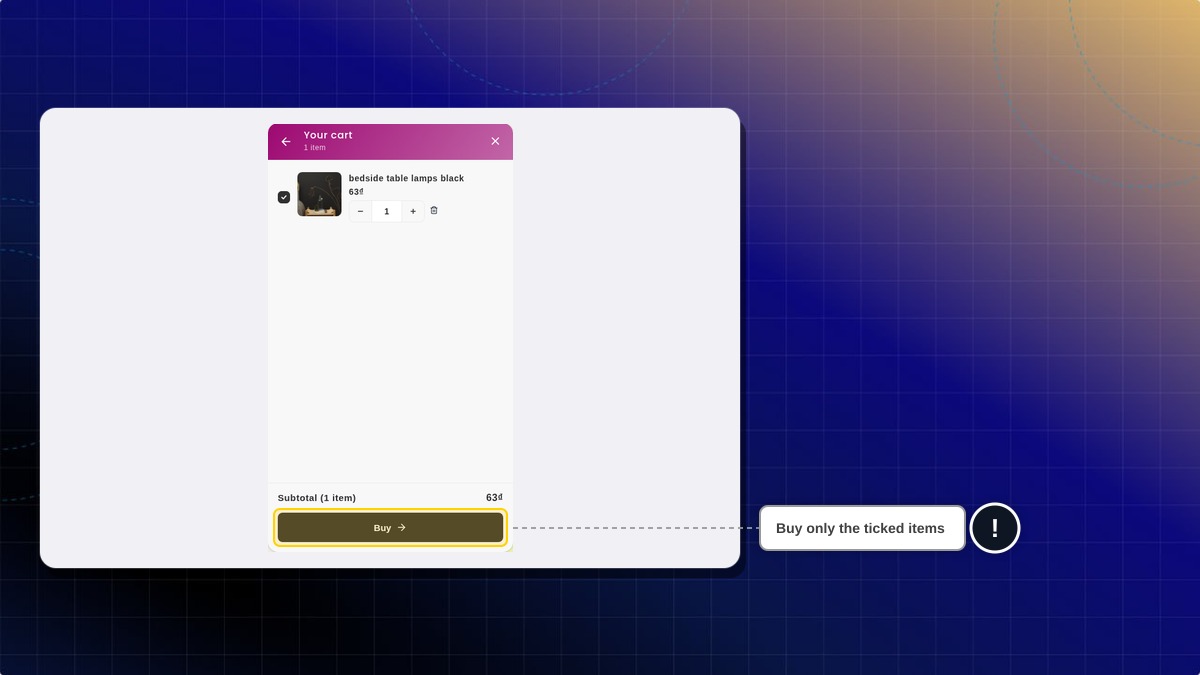
In the Legacy chatbox shopping bag, shoppers tick the items they want and buy only those. In-stock items start ticked. The button reads Buy. The cart on the store stays as it is.
Notifications while browsing
In the Legacy chatbox, when your AI or one of your agents replies, the shopper hears a short notification sound. If they have switched to another browser tab, the number of unread replies is added to the front of the tab title, so they notice the reply without staying on your store. The count clears the moment they come back to the tab. AI Mode does not play the sound or change the tab title.
This is separate from the unread message counter on the chat button itself.
Rating your support
The shopper can be asked to rate the help they got and leave a written comment. This happens when the conversation is resolved, or when the shopper's message contains a keyword you picked. Go to Settings → Automation and click Manage under Satisfaction survey. Turn on Display satisfaction survey. On the same page you pick the Trigger time, the Survey format and the wording. Ratings land against the conversation in your Inbox.

 Chatty Help Center