FAQs
Answers to the most common questions about Chatty, grouped by topic. Use the table of contents to jump to a section. Each section links to its full guide if you need more detail.
Plans, pricing & billing
See the full Pricing guide.
Is there still a free plan available?
Yes, our free plan will continue to be available with its current features.
How much do the paid plans cost?
We have Basic monthly plan at $19.99; Pro at $68.99; Plus at $199.
See plan comparisons for more details.
What additional features do the paid plans offer?
We have some new features help you better support customers:
- Team management
- Auto translate feature
Will there be a trial period for the paid features?
We offer a 7-day free trial for any paid plan. You can cancel anytime during the trial period.
Will I lose access to the features I'm currently using for free? If no, what are free features?
These following features will be limited in Chatty free version:
- Customize chatbox
- Auto translation
- Chat history: 90 days
- No follow-up email
- Chat avatar customization
Are there any discounts for long-term subscriptions?
Yes. To celebrate our launch, we're offering Early bird deal: 50% off for the first 3 months
How to apply a discount code?
Go to Subscription → In Discount code, insert your code and click Apply.
What happens to my existing data and settings if I don't upgrade?
Your settings and data will be safe.
Will my chat history be affected if I don't upgrade?
Your chat history will be removed if it more than 90 days.
Can I have a refund?
Yes, you can. We offer a 30-day Money Back Guarantee (30 days from the start of your free trial), which applies for the following circumstances:
- You do not wish to continue the subscription after the first month
- You cancel the paid plan before the first circle ends
- You forget cancel trial period or have accidentally choose the paid plan without using it in the first month
What happens if I exceed the monthly AI conversation limit?
- Free plan users: AI assistant will be deactivated. You can still handle conversations manually in Inbox.
- Paid plan users: Additional AI conversations will be automatically charged according to your plan's overage rates.
What happens if my store exceeds the product limit?
If your store exceeds the product limit for your plan, only the most recently added products will be used by the AI assistant.
You can upgrade to a higher plan with an increased product limit.
AI conversations & usage
See the full AI conversations guide.
When does an AI conversation start or end?
Conversation starts when:
- Customer sends their first message
- AI assistant responds
- A new inquiry begins (after reseting previous conversation)
Conversation ends when:
- Customer ends session
- Customer click to reset conversation
- Conversation is marked as resolved
How many messages equal one AI conversation?
One conversation can contain any number of messages. Message count doesn't determine conversation count. What matters is:
- Did the conversation start?
- Did AI provide at least one valid response?
- Did the conversation end?
A conversation with 1 AI message counts the same as a conversation with 10 AI messages.
Do welcome messages count toward AI usage?
No. AI welcome messages don't count as valid AI responses. Only responses that come from your trained data sources count toward usage.
Does transferring to a human agent still count as an AI conversation?
Yes, if AI provided at least one valid response before the transfer. The conversation counts because AI was used, even if a human completed it.
What happens if I delete a conversation?
Deleted conversations that had valid AI responses are still counted toward usage. Deletion ends the conversation at the time of deletion, and the count is recorded.
If a conversation stays open for days, when is it counted?
The conversation is counted when it ends, not when it starts. If a conversation stays open for 3 days, it's counted when:
- You manually resolve it, or
- The 3-day session expires and auto-ends the conversation
What is a session?
A session is a time window that groups related customer interactions:
- Maximum duration: 5 days
- Automatically expires after 5 days of inactivity
- Can contain one or multiple conversations
- Used to determine when conversations end
How do sessions affect conversation counting?
Within a session (under 5 days):
- New messages continue the current conversation
- No new conversation is created unless previous one is resolved
After session expires (over 5 days):
- Any new message creates a new conversation
- Previous open conversation automatically ends
- New conversation starts fresh count
Training AI & data sources
See the Data sources, What goes in each data source, AI skills, and Size guide guides.
What product information is synced to Chatty?
Available product information that is synced to Chatty:
- Specific product details (name, descriptions, images, vendor, type)
- Product variants (colors, sizes, styles)
- Price ranges and comparisons
- Product features and specifications
- Collection
- Product inventory
- Product metafields
Your product information will be updated daily at 12:00 AM PST.
What types of product metafields are supported?
We support all metafields in this list Shopify documentation on metafield types (opens in a new tab), except:
- Reference type:
- collection_reference
- customer_reference
- file_reference
- metaobject_reference
- mixed_reference
- page_reference
- product_reference
- product_taxonomy_value_reference
- variant_reference
- Other:
- Link
- URL
Which Shopify pages are auto-synced when I activate AI?
These pages are auto-synced:
- Shipping policy
- Return polity
- Privacy policy
- Terms of service
- FAQ
- Contact us
- About us
If your Shopify pages are not auto-synced to data sources, go to Data sources → Click Sync store pages or re-activate AI.
Where should I add product advice for questions like "Which size for wide feet", "Best for sensitive skin"?
With product advice, you should add information to product description. If you don't want to show it in public stores, add it to product metafield and sync to Chatty.
Adding product care instructions using metafields (opens in a new tab)
Adding a pop-up size chart to your product pages (opens in a new tab)
Coming soon: Add FAQs for specific products.
What is smart syncing (auto)?
By default, Chatty automatically does the following for Best sellers and New arrivals:
- Select top 20 products based on sales from the last 30 days
- Update the list daily
You can combine auto-selection with your manual choices by activating smart sync and adding/removing products manually. This means your recommendation will be updated daily with new products while keeping your manual choices. (maximum 20 products/collection)
What is the instruction of AI in size guide for?
In the instruction field, tell your AI how to handle size questions. For example:
"If no size guide is found, it means you don't know the size guide information for this product. do not invent or assume any size guide details."
This instruction prevents your AI from generating incorrect sizing information.
Can I test AI assistant without enabling it?
You can still test AI assistant with data sources that you added without enabling AI assistant.
AI on your storefront (homepage & product page)
See the AI homepage and AI product page guides.
Will the inline AI work if AI assistant is not activated?
No, you need to activate AI assistant first. The homepage and product-page chat are extensions of your AI assistant and use the same data sources and settings.
Can I customize the suggested questions on the homepage/product page?
The questions are automatically generated by AI based on your store and product data. To influence the questions, improve your store information and product descriptions, and add detailed data about features customers care about.
Does the inline AI replace the main chatbox?
No, it works alongside your main chatbox. Customers can still access the full chatbox through your chat widget button. The homepage and product-page AI are focused on helping visitors explore your store and the current product.
Channels (Email, Facebook/Instagram, WhatsApp)
See the Channels, Email, Facebook Messenger & Instagram, and WhatsApp guides.
Why can't I connect my Outlook email to Chatty?
The most common reason is that your organization's Outlook settings block automatic email forwarding for security reasons. This is a default setting in many company email systems.
Contact your organization's IT admin to request permission. Learn more.
Can I use different types of email providers?
Yes, Chatty works with most email providers including Gmail, Outlook, and custom domain emails. The verification process remains the same regardless of your provider.
I'm trying to add an alias email, but I don't receive the verification link. What should I do?
When you add an alias email, the verification link is sent to your primary (main) email address, not to the alias itself.
How to add alias emails:
- First, verify your primary email address
- Add your main email address to Chatty
- Check your inbox for the verification link
- Click the link to verify
- Then, add your alias emails
- Go to Channels and add your alias email
- When prompted for verification, you can skip to the final step
- Click "Verify" to complete the setup
- You won't need to check your inbox again since the primary email is already verified
Example scenario:
- Email A ([email protected]) is your primary email - verify this first
- Email B ([email protected]) is an alias of Email A - skip inbox verification
All emails sent to either address will forward to your Chatty inbox.
What if I only want to connect the alias email, not the primary one?
You can do this, but you'll still need to verify the primary email first:
- Add and verify your primary email
- Add your alias email (skip inbox verification)
- Once the alias is connected, remove the primary email from Channels
Your alias email will continue working in Chatty.
Facebook Messenger & Instagram
Why does Chatty need access to my Facebook Page?
Chatty needs access to your Facebook Page to do the following:
- Show your Facebook messages in the Chatty app. This allows you to see and manage all your conversations in one place.
- Let you reply to messages directly from Chatty. This makes it more convenient to respond to people without switching apps.
- Organize your conversations and link messages to the correct Facebook Page. This helps keep your messages organized and easy to find.
What happens to existing conversations if I disconnect?
By disconnecting from Facebook pages, existing conversations will stay in Inbox without update.
Can I connect multiple Facebook accounts?
No. You can connect only one Facebook account to Chatty.
Can I connect multiple Facebook Pages?
Yes, you can connect multiple Facebook Pages to Chatty. Each connected page will have its associated Instagram account connected automatically (if applicable).
I don't see any WhatsApp accounts when trying to connect. What should I do?
Your WhatsApp Business account must be connected to your Facebook page first. Follow these steps:
- Go to your Facebook page settings
- Navigate to WhatsApp
- Connect your WhatsApp Business account to your Facebook page
- Return to Chatty and try connecting again
Can I connect my personal WhatsApp number?
No, you can only connect WhatsApp Business accounts. Personal WhatsApp accounts cannot be integrated with business tools like Chatty.
What if I don't have a WhatsApp Business account?
You'll need to create a WhatsApp Business account first:
- Download WhatsApp Business app
- Set up your business profile
- Connect it to your Facebook page
- Make sure Meta approves your account
- Return to Chatty to complete the integration
Read this guide (opens in a new tab) for more details.
Why is my WhatsApp Business number showing as "Pending"?
When your WhatsApp Business number shows "Pending" status in Chatty, it means Meta (WhatsApp) hasn't approved your number yet, even though you've completed the connection process.
There are two main reasons why your WhatsApp Business number remains pending:
Two-Factor Authentication (2FA) not enabled
- Open your WhatsApp Business app
- Go to Settings → Account → Two-step verification
- Turn on Two-step verification and set up a 6-digit PIN
- Wait for Meta to approve your number (Meta's approval process typically takes 24-48 hours, but can take longer during busy periods.)
- Reconnect to Chatty once approved
Display name doesn't meet Meta's guidelines
Learn more about WhatsApp Business display name (opens in a new tab)
Can I create a new WhatsApp account during the connection process?
Yes, if you don't have a WhatsApp Business account connected to your Facebook page, you can create one during the setup process. Note that this will be a new WhatsApp number, not linked to any existing personal WhatsApp account.
Can I disconnect WhatsApp later?
Yes, you can disconnect WhatsApp at any time:
- Go to Channels → WhatsApp → Manage
- Click Disconnect
- Confirm the disconnection. Existing conversation history will remain in Chatty but no new messages will sync.
Will customers know I'm using Chatty to reply?
No, customers will see your responses as coming directly from your WhatsApp Business account. The integration is invisible to customers.
Live chat & inbox
See the Customers guide.
Why can't a guest automatically convert to a customer?
Chatty doesn't automatically convert guest to customer to maintain data accuracy and protect your customers' experience:
- Prevents duplicate or inaccurate customer profiles: Automatic conversion could create multiple profiles for the same customer or generate profiles with incomplete information.
- Protects customer login access: Creating customer accounts without verification could prevent customers from accessing their actual accounts later.
What you can do instead:
- Review guest information manually before creating customer profiles
- Create customer profiles with validated information
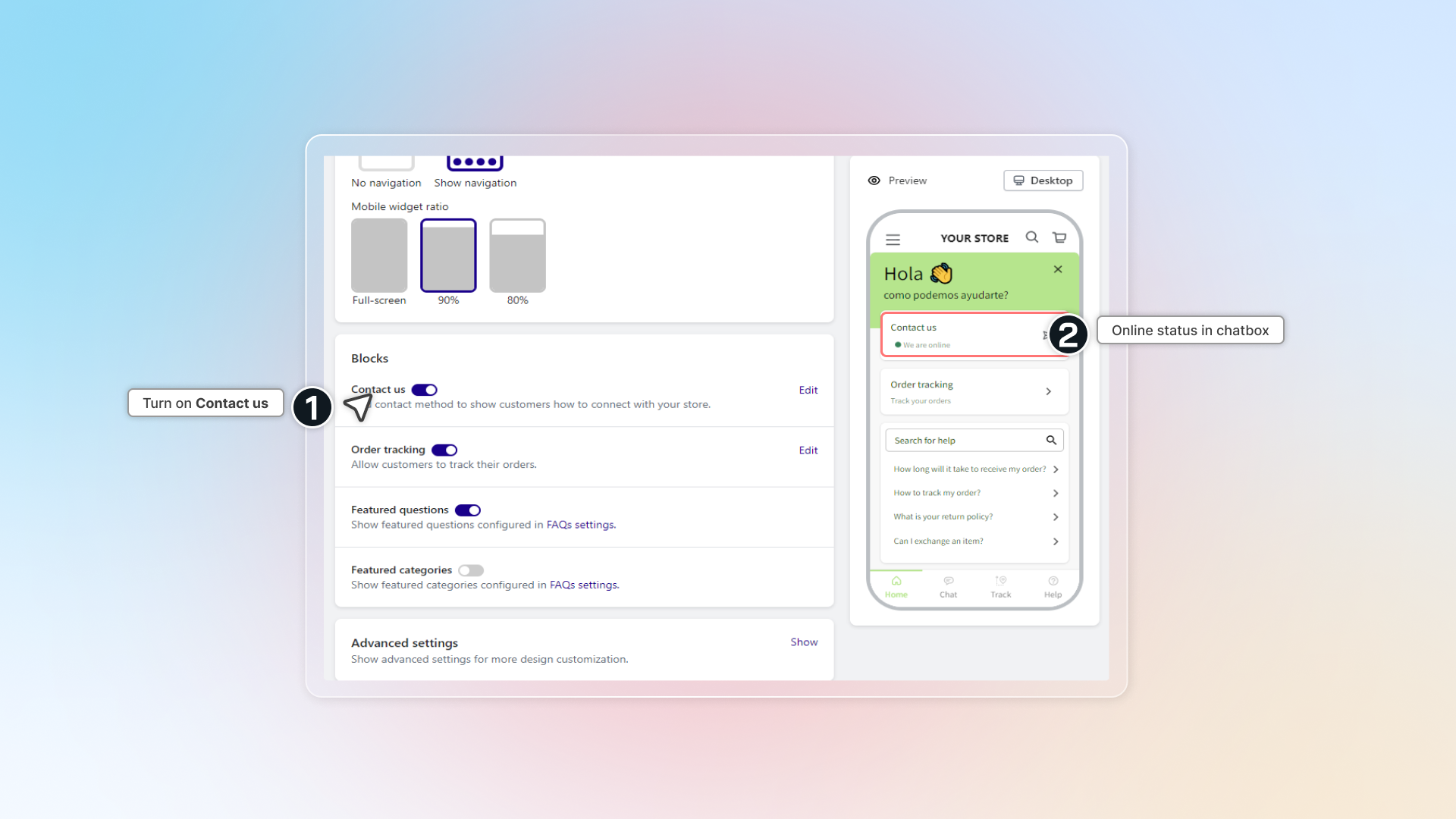
I set up online hours but I cannot see my online status in chatbox.
Online/offline status only works if you turn on Contact us block in chatbox.
-
Go to Widget -> Genersl
-
In Blocks, turn on Contact us
Chatbox & widget
See the Chatbox settings guide.
How many contact methods are supported in Chatty?
Now, Chatty support 11 contact methods:
- Messenger
- Phone
- Telegram
- Skype
- Line
- Zalo
- Tiktok
- SMS
More methods are coming soon.
FAQs page & blocks
See the FAQs block guide.
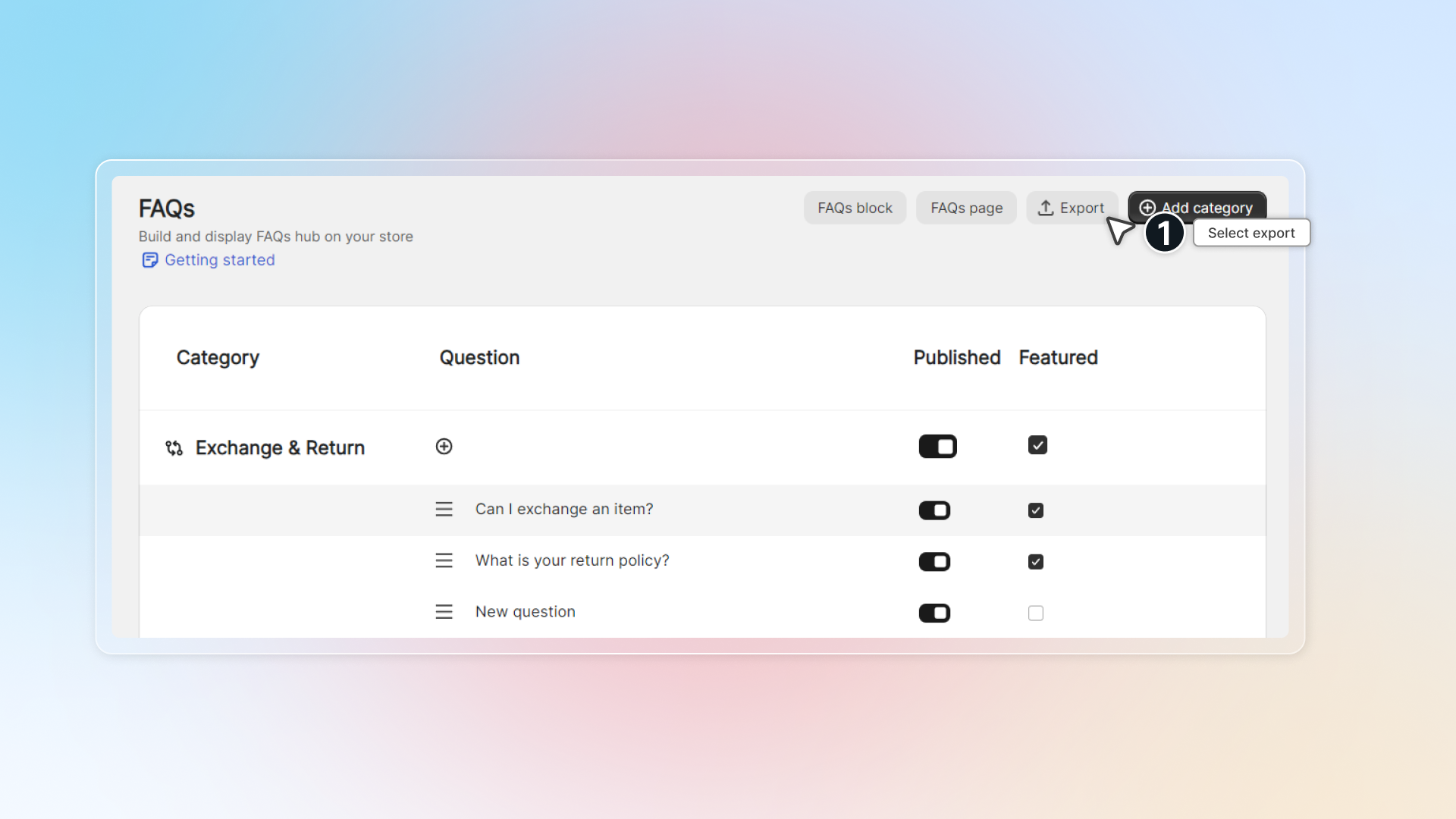
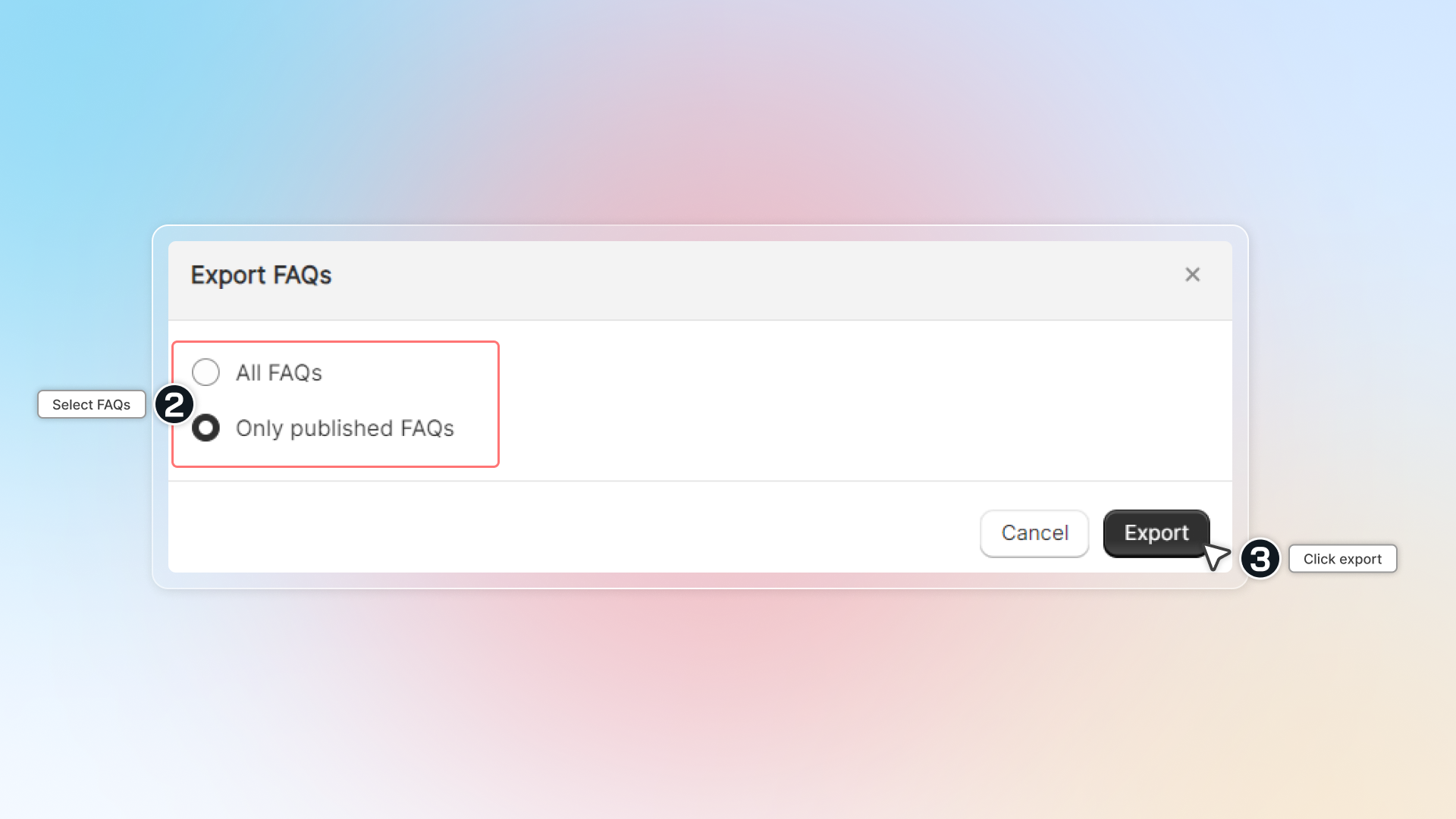
Can I export all questions to my device?
Yes, you can export questions in a .CSV file. Go to FAQs -> Select questions & click Export.
How many different FAQs blocks can I create?
You can create as many different FAQs blocks as you need for your store. There's no limit, so you can have specific blocks for each important product or collection.
Can I use the same FAQ in multiple blocks?
Yes, you can use the same questions and answers across different blocks by using same ID block.
Translation & languages
See the Translation guide.
Does Chatty translate questions and answer?
Yes. Now you can translate questions and answer in Translation.
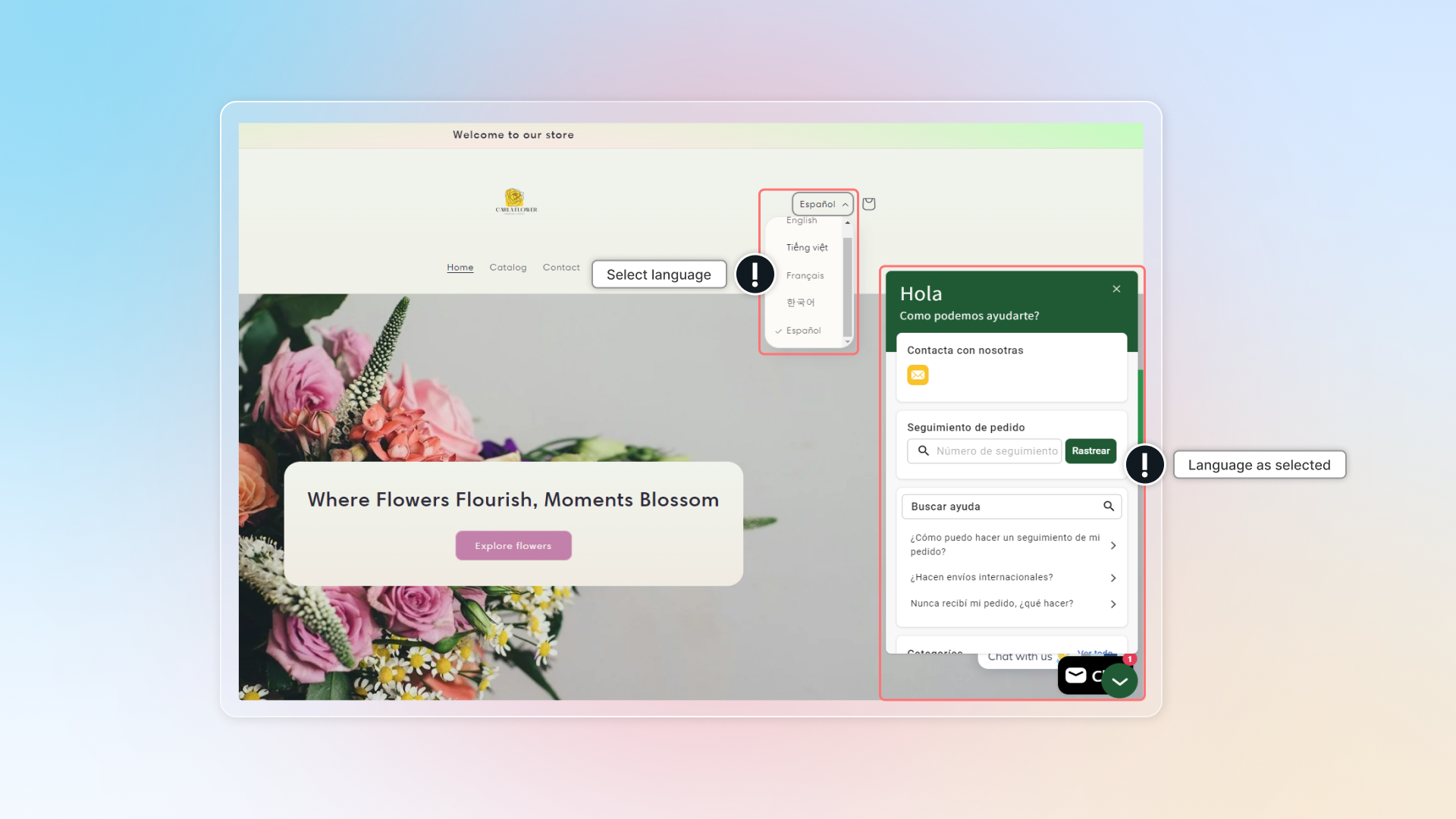
My language is added in Chatty but customers still see English. Why?
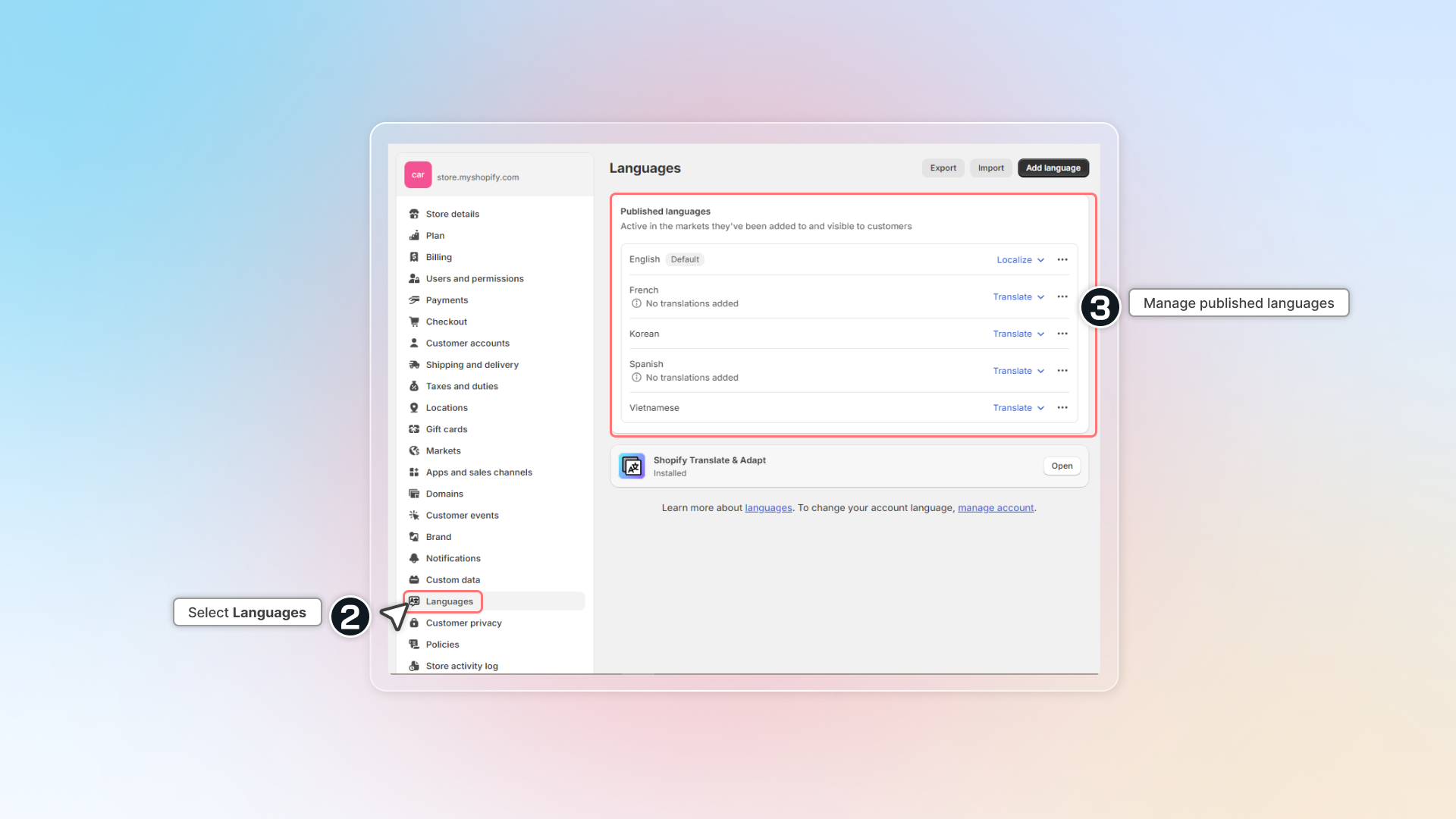
Check that the language is live in Shopify Admin → Settings → Markets. Chatty only detects languages that are published in Shopify Markets.
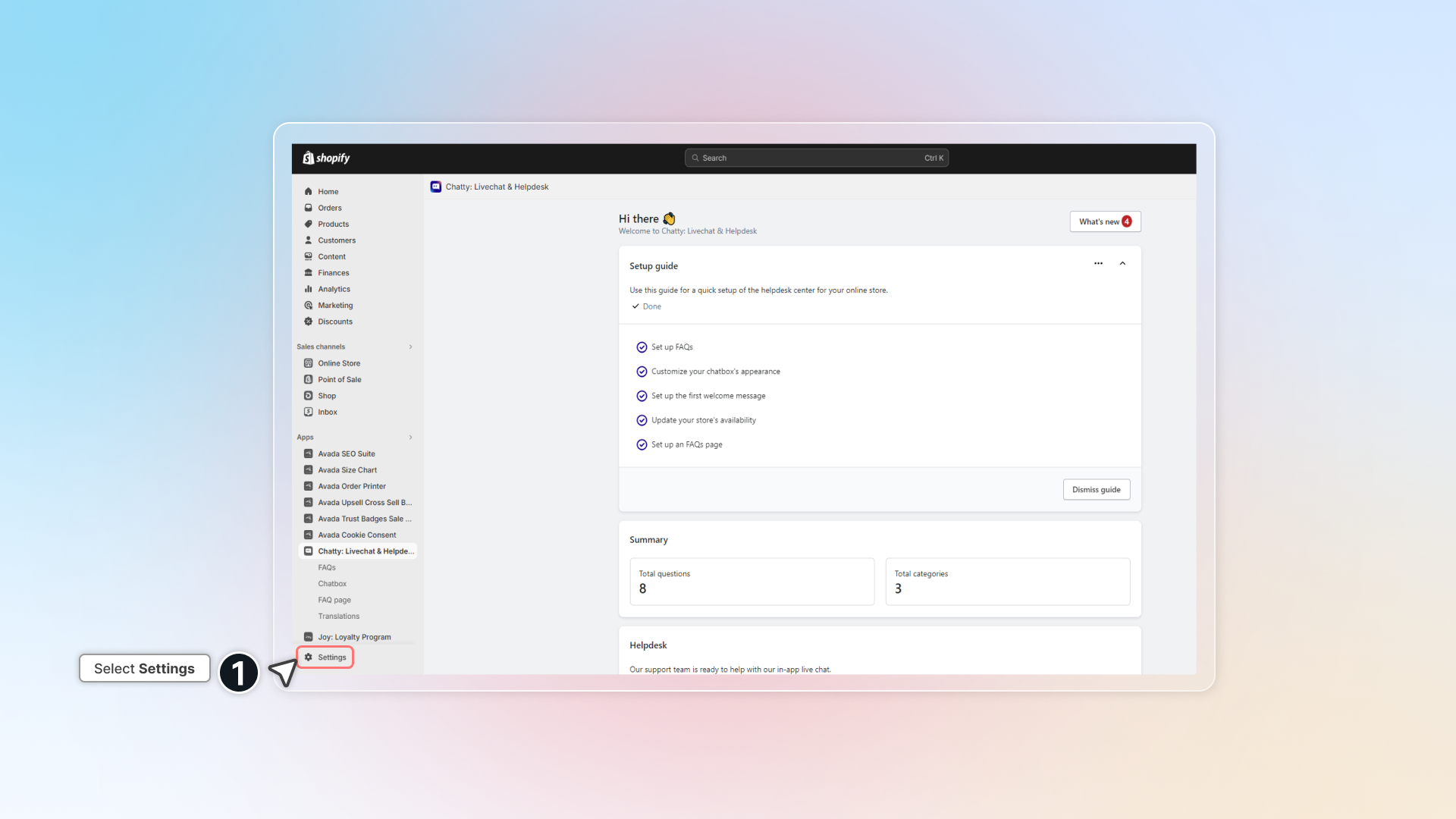
I publish a language but I cannot see it on my store.
Before publishing a new language, make sure your website is available in that language.
In Shopify Admin, click Settings -> Languages and set up your language.
Can I translate content manually without auto-translate?
Yes. Add and publish any language, then click Edit to update the content yourself.
What happens when I reach my auto-translate limit?
Existing languages still work. To enable auto-translate on a new language, turn it off for another language first.
Do translations update automatically when I add new FAQs?
Only if auto-translate is enabled. If not, the language shows Outdated status and you need to update manually.
My language is not in the list. What should I do?
Select Custom when adding a language and translate content manually. Auto-translate is not available for Custom languages.
Order tracking
See the Order tracking guide.
What does it mean to fulfill an order?
To fulfill an order means to complete the process of preparing and delivering the items that a customer has purchased. This typically involves several steps:
- Picking and Packaging: Selecting the items from your inventory and packaging them for shipment.
- Labeling: Creating and attaching shipping labels to the packages.
- Shipping: Sending the packages to the customer using a shipping carrier.
In Shopify, you can fulfill orders manually or automatically, depending on your settings. Once an order is fulfilled, its status changes to "Fulfilled" in your Shopify admin.
Why is my order status not updating correctly on the carrier's website?
- For Shopify-supported carriers: Full tracking details update automatically in real-time
- For non-supported carriers: Only basic status updates show (Confirmed, On its way, Delivered)
Check if your carrier is supported by Shopify (opens in a new tab). If not, consider using Custom tracking method to link directly to your carrier's tracking page.
Website integration
See the Website guide.
Can I add Chatty to multiple websites?
Yes, you can use the same code snippet on as many websites as you want. All conversations will flow into your single Chatty inbox.
Will this slow down my website?
No, the Chatty widget loads asynchronously, which means it won't affect your website's loading speed.
Can I customize how the widget looks on different sites?
The widget will use your default Chatty settings.
What if I need to remove Chatty from my website?
Simply delete the code snippet from your website's HTML.
Does this work with website builders like WordPress or Wix?
Yes, as long as you can add custom HTML code to your website, the integration will work. Most website builders have a custom code section where you can paste the snippet.
Account & web app
See the Web app guide.
Why use two-step verification?
Two-step verification adds an extra layer of security to your Chatty account. Even if someone has your password, they cannot access your account without access to your email for the verification code.
Privacy & compliance
See the AI Compliance guide.
What data does Chatty collect?
Chatty only collects chat messages and essential order information when provided by customers. No additional personal data is collected unless explicitly needed for customer service.
How long is data stored?
Chat history is stored according to your configured retention period. Default retention is 90 days, but you can adjust this in your settings.
How do I handle customer data requests?
Chatty provides tools to export or delete customer data on request. Contact our support team for assistance with specific requests.
Is Chatty's AI compliant with the AI Act?
Yes, Chatty's AI features are designed to meet AI Act requirements, including transparency, fairness, and regular risk assessments.
Uninstalling Chatty
See the full Uninstall Chatty guide.
What do I need to do after uninstalling Chatty?
Please note, in some cases, when the app is removed from your Shopify store, our code might remain but will be disabled. This happens because we lose access to the theme files immediately when you uninstall our app.
Follow these steps to manually remove what's remaining.
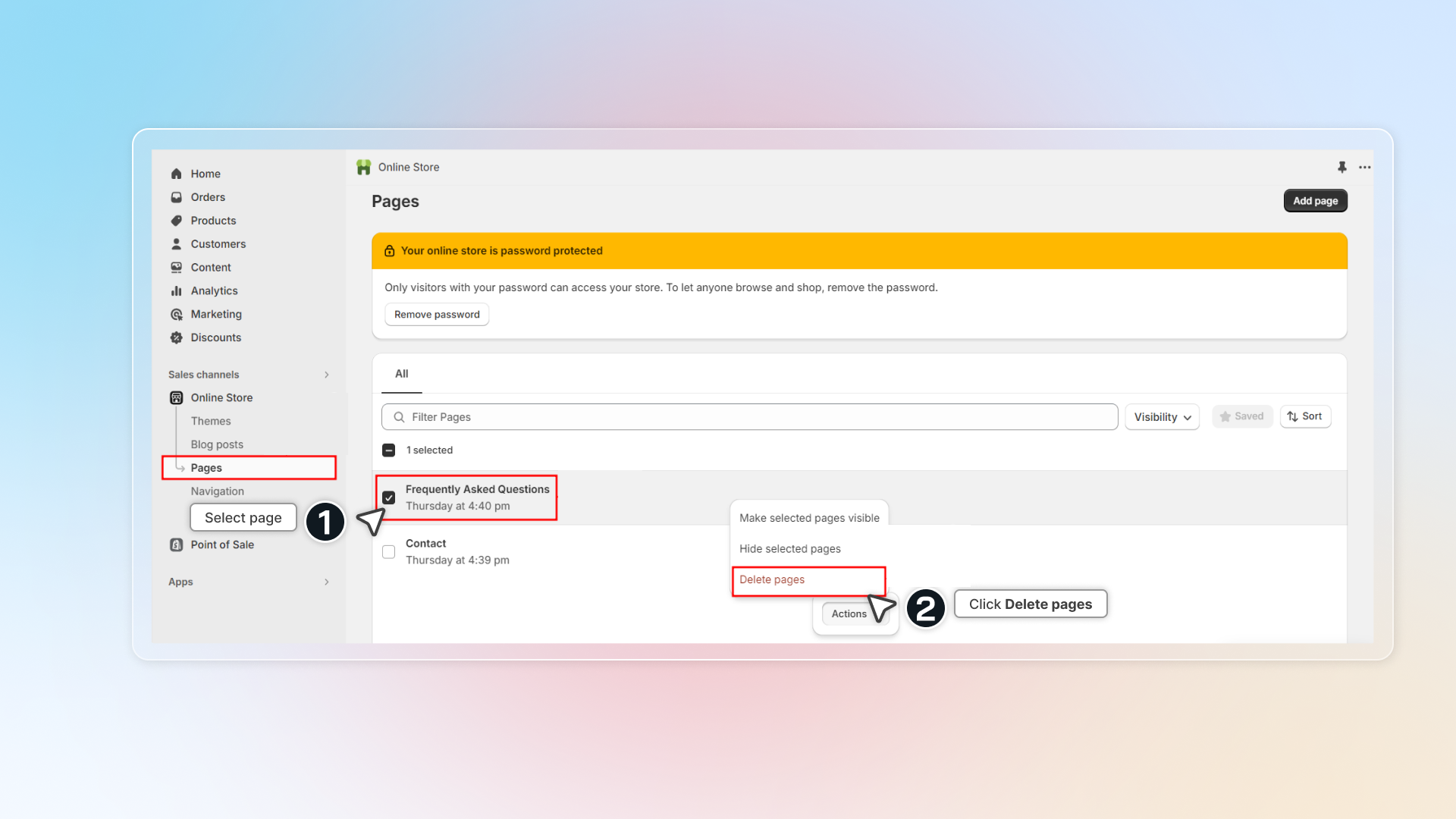
1. Delete FAQ page
-
Get access to Shopify Admin → Online store → Pages
-
Select page "Frequently Asked Question"
-
Click Actions → Delete pages
 Chatty Help Center