By connecting WhatsApp, you can check messages from WhatsApp right in Chatty.
Before connecting WhatsApp to Chatty, make sure you have:
- A Facebook page for your business
- A WhatsApp Business account linked to that Facebook page
- Admin access to both your Facebook page and your WhatsApp Business account
You can connect multiple WhatsApp accounts to Chatty.
How to connect WhatsApp to Chatty
Go to channels settings
- Go to Channels in your Chatty dashboard
- Find the WhatsApp section
- Click Manage
Connect your Facebook account
- Click Connect account
- You’ll be redirected to Facebook login
- Enter your Facebook credentials and log in
- Review the permissions that Chatty requests
- Click Continue to grant access
Select your WhatsApp account
- After connecting Facebook, you’ll see a list of WhatsApp Business accounts linked to your Facebook page
- Select the WhatsApp account you want to connect to Chatty
- Click Connect to complete the setup
Confirm connection
- You’ll see a confirmation message that WhatsApp is connected
- WhatsApp conversations will now appear in your Chatty inbox with a WhatsApp icon
- Test the connection by sending a message to your WhatsApp Business number
How to connect WhatsApp Business to a Facebook page
Download WhatsApp Business app
Login Facebook
- From the Tools tab, tap Facebook & Instagram
- Click Facebook
- Click Continue
- Log in
Connect Facebook page
- Select the Facebook Page you want to link to your WhatsApp Business account
- Click Connect WhatsApp
If you don’t have a Facebook Page, you’ll have the option to create one
Successfully connected WhatsApp
You’ll now see a WhatsApp button on your Facebook page.
Once you return to the WhatsApp Business app, you’ll see your linked Facebook Page at the top of the Facebook & Instagram screen.
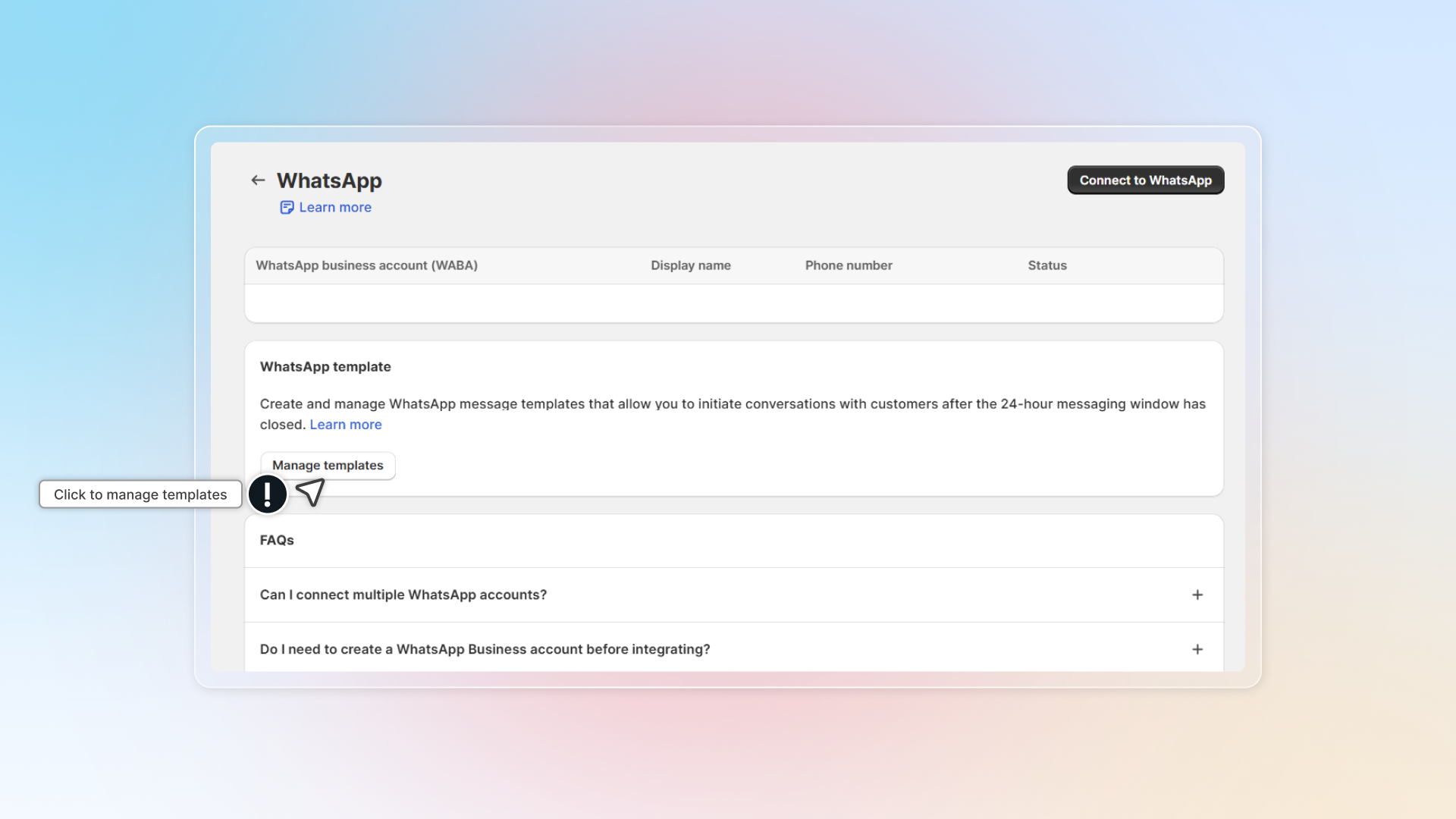
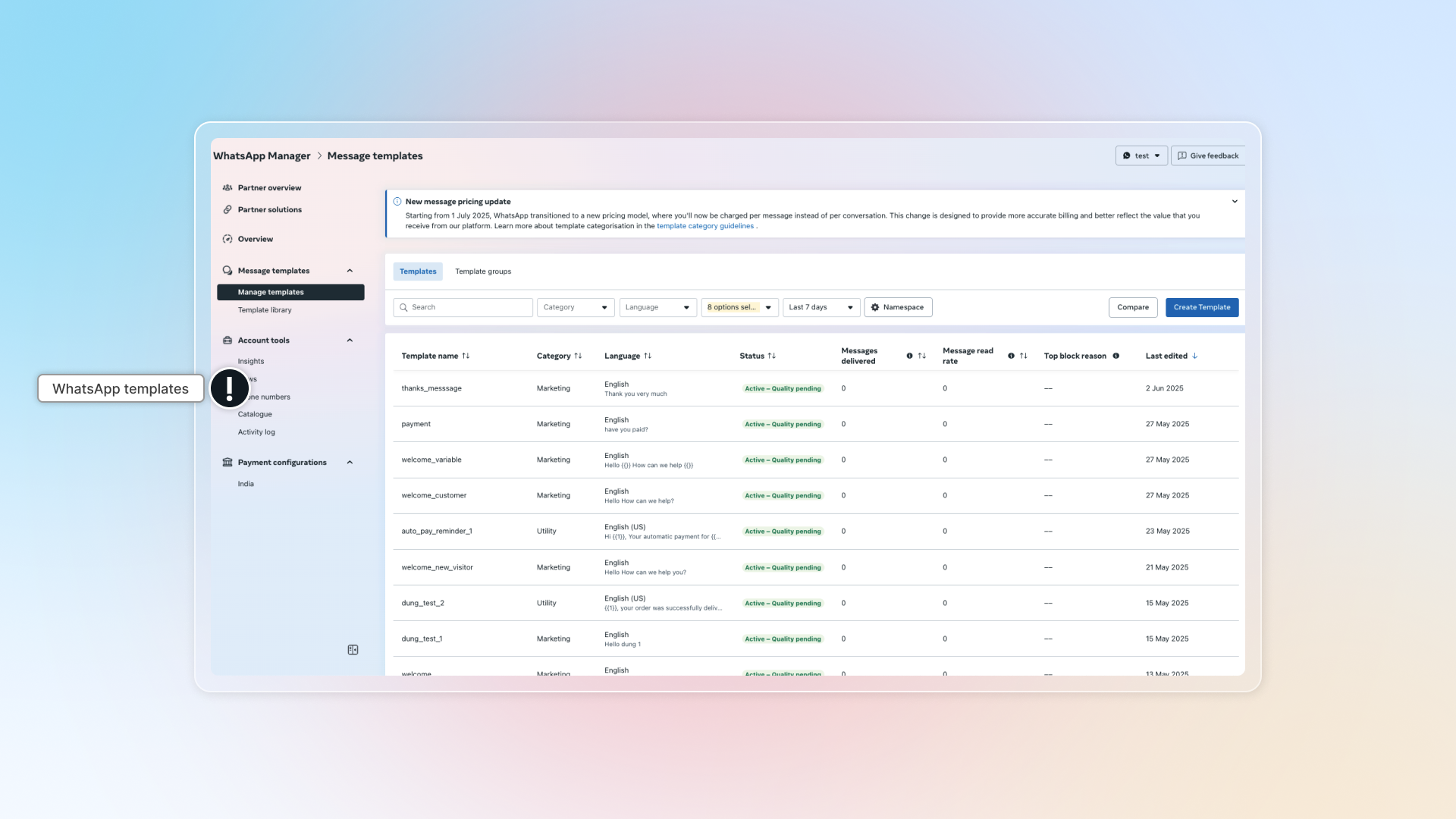
WhatsApp template
WhatsApp templates are pre-approved message formats that let you start conversations with customers. They're the only way to send WhatsApp messages to customers who:
- Haven't messaged you before
- Haven't sent you a message in the last 24 hours
Templates come in three types:
- Marketing: Promotional offers, product announcements, sales campaigns
- Utility: Order updates, shipping notifications, appointment reminders
- Authentication (not supported): Verification codes, security messages
Once a customer replies to your template message, you can have a normal conversation for the next 24 hours without needing templates.
How to connect a number you use in the WhatsApp Business app
The number stays in the WhatsApp Business app on your phone. You can reply from the phone or from Chatty.
- Go to Settings → Channels → WhatsApp.
- Click Already using the WhatsApp Business app?. If a number is already connected, click Add existing number.
- Log in to Facebook in the window that opens.
- Scan the QR code with the WhatsApp Business app on your phone.
- Finish the steps until the window closes.
Expected result: The number appears with the On business app badge.
Linked devices in the WhatsApp Business app are signed out. A store can use only one connection method. Disconnect a number connected with Connect to WhatsApp before you use this one.
📸 Screenshot: Already using the WhatsApp Business app link, and a number row with the On business app badge
How to turn catalog orders on
When a customer sends a cart from your WhatsApp catalog, your AI can reply with a Shopify checkout link. You see the cart in Inbox.
- Go to Settings → Channels.
- Click Manage on the WhatsApp card.
- On that number, turn on Catalog orders.
The change saves right away.
Expected result: The next cart sent to that number gets a checkout link. In Inbox, the conversation shows a Cart from WhatsApp catalog card with each item, its price, and the total.
New numbers start with Catalog orders on. Numbers you connected earlier start off. The checkout reply needs Pro or Plus. If nothing in the cart matches a product in your store, your AI does not reply and the chat waits for your team.
📸 Screenshot: Catalog orders toggle on the connected numbers table, and the cart card in Inbox
FAQs
I don't see any WhatsApp accounts when trying to connect. What should I do?
Your WhatsApp Business account must be connected to your Facebook page first. Follow these steps:
- Go to your Facebook page settings
- Navigate to WhatsApp
- Connect your WhatsApp Business account to your Facebook page
- Return to Chatty and try connecting again
Can I connect my personal WhatsApp number?
No, you can only connect WhatsApp Business accounts. Personal WhatsApp accounts cannot be integrated with business tools like Chatty.
What if I don't have a WhatsApp Business account?
You'll need to create a WhatsApp Business account first:
- Download WhatsApp Business app
- Set up your business profile
- Connect it to your Facebook page
- Make sure Meta approves your account
- Return to Chatty to complete the integration
Read this guide (opens in a new tab) for more details.
Why is my WhatsApp Business number showing as "Pending"?
When your WhatsApp Business number shows "Pending" status in Chatty, it means Meta (WhatsApp) hasn't approved your number yet, even though you've completed the connection process.
There are two main reasons why your WhatsApp Business number remains pending:
Two-Factor Authentication (2FA) not enabled
- Open your WhatsApp Business app
- Go to Settings → Account → Two-step verification
- Turn on Two-step verification and set up a 6-digit PIN
- Wait for Meta to approve your number (Meta's approval process typically takes 24-48 hours, but can take longer during busy periods.)
- Reconnect to Chatty once approved
Display name doesn't meet Meta's guidelines
Learn more about WhatsApp Business display name (opens in a new tab)
Can I create a new WhatsApp account during the connection process?
Yes, if you don't have a WhatsApp Business account connected to your Facebook page, you can create one during the setup process. Note that this will be a new WhatsApp number, not linked to any existing personal WhatsApp account.
Can I disconnect WhatsApp later?
Yes, you can disconnect WhatsApp at any time:
- Go to Channels → WhatsApp → Manage
- Click Disconnect
- Confirm the disconnection Existing conversation history will remain in Chatty but no new messages will sync.
Will customers know I'm using Chatty to reply?
No, customers will see your responses as coming directly from your WhatsApp Business account. The integration is invisible to customers.
 Chatty Help Center