Size guide
Who can use this feature?
- This feature is available for Pro & Plus plan users.
What is Size guide
Size guide lets your AI recommend the right size from your own size charts. It asks the shopper for their measurements, matches them to your chart, and explains the pick.
You add a chart once, link it to the products it fits, and your AI uses it in every sizing question.
From our size chart, M fits you best.
How to turn on Size guide
Size guide is off by default.
- Go to AI agent → Skills, then click the settings icon (gear) on the Size guide row.
- Turn on the Size guide toggle at the top of the page.
- Click Save.
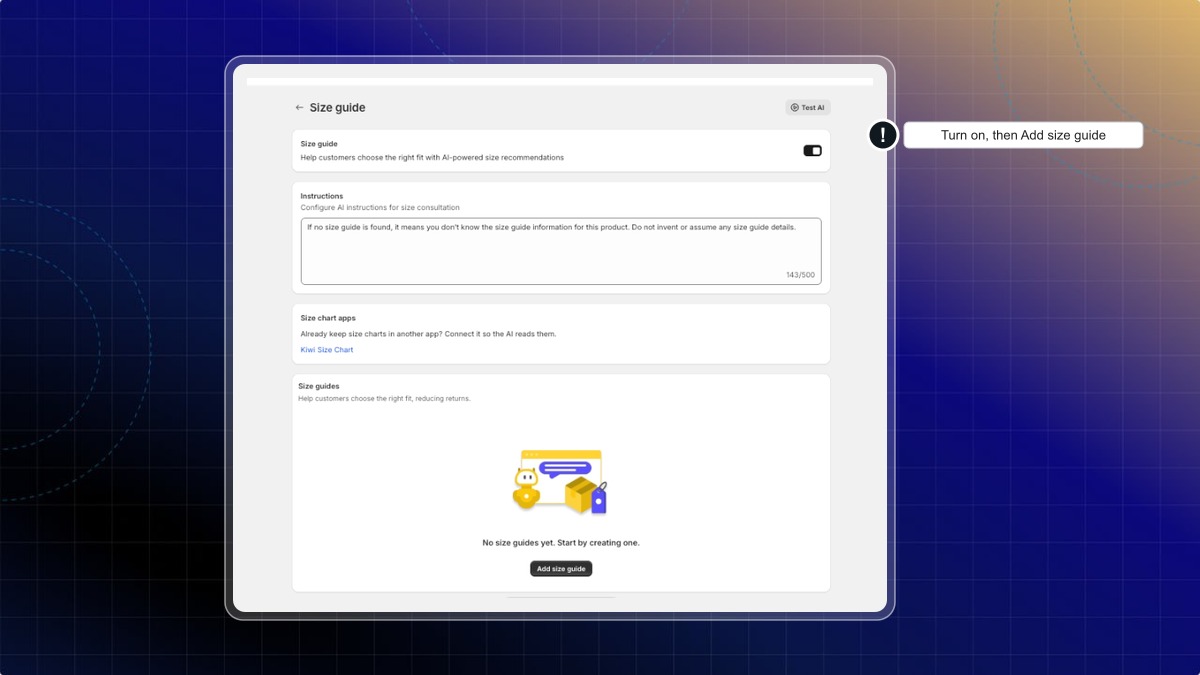
Expected result: Your AI answers sizing questions. Add a size guide next so it has your chart to work from.
What is the Instructions box for?
Tell your AI how to handle size questions, in up to 500 characters. For example: "If no size guide is found, do not invent or assume any size details."
How to add a size chart
- On the Size guide page, click Add size guide.
- In Name, name the chart. For example, "Women's Tops, US sizes".
- Keep Status on Live so your AI can use it.
- Under Size chart, pick Image and click Add image, or pick Text and paste your chart.
- Click Save.
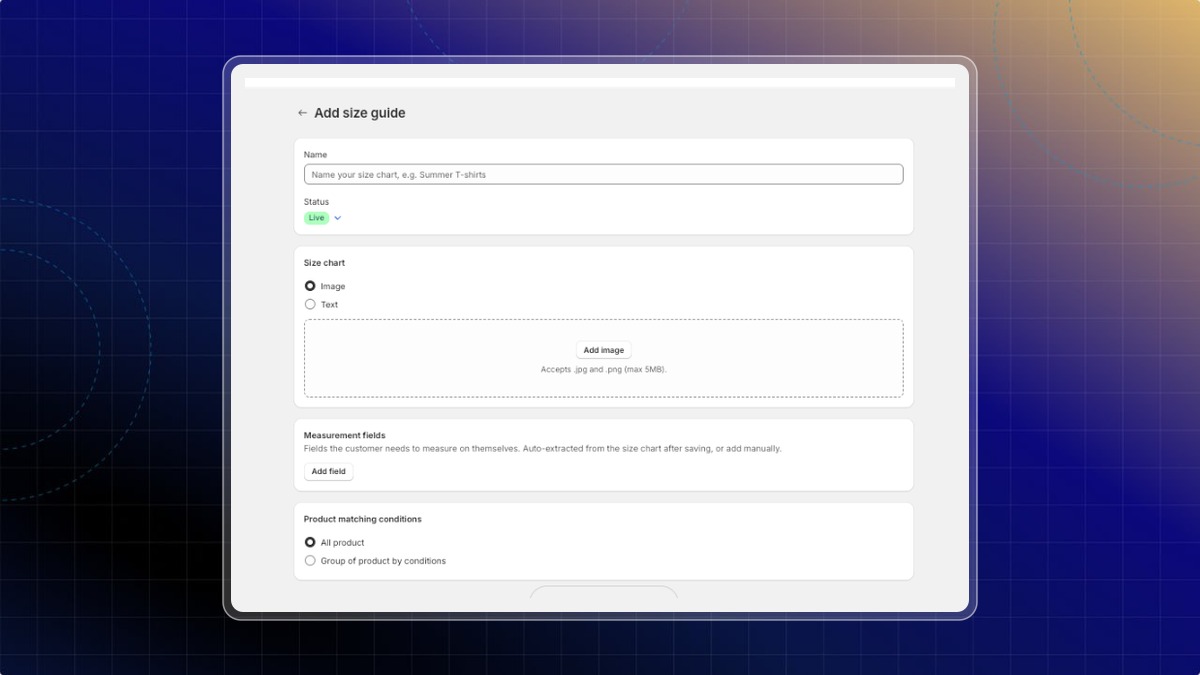
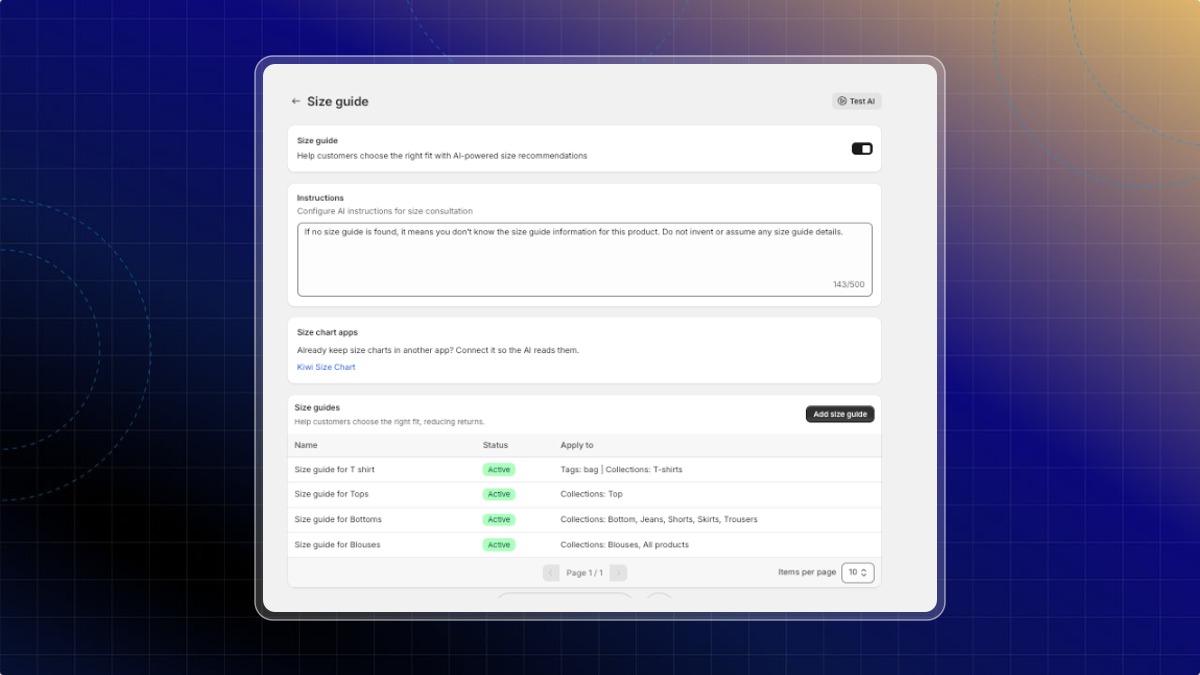
Expected result: The guide appears under Size guides, with its status and the products it applies to. Chatty also reads the measurement fields from your chart.
| Format | Example |
|---|---|
| Plain text | Simple S/M/L tables copied from a doc |
| Markdown | Formatted tables from Notion or GitHub |
| HTML | Size charts exported from another sizing app |
| Image | A photo or screenshot of your chart, .jpg or .png up to 5MB |
You can create as many size guides as you need.
How to link a size guide to products
Use this when different products have different sizing.
- Open the size guide.
- Go to Product matching conditions.
- Choose All product to use the guide everywhere, or Group of product by conditions to narrow it down.
- For a group, set the conditions: Vendors, Tag, or Collections. The preview table shows which products match.
- Click Save.
Expected result: When a shopper asks about a matched product, your AI uses that guide and ignores the others.
What if a product matches no size guide?
Your AI uses any guide set to All product. If there is none, it uses a general reference chart for clothing and shoes and tells the customer your sizing may differ.
Why can't I save a group without conditions?
Group of product by conditions needs at least one condition. Add one, or switch to All product.
How to add measurement fields
Measurement fields are the body measurements your AI asks for, like chest, waist or height. Chatty reads them from your chart when you save the guide. You can add or change them by hand.
- Open a size guide.
- Scroll to Measurement fields.
- Click Add field and enter the name. For example, "Chest".
- Add a unit if needed. For example, cm or inches.
- Click Save.
Expected result: Your AI asks shoppers for these measurements before it recommends a size.
How to connect a size chart app
Already keep size charts in another app? Connect it so your AI reads them. Chatty supports Kiwi Size Chart.
- On the Size guide page, under Size chart apps, click Kiwi Size Chart.
- Under Step 1, click Install Kiwi Size Chart. After installing, click the refresh icon next to the status.
- Under Step 2, turn on Answer sizing questions in chat.
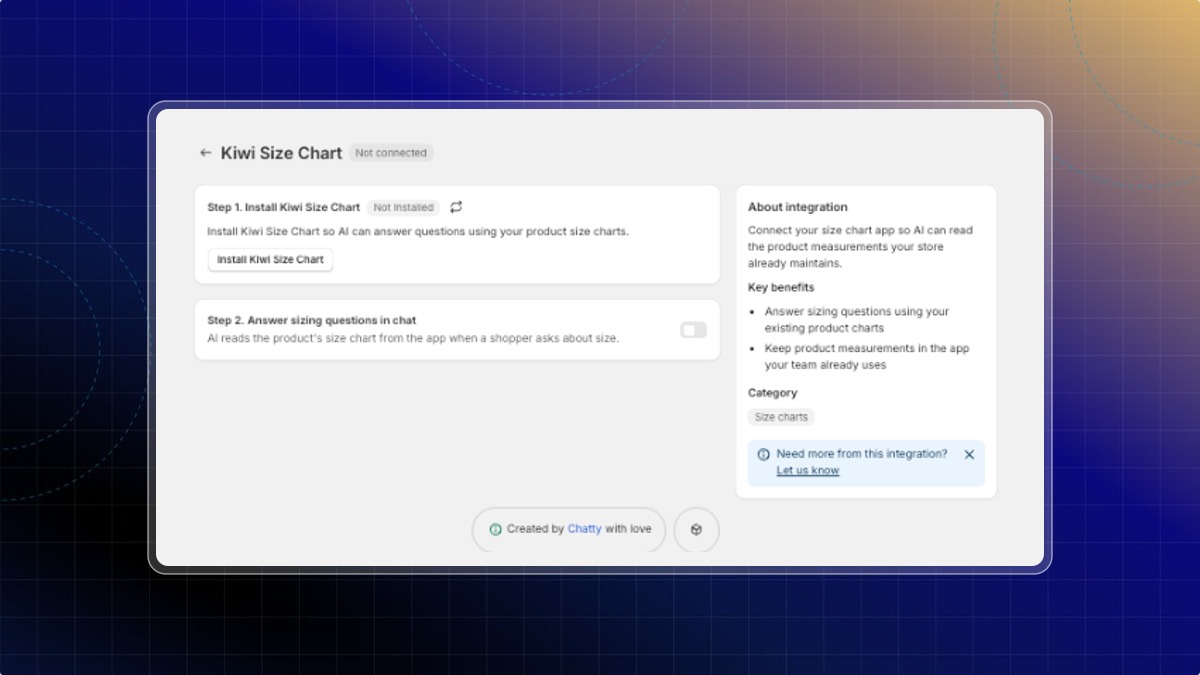
Expected result: When a shopper asks about size, your AI reads the product's chart from Kiwi Size Chart. See the Kiwi Size Chart integration guide for details.
Which chart does my AI use if I connect an app and also add size guides?
The chart from the connected app comes first. Your own size guides are used when the app has no chart for that product.
How the AI uses your size guide
When a shopper asks a sizing question, your AI:
- Finds the product they mean.
- Finds the size guide for that product.
- Asks for the measurements in your measurement fields.
- Matches them to your chart and recommends a size, with the reason.
Shoppers can answer in cm or inches. Your AI reads the unit from both your chart and their message.
 Chatty Help Center