Authentication
Who can use this feature?
- Creating and managing API keys requires the Pro or Plus plan.
- The storefront SDK needs no credentials and works on any plan.
Your two credentials
Every Chatty API except the storefront SDK is authenticated with credentials you create yourself in Settings → General → Manage keys. There are only two of them.
| Credential | Looks like | What it is |
|---|---|---|
| App ID | a short identifier | Identifies your store. Some tools call it a Client ID. It is not secret. |
| Secret key | sk_ followed by 32 hex characters | Grants access to your store's data. Treat it like a password. |
The Overview page shows how to create a key step by step. This page explains how the credentials behave once you have them.
Which header each API expects
| API | Send |
|---|---|
| Chat Conversations API | X-Api-Key: sk_... |
| Webhooks management | X-Api-Key: sk_... |
| MCP server | X-App-Id: <App ID> and Authorization: Bearer sk_... |
| GraphQL Customer API | x-api-id: <App ID> and x-api-secret: sk_... |
It is the same secret key everywhere. Only the header differs: the Chat Conversations API and webhook management read it from X-Api-Key, while the MCP server reads it from Authorization: Bearer and needs your App ID alongside it. Sending a key in the wrong header returns 401, except on the GraphQL Customer API, which returns HTTP 200 with an errors array and extensions.code set to UNAUTHENTICATED.
Send credentials as headers only. Never put a secret key in a query string, a redirect URL, or storefront JavaScript. Anything running in a customer's browser is readable by that customer.
What a key can and cannot do
A key is bound to the store that created it. It reads and writes that store's data and nothing else. You never pass a store ID with your requests; Chatty resolves the store from the key itself.
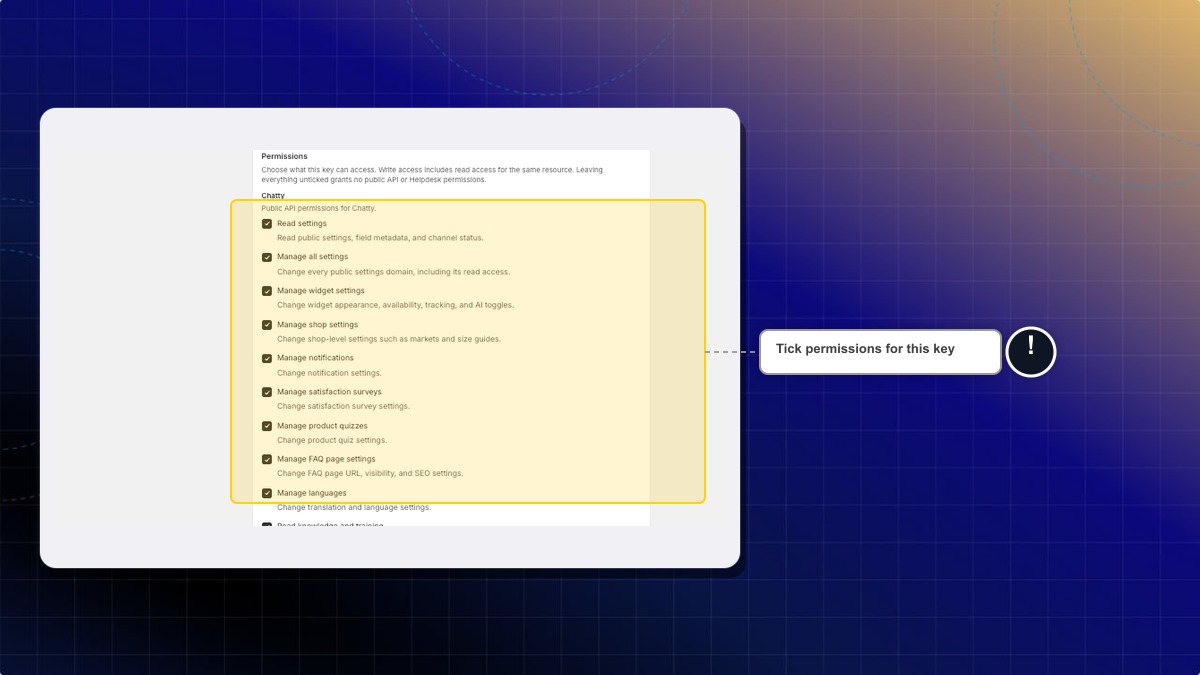
When you create a key, tick the permissions it needs. Examples: Read conversations, Read customers, Manage campaigns. Write access includes read access for the same area. A key with nothing ticked is refused by the Chat Conversations API and webhook management. The MCP server still accepts it for its 8 always-on tools.
Keys you created before this change keep full access. The permissions column shows Full Chatty access. API keys are on the Pro and Plus plans.
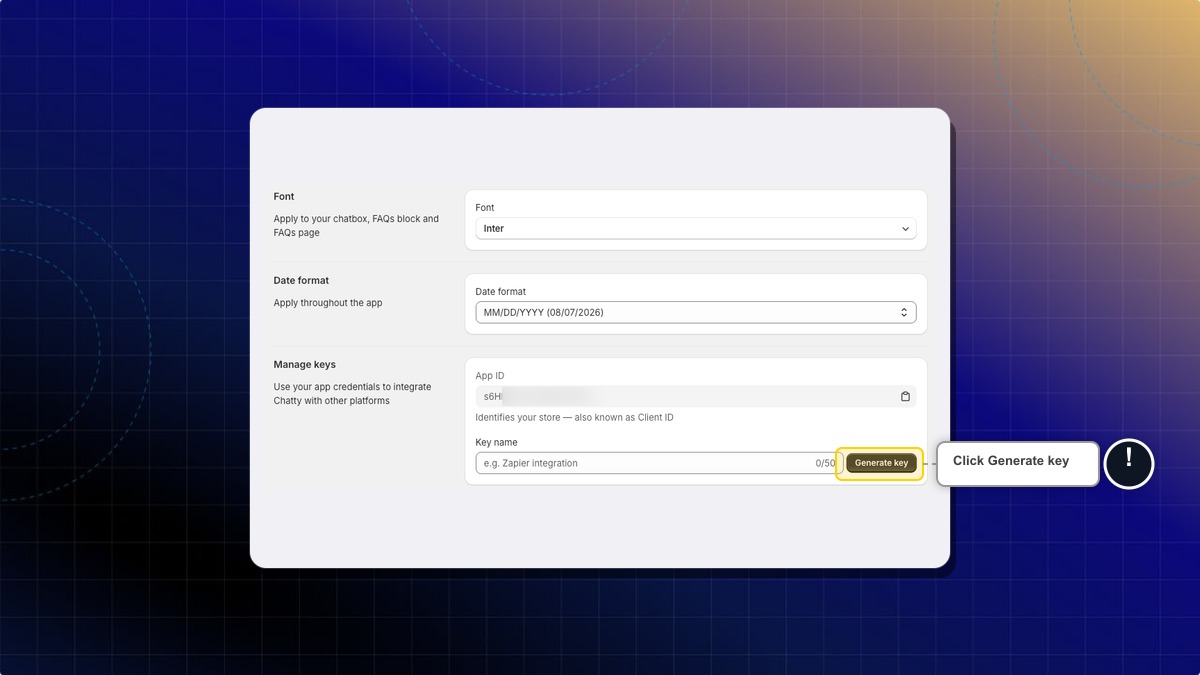
- Go to Settings → General → Manage keys.
- Enter a name in Key name. Example:
Zapier stock sync. - Tick the permissions this key needs.
- Click Generate key.
Expected result: The new key can only do what you ticked.
The Chat Conversations API includes endpoints that send messages, change conversation state, and reassign conversations. A leaked key can post to your customers as your store.
Keys do not expire. A key stays valid until you delete it.
Rotating a key
Chatty has no rotate button. To replace a key, create the new one first, switch your integration over, then delete the old one.
Create a replacement key
Go to Settings → General → Manage keys, enter a name in Key name, and click Generate key. Name it so you can tell the two apart, for example Zendesk sync 2026-08. You can hold up to 5 active keys per store.
Copy the new key immediately
Chatty stores only a hash of the key, so the full value is shown once and never again.
Update your integration
Point your integration at the new key and confirm it still works. Both keys are valid at this point, so nothing breaks during the switch.
Delete the old key
Remove the old key from the list.
Deleting a key takes effect on its next request. Chatty checks the key's status on every call, so requests with a deleted key are refused straight away. If a key has leaked, delete it first, then check your inbox for activity from before you deleted it.
A brand-new key needs up to 30 seconds before it is accepted, because Chatty briefly remembers that the key was unknown. A 401 in the first few seconds after Generate key is not a bad key; wait and try again.
If a key leaks
Delete the key straight away, then create a replacement. A key created before permissions existed, shown as Full Chatty access, can do everything a key can do. A newer key can do only what you ticked. Either way, review the last few days of conversations for messages your team did not send. Then open Settings → General → Manage keys and remove any key you do not recognize.
Need help?
If you run into issues with your API key or requests, contact the Chatty support team from your dashboard.
For what each status code means and what to do about it, see Errors and rate limits.
 Chatty Help Center