Connect your own API
Who can use this feature?
- This feature is available for all users.
- Team members need the Skills permission under AI → Behavior.
What is Connect your own API
Connect your own API lets AI call your own systems while it chats with a customer. AI can then answer with data Chatty does not hold, like a loyalty balance, an order in your ERP, or a booking in another app.
This is an advanced feature. It is meant for merchants and developers who already have an HTTPS API they want AI to use.
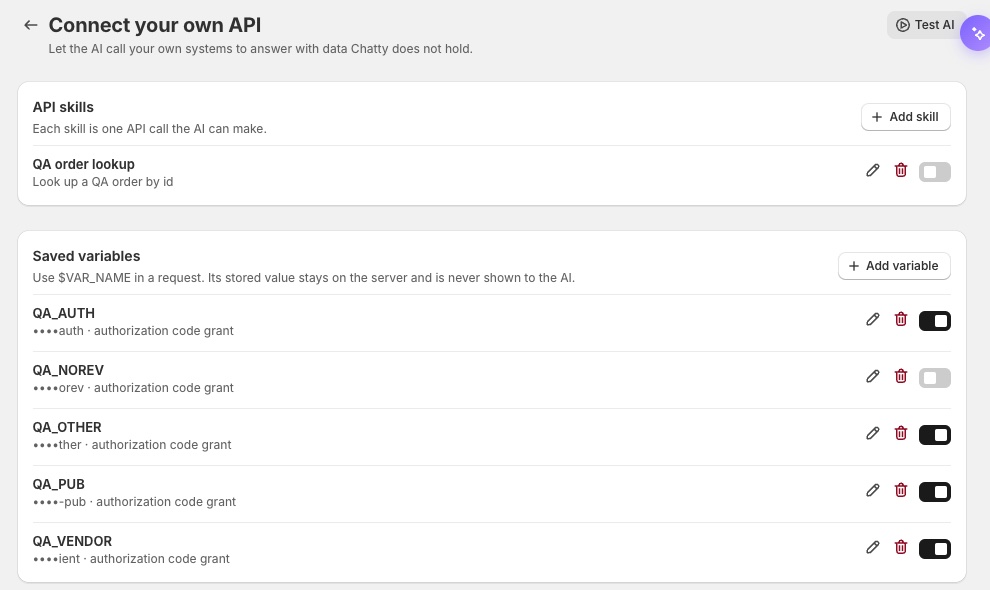
The page has two parts:
- API skills: each skill is one API call AI can make.
- Saved variables: API keys, logins and OAuth connections. You use them in a request as
$VAR_NAME. Their values stay encrypted on Chatty's server and are never shown to AI.
How to open Connect your own API
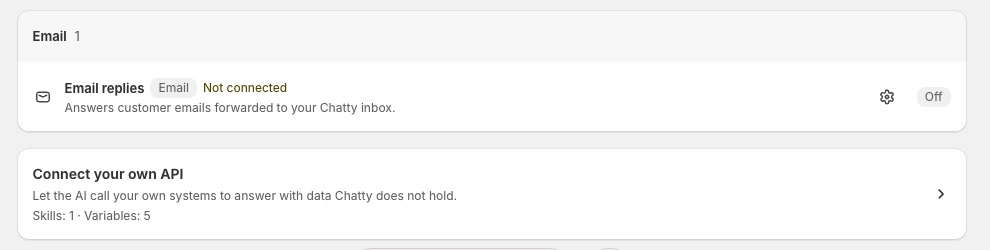
- Go to AI agent → Skills.
- Scroll to the end of the page and click Connect your own API.
The row shows how many skills and variables you have, for example Skills: 2 · Variables: 1. It also shows a Reconnect needed badge when a connection needs your attention.
How to save a variable
Save the key or login your API needs first. You can then send it from any skill.
-
On Connect your own API, under Saved variables, click Add variable.
-
Choose a Credential type:
Credential type Use it when Fixed value Your API takes one key or token, for example an API key Username and password (Basic) Your API signs in with a username and password OAuth 2.0 client credentials grant Your API gives you a client ID and secret, and Chatty gets access tokens itself OAuth 2.0 authorization code grant Someone has to approve access on the other service's page -
Enter a Variable name in uppercase letters, numbers and underscores. Example:
API_KEY. -
Fill in the credentials. For Fixed value, paste the key in Value.
-
Click Save in the top bar.
Expected result: The variable appears under Saved variables with its value hidden, for example ••••a1b2.
The value is encrypted when saved and cannot be viewed again. You cannot change the variable name or credential type later. To change the value, edit the variable and enter the new value.
Connect an OAuth 2.0 service
For both OAuth types, you can enter the service's Issuer URL (optional) and click Detect. Chatty fills in the endpoints the service publishes. If Detect finds nothing, copy the endpoints from the service's documentation.
With OAuth 2.0 client credentials grant, there is no approval step. Chatty asks for a new access token whenever the old one expires.
With OAuth 2.0 authorization code grant:
- Copy the Redirection endpoint and add it to your app in the other service as its return address.
- Fill in the Authorization endpoint, Token endpoint, Client identifier and Client secret.
- Turn on Connection.
- Click Save, then approve access on the other service's page.
Expected result: You come back to Chatty and see Connected.
You can connect one service per save. Turning Connection off and saving disconnects the service, and skills that use it stop running until you connect again.
How to add an API skill
Before you start, save the variables the request needs. This example looks up an order in your own system.
-
On Connect your own API, under API skills, click Add skill.
-
Under What this skill is, enter a Name. Example:
Order lookup. -
Enter a Description. AI reads it to decide when to use the skill. Example:
Look up an order in our order system when a customer asks about order status or delivery date. -
Optional: under Instructions for the AI (optional), tell AI how to read the answer and what never to repeat. Example:
Share only the status and delivery date. Never share the customer's address or internal notes. -
Under Request, choose the method and enter the HTTPS URL. Example:
GETandhttps://api.yourapp.com/v1/orders/{orderId}. -
Click Add header. Enter
Authorizationas the key andBearer $API_KEYas the value.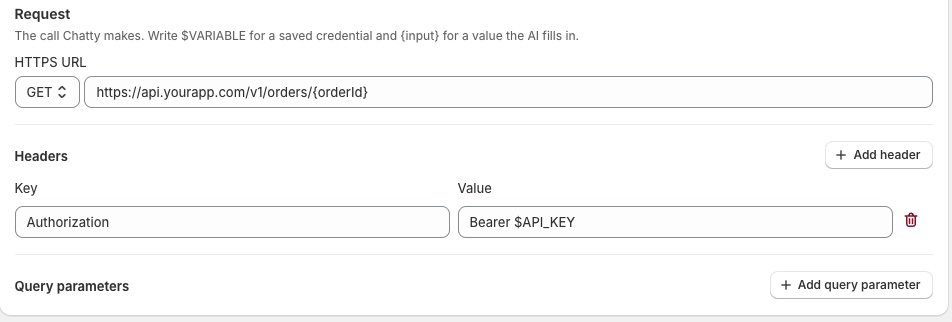
-
Under Values the AI fills in for each customer, click Add input.
-
Enter
orderIdas the Input name. Keep Text as the Type and leave Required ticked. -
Under Tell the AI where to get this value, enter:
The order number the customer gave. Ask for it if missing. -
Make sure Skill status at the top of the page is on, then click Save in the top bar.
Expected result: The skill appears under API skills. When a customer asks about an order, AI asks for the order number if needed, calls your API, and answers from the result.
In a request, $VAR_NAME sends a saved variable and {input} sends a value AI fills in. You can use both in the URL, headers, query parameters and, for POST, PUT and PATCH, the JSON body.
A skill that uses a method other than GET can change data in your system. AI calls it only after the customer has given every required value, and at most once per AI reply.
How to test a skill
You can test a skill after you save it.
- Open the skill. At the end of the page, in the Test this skill card, click Test this skill.
- Enter sample values for the inputs. Example:
orderId=1001. - Run the test.
Expected result: You see the Status, the Duration and the response from your API.
When the response is JSON, you can pick which fields AI receives. The fields show as a list. Remove the fields AI does not need, then click Save on the skill. This keeps private data out of AI's answer. AI reads up to about 4,000 characters of a response, so smaller responses work better.
How to turn a skill on or off
- On Connect your own API, use the toggle on the skill's row.
- Click Save in the top bar.
Toggle changes on this page, including Connection toggles for variables, apply only after you click Save.
How Chatty keeps your API safe
- Requests must use
https. AI can fill in part of the path, but never the domain. - Chatty blocks private and internal addresses.
- A request that takes longer than 10 seconds stops.
- Saved values are never shown to AI. If your API sends a saved value back, Chatty hides it before AI reads the response.
- Chatty does not store the API response on the conversation message.
Why does my test fail?
Read the message in the Test this skill window:
| Message | What to do |
|---|---|
| The API rejected the credentials. | Check the variable the skill sends. Connect it again if it uses OAuth. |
| The API answered with an error. | Check the URL, inputs and Status against your API documentation. |
| That address cannot be called. | Use a public address starting with https. |
| The API did not answer within 10 seconds. | Make your API answer faster, or call a lighter endpoint. |
| The variable this skill sends is not connected yet. | Turn on the variable's Connection and click Save. |
| The API response is too large to filter safely. | Narrow the request, for example with a query parameter, and test again. |
What does Reconnect needed mean?
The sign-in for an OAuth 2.0 authorization code grant variable expired or was cancelled. Skills that use it cannot run. Turn on its Connection and click Save to approve access again.
Why doesn't AI use my skill?
AI picks a skill from its Description. Describe the customer question it answers, in plain words. Example: Look up a customer's loyalty points balance when they ask how many points they have. Also check that the skill's toggle is on and that every variable it sends is connected.
Can I delete a variable that a skill uses?
No. Change or delete the skills that use the variable first.
Why does Chatty disconnect my OAuth service when I edit it?
Changing the Authorization endpoint, Token endpoint, client details, Scope (optional) or PKCE method of a connected OAuth 2.0 authorization code grant variable ends the connection. Chatty warns you before you save. Turn Connection on again and click Save to reconnect.
 Chatty Help Center