Legacy chatbox
Who can use this feature?
- This feature is available for all users
Set up how the Legacy chatbox looks and what shoppers can do in it.
What is Legacy chatbox
Legacy chatbox is one of the two chatbox modes in Chatty. It is the chat bubble with Live chat, FAQs, Order tracking, Contact, and Categories. Not sure which mode to use? See AI Mode or Legacy chatbox.
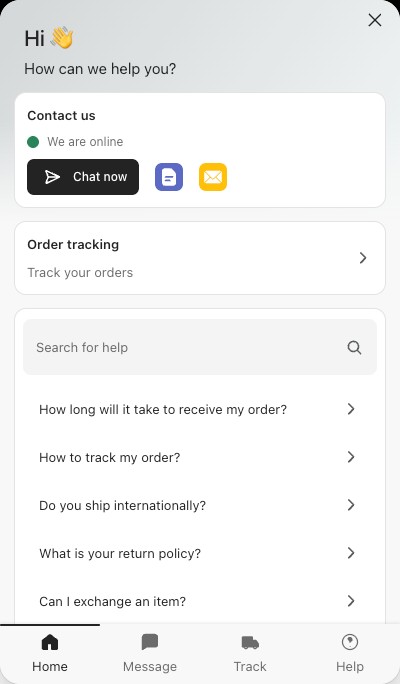
How to open the Legacy chatbox settings
-
Go to Chatbox.
-
In the Chatbox mode card, click the gear icon on Legacy chatbox.

Expected result: The Legacy chatbox page opens on the General tab. A live preview of the chatbox sits on the right.
The page has two tabs:
| Tab | What you set |
|---|---|
| General | Chat focus mode, header, welcome message, conversation starter and blocks |
| Appearance | Brand colors, chatbox button and chatbox style |
After any change, click Save in the bar at the top of the page. One Save covers both tabs.
Cards with a Shared badge also apply to AI Mode: Conversation starter and Brand colors. Other settings for both modes, such as the pre-chat form and chat avatar, are in Shared chatbox settings.
General settings
The General tab shows these cards, from top to bottom.
Chat focus mode
Opens the chatbox straight on the chat, instead of the home page. Shoppers can go back to the home page from the chat.
- It is on by default.
- It works only when the Live chat block is on.
Set header
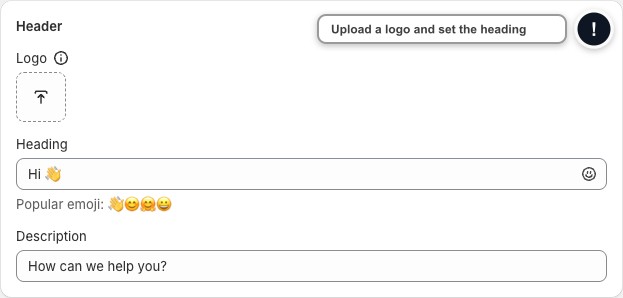
The header is the top of the chatbox.
| Field | What to enter |
|---|---|
| Logo | Upload PNG, JPG, JPEG, GIF, SVG or WEBP, under 1MB. Recommended size is 40×40px. Click Replace or Remove to change it. |
| Heading | Up to 40 characters. You can add an emoji. Default: "Hi 👋" |
| Description | Up to 100 characters. Default: "How can we help you?" |
Heading and Description can't be empty.
Welcome message
The welcome message is set in Settings → General → Chat availability, next to your working hours and holidays. This card only shows an Edit welcome message link that opens that page. Learn how to set up welcome messages.
Conversation starter
Conversation starters are questions shown in the chat as suggestions. A shopper taps one and gets your answer right away. The same list shows as Commonly asked in AI Mode.
- Turn on Conversation starter. It is on by default.
- Click Add question, or Import from FAQs to pick from your FAQs.
- Enter the Question (up to 100 characters) and the Answer. You can make the answer bold or italic and add a link.
- Drag the questions to change their order. Use Edit or Delete on each one.
- Click Save.
New stores start with 3 questions: "🛒 Track my order", "🚚 How long does delivery take?" and "🔁 Return policy".
Turn on blocks you want to show in chatbox
Blocks are the sections of the chatbox. Turn each one on or off. At least one block must stay on. The order is fixed.
| Block | What it does | Default |
|---|---|---|
| Live chat | Turns on the Message tab so customers can chat with your AI agent and your team. Turn it off and the chatbox becomes self-serve only. | Off |
| Contact | Shows your contact methods. Click Edit to set them up. | On |
| Order tracking | Lets customers track orders. Click Integration settings to connect a tracking app. Learn more about order tracking. | On |
| FAQs | Shows your FAQs. Click FAQs settings to manage them. | On |
| Categories | Shows your FAQ categories. Click Categories settings to manage them. | Off |
Set up live chat
Live chat lets customers reach you while they are browsing your store, so you can answer right away and manage the chats from one inbox.
Make sure the chatbox is turned on first.
-
Go to Chatbox → Legacy chatbox → General.
-
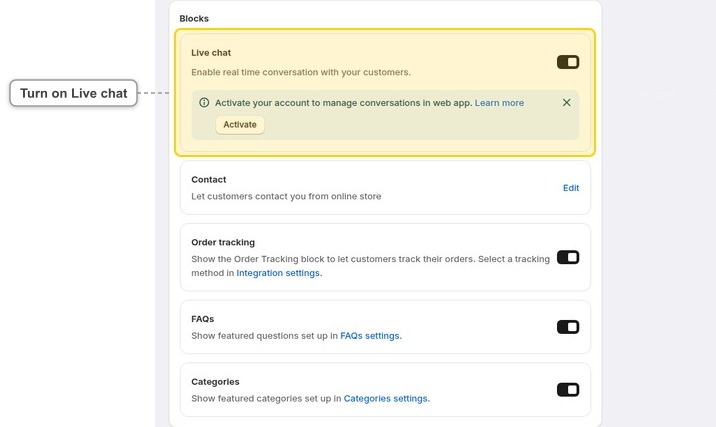
In Blocks, turn on Live chat. Conversation starter turns on with it.
-
Set up the pre-chat form and choose how customers start a chat in Chatbox → Shared chatbox settings → Pre-chat form.
-
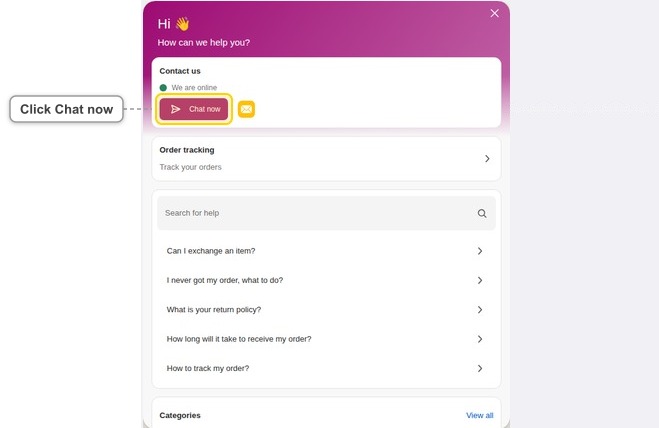
Click Save, then open your storefront and click Chat now to start a test conversation.
To preview the pre-chat form, click Chat now in the preview and enter your first message. You can also set your online and offline status in online hours.
If your account is not active yet, a banner asks you to activate it to manage conversations in the web app. Click Activate.
Add contact methods
Contact methods are the ways customers can reach you, shown as icons next to Chat now. Chat status in the same panel shows your online or offline status; set it up in working hours settings.
To add a method, for example your contact page:
- Go to Chatbox → Legacy chatbox → General. In the Contact block, click Edit.
- Click Add contact method, then pick Contact page.
- Paste the link to your contact page, for example
/pages/contactor a full link that starts withhttps://. - Click Save.
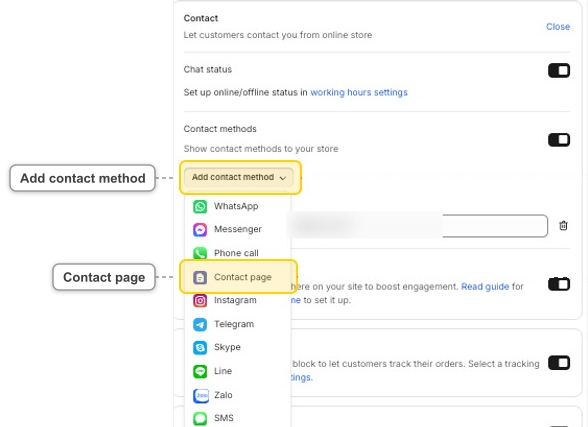
Expected result: Your contact page appears as an icon in the chatbox's contact row, next to your other methods. A customer who taps it opens that page directly.
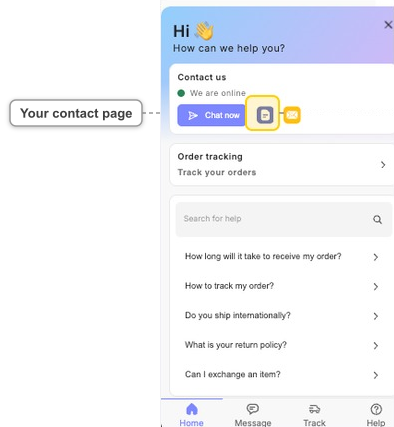
Drag the methods to change their order. Each value can be up to 100 characters. Keep at least one method while Contact methods is on.
How many contact methods are supported in Chatty?
Chatty supports 12 contact methods:
- Messenger
- Phone call
- Contact page
- Telegram
- Skype
- Line
- Zalo
- SMS
- TikTok
Add contact button
You can add contact button on your site to provide instant support and improve customer satisfaction.
You can add the contact button to your product pages, cart page, home page, and standard pages. It isn't available on collection or blog pages.
-
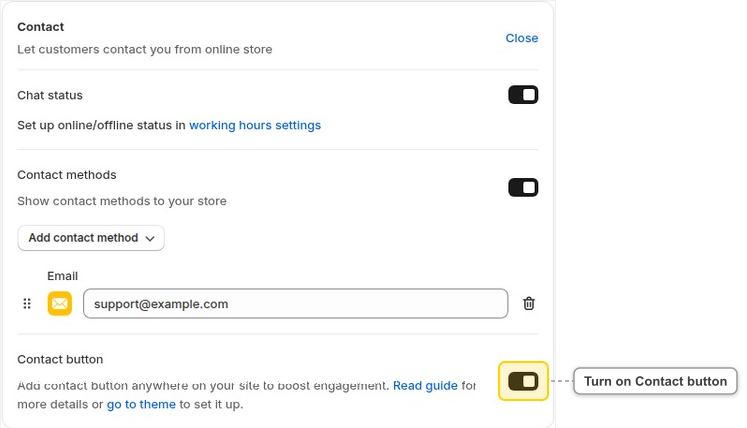
Go to Chatbox → Legacy chatbox → General. In Blocks, click Edit on the Contact block.
-
Turn on the Contact button switch, then click Save. The switch stays locked until Contact methods is on and has at least one active contact method.
-
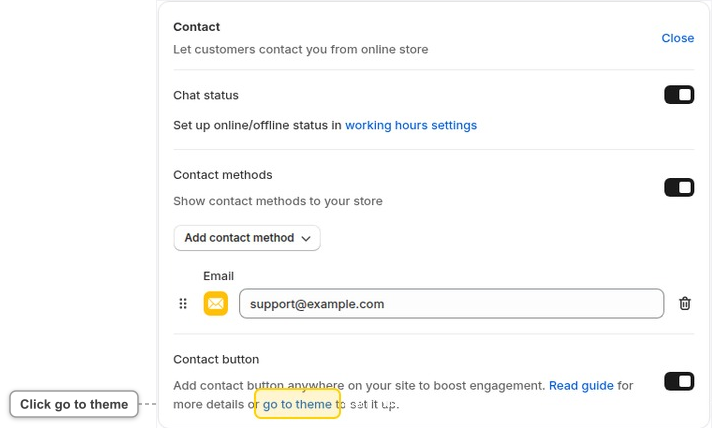
Click go to theme.
-
Your theme editor opens on the Default product template. The Contact button block is already added under Product information.
The block starts with WhatsApp as its contact. If WhatsApp isn't one of your active methods, a WhatsApp is inactive message shows. Close it and pick an active method in the next step.
-
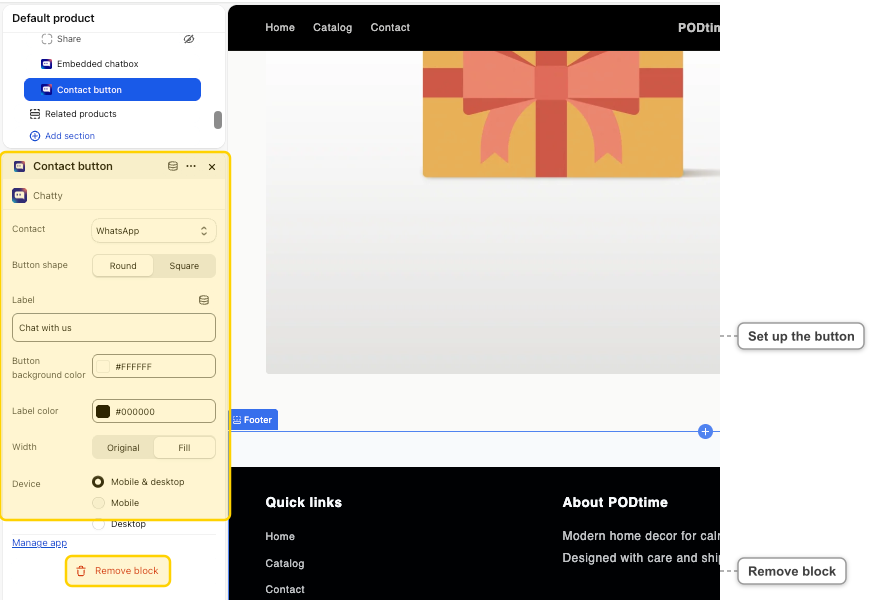
Click the Contact button block and set it up.
-
Click Save.
You can only set up contact button with active contact methods. Active contact methods are those you set up in chatbox blocks. The Contact button block shows up in the theme editor only while the Contact button switch is on and saved. If no contact method is on when you save, Chatty turns the switch off.
The block has these settings:
| Setting | Options |
|---|---|
| Contact | WhatsApp, Messenger, Phone call, Email, Contact page, Instagram, Telegram, Skype, Line, Chatbox, Zalo, SMS, TikTok |
| Button shape | Round, Square |
| Label | Your own text, Chat with us by default |
| Button background color, Label color | Any color |
| Width | Original, Fill |
| Device | Mobile & desktop, Mobile, Desktop |
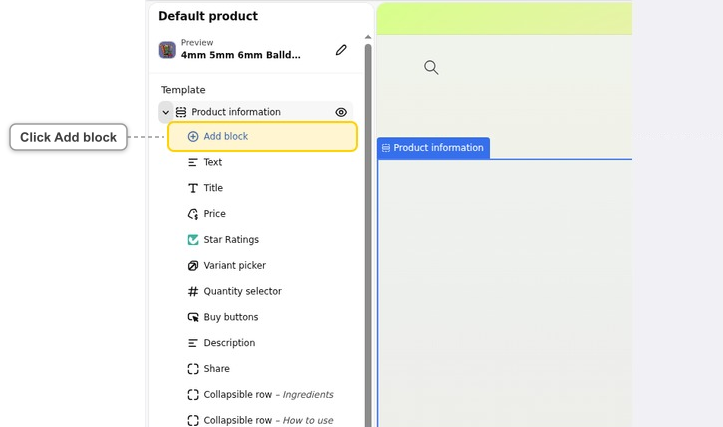
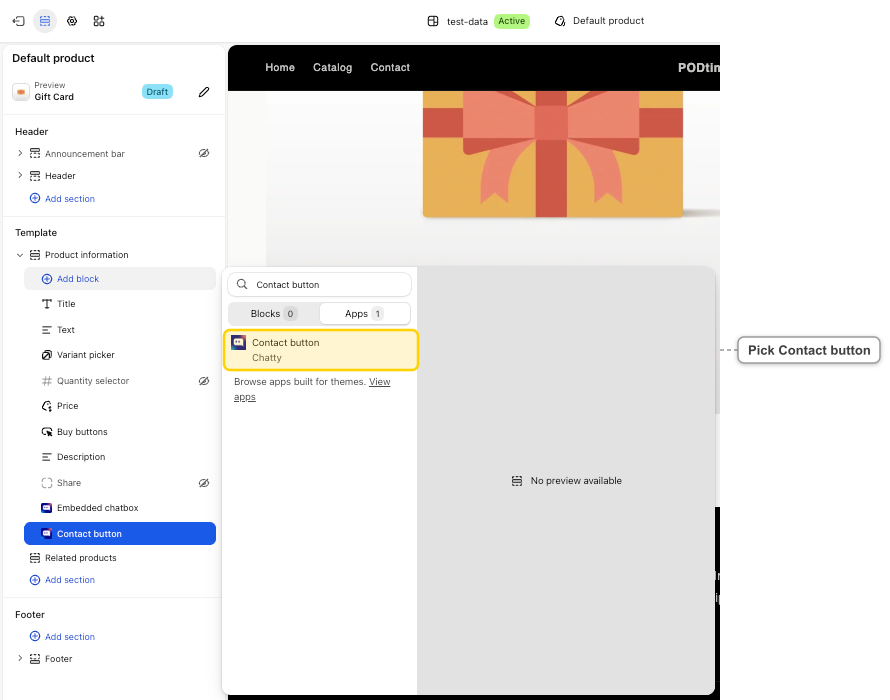
To add the button somewhere else, pick that template in the theme editor, click Add block where you want it, open Apps and pick Contact button.
Remove contact button
In the theme editor, click the Contact button block, then click Remove block at the bottom of its settings. Click Save.
If you delete contact method in Chatty, contact button won't be deleted. Go to theme editor and delete that block.
Appearance settings
The Appearance tab shows these cards, from top to bottom.
Set brand colors
Brand colors are shared with AI Mode. Learn how to set brand colors.
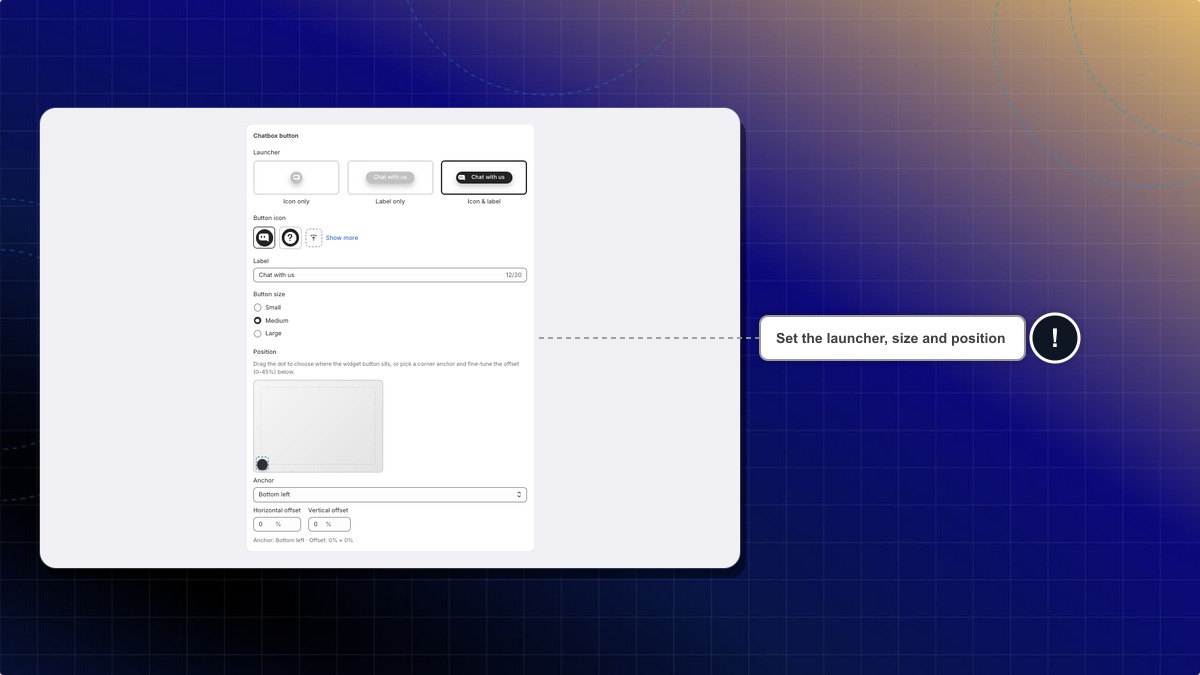
Set chatbox button
The chatbox button is the bubble shoppers click to open the chatbox.
| Setting | Options |
|---|---|
| Launcher | Icon only (default), Label only, or Icon & label |
| Button icon | Pick an icon, or upload your own image up to 200KB. Click Show more to see all icons. Hidden when Launcher is Label only. |
| Label | Up to 20 characters. Default: "Chat with us". Hidden when Launcher is Icon only. |
| Button size | Small, Medium or Large |
| Position | Drag the dot, or pick an Anchor corner: Bottom right (default), Bottom left, Top right or Top left. Then fine-tune Horizontal offset and Vertical offset, from 0 to 45%. |
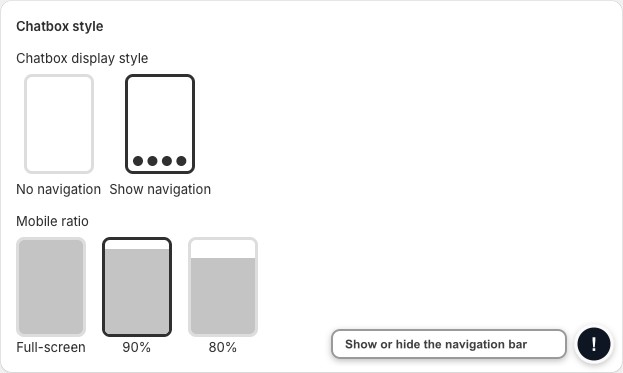
Set chatbox style
| Setting | Options |
|---|---|
| Chatbox display style | No navigation (default) or Show navigation. Navigation is the tab bar at the bottom of the chatbox. |
| Mobile ratio | How much of the phone screen the chatbox covers: Full-screen, 90% (default) or 80% |
 Chatty Help Center