Embedded chatbox
What is embedded chatbox?
Embedded chatbox lets you add your complete chatbox directly into any page on your store as a full-width section.
Unlike the floating chatbox button, this embeds the entire chat interface seamlessly into your page layout.
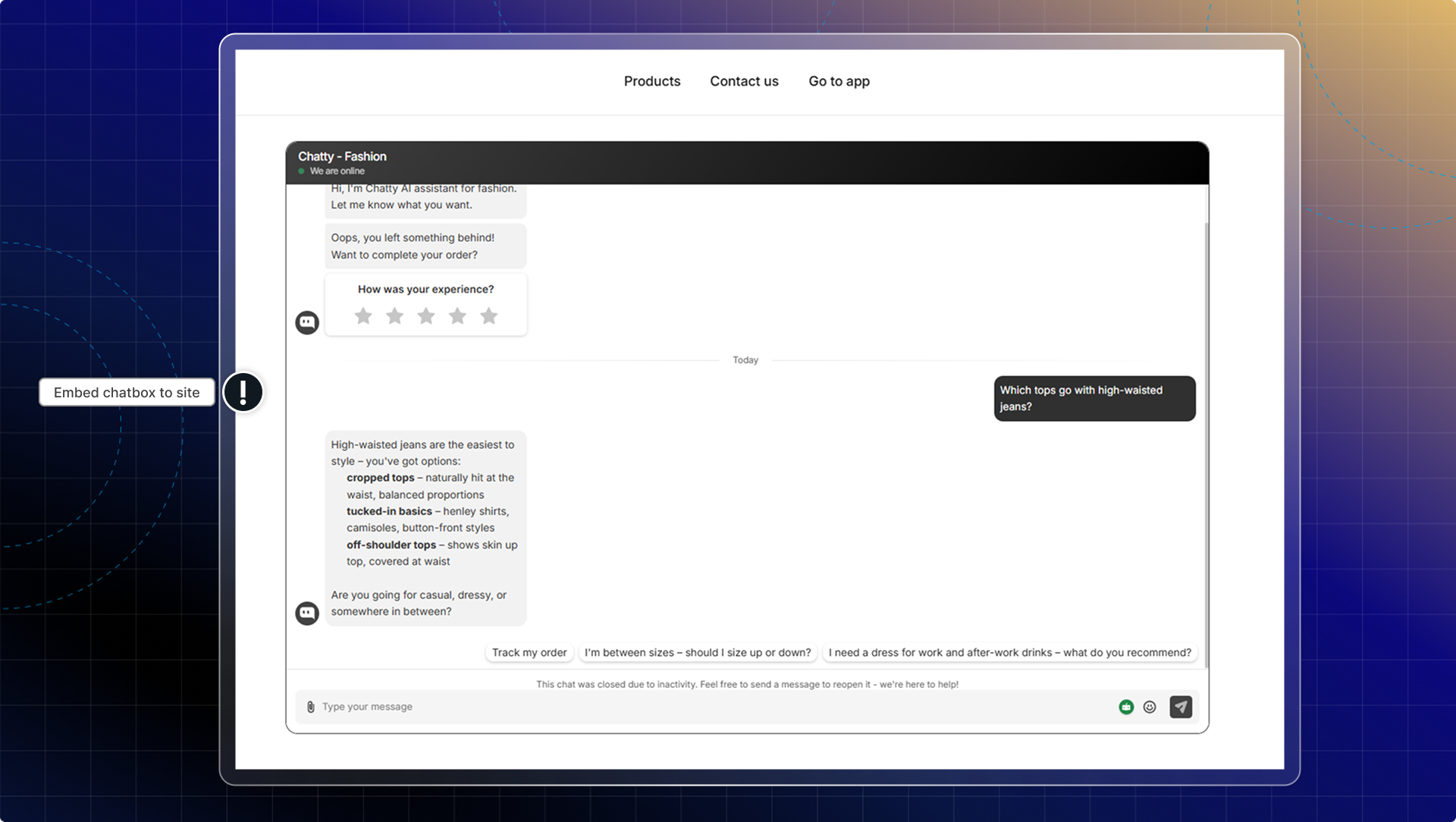
You can embed the full chatbox experience directly into specific pages like:
- Dedicated support or contact pages
- Product information pages
- FAQ pages with live support access
| Floating chatbox | Embedded chatbox | |
|---|---|---|
| Display | Button that opens overlay | Full interface built into page |
| Visibility | Available on all pages | Only on pages where you add it |
| Space usage | Floats over content | Takes up section space on page |
| Best for | Store-wide availability | Dedicated support pages |
You can use both embedded and floating chatbox together. For example, have floating chat available everywhere, plus embedded one on your contact page.
The embedded chatbox follows your chatbox mode. In Legacy chatbox mode it keeps the Legacy layout. In AI Mode it opens the AI Mode chat. You set it up once for both modes.
How to add embedded chatbox to your page
Go to Chatbox
In the Shared chatbox settings card, find Embedded chatbox
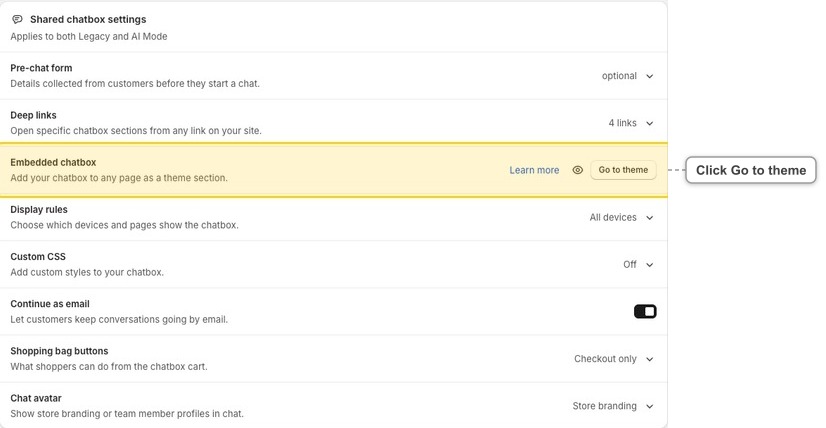
Click Go to theme
If Live chat is off, you may see Enable live chat there instead. Click it to open the Live chat setting, then turn Live chat on first, since the embedded chatbox needs it.
Check the block Chatty added for you
Your theme editor opens on the Default product template. The Embedded chatbox block is already added under Product information, Click it to open its settings.
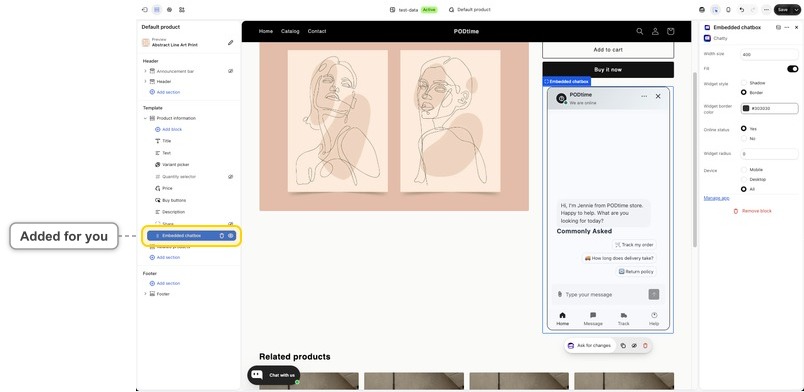
Set up the block in its settings
Click Save
Expected result: The embedded chatbox shows on your product pages, under the product information.
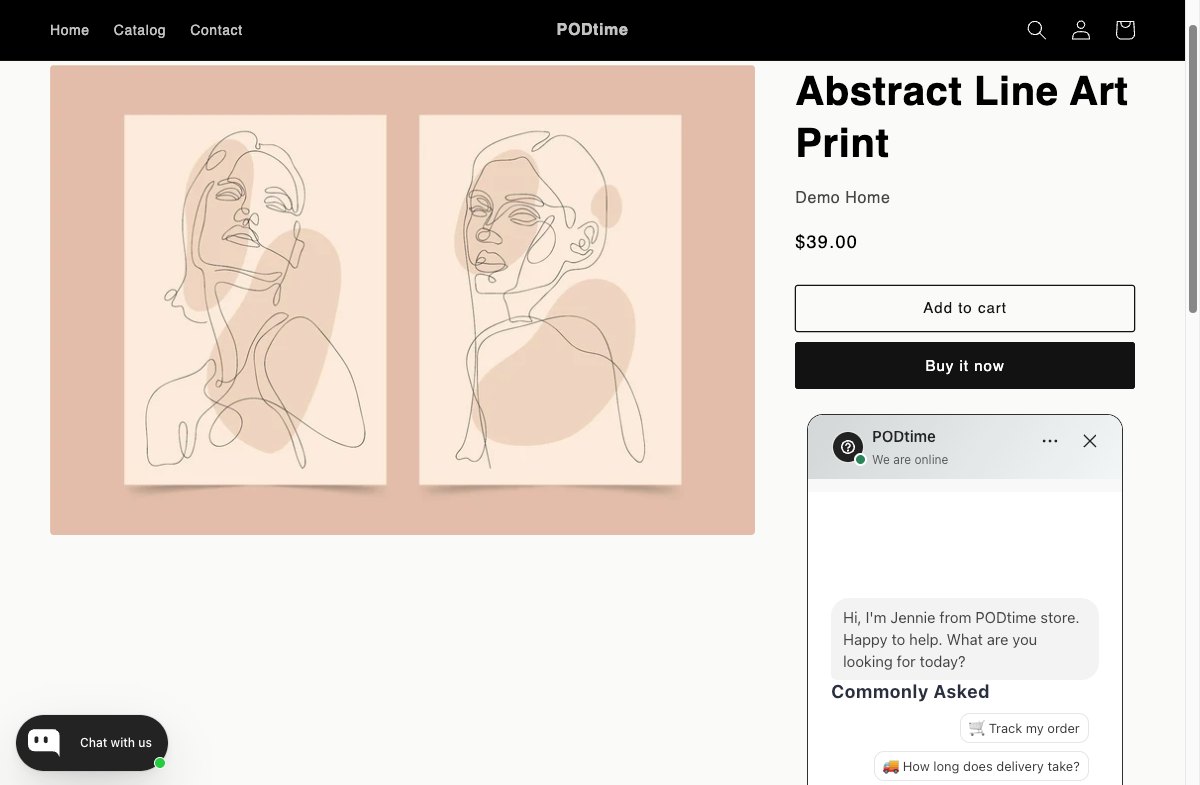
Add it to another page
- In the theme editor, click the template menu at the top. It shows Default product.
- Click Pages, then pick your page, for example contact.
- Under Template, click Add section.
- Open Apps and pick Embedded chatbox. If you have many apps, search for
Chatty. - Set it up in its settings, then click Save.
Expected result: The embedded chatbox shows on that page.
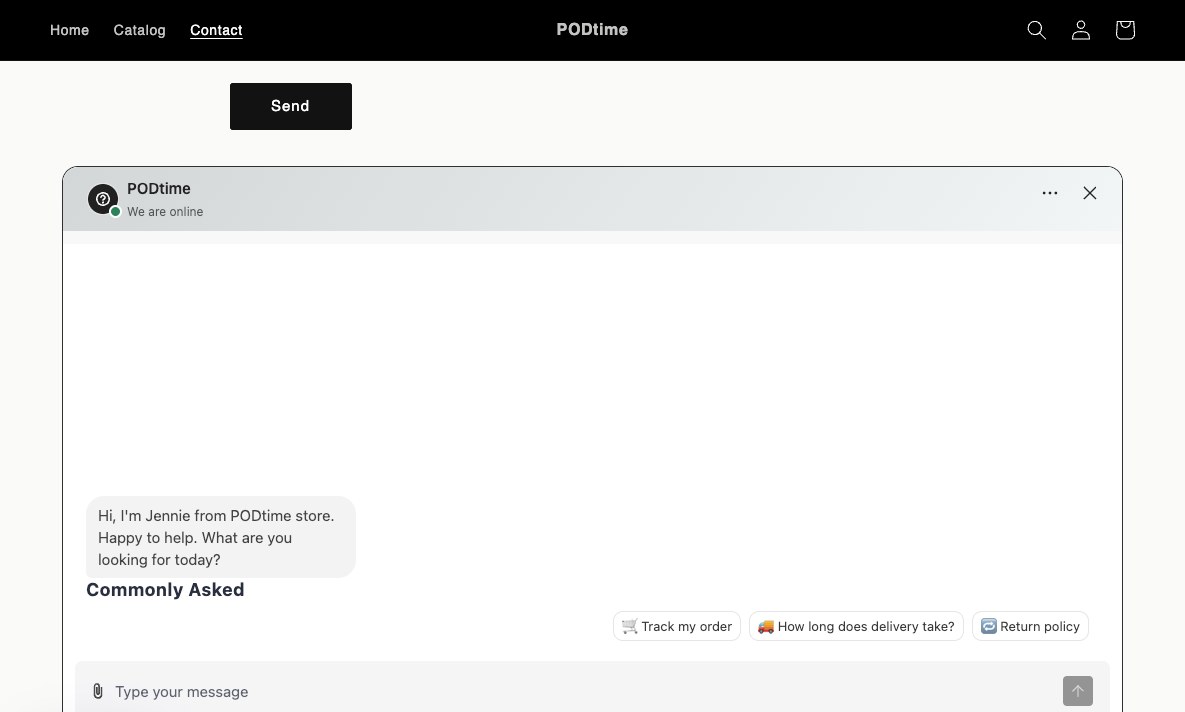
Don't want it on product pages? Select the block there, click Remove block, then click Save.
The panel has these settings:
| Setting | What it does |
|---|---|
| Width size | Chatbox width in pixels. Ignored while Fill is on. |
| Fill | Stretches the chatbox to the full width of the section. On by default. |
| Widget style | Border or Shadow around the chatbox. Border by default. |
| Widget border color | Border color, used when the style is Border. |
| Online status | Shows or hides your online status inside the embedded chatbox. |
| Widget radius | Corner rounding in pixels. 0 by default. |
| Device | Show on All, Desktop only, or Mobile only. |
 Chatty Help Center