Link training data to a scenario
What is linked training data
Linked training data is the set of training data sources you attach to a scenario. Right now the AI agent does not use linked sources when it answers customers. It answers from the scenario's Situation and Instructions, plus all your training data as usual. You can still pick sources here; they are saved with the scenario.
How to link training data to a scenario
Before you start, make sure you have added the training data you want to link. Learn how to add data sources.
-
Go to AI agent → Scenarios. Your scenarios are listed under Custom scenarios.
-
Open the scenario you want to edit, or create a new one. Learn how to add a scenario.
-
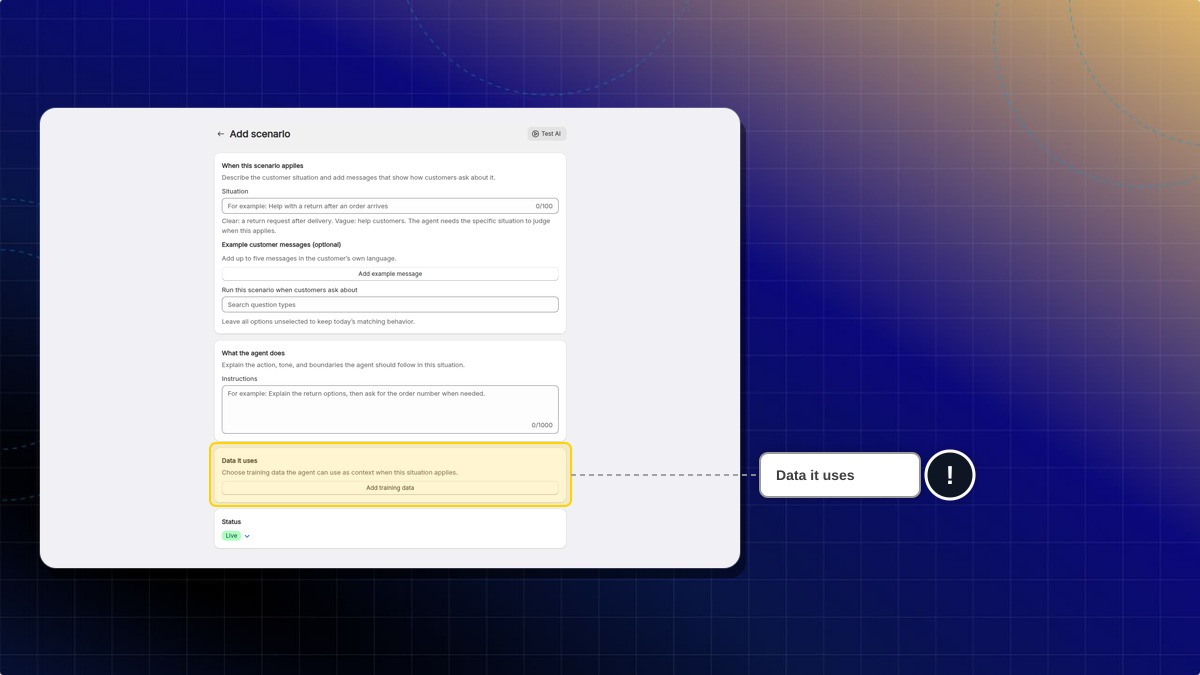
Find the Data it uses section.
-
Click Add training data.
-
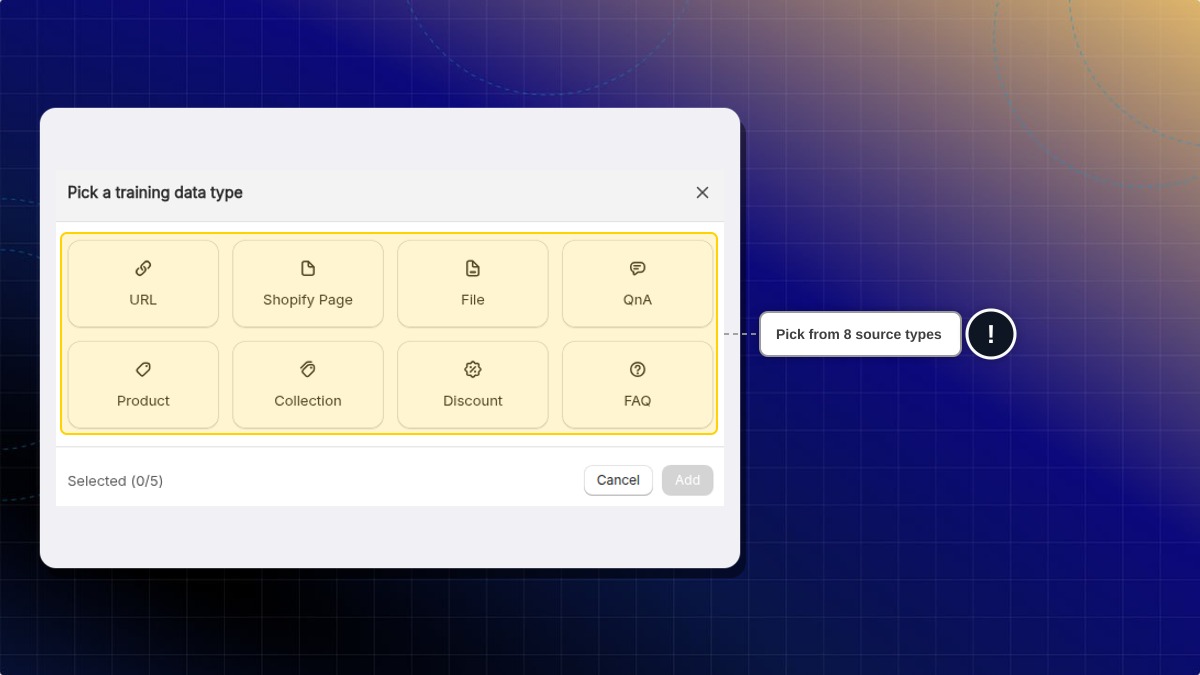
Select the sources this scenario should use. You can pick from URL, Shopify Page, File, QnA, Product, Collection, Discount, and FAQ sources.
Example: for a "Return request" scenario, link your "Return policy" Shopify Page and your refund QnA.
-
Confirm your selection.
-
Save the scenario.
Expected result: The Data it uses section shows "N training data selected". Click it to see the linked sources.
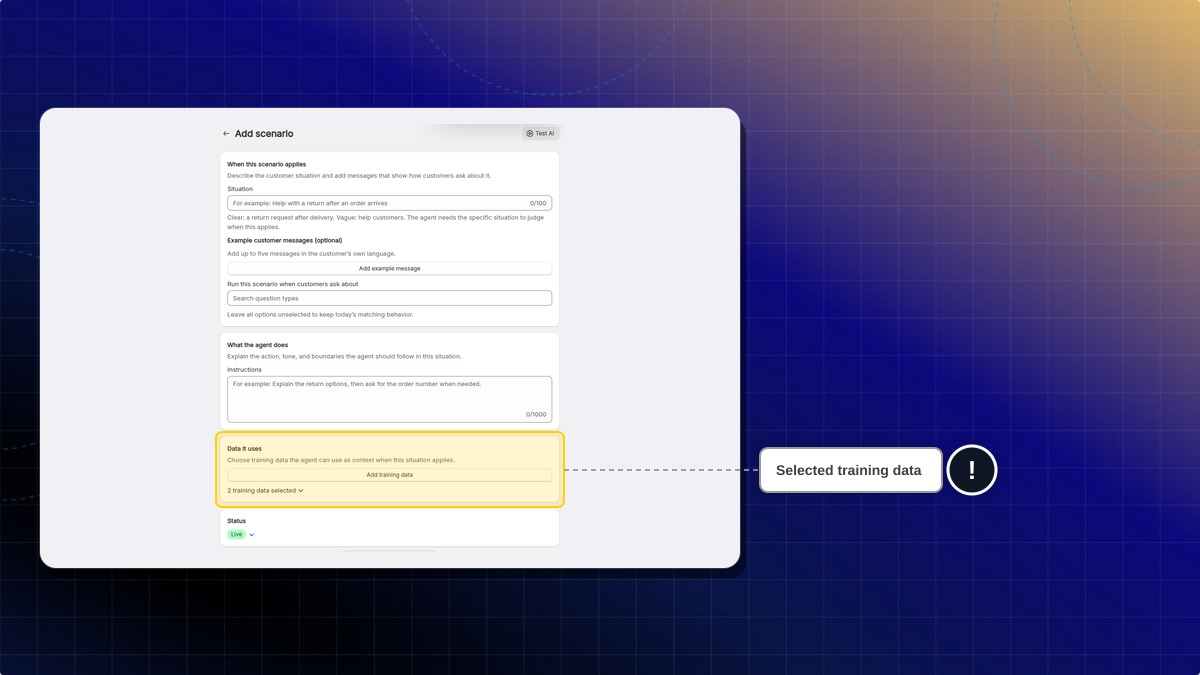
When the scenario applies, the AI follows its Situation and Instructions and searches all your training data as usual.
Do I have to link training data to every scenario?
No. A scenario with no linked training data works as before. The AI searches all your training data for the answer.
Can the AI use my other training data when the scenario fires?
Yes. The AI searches all your training data for every reply, whether or not the scenario has linked sources.
 Chatty Help Center