# Translation
{% hint style="info" %}
**Who can use this feature?**
* **Free:** Default language only. Cannot add new languages or use auto-translate.
* **Basic, Pro, Plus:** Add multiple languages and enable auto-translate. Limits vary by plan.
{% endhint %}
***
### What is Translation?
Translation lets your chatbox and FAQs appear in your customers' language automatically.
Instead of showing the same language to every visitor, Chatty detects each visitor's language and displays the right content. No manual work is needed for each customer.
***
### How Translation works
**Languages**
A language in Chatty is a display language for your chatbox. Chatty detects which language to show based on Shopify Markets, the languages your store has published in Shopify Admin.
This means, even if a customer's browser is set to French, Chatty will only show French if French is published in your Shopify Markets and added in Chatty Translation. If it is not in both places, the chatbox falls back to your default language.
**Auto-translate**
Auto-translate automatically translates your chatbox labels, FAQs, and questions from your default language into an added language. Once enabled for a language, it runs automatically whenever you update content. You only need to turn it on once.
If auto-translate is off, you can still add and publish a language, but you will need to translate the content manually. Languages with auto-translate enabled show a green dot next to their name.
**Default language**
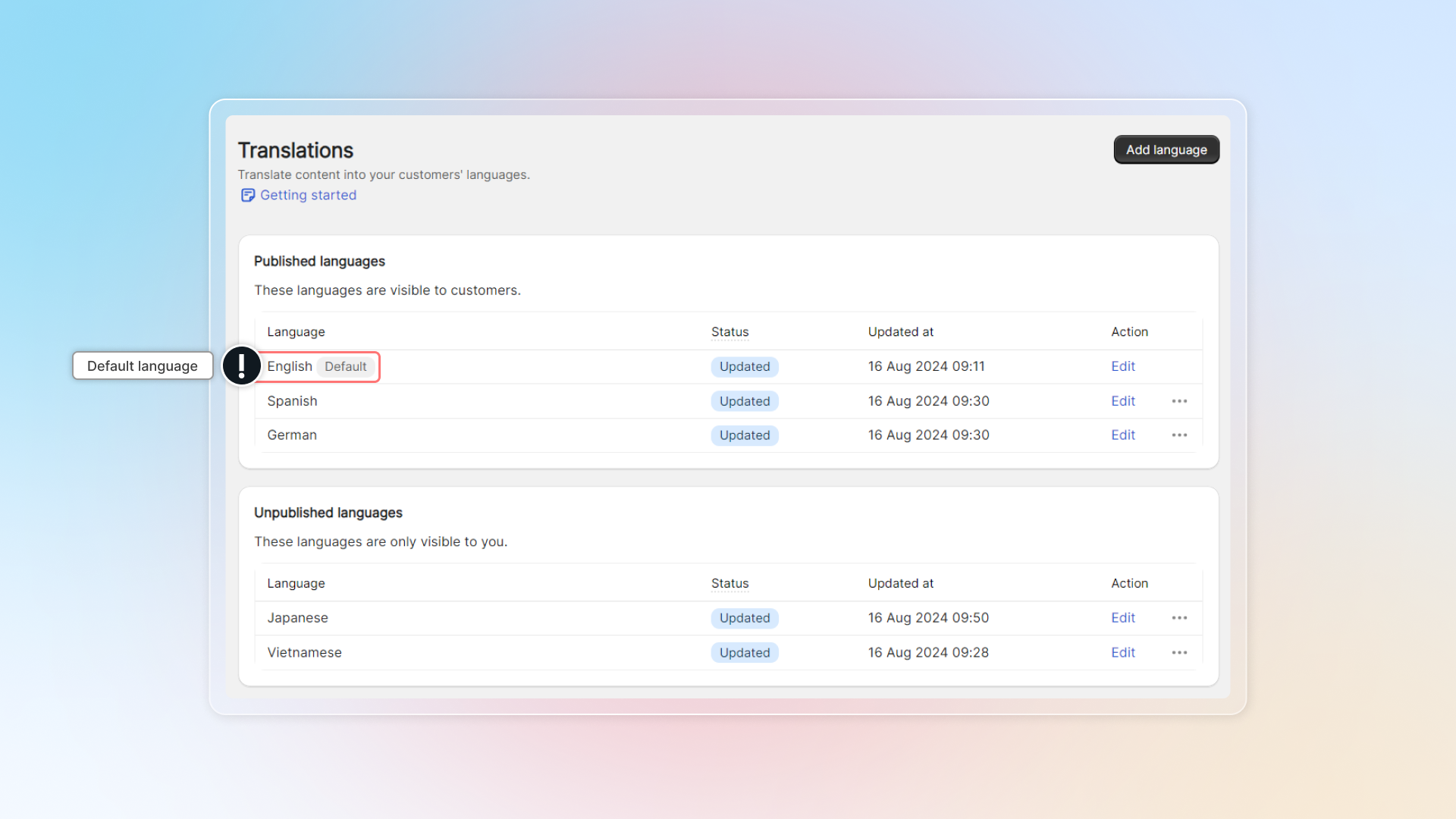
Your default language is shown to all visitors when their language is not published. English is set as default when you first install Chatty. Only published languages can be set as default.
***
### Set up languages
*(Basic plan and above)*
**Step 1: Add the language in Shopify Markets**
Before adding a language in Chatty, make sure it is published in Shopify first.
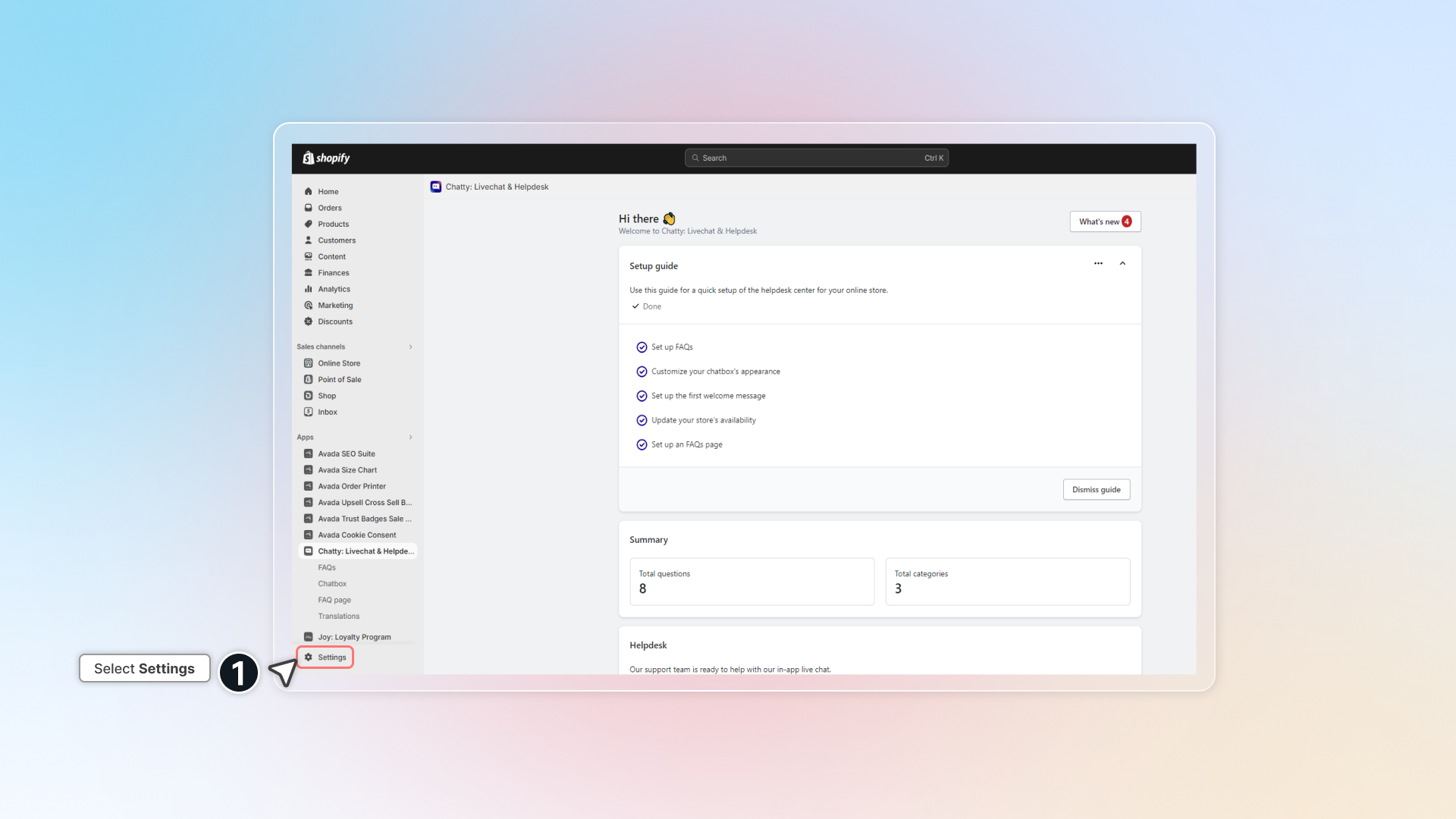
1. In Shopify Admin, go to **Settings** → **Markets**
2. Select the market you want to add a language to, or create a new one
3. Click **Add language** and choose your language
4. Click **Publish**
Set up language in Shopify Markets
**Step 2: Add and publish in Chatty**
1. In Chatty, go to **Translation** and click **Add language**
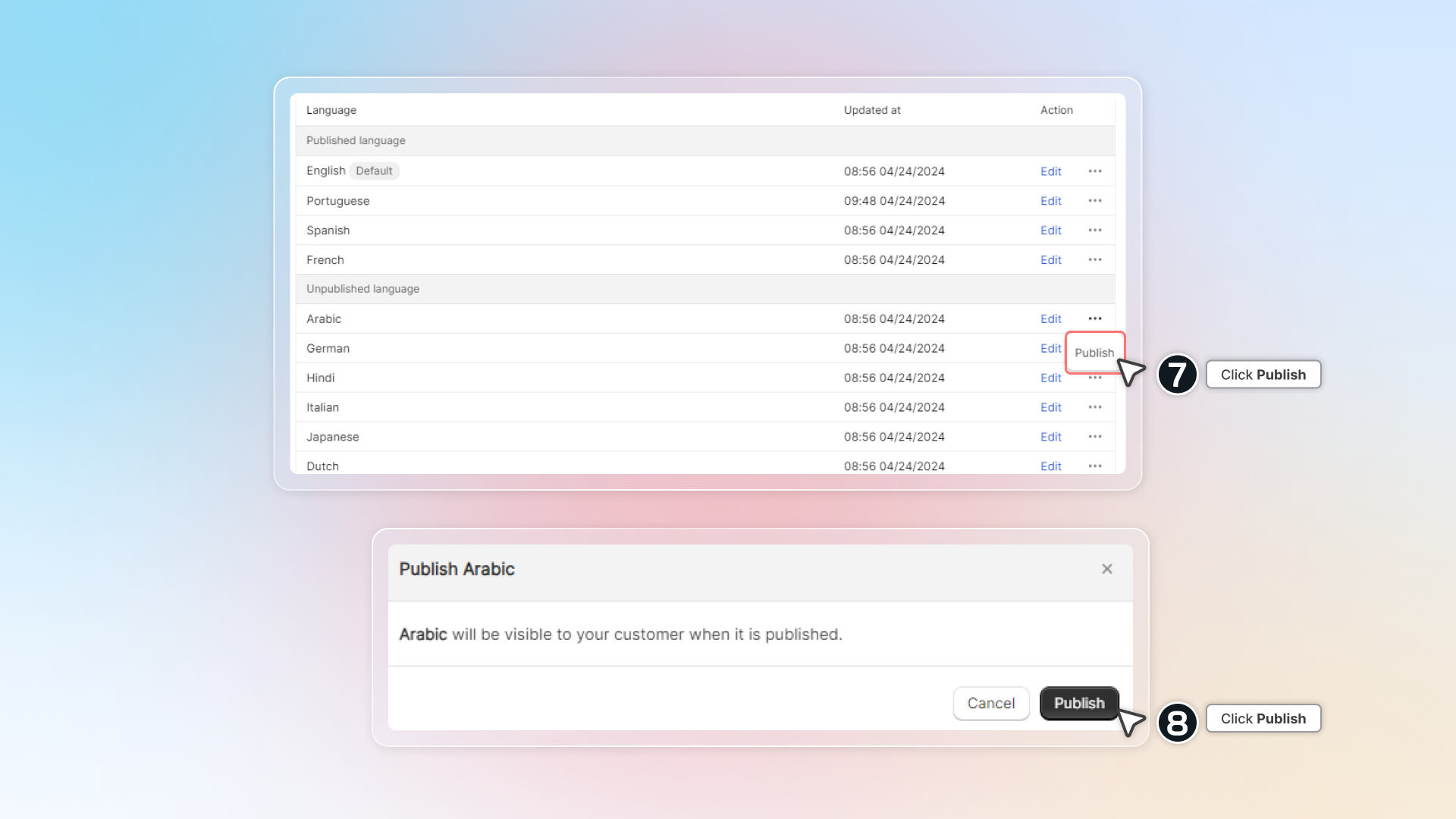
2. The language appears in **Unpublished**. If you have auto-translate slots available, content is translated automatically
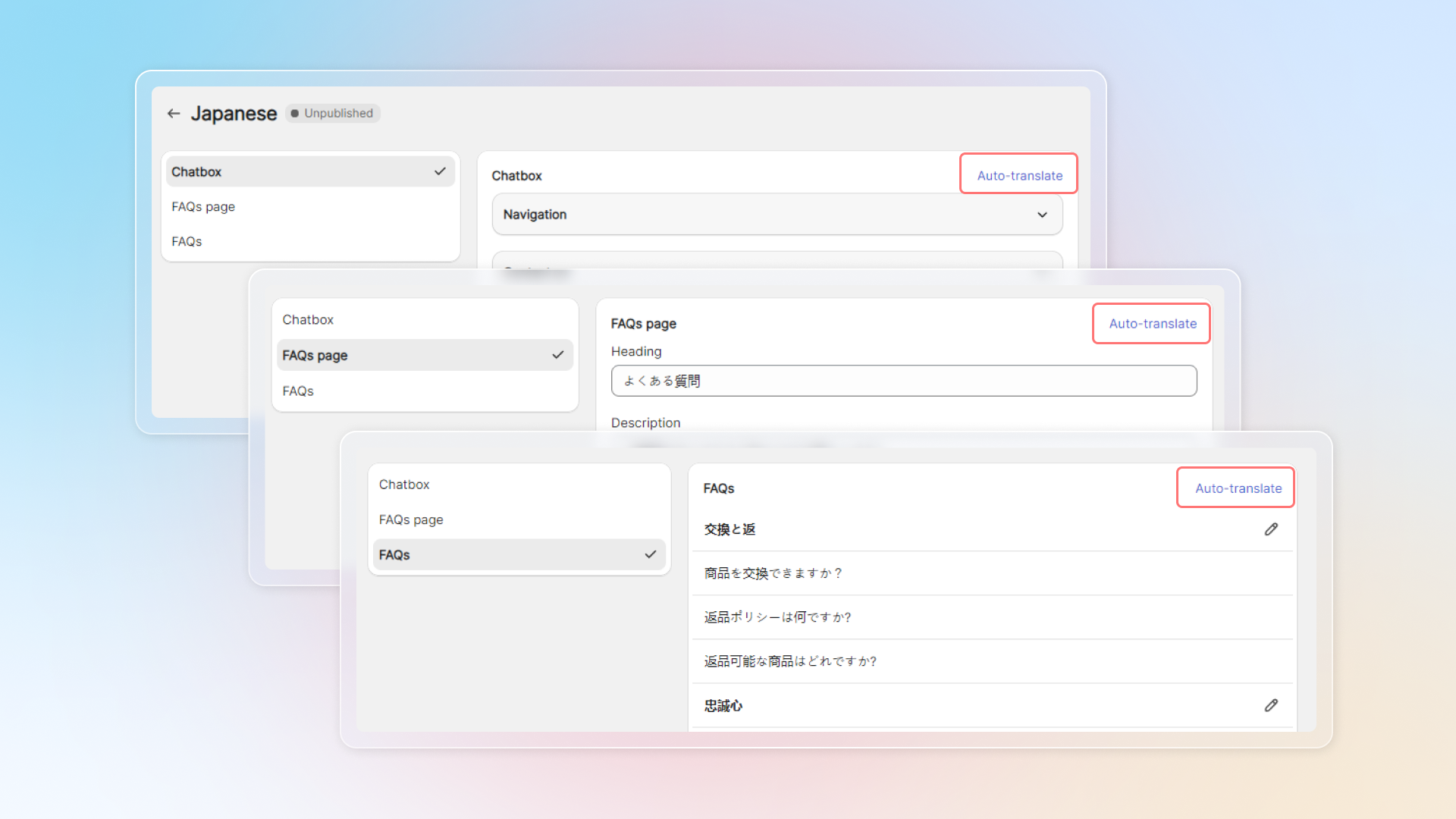
3. Click **Edit** to review or adjust chatbox labels, FAQs page, and individual FAQ questions
4. In the FAQs section, click **Auto-translate** to translate all content at once, or edit manually
Unpublished languages are not visible to visitors until published.
***
### Change default language
1. Go to **Translation**
2. In the Published language list, click the edit icon → **Change default**
3. Click **Save**
Change default language
***
### Update translation when FAQs change
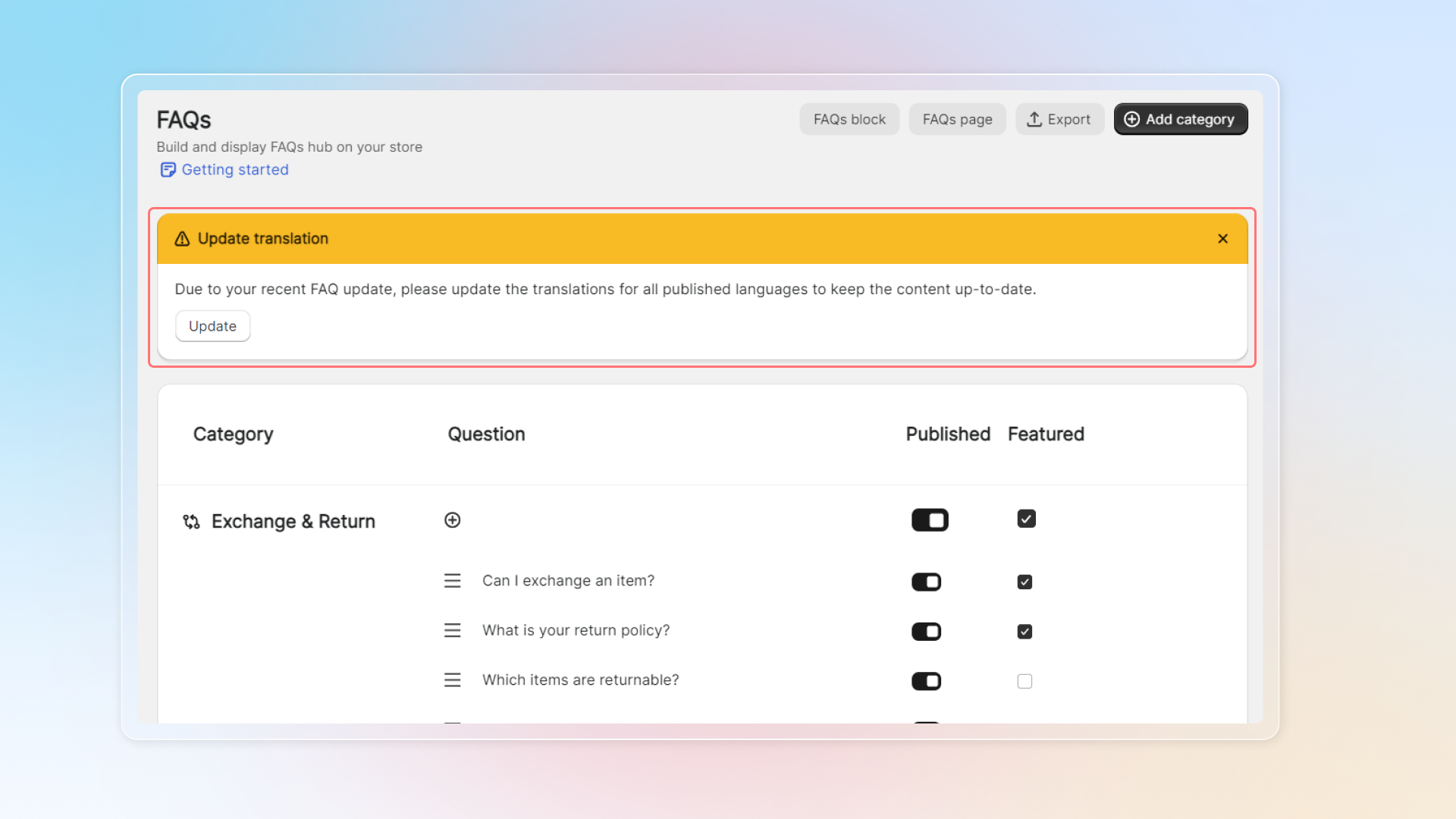
Translation does not update automatically when you add new FAQ categories or questions. Chatty shows a banner to notify you. Click **Edit** to update.
Outdated translation banner
***
### Supported languages
Chatty supports 19 languages: English, Spanish, French, Portuguese, German, Dutch, Italian, Turkish, Vietnamese, Hindi, Urdu, Chinese (Simplified), Chinese (Traditional), Arabic, Malay, Japanese, Greek, Romanian, and Norwegian.
If your language is not listed, select **Custom** to add it manually. Auto-translate is not available for custom languages.
***
### Plan limits
| | Free | Basic | Pro | Plus |
| -------------- | ---------------- | ----------- | ----------- | --------- |
| Languages | 1 (default only) | 3 | 10 | Unlimited |
| Auto-translate | — | 2 languages | 9 languages | Unlimited |
**Language usage:** shown as **Language usage: X / Y** at the top of the Translation page.
**Auto-translate usage:** shown as **Auto-translate usage: X / Y**. When you reach the limit, turn off auto-translate on one language to free up a slot.
***
### FAQs
My language is added in Chatty but customers still see English. Why?
Check that the language is live in Shopify Admin → Settings → Markets. Chatty only detects languages that are published in Shopify Markets.
Can I translate content manually without auto-translate?
Yes. Add and publish any language, then click **Edit** to update the content yourself.
What happens when I reach my auto-translate limit?
Existing languages still work. To enable auto-translate on a new language, turn it off for another language first.
Do translations update automatically when I add new FAQs?
Only if auto-translate is enabled. If not, the language shows **Outdated** status and you need to update manually.
My language is not in the list. What should I do?
Select **Custom** when adding a language and translate content manually. Auto-translate is not available for Custom languages.
---
# Agent Instructions: Querying This Documentation
If you need additional information that is not directly available in this page, you can query the documentation dynamically by asking a question.
Perform an HTTP GET request on the current page URL with the `ask` query parameter:
```
GET https://help.chatty.net/others/translation.md?ask=
```
The question should be specific, self-contained, and written in natural language.
The response will contain a direct answer to the question and relevant excerpts and sources from the documentation.
Use this mechanism when the answer is not explicitly present in the current page, you need clarification or additional context, or you want to retrieve related documentation sections.