# Mobile app

{% hint style="info" %}
**Who can use this feature?**

* This feature is available for all users
  {% endhint %}

With our Chatty mobile app, you can answer customer questions on the go right on your devices.

{% content-ref url="mobile-app/app-tour-guide" %}
[app-tour-guide](https://help.chatty.net/mobile-and-web-app/mobile-app/app-tour-guide)
{% endcontent-ref %}

### How to download mobile app

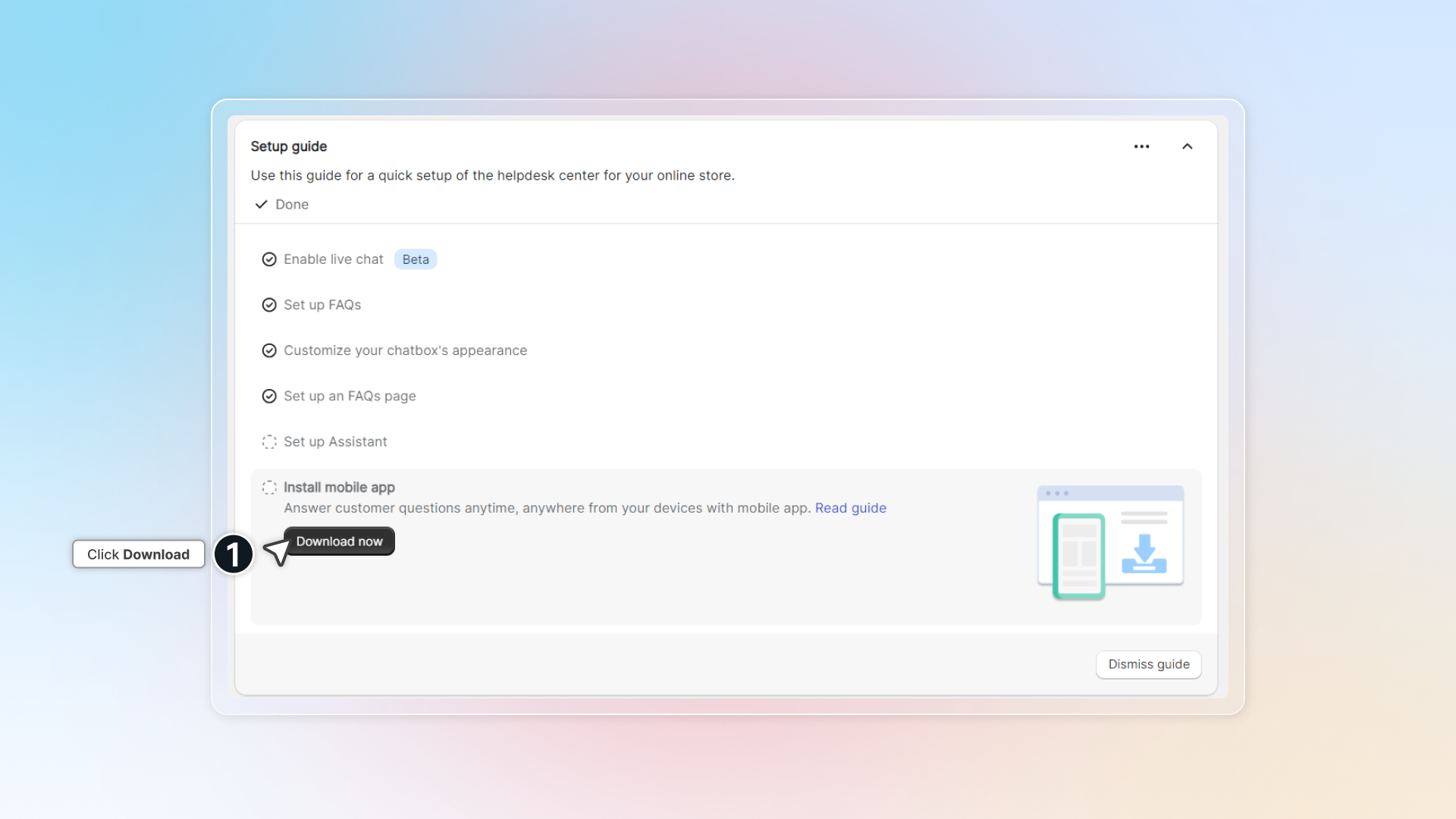
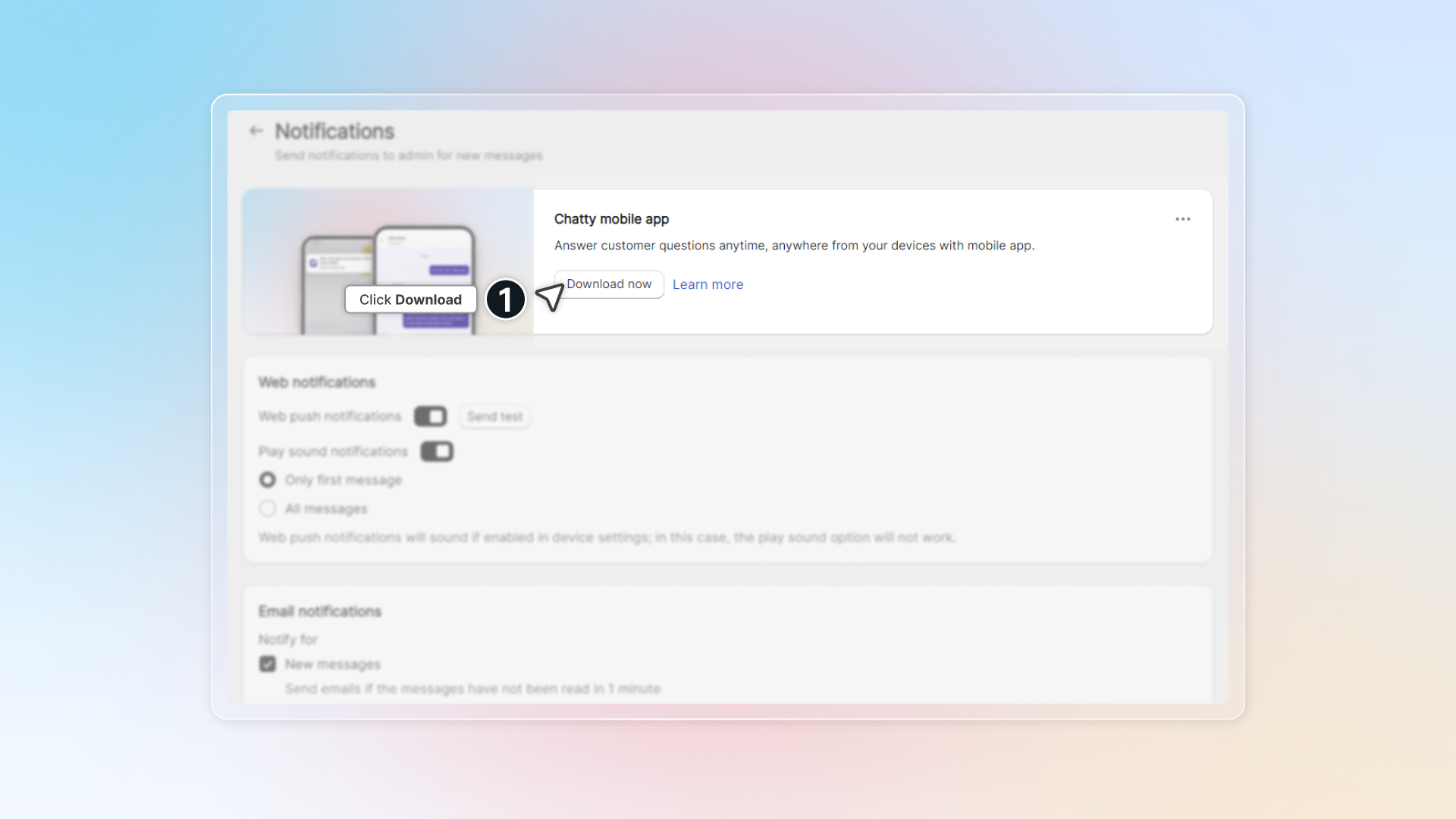
1. In app dashboard, click **Install mobile app** in Setup guide.\
   Or go to Settings -> Notifications -> Click Download now<br>

   <figure><img src="https://263145331-files.gitbook.io/~/files/v0/b/gitbook-x-prod.appspot.com/o/spaces%2FdHQiLAklXYfrIyImUrH0%2Fuploads%2FxgAKNwQhBcGBqeUeNmGZ%2Fclick%20download%20in%20setup%20guide.png?alt=media&#x26;token=8854d7e6-413e-41ba-a0fd-4a5a84e04e7e" alt=""><figcaption></figcaption></figure>

   <figure><img src="https://263145331-files.gitbook.io/~/files/v0/b/gitbook-x-prod.appspot.com/o/spaces%2FdHQiLAklXYfrIyImUrH0%2Fuploads%2FbQpHPDixovZ4h6yw1Uib%2Fclick%20download%20in%20settings.png?alt=media&#x26;token=ee88bdef-be6d-431d-8629-9285264e4422" alt=""><figcaption></figcaption></figure>
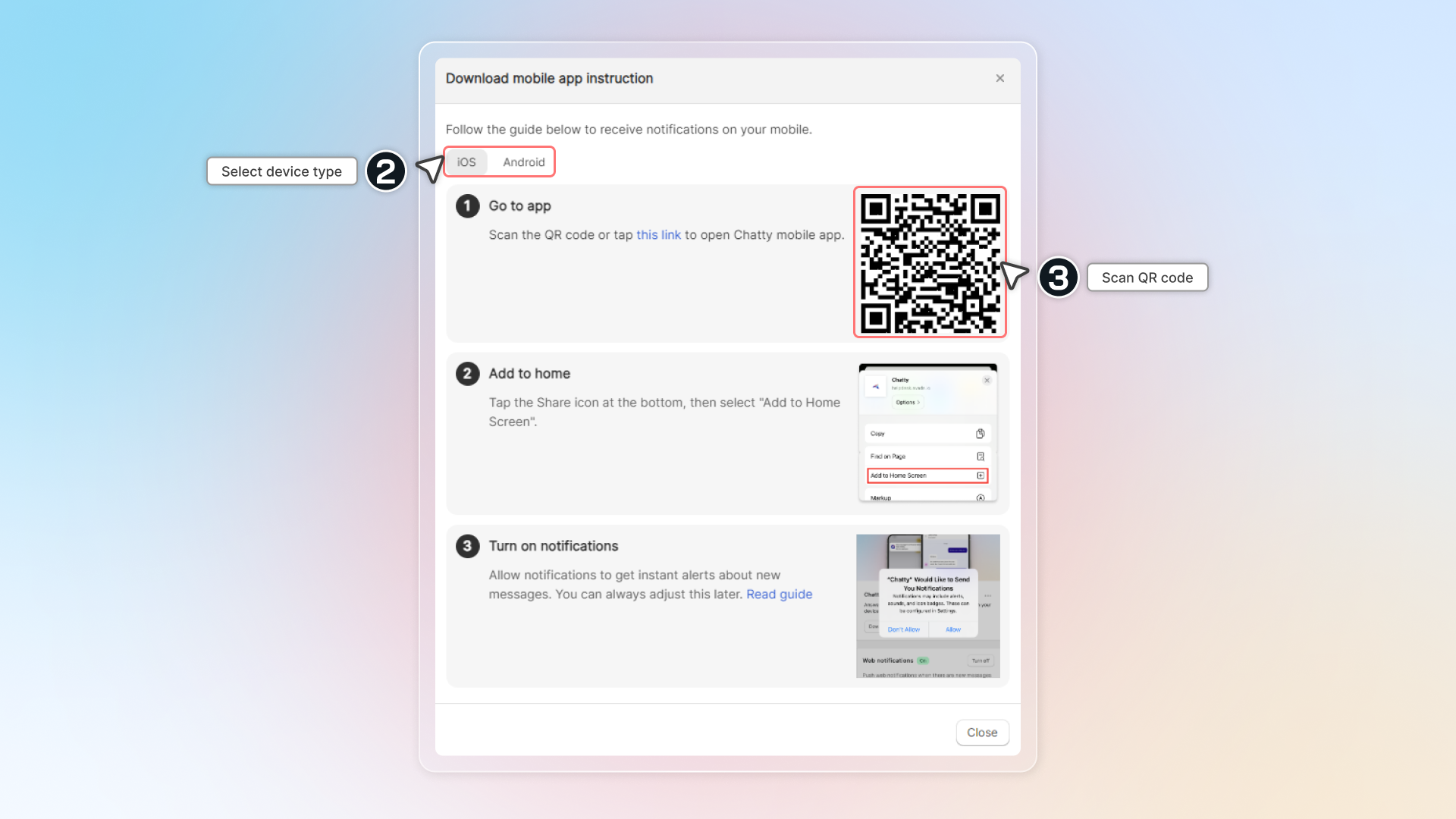
2. Click **Download now**
3. Scan QR code with your device<br>

   <figure><img src="https://263145331-files.gitbook.io/~/files/v0/b/gitbook-x-prod.appspot.com/o/spaces%2FdHQiLAklXYfrIyImUrH0%2Fuploads%2F6C6sGAAwhKMOPW1tDalZ%2Fscan%20qr%20code.png?alt=media&#x26;token=83259b58-afb4-4ff8-8994-bb988157a20b" alt=""><figcaption></figcaption></figure>
4. With each device and web browser, you can have different ways to set up Chatty mobile app.\
   In overall, follow these steps to set up
   * Scan and go to link
   * In browser settings, click "Add to home screen"
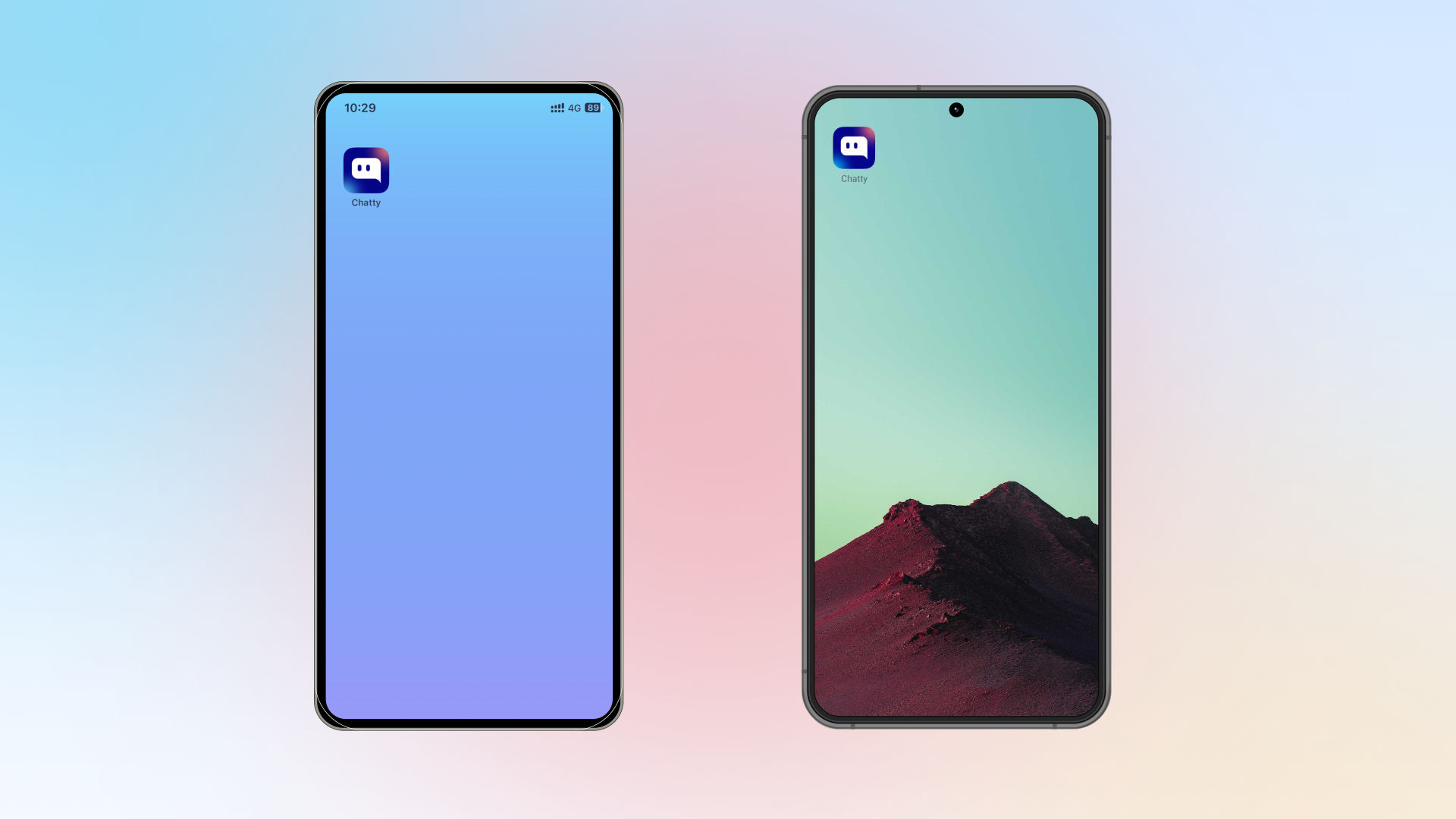
   * Add Chatty app to homescreen as an app

<figure><img src="https://263145331-files.gitbook.io/~/files/v0/b/gitbook-x-prod.appspot.com/o/spaces%2FdHQiLAklXYfrIyImUrH0%2Fuploads%2FSMdzd2pHolDp5mB10XI9%2Fchatty%20on%20home%20screen.png?alt=media&#x26;token=1f2d7d0a-0306-4ae7-998c-40a32ab02c11" alt=""><figcaption><p>This is how Chatty looks like on your device.</p></figcaption></figure>

Here are detailed instructions to add app for each browser.

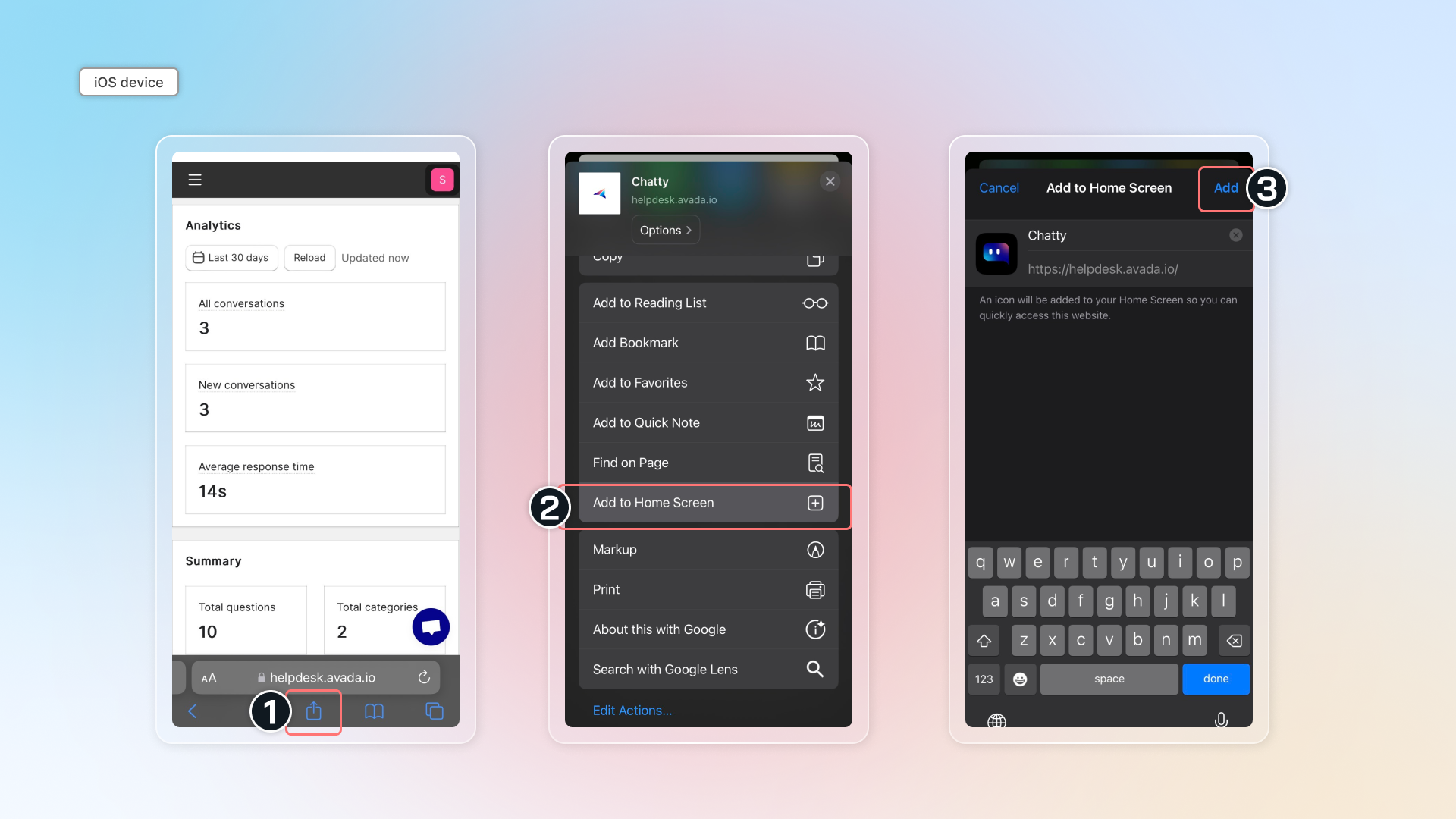
#### Safari (iOS device)

Go to link -> Tap share icon at the bottom -> Select "Add to Home Screen" and set up to add to your home screen.

<figure><img src="https://263145331-files.gitbook.io/~/files/v0/b/gitbook-x-prod.appspot.com/o/spaces%2FdHQiLAklXYfrIyImUrH0%2Fuploads%2FsPMMwS2T3DbQNq4yV6LX%2Fadd%20to%20home%20ioss.png?alt=media&#x26;token=31c0a2ee-e8fc-4d50-a9fc-608b4f5b21e0" alt=""><figcaption></figcaption></figure>

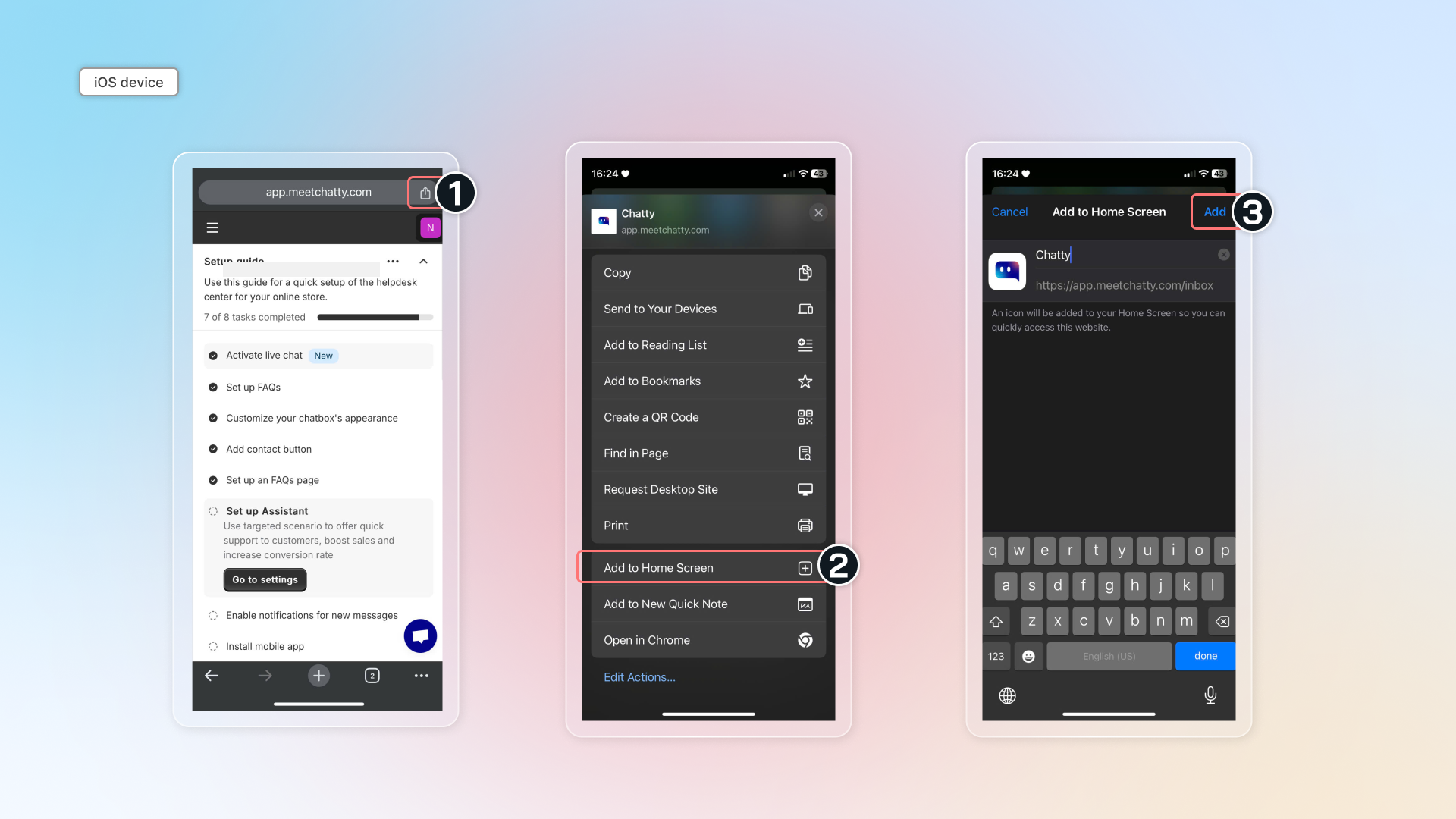
#### Chrome (iOS device)

Go to link -> Tap share icon on the top right -> Select "Add to Home Screen" and set up to add to your home screen.

<figure><img src="https://263145331-files.gitbook.io/~/files/v0/b/gitbook-x-prod.appspot.com/o/spaces%2FdHQiLAklXYfrIyImUrH0%2Fuploads%2FAO4nUWUH6TGBo34b28Yc%2Fchrome%20ios%20device.png?alt=media&#x26;token=4e9b621f-6cff-46b1-aac9-1326e6ddd2cb" alt=""><figcaption></figcaption></figure>

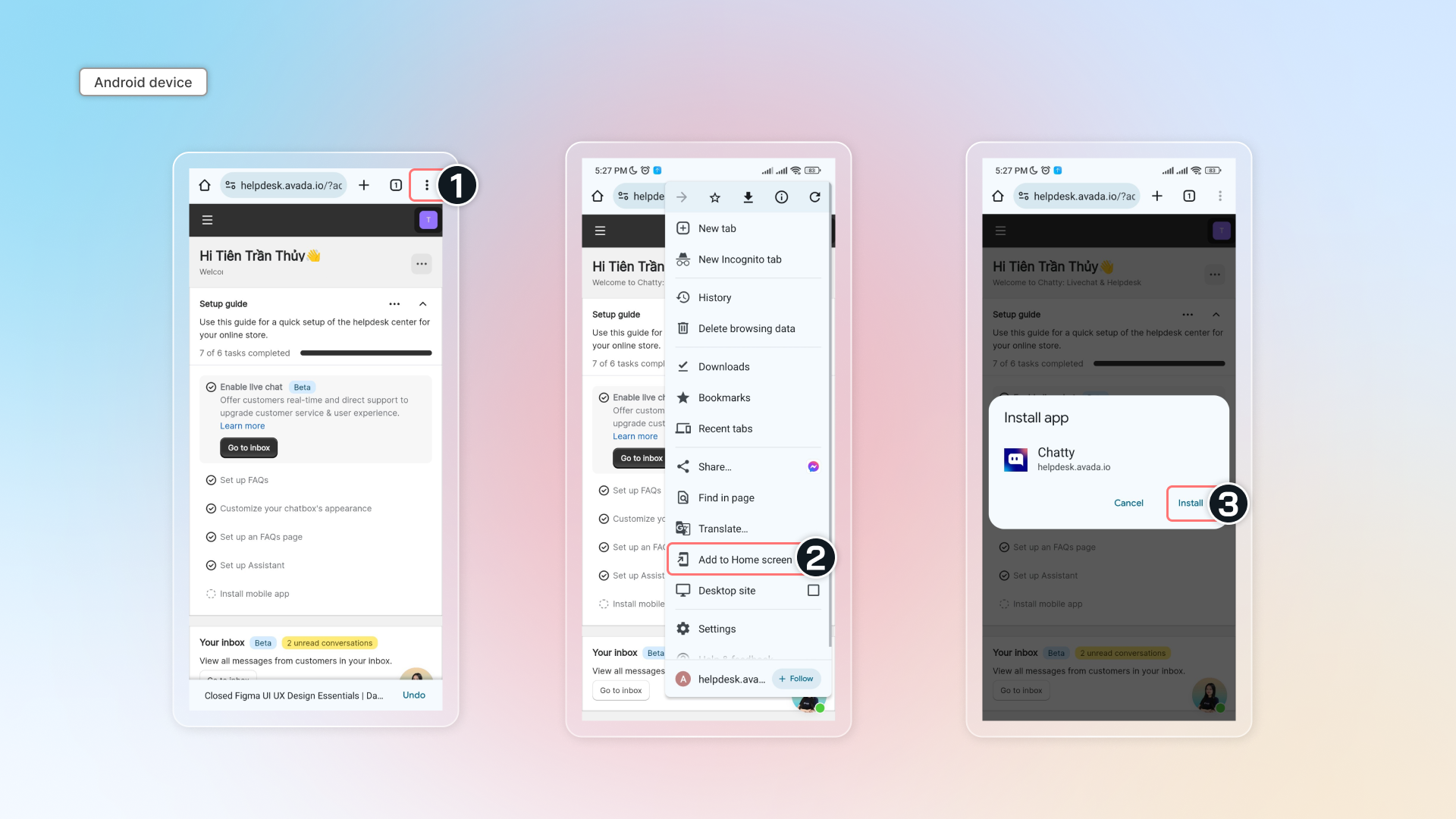
#### Chrome (Android device)

Go to link -> Tap top right menu icon -> Select "Add to Home Screen" and set up to add to your home screen.

<figure><img src="https://263145331-files.gitbook.io/~/files/v0/b/gitbook-x-prod.appspot.com/o/spaces%2FdHQiLAklXYfrIyImUrH0%2Fuploads%2F87Qn921o8qNX3wM7L2FC%2Fadd%20to%20home%20android.png?alt=media&#x26;token=40c7bdf7-ca52-4be0-92f6-24ca0ae3c992" alt=""><figcaption></figcaption></figure>

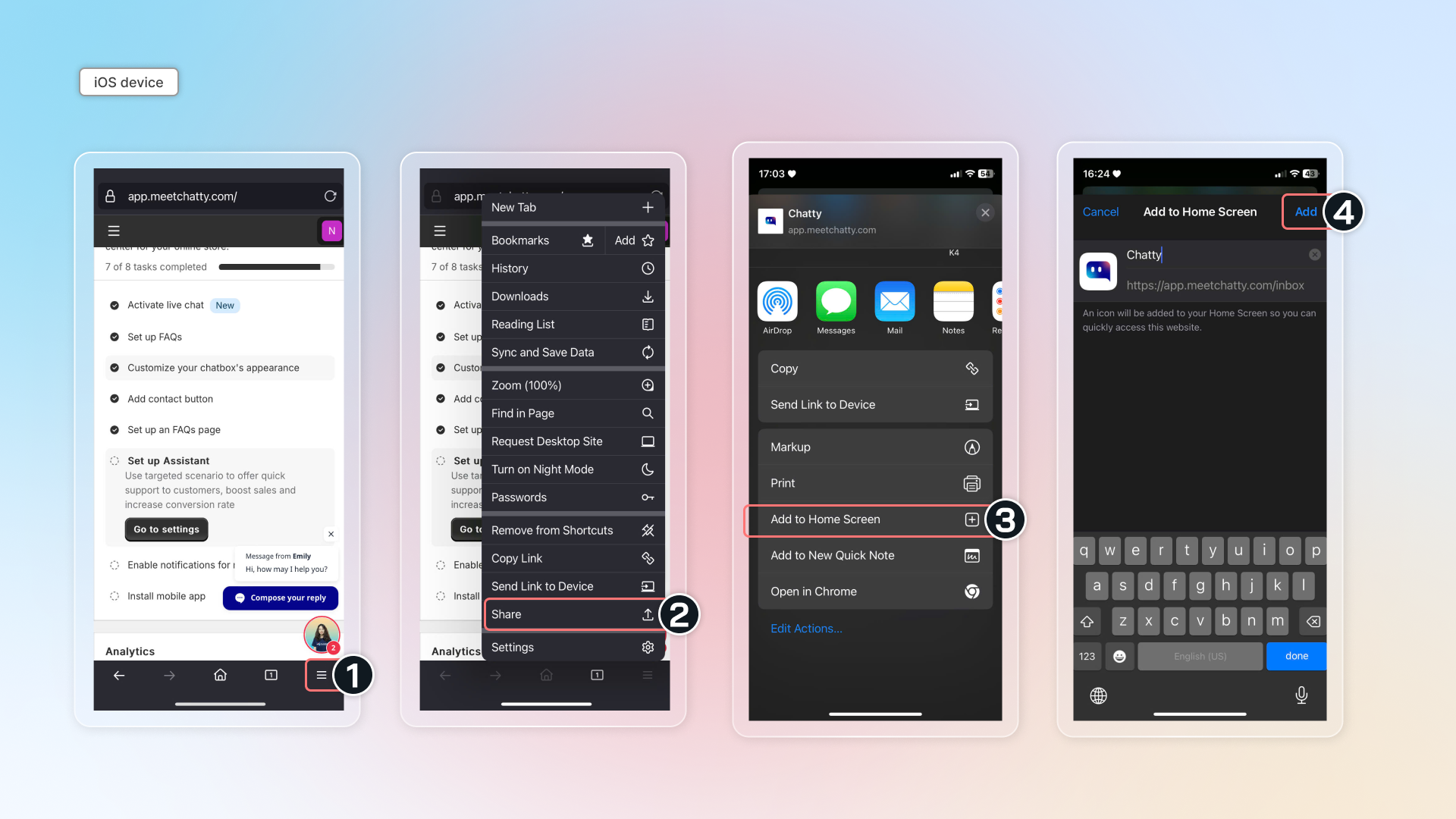
#### Firefox (iOS device)

Go to link -> Tap bottom right menu -> Select "Share" -> Select "Add to Home Screen" and set up to add to your home screen.

<figure><img src="https://263145331-files.gitbook.io/~/files/v0/b/gitbook-x-prod.appspot.com/o/spaces%2FdHQiLAklXYfrIyImUrH0%2Fuploads%2FvrsWymj9k6L19k83EQnz%2Ffirefox%20ios.png?alt=media&#x26;token=e2068dd8-3fe2-4f7d-9de3-c0b75dab5dfd" alt=""><figcaption></figcaption></figure>

{% hint style="info" %}
If you're using other browsers, please contact our support team in app for assistance.
{% endhint %}


---

# Agent Instructions: Querying This Documentation

If you need additional information that is not directly available in this page, you can query the documentation dynamically by asking a question.

Perform an HTTP GET request on the current page URL with the `ask` query parameter:

```
GET https://help.chatty.net/mobile-and-web-app/mobile-app.md?ask=<question>
```

The question should be specific, self-contained, and written in natural language.
The response will contain a direct answer to the question and relevant excerpts and sources from the documentation.

Use this mechanism when the answer is not explicitly present in the current page, you need clarification or additional context, or you want to retrieve related documentation sections.