# Settings
{% hint style="info" %}
**Who can use this feature?**
* This feature is available for all users
{% endhint %}
Go to **AI Assistant** → **Settings** to configure your AI assistant.
### AI identity
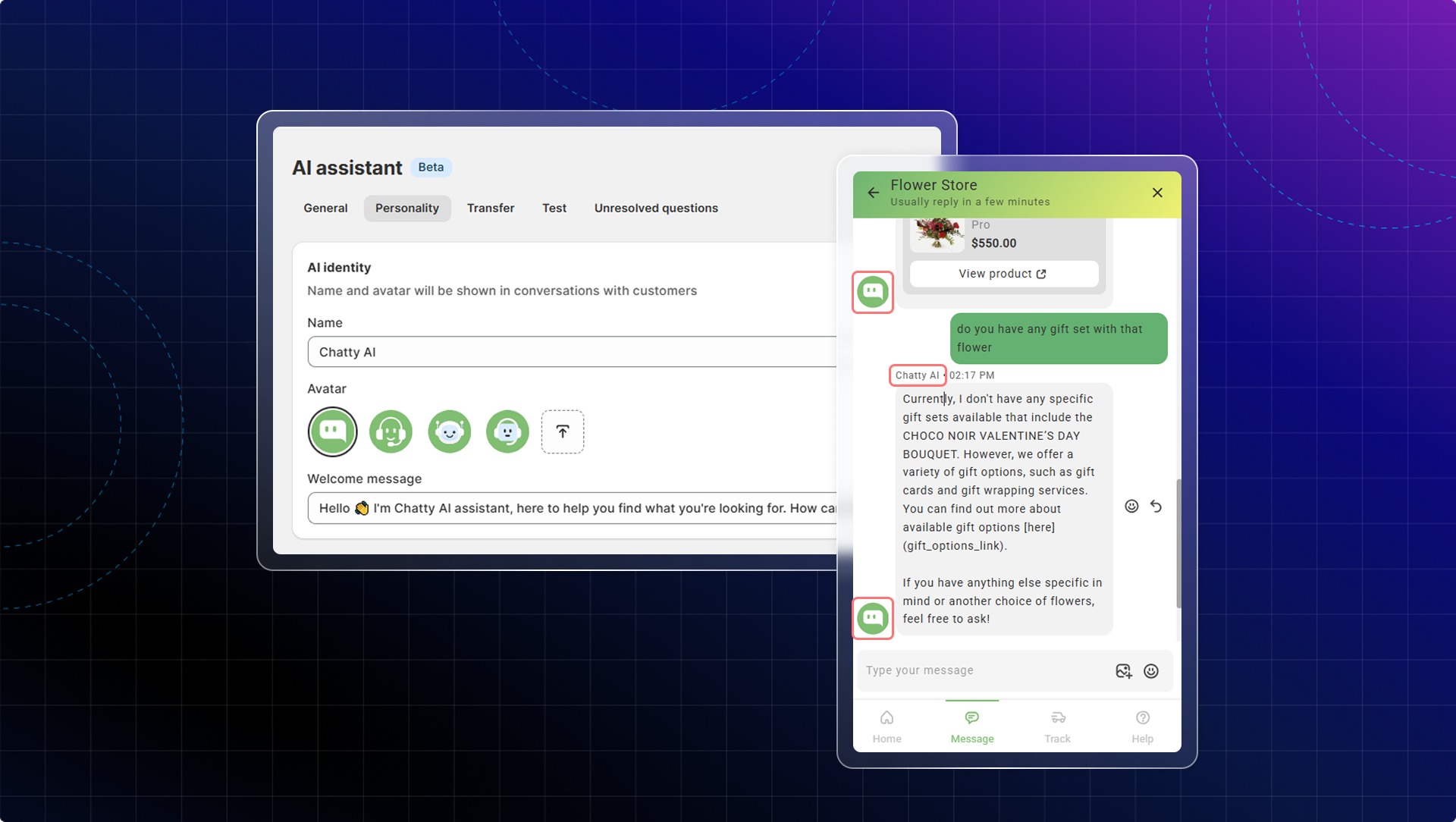
Customize your AI assistant's name and avatar. This is what customers see in conversations.
* **Name:** Give your AI assistant a display name (e.g. "Chatty AI", your brand name, or a friendly name)
* **Avatar:** Choose from preset avatars or upload your own
* **Welcome message:** The first message customers see when they start a conversation. Click **Insert customer name** to personalize it
### Support email addresses
Set the email address where customer contact forms and chat history will be sent. You can add multiple email addresses separated by commas.
### AI availability
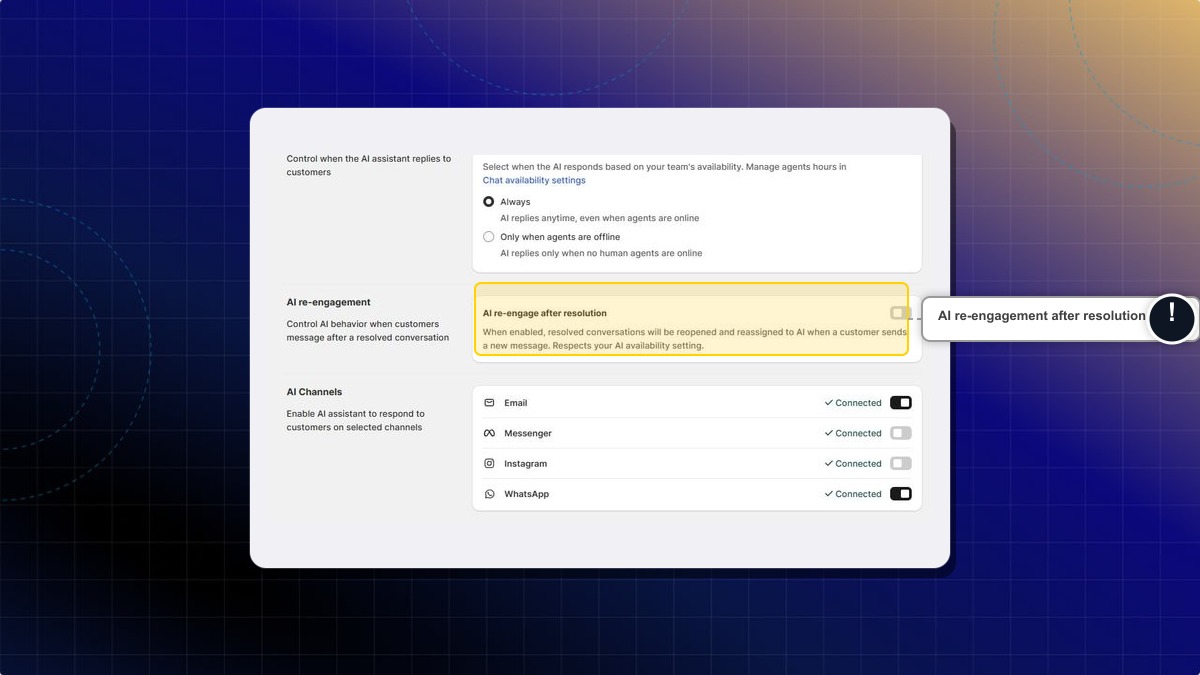
Control when your AI assistant replies to customers based on your team's availability.
* **Always** — AI replies anytime, even when human agents are online
* **Only when agents are offline** — AI replies only when no human agents are online. Manage your team's working hours in [Chat availability settings](https://help.chatty.net/live-chat/others)
{% hint style="info" %}
This setting also affects when the "Continue with AI" button appears to customers and when AI re-engagement is active. Choose **Always** if you want AI to handle first responses around the clock.
{% endhint %}
### AI re-engagement
Control what happens when customers message after a conversation has been resolved or when a human agent stops responding.
When enabled, resolved conversations will be reopened and reassigned to AI when a customer sends a new message. This counts as a new AI conversation.
* **Default:** OFF for existing stores, ON for new stores
* Respects your AI availability setting — if set to "Only when agents are offline," re-engagement only happens outside working hours
{% hint style="info" %}
This helps reduce response time and agent workload, especially outside business hours. Customers get instant AI support instead of waiting for a human agent to pick up.
{% endhint %}
### "Continue with AI" button
When a human agent stops responding, customers can choose to continue chatting with AI instead of waiting.
**How it works:**
1. Agent replies to the customer → button is hidden
2. Customer sends a new message, agent has not replied → a 5-minute timer starts
3. After 5 minutes with no agent reply → the **Continue with AI** button appears
**Conditions for the button to show:**
* The conversation is still open
* "Continue with AI" setting is not set to "Don't allow"
* If AI availability is set to "Only when agents are offline" → the button only appears outside working hours
### AI Channels
Enable AI to auto-reply on connected channels: Email, Messenger, Instagram, and WhatsApp. Each channel can be toggled on or off independently.
{% hint style="info" %}
For detailed setup instructions, see [AI Channels](https://help.chatty.net/ai/settings/ai-channels)
{% endhint %}
### Embed product AI assistant
Add an inline AI assistant directly on your product pages. Customers can ask product-specific questions and get instant answers without opening the chatbox.
{% hint style="info" %}
This feature is available for **Pro & Plus** plan users. For setup instructions, see [AI product page](https://help.chatty.net/ai/settings/ai-product-page)
{% endhint %}
### Embed homepage AI assistant
Add an AI chat widget on your store's homepage so customers can discover products and get help from the moment they arrive.
Unlike the product page assistant, the homepage AI answers based on your store-level knowledge — not tied to any specific product.
{% hint style="info" %}
For detailed setup and customization, see [AI homepage](https://help.chatty.net/ai/settings/ai-homepage)
{% endhint %}
---
# Agent Instructions: Querying This Documentation
If you need additional information that is not directly available in this page, you can query the documentation dynamically by asking a question.
Perform an HTTP GET request on the current page URL with the `ask` query parameter:
```
GET https://help.chatty.net/ai/settings.md?ask=
```
The question should be specific, self-contained, and written in natural language.
The response will contain a direct answer to the question and relevant excerpts and sources from the documentation.
Use this mechanism when the answer is not explicitly present in the current page, you need clarification or additional context, or you want to retrieve related documentation sections.